

Availability View: Complete Guide
The Availability View turns Shelf's Assets index into a calendar: one row per asset, with a bar for every upcoming and live booking, so you can see what is free and when.

Getting Started
What you need
- A Team workspace. Bookings are a Team feature, and bookings are what the calendar draws.
- A screen at least as wide as a tablet. On a phone-sized screen the toggle is hidden and the Assets index stays a list.
The view works in both index modes, the simple index and the Advanced Asset Index. You do not need to switch modes to use it.
Opening the Availability View
- Go to Assets in the sidebar.
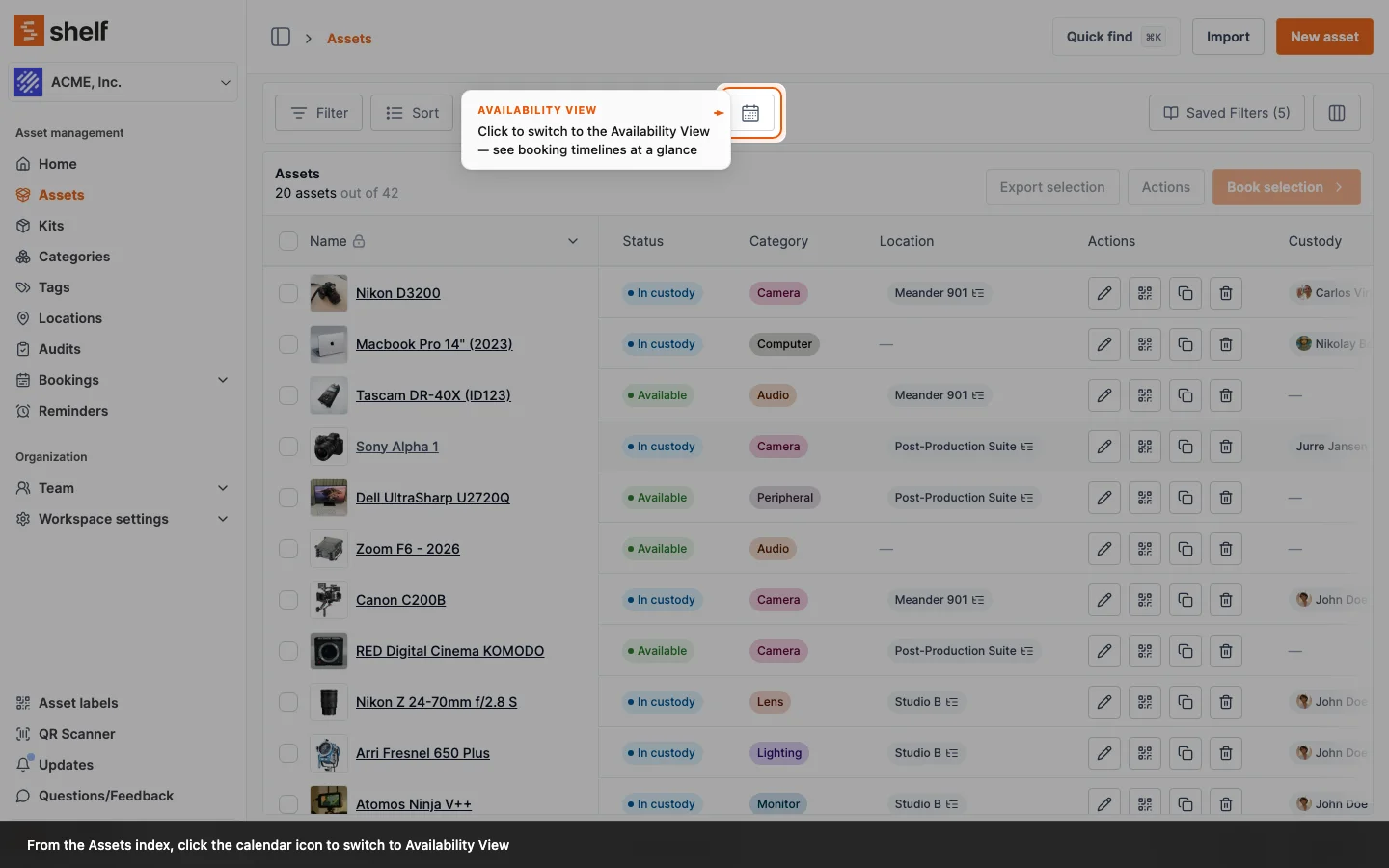
- Next to the search box there are two buttons: List view and Availability view (the calendar icon). Click the calendar icon.
- To go back, click List view.
The choice is part of the page address (view=availability), so you can bookmark the calendar or send the link to a colleague.
Understanding the Interface
Calendar layout
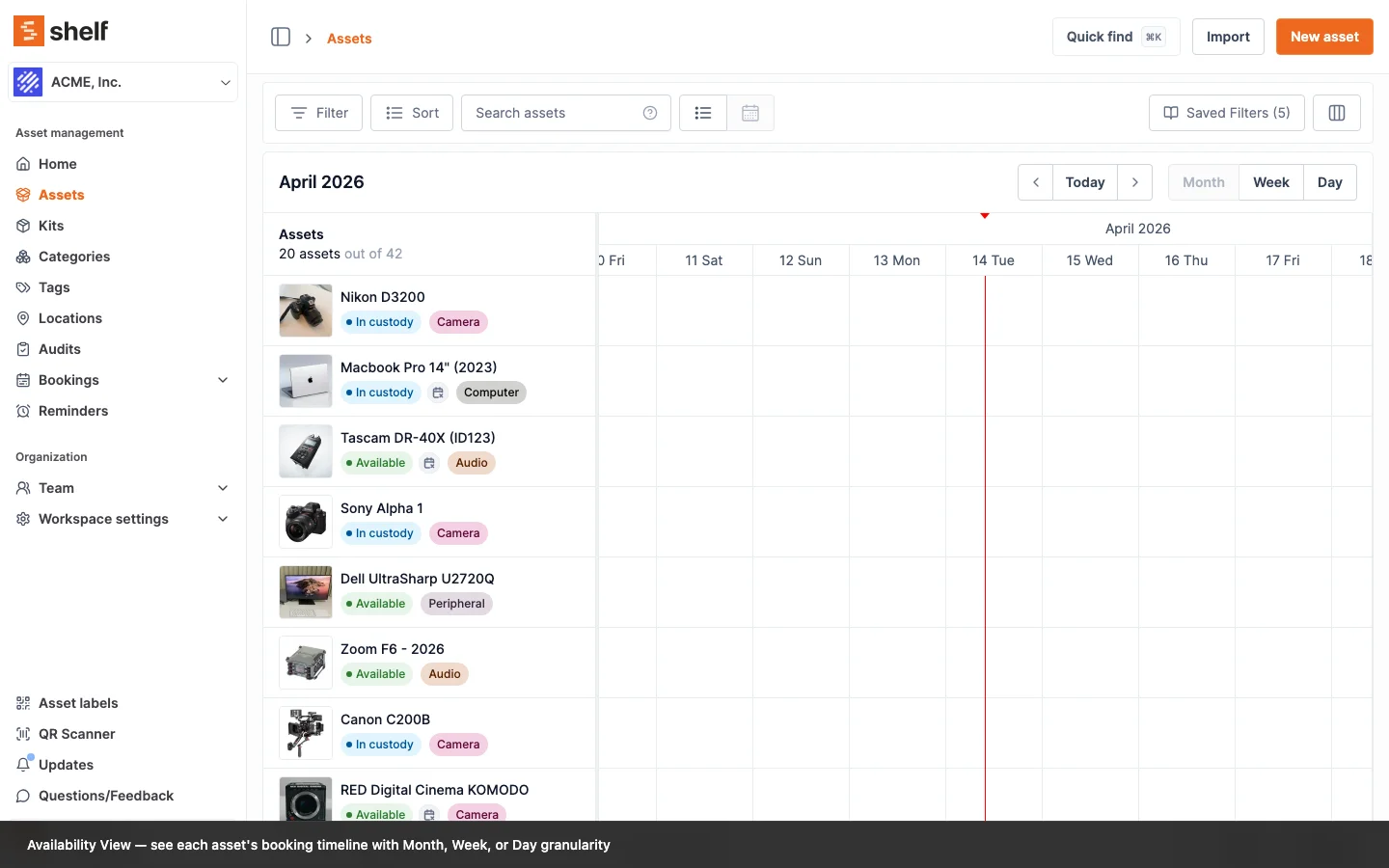
- Asset rows: every asset on the current page of the index gets a row on the left, with its photo, status and category. The header shows how many that is, for example 20 assets out of 42. Move to the next page of the index to see the rest.
- Timeline: dates run across the top. Switch between Month, Week and Day, step back and forward with the arrows, and jump back with Today.
- Booking bars: each bar is one booking holding that asset, drawn from its start to its end.
The calendar follows your own date and time preferences: the first day of the week, 12 or 24-hour times, and your time zone.
Which bookings appear
The calendar draws bookings that are Reserved, Ongoing or Overdue. Those are the bookings that hold an asset now or will hold it later. Drafts are not drawn, and neither are completed, cancelled or archived bookings.
Each bar is colored by the booking's status:
- Blue: Reserved
- Purple: Ongoing
- Red: Overdue
- Green: the asset has already come back from this live booking (see below)
What a bar tells you
The bar itself shows the booking's name. If your role lets you see custody, it also shows the custodian.
Hover a bar for the details: the booking name and status badge, its start and end, the custodian, who created it, and its tags. If the asset is on the booking through a kit, the popup names the kit. For quantity-tracked stock it also shows how many units the booking holds.
Click a bar to open the booking in a new tab.
When an Asset Comes Back Early
A booking often returns in pieces. Someone brings back one camera on Tuesday and keeps the rest until Friday. When an asset is checked in from a booking that is still Ongoing or Overdue (a partial check-in), its bar on that booking stops at the moment it was checked in and turns green.
- The bar reads Returned with the check-in time, followed by the booking name (and the custodian, if your role can see custody), so you can tell without hovering.
- The hover popup keeps the booking's real status and its full period, and adds a Returned line with the time. The booking itself is still live; only this asset has left it.
- The rest of the booking's assets keep their full purple or red bars until they come back too.
This matches how bookings already treat the asset. From the moment it is checked in, it is free: it shows up when you add assets to a new booking, and a new booking can reserve it.
A few cases keep the full bar:
- Quantity-tracked stock turns green only once every booked unit is back. A pool with some units still out keeps its full bar.
- If the asset goes out again on the same booking, its bar goes back to the booking's own color.
- An asset added to a booking after the booking went out, and never handed over, keeps the planned bar.
- The Kits index has its own availability view, and there a kit keeps its full bar until the booking ends.
- The Bookings → Calendar page draws one bar per booking rather than per asset, so it keeps showing the booking's full period.
Using Filters and Search
The calendar shows the same assets as the list, so whatever you have set on the index applies: the search box, the filters, and the sort order of the rows. Filter to a category, a location or a custom field value, then switch to the calendar to see only that equipment.
- Category: filter to "Camera" to see only camera availability.
- Location: filter to "Studio B" to see what that location holds and when it is free.
- Custom fields (Advanced Asset Index): filter by a field such as "Project Type" to see project-specific equipment.
Best Practices
1. Regular monitoring
- Weekly reviews: open the Week view every Monday for the coming week.
- Monthly planning: use the Month view for project planning and resource allocation.
- Overdue follow-up: red bars are bookings past their end date. Click one to open the booking and chase the return.
2. Strategic filtering
- Project-based views: filter by custom fields for project-specific planning.
- Location-specific planning: use location filters for multi-site organizations.
- Equipment type focus: use category filters for specialized equipment planning.
3. Team coordination
- Share the link: the calendar's address includes your filters, so a colleague who opens it sees the same equipment.
- Booking coordination: check the calendar before busy periods to spot assets that are already spoken for.
- Early returns: a green bar means that asset is back and can go out again before the booking ends.
4. Maintenance planning
- Find the gaps: look for stretches with no bars to schedule maintenance when nothing is booked.
- Reminders live elsewhere: the calendar draws bookings only. Track warranty expirations and service dates with Asset Reminders.
Common Use Cases
Event planning
Scenario: planning a 3-day conference
- Filter the index to the "AV Equipment" category.
- Open the Week view on the week of the event.
- Find the projectors, cameras and audio equipment with no bar across the event dates.
- Switch to List view, tick those assets, and click Book selection to start the booking.
Production scheduling
Scenario: a video production company scheduling shoots
- Filter by the "Camera Equipment" and "Lighting" categories.
- Use the Month view to see equipment availability.
- Plan shoots around the gaps.
- Avoid conflicts with existing bookings.
Maintenance coordination
Scenario: an IT department planning maintenance windows
- Filter by the "IT Equipment" category.
- Look for stretches with no bookings.
- Schedule maintenance in those gaps.
- Coordinate with any bookings that start soon after.
Multi-location resource sharing
Scenario: equipment sharing between office locations
- Filter by a specific location.
- Identify equipment with few or no bookings.
- Plan transfers between locations.
- Coordinate with transportation schedules.
Getting Help
If you need assistance with Availability View:
- Knowledge Base: search for specific topics
- Support Chat: use the chat widget for real-time help
- Email Support: contact support@shelf.nu for detailed questions
- Feature Requests: send ideas through Questions/Feedback in the sidebar
Availability View is included in every Team workspace, in both the simple index and the Advanced Asset Index.
Ready to try Shelf?
Put what you're learning into practice. Free plan available — no credit card required.