

Inviting Users via CSV Upload
Shelf allows you to invite multiple users simultaneously by uploading a CSV file containing their information, making it useful for onboarding teams or departments all at once.

Overview
Shelf enables bulk user invitations through CSV file uploads, making it particularly useful for onboarding teams or departments all at once.
Prerequisites
- Administrator permissions required in your workspace
- CSV file formatted according to the provided template
- Team subscription (user management is a team feature)
Getting Started
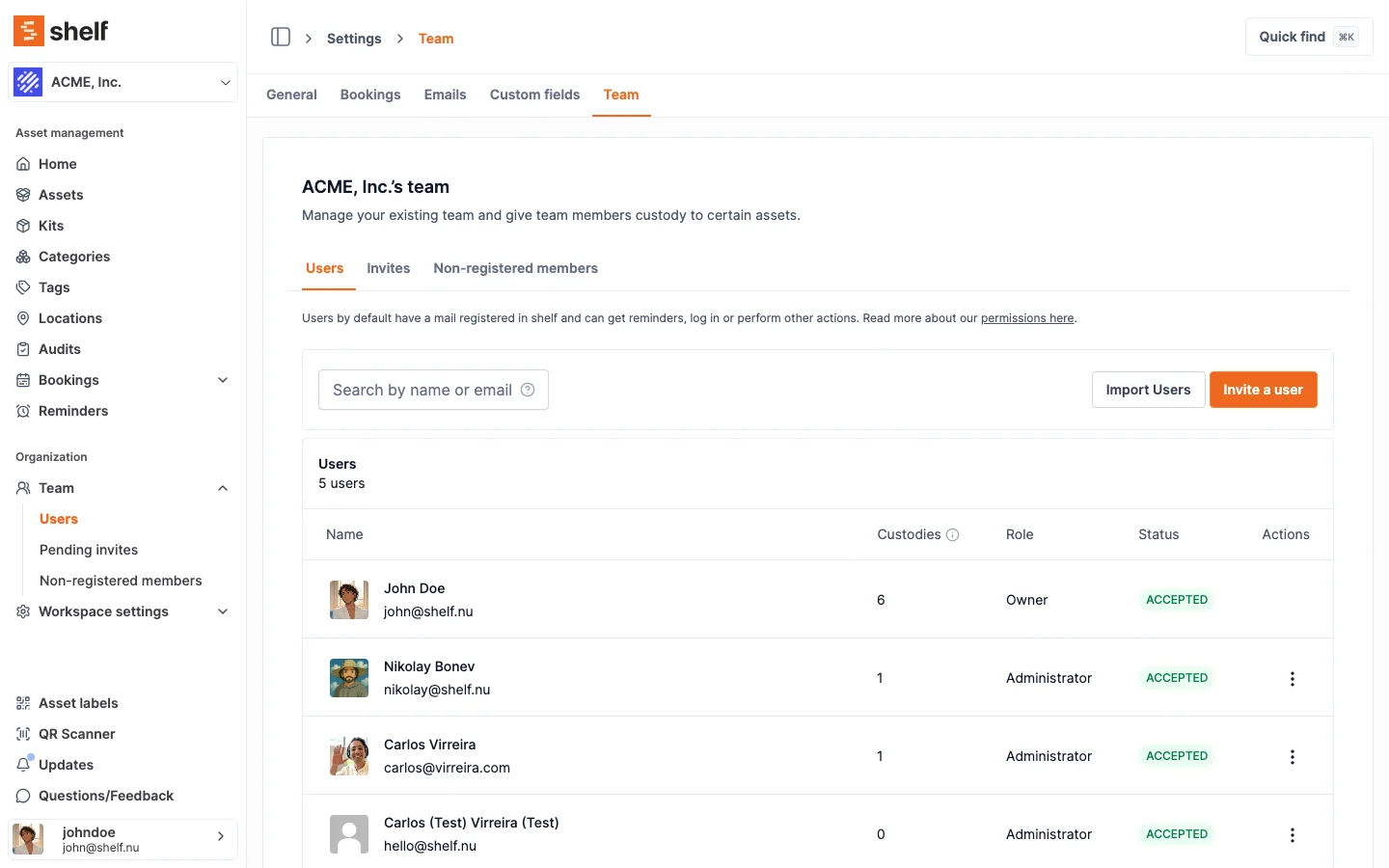
- Navigate to Settings > Team
- Click on Import Users
- Download the CSV template to ensure proper formatting
- Fill in the template with user information
CSV File Requirements
Base Rules
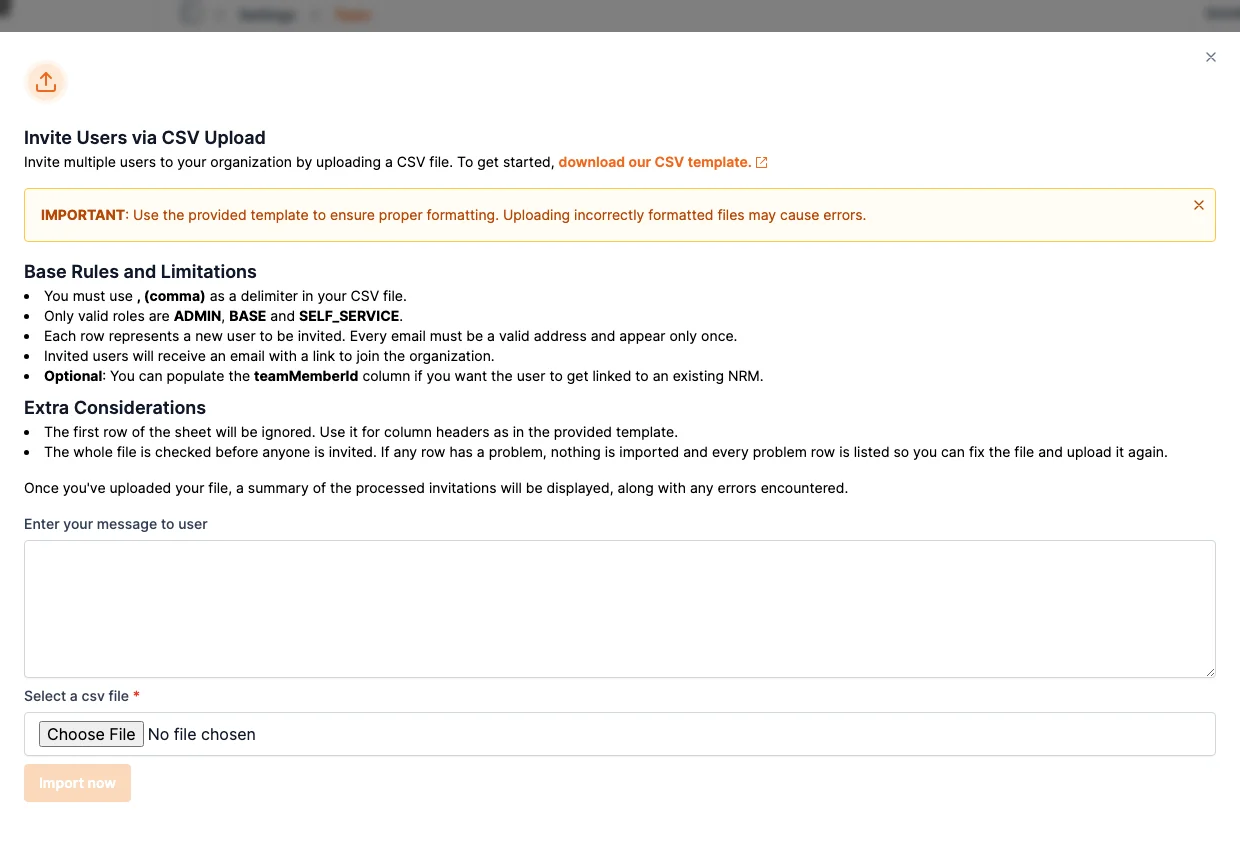
- Use comma (,) as the delimiter
- Valid roles: ADMIN, BASE, SELF_SERVICE. Capitals do not matter, so
adminworks the same asADMIN - Each row represents one new user
- Each email address must be valid and appear only once in the file
- First row reserved for column headers
- Up to 1,000 users per file. Split a larger list and import the parts one at a time
There is no OWNER role in this file. An import can create Administrators, Self-service and Base users, and nothing else. Ownership moves only through Transferring Workspace Ownership, which demotes the outgoing owner, handles the subscription, and emails both people. An invite can do none of that.
Columns
- role (required): the user's workspace role (ADMIN, BASE, or SELF_SERVICE)
- email (required): the user's email address
- teamMemberId (optional): the ID of a non-registered member in this workspace. When the person accepts, they take over that member, along with the custody and history recorded against it. Leave it blank to invite someone new. To find the IDs, open Settings → Team → Non-registered members, select the members, and click Export Selection: the file's Id column holds them.
Sample CSV Format
role,email,teamMemberId
ADMIN,john.doe@company.com,
SELF_SERVICE,jane.smith@company.com,cm7ep29mu0001slft9zw9e6sp
Import Process
- Prepare CSV file according to template
- Click Import Users in Team settings
- Add optional welcome message for invitation emails
- Select prepared CSV file
- Click Import now
The Whole File Is Checked First
Shelf reads every row before it invites anyone. If any row has a problem, nobody is invited and nothing is created, and the dialog lists each problem in a Row / Problem table, using the row numbers you see in your spreadsheet. Fix those rows and upload the file again. There is no half-finished import to unpick.
A row is refused when:
- The role is missing, or is not one of ADMIN, BASE or SELF_SERVICE. That includes
OWNER, since ownership moves only through ownership transfer. - The email is missing or is not a valid address. A name typed into the email column is caught here, instead of becoming an invite that can never be delivered.
- The same address is on an earlier row, in any capitals. The later row is listed and names the row it repeats. Delete one of them.
- The same teamMemberId is on an earlier row. One non-registered member can be claimed by one person.
- The teamMemberId is not a member of this workspace, for example an ID copied from a different workspace.
- The address is on a domain that uses SSO and cannot be invited this way. The problem says why: either your identity provider adds that domain's users for you, or the person has to sign up through SSO first.
Every row is checked on each upload, and the table lists up to 100 problems. A file with more than that says "Showing the first 100 of N problems. Fix these and upload again to see the rest."
After Import
- Users receive email invitations with a secure join link
- The summary lists who was invited and who was skipped
- A person who is already a member, or already has a pending invite, is skipped rather than invited again. Skipping is not an error, so it does not stop the rest of the file
- New users must accept the invitation to gain access
Capital Letters in an Email Address Do Not Matter
An email address means the same person however it is typed. First.Last@company.com and first.last@company.com are one address, not two.
- A row listing an address that is already a member in different capitals is skipped as already in the workspace, instead of inviting that person a second time.
- A file listing one address twice in different capitals is refused as a duplicate, like any repeated address, so you choose which row to keep.
- An address that already has a pending invite in different capitals is recognised as the same pending invite.
Addresses are stored in lower case from the import onward, and leading or trailing spaces are trimmed. The team member's name still comes from the address exactly as you typed it, because that becomes the first name of the account created when the person accepts.
Invites already sitting in your workspace with capital letters keep working as they are.
If someone told you the invite link said "Wrong user", this was why, and it is fixed. An invite created by a CSV import kept the capitals, while the person's account email was lower case, so opening the link while signed in refused them. Signed out, someone who already had a Shelf account got an error page instead of joining. Both now work. See Troubleshooting: Team Invite Not Received.
Troubleshooting
- Nothing was invited and a table of rows appeared. The file was refused as a whole. Fix every row the table names and upload it again.
- Verify the CSV uses a comma delimiter
- Check that no role says
OWNER - Make sure each address appears only once
- Copy teamMemberId values from this workspace's Non-registered members export, not from another workspace
Best Practices
- Review CSV before upload for accuracy
- Include clear welcome message with context or instructions
- Keep track of sent invitations
- Follow up with users who have not accepted
Support Contact: hello@shelf.nu
Ready to try Shelf?
Put what you're learning into practice. Free plan available — no credit card required.