

Transferring Workspace Ownership
How to make another team member the owner of your workspace, what changes for the new and previous owner, and how your subscription is handled. The transfer is permanent.

To make someone else the owner of your workspace, you transfer ownership from your workspace settings. Only the current owner can do this, and the transfer is permanent.
This is the only way ownership moves. Owner is not one of the choices in the Change role dialog, and it cannot be granted by an invitation or a CSV user import — those offer Administrator, Manager, Self-service and Base only. Everything that has to travel with ownership, from the subscription to the confirmation emails, is handled by the transfer, which is why there is a single route rather than several.
Before You Start
- You must be the current owner of the workspace.
- The person you are transferring to must already be an Administrator in the workspace. If they are not, change their role to Administrator first. If the workspace has no other admins, the transfer button does not act and tells you to change a team member's role to Administrator first.
- This applies to Team workspaces. A Personal workspace has a single user, so there is no one to transfer it to. Open a Personal workspace's General settings and the card says so, and points you at the alternative: changing the email address on your account. See the FAQs below.
Where to Find It
There are two ways in, and both land on the same card:
- Workspace settings → General, in the Transfer workspace ownership card.
- Workspace settings → Team, from the Transfer ownership button at the top of the page, next to Import Users and Invite a user. It takes you straight to the card. It sits in the page header rather than on a member's row, because transferring is a page-level action and not something you do to one person's row.
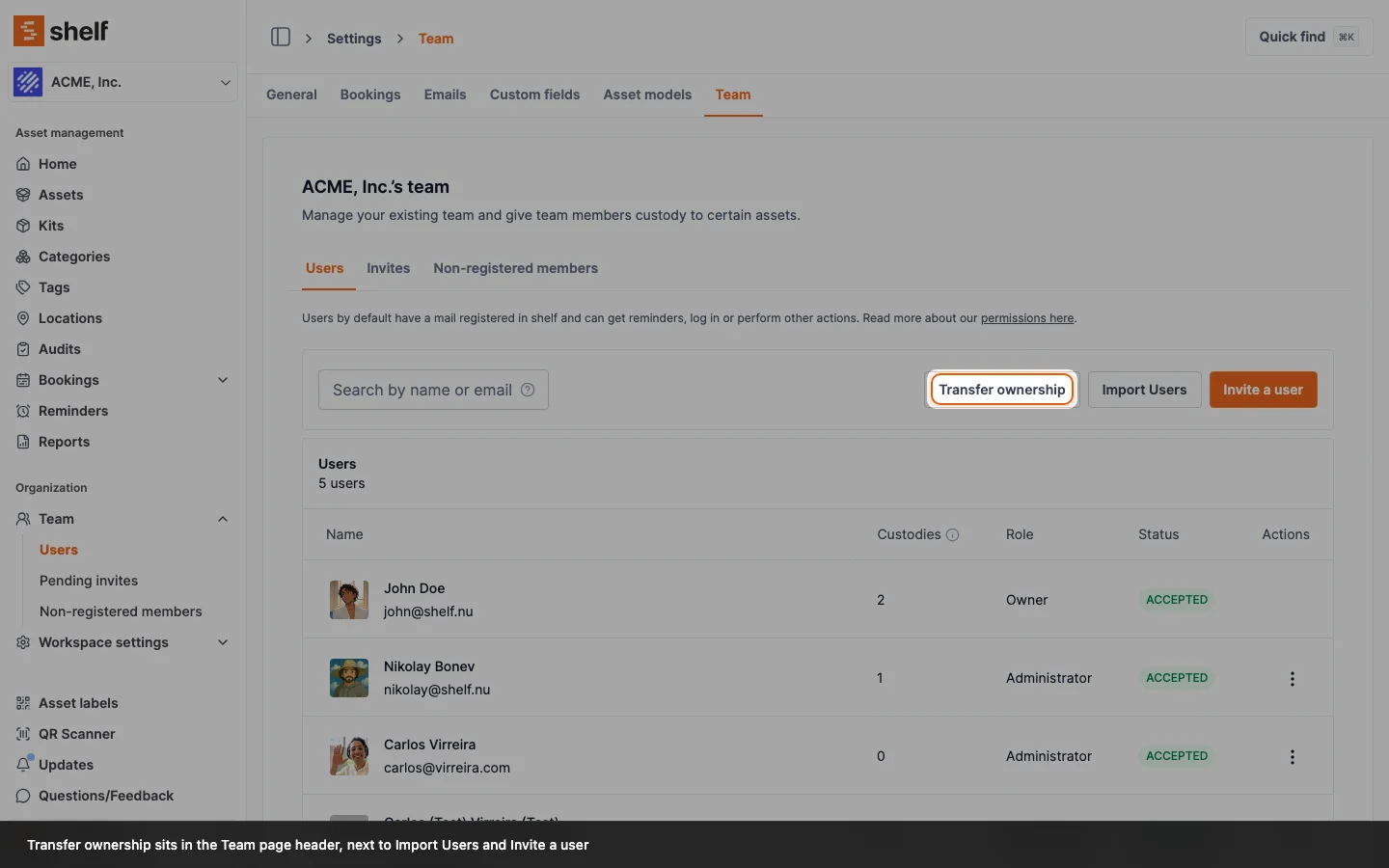
Every state of the card links back to this article, so you can read the consequences before you start.
How to Transfer Ownership
- Go to Workspace settings → General.
- Find the Transfer workspace ownership card.
- Select the new owner from the list of administrators.
- Decide whether to transfer your subscription as well (see Billing below).
- Type the workspace name exactly as shown to confirm.
- Tick I understand this action cannot be undone, then click Transfer ownership.
The transfer takes effect immediately. Both you and the new owner receive a confirmation email.
If You Are Not the Owner
Administrators cannot transfer ownership, but they can now see who can. Both places name the owner instead of showing nothing:
- Workspace settings → General shows the card with the line "Only the workspace owner can transfer ownership of this workspace", with the owner's email address in it.
- Workspace settings → Team shows the Transfer ownership button greyed out. Hover it, or tap it on a phone, and it names the owner. Screen readers are told the same reason, so the button is never just a dead grey control.
This matters most when an owner has handed day-to-day management to an administrator. Ask the owner to run the transfer, or ask them to make you the owner so you can manage the workspace and its billing yourself.
What Changes After the Transfer
For the new owner:
- They become the workspace Owner and take over workspace settings and billing.
For you (the previous owner):
- Your role becomes Administrator. You keep full access to the workspace, its assets, and its history.
- You can no longer manage billing or ownership for this workspace.
The transfer is permanent. Confirm the details before you complete it.
Billing and Your Subscription
Transferring ownership is separate from your subscription. By default, your subscription stays on your account, and you choose whether to move it.
If you keep your subscription (default): billing stays with you. Note that a workspace's plan follows its owner, so if the new owner is on the Free plan, the workspace runs on Free-plan limits after the transfer.
- Bookings and audits are not affected. These are Team-workspace features and remain available.
- What becomes unavailable on Free: asset CSV import, asset CSV export, importing non-registered members, hiding Shelf branding, and custom fields.
For the workspace to keep those paid capabilities, the new owner needs their own paid plan, or you can transfer your subscription with the ownership.
If you transfer your subscription too: tick Transfer my subscription to the new owner. They continue on the current billing cycle and add their own payment method before the next billing date. If you own other Team workspaces, moving your subscription away removes their premium capabilities, so Shelf shows a warning before you confirm.
The Team trial goes with the workspace's history. If you already used your Team trial, the new owner's account is marked as having used it too, whether or not you transfer your subscription. The workspace already holds your assets, people and history, so a new owner cannot start a second free trial on it. If you keep your subscription and the new owner never had a trial of their own, they see Upgrade to Team without a trial button. If you transfer your subscription, the workspace stays on Team and there is nothing for them to upgrade. See One Team trial per account.
One limitation: you cannot transfer ownership to someone who already has their own active subscription, so that the workspace never ends up with two separate active subscriptions. If you see this, the intended new owner should cancel or let their own subscription lapse first, then you can complete the transfer (and optionally transfer your subscription for billing continuity).
FAQs
The person I want to make owner is not in the list. Only administrators can become the owner. Change their role to Administrator first, then they will appear in the list.
Do I lose access to the workspace after transferring? No. You stay in the workspace as an Administrator, with your assets and history intact. You only lose owner-level control, such as billing.
Can I transfer a Personal workspace? No. Personal workspaces are single-user, so ownership transfer applies to Team workspaces with at least one other administrator. To hand a Personal workspace to someone else, change the email address on the account instead, under Account settings → General. The card on a Personal workspace's General settings says the same and links you there.
I am an administrator and I cannot find the transfer anywhere. That is expected. Only the owner can run the transfer. Workspace settings → General and Workspace settings → Team both name the current owner, so you know who to ask. On the Team page, hover or tap the greyed-out Transfer ownership button at the top to read their address.
Can we remove the owner from the workspace instead? No. The owner's access cannot be revoked while they own the workspace, and the Revoke access action tells you so. That would leave nobody able to manage billing or hand ownership on, with no route back through the interface. Transfer ownership to another administrator first. The previous owner becomes an administrator, and the new owner can then revoke their access — revoking an administrator is an owner-only action, so it has to be done by whoever holds ownership at that point. The same applies to accounts managed by an identity provider: deprovisioning the owner through SSO fails rather than stranding the workspace, and an owner who signs in with SSO keeps the Owner role whatever their identity-provider groups say. Group mappings never change ownership; only this transfer does.
Ready to try Shelf?
Put what you're learning into practice. Free plan available — no credit card required.