

Understanding QR Code Swapping and Management in Shelf
QR code swapping gives flexibility in your asset operations. This powerful tool allows you to replace an asset's existing QR code with a new one while maintaining all asset data.

The QR Code Swapping Feature
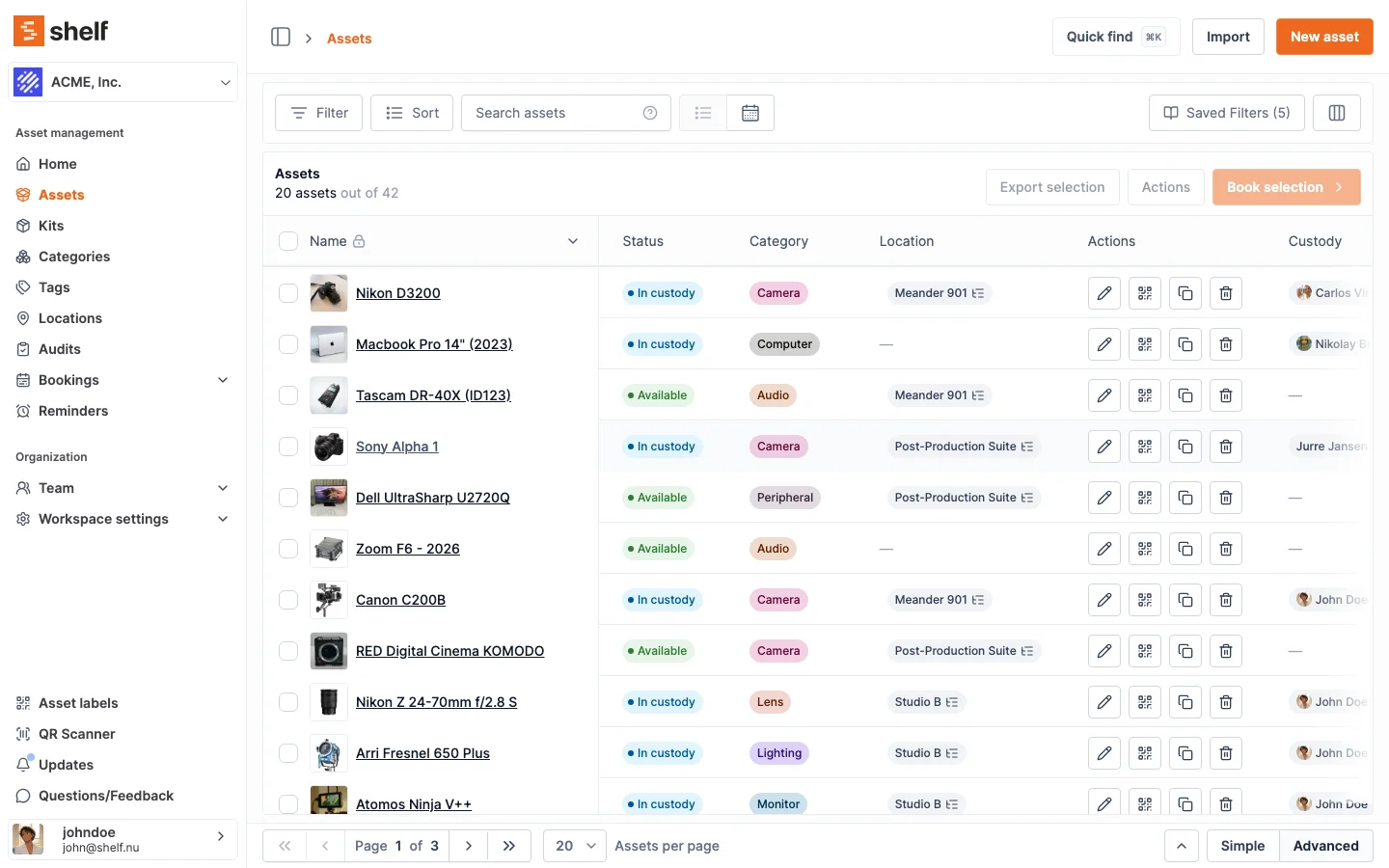
How it works
- Navigate to the asset page
- Click the dropdown menu and select "Relink new code"
- Use the camera to scan a new QR code
- Confirm the swap
Good to know: Once you link a new code to an asset, the previously-linked code becomes unlinked — it stays owned by your workspace and can be re-linked to a different asset or kit at any time. No code is ever burned or wasted.
Types of QR Codes in Shelf
Two types of alternative codes exist in Shelf:
Unlinked Codes
- These are codes that belong to your workspace but aren't attached to any asset
- You can request unlinked codes specific to your workspace
Unclaimed Codes
- These are the codes used to generate asset labels for the Shelf store
- They can be used to swap codes on existing assets or create new assets/kits
- If an asset using an unclaimed code is deleted, that code stays owned by your workspace and becomes available to re-link to a different asset or kit within it
Scenarios and Use Cases
Scenario 1: Swapping with an Unlinked Code
- You have "Asset A" with its original QR code
- You request an unlinked code for your workspace
- You swap Asset A's code with the new unlinked code
- Result: Asset A now has the new code, and the old code becomes unlinked (available for use with another asset in that workspace)
Scenario 2: Swapping with an Unclaimed Code
- You have "Asset B" with its original QR code
- You have unclaimed codes from the Shelf store
- You swap Asset B's code with an unclaimed code
- Result: Asset B now has the new code (claimed by your workspace), and the old code becomes unlinked — still owned by your workspace and available to re-link to a different asset or kit
Scenario 3: Deleting an Asset
- You delete an asset that had a QR code linked to it
- Result: The QR code becomes unlinked but stays owned by your workspace. You can scan that physical sticker again and the app will show an Unlinked QR Code page with options to create a new asset/kit or link to an existing one. See Fixing Incorrectly Assigned QR Sticker Codes for the full walkthrough.
Best Practices and Tips
- Always double-check before swapping codes to ensure you're using the correct new code
- Keep track of your unlinked and unclaimed codes to maintain an organized system
- Remember that swapping codes doesn't change any other asset information -- it only changes the QR code associated with the asset
- One asset can have multiple QR codes linked to it over time. If you've printed several stickers for the same item and then delete or unlink that item, every one of those stickers becomes individually reusable
- Scan history persists per QR code. Every scan is recorded under that QR's identifier, even across re-links. If you audit scan history for a specific code, you'll see scans from before and after a reassignment under the same QR ID
- Made a mistake and need to fix a wrongly-linked sticker? See Fixing Incorrectly Assigned QR Sticker Codes
Troubleshooting
If you encounter issues while swapping codes or have questions about code management, contact the support team at support@shelf.nu.
Ready to try Shelf?
Put what you're learning into practice. Free plan available — no credit card required.