

Troubleshooting: Booking Conflicts and Scheduling Issues
Can't book an asset? Getting a conflict error? Here's how Shelf's booking conflict prevention works and what to do when you're blocked.

Shelf prevents double-bookings automatically — if two people try to reserve the same asset for overlapping dates, the second booking is blocked. For quantity-tracked assets, where one record stands for a pool of identical units, the check is about counts rather than identity: the question is whether enough units are free for your dates. This article explains how conflict prevention works in both cases and what to do when you hit a scheduling issue.
"This asset is not available for the selected dates"
This means someone else already has a booking that overlaps with your requested time window. To see who:
- Open the asset's page → Bookings tab — all reservations are listed with dates and custodians
- Or check the Calendar (Bookings → Calendar in the sidebar) in week or day view to see the visual overlap
If the existing booking is wrong or outdated, ask the booking owner or a workspace admin to cancel or shorten it.
Asset shows "Unavailable" and can't be booked at all
An admin may have marked the asset as not available for bookings. This is separate from custody — it's a toggle on the asset page:
- Open the asset → right sidebar → look for Available for bookings toggle
- If it's off, the asset can't be booked regardless of dates
- Only admins and owners can toggle this setting
Common reasons an asset is marked unavailable: it's in maintenance, out for repair, decommissioned, or reserved for a specific department outside the booking system.
Self-service and Base users won't find it in their asset list at all. Their list and search show only assets that are available for bookings, plus anything already in their custody or checked out to them. They can still open the asset from its QR code or a link. See which assets Self-service and Base users see.
If the asset is already sitting on a booking that is still in Draft, that booking cannot be reserved while the toggle is off. Hover the greyed-out Reserve button and its tooltip names the assets, up to five, with the kit each one sits in (for example Barndoors in kit Aputure 120d II Kit 02) and a count of any more. A kit on the booking that carries one of them shows an amber Unavailable badge beside its status, so you do not have to open every kit to find it. Take the asset off the booking, or switch the toggle back on, and Reserve becomes available again.
The asset's own status chip can still read Available. That chip says the asset is on the shelf; Available for bookings is a separate setting, which is why the badge and the tooltip are the places to look.
Booking a kit — the kit itself, or one item inside it
A kit is one physical case, so it can only be on one booking at a time for a given period — the same exclusivity an individually tracked asset has, with the kit as the holder. Two checks can block a kit booking, and the wording tells you which one you hit.
The kit is already on another booking
Another booking that overlaps your dates holds the kit if it is Reserved, or if it is Ongoing or Overdue and its share of the kit is still out. An Overdue booking that still has the kit out holds it for every date, even when its own dates ended before yours begin, because nobody knows when the kit is coming back. Reserving, checking out, extending or scanning onto your booking is refused under the heading Booking conflict:
Cannot reserve booking. Some kits are already booked or checked out for an overlapping period: [first kit], [second kit], [third kit] and 2 more. Please remove them and try again.
At most three kits are listed by name and the rest are counted, the same shape the asset-level refusal uses. Take the kit off your booking, move your dates, or wait for the other booking to end.
You are also warned before you get that far. A kit that is already spoken for shows an "Already booked" badge in the Manage kits picker and on the kit's row inside a booking, with the tooltip "This kit is already added to a booking that is overlapping the selected time period."
Scan to check out warns you while you scan, too. A scanned kit that another booking holds is listed under "1 kit is already booked or checked out on another booking.", and an asset scanned on its own whose kit is held that way under "1 asset is part of a kit that is booked or checked out on another booking." Check out assets stays disabled until you remove them from the list.
An item that was removed from the kit after your booking was made no longer holds the kit — it is a standalone asset on that booking and is measured as one.
One item inside the kit is blocked
Separately, Shelf checks every individually tracked item inside the kit. If one component has a conflicting booking of its own, the kit booking is blocked too. To find which item:
- Open the kit → Assets tab
- Check each item's Bookings tab or look at the calendar for the date range you want
- Resolve the conflict on the blocking item (cancel, shorten, or remove it from the kit)
Kits made only of quantity-tracked stock
Until 15 September 2026 this was the gap. Pooled stock is counted rather than claimed, so a kit built entirely from quantity-tracked assets — a box of clamps, sandbags and cabling with no individually tracked item in it — had nothing to trip the item-level check, and two overlapping bookings could each reserve, check out and scan the same case with no warning anywhere. Kits that mixed in even one individually tracked item were always exclusive, through that item.
The kit-level rule closes it for every kit, whatever it is made of.
What is still not checked
Adding a kit to a booking that is already Reserved does not run the clash check. A double booking made that way is caught later, when someone tries to check out, fulfil, extend or scan — not at the moment the kit went on. Single assets have the same gap when they are added to a reserved booking, so this is one question for all of them rather than a kit-specific hole.
"Some kits in this booking are currently in custody"
A kit that someone holds in custody cannot be checked out on a booking, whatever it is made of. The Check out button is disabled with that message, Scan to check out lists the kit under a currently in custody blocker, and a request that reaches the server anyway, the Shelf Companion app included, is refused under Kits in custody:
Cannot check out booking. Some kits are in custody: Camera Kit A. Release their custody first or remove them from the booking.
Release the kit's custody from the kit page, or take the kit off the booking. Adding the kit and reserving the booking were allowed on purpose: the kit is assumed back before the booking goes out, so the question is asked at the moment it matters. Before 6 October 2026 a kit built only from quantity-tracked stock slipped through this check and went out on a booking while its custodian still held it. See A kit in custody stays home.
The same check answers a kit that another Ongoing or Overdue booking still has out, with Cannot check out booking. Some kits are still checked out on another booking: Camera Kit A. Check them in there first or remove them from this booking. Check the other booking in, or remove the kit.
Quantity-tracked assets: "Stock conflict" and "Insufficient stock"
Pooled stock is checked the same way a single asset is: Shelf won't let you reserve units that aren't free for your dates, and it says so at the moment you commit them. Every route counts, so there is no door that skips the check: confirming the booking, adjusting a row's quantity, editing what the booking holds, and scanning items onto it, from the web or from the Companion app.
What it can't prevent is a pool getting smaller after a booking is already confirmed. Two everyday things do that: a previous booking comes back late, or someone hands units out as custody in the meantime. Cancelling somebody's booking behind their back would be worse than telling them, so Shelf flags the booking instead.
Amber "Stock conflict" pill on a bookings list. One of that booking's pooled items is short for its dates. You'll see the pill on the Bookings index, on an asset's or kit's Bookings tab, on My bookings, and on a team member's bookings. Open the booking to see which item it is.
Red "Insufficient stock" badge on an asset row inside a booking. That's the item. It reserves more units than are free once custody, other bookings, and active checkouts are counted, and check-out is blocked at that quantity until it's sorted. Either way works:
- Open the row's dropdown, choose Adjust quantity, and lower it to fit. The dialog shows what's available for your dates. Reducing always works, even on a booking that's already short, so you never have to cancel to get out of it.
- Or free units elsewhere: check in the late booking, release the custody, shorten or cancel an overlapping booking, or restock.
Amber "Checked out elsewhere" badge. Not a blocker, just a heads-up. Your dates are fine; some units are simply out on another booking right now and are due back before yours starts. On used-up stock it's a maybe rather than a promise: those units are consumed when the other booking is checked in, not returned, so the pool can end up smaller. If that leaves you short, the badge turns into the red one above and a restock clears it.
Neither badge appears on a row a kit supplied. Both figures describe the loose pool — what is left after custody and kit slices are taken off it — and a kit-driven row does not draw on that pool. Its units come out of the kit's own slice, which is exactly what was already subtracted. A projector case holding the last two clamps in the workspace used to read "requested 1, only 0 available" on every pooled member, on the booking list and in the assets sidebar, while reserving and checking the booking out worked perfectly. The badges now follow the same rule the write paths always used, so the row stays clean. A member that was later removed from the kit is a standalone slice again, and is measured against the loose pool like any other.
"Only N units available"
You asked for more units than are free on your booking's dates. The Adjust booked quantity dialog stops you first, with Only 3 sandbags available. Please reduce the quantity. If the pool shrank while the dialog was open, the same refusal arrives from the server with the asset and both figures named: Only 3 sandbags available for "Sandbag (Counterweight)" in this window — you requested 12. Reduce the quantity to continue.
A reservation made by asset model rather than by specific unit has its own wording, Only 3 of 5 available in this window — reduce the quantity to continue, because a model reservation is measured against the units of that model rather than against one asset's pool.
Whichever wording you get, the figure is about your dates, not the whole calendar, so it's often higher than you'd expect: a booking that ends before yours begins isn't competing with you. Ten sandbags booked out 7 at a time in three different weeks still leaves 3 free in each of those weeks.
Two things count against you no matter what dates you pick:
- Overdue bookings. Nobody knows when a late return is coming back, so its units stay unavailable for every date until someone checks it in.
- Units in custody or earmarked to a kit. These come off the pool before dates are considered at all.
"Cannot reduce quantity below commitments"
You tried to lower an asset's total quantity below the units already promised out. Shelf blocks this so stock can't vanish from under a booking that depends on it. Release the custody, remove the units from the kit, or reduce the overlapping bookings first, then lower the total.
A booking already underway took an item your reservation was holding
A booking that has already started outranks a reservation that was created after it started. If someone's booking is Ongoing or Overdue and it still has an item to hand out, it can check that item out even when your later reservation also holds it for an overlapping period.
This closes a dead end rather than opening one. A booking that had already begun couldn't previously check out its own remaining items once anyone reserved them afterwards, and there was no way to resolve it from inside Shelf.
Nothing happens silently. Both bookings get a note on their activity timeline naming the other booking and the items involved. On the reservation, it reads along the lines of "...were checked out by [booking], which overlaps this reservation and is already in progress. You may need to replace them before this booking starts." If you're the one who lost an item, swap in a replacement before your booking starts, or shorten the booking that's holding it.
Three things still block, exactly as before:
- Two reservations clashing. Neither has started, so the usual rule applies and the second one can't be created.
- An item physically checked out on another booking that's in progress.
- An item in someone's custody.
This applies to individually tracked items only. Pooled stock is counted rather than claimed, so it never takes this path. A kit does take it, though, because a kit is claimed rather than counted: a booking that is already in progress can check out a kit a later reservation also holds. No timeline note is written when it happens to a kit — that note exists for individually tracked items only — so check the kit's Bookings tab if a reservation of yours comes up short.
"... belongs to a kit, so it can't go out on its own"
You are in the Fulfil reservations & check out scanner — the screen a Reserved booking with units still to assign opens from Check out — and you scanned a unit that lives in a kit:
"Canon EOS R5 #0042" belongs to a kit, so it can't go out on its own. Scan the kit to take all of it, or scan another unit of the same model.
An individually tracked asset committed to a kit is not a free unit. Sending it out on its own would answer the reservation, check the booking out, and leave the case split — one item in the field, the rest on the shelf, with nothing on the booking saying so.
Three ways through:
- Scan the kit. The whole case goes on the booking and out with the check-out, and its matching members settle the reservation on the way. Scanning the unit as well is harmless; it is booked once, not twice.
- Scan a different unit of the same Asset Model that is not in a kit.
- Take the asset out of the kit first, if it genuinely should travel alone from now on.
A unit that is already on this booking is never refused here — the scan is not taking it anywhere new.
"Some assets cannot be booked by name for these dates"
You tried to put a specific unit on a booking, and every free unit of its asset model is already reserved by model on other bookings for your dates. A model reservation promises a number of units without naming them, so a unit picked by name elsewhere would leave that booking short when it comes to collect. Shelf refuses instead. The message names each model and shows the count:
Some assets cannot be booked by name for these dates: "Dell Latitude 5550": 1 unit requested by name, but 2 units are reserved by model on other bookings for these dates and only 0 more can be booked. Remove them, or change the dates.
If units of that model are in custody or already booked by name on other bookings, the line says so as well, so the numbers add up.
You'll usually see the warning before this. In Manage assets, those units carry a Reserved by model badge and can't be selected. The refusal covers the other ways a unit gets onto a booking: scanning it on, reserving a draft that already holds it, or extending the dates. Reserving shows the message in full. The website's scan drawer does not display it yet: the unit is not added, but no message appears. If a scanned unit doesn't land on the booking, check whether its model is reserved for your dates.
What you can do:
- Pick a unit of a different model, or a different item altogether
- Move your dates outside the reserved period
- Ask the owner of the other booking whether their reservation still needs that many units
Your own reservation doesn't count against you twice. If your booking reserves the model, picking or scanning units of it fills that reservation first.
Extending a booking hits a conflict
If you try to extend a booking's end date but the extension overlaps with the next booking, Shelf blocks the extension. That check now covers kits as well as assets, so an extension that would run a kit into somebody else's booking is refused rather than allowed. It also covers model reservations: if the extra days run into a period where other bookings have reserved every free unit of a model, and your booking holds one of those units by name, the extension is refused with the by-name message. Options:
- Shorten your extension to end before the next booking starts
- Ask the next booking's owner to shift their start date
- Return the asset on time and create a new booking after the gap
Overdue items blocking new bookings
If a previous booking is overdue (asset not checked in by the scheduled end), it blocks the next booking from starting. The fix:
- The current custodian needs to check in the asset
- Once checked in, the next booking can proceed
- Admins can also force-release custody from the asset's page → Actions → Release custody
See Partial Check-ins if only some items from a kit booking were returned.
Reserve is greyed out
A booking only moves from Draft to Reserved when it can hold what it promises. Three things block that, and the button's tooltip names which one:
- "Add assets or reserve at least one model on this booking before you reserve it." The booking is empty. Add an asset, or reserve a count against an Asset Model. Either one is enough on its own.
- "This booking holds assets marked as unavailable. Remove them, or make them available again, before reserving." Something on it has its Available for bookings toggle off. The tooltip lists the assets underneath the sentence, up to five, with the kit each one sits in.
- "This booking holds assets already booked for that period. Remove them, or change the dates, before reserving." Something on it is committed to another booking inside your dates.
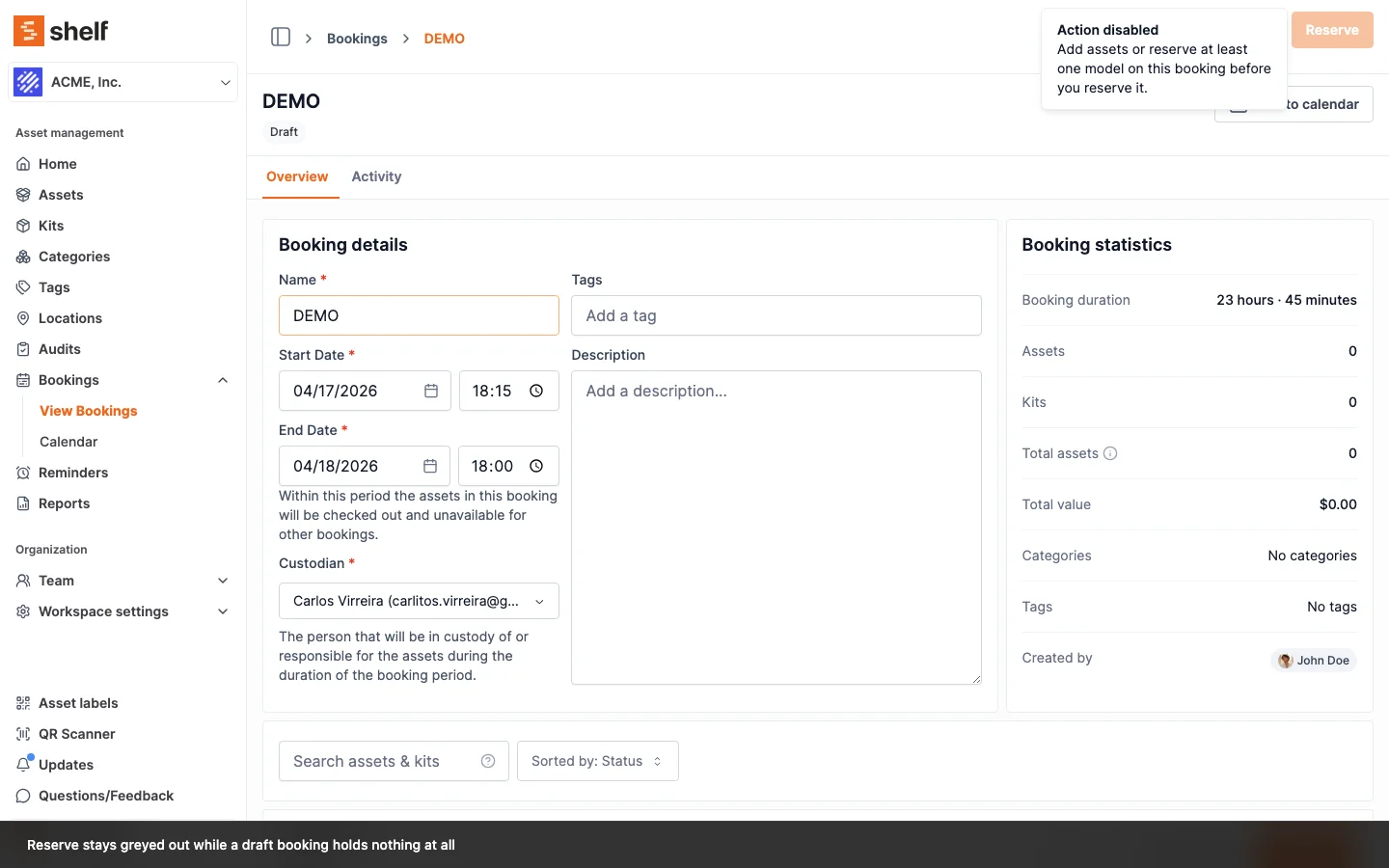
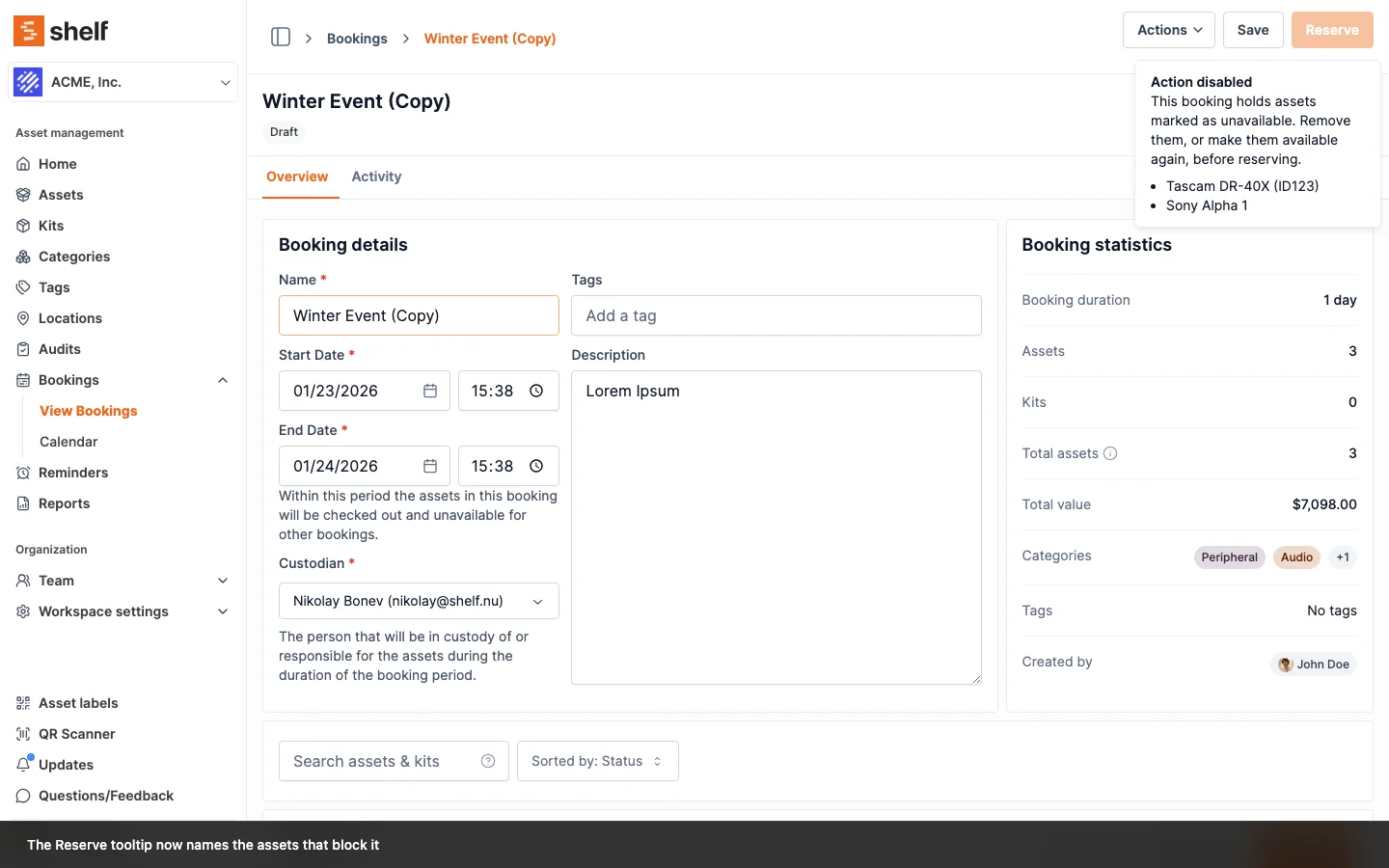
The server re-checks all three at the moment you reserve, so an edit someone else makes while you have the booking open cannot let an unreservable booking through. The first two come back word for word. These checks now cover the Shelf Companion app too, so the phone refuses exactly what the website refuses.
The already-booked one is different, and worth recognising, because it is the only one whose wording changes between the tooltip and the refusal. The tooltip warns you in general terms; the refusal names the culprits. It arrives under the heading Booking conflict and reads:
Cannot reserve booking. Some assets are already booked or checked out: [first asset], [second asset], [third asset] and 2 more. Please remove conflicted assets and try again.
At most three assets are listed by name, and the rest are counted. Take those items off the booking or move your dates, and the reserve goes through. A draft that holds a unit of a model other bookings have fully reserved is refused at the same moment, with its own message rather than a tooltip. Checking out runs the same check and answers the same way, with Cannot check out booking in place of the first phrase, so an item that someone else picked up between your reservation and your collection is named rather than hidden behind a generic failure.
A draft's model reservations no longer fit
A draft's model reservations do not hold units, because a draft is still a plan. Shelf measures them when the draft is reserved, or checked out straight from Draft, against what the model can still supply for those dates. If they no longer fit, for example because another booking was reserved for the same units first, the booking stays a draft and you see this under Booking conflict:
Cannot reserve booking. Some model reservations no longer fit: "Dell Latitude 5550": 4 units still to assign, but only 2 can be booked. 1 unit in custody and 3 units reserved by model on other bookings count against the pool for these dates. Reduce them, or change the dates.
Every short model gets its own line, and each line says what is taking the units: units in custody, units other bookings hold by name, units other bookings reserved by model. Lower the reservation to what can be booked, or move the dates, and reserve again. A booking that is already Reserved is not measured again at check-out, so a pool that shrinks after you reserved does not strand your booking at the counter.
A reserved booking cannot be emptied
Once a booking is Reserved, removing its last asset or model reservation is refused with "A reserved booking must keep at least one asset or model reservation. Cancel the booking instead, or add a replacement first." Draft, Ongoing and Overdue bookings can still be emptied, since taking an item off a booking that is already underway is a normal correction.
How far removal stays open also depends on your role, and that is a separate question from the one above. Owners, Administrators and Managers can take items off a Draft, Reserved, Ongoing or Overdue booking. A Self-service user stops at Reserved on their own booking, and a Base user at Draft. If the Actions button is missing from a booking you own, that is why. See Adding Assets and Kits to a Booking.
An asset reads Checked out and no booking has it
If an asset shows Checked out but nothing on its Bookings tab is Ongoing or Overdue, and every booking it appears on is finished, it was almost certainly stamped by a kit rather than by a check-out.
A kit carries its own status column, and that column could go stale. Checking a booking in works out which kits to release from the assets' current membership, so a kit whose assets were detached while the booking was live was invisible at check-in and kept reading Checked out long after the booking completed. Adding any asset to a kit in that state stamped the new asset Checked out as well, against a booking that had already ended. Nothing then cleared it, and the asset blocked check-out of every booking it was later added to.
The stamp no longer spreads. It is now taken from the booking rows the same action writes, and only for bookings that are Ongoing or Overdue. An asset added to a kit sitting on a Draft or Reserved booking still joins the booking and keeps its current status, since nothing has physically left.
And the kit no longer goes stale in the first place. Ending a booking now works out which kits to release from two things rather than one: the assets' current membership, and the booking's own record of which kit each item went out under. That record survives a detach, so a kit whose members were pulled out mid-job is found and released when the booking is checked in, cancelled or deleted — one booking at a time or several at once from the index. Two neighbouring cases come with it. A check-in spread over several sessions releases the kit once its last outstanding item is back, instead of staying stuck on what earlier sessions left behind. And an asset that belongs to two kits releases both, where before only one of them was ever cleared.
Custody is not the cause here. Handing an asset to someone reads In custody, a different badge, and custody actions are barred from touching Checked out at all: assigning custody skips an asset that is checked out, and releasing custody leaves it checked out. So if the badge in front of you says Checked out, custody did not put it there and releasing custody will not clear it.
A kit that reads Checked out after its booking was checked in is a different case with the same look. Until 6 October 2026, a kit whose quantity-tracked member was shared with another kit that was out on its own booking was never released at check-in: the shared member still read Checked out through the other kit, and the release treated that as this kit still being out. The release now judges a kit by its own slices, so a shared pooled member never holds a kit back. A kit left stuck this way heals itself on its next trip out and back, since a Checked Out kit can still go on a draft or reserved booking, or support can reset it now. Assigning custody to such a kit is refused while it reads Checked out, which is why the badge cannot be worked around from the kit page. See Kits.
An asset left stuck before this shipped still needs a hand. Only the booking flow can take an asset out of Checked out, and the booking that stamped it has already finished, so there is nothing left to check in. Contact support with the asset name and the kit it belongs to, and the record can be corrected.
Still stuck?
Contact support with:
- The asset or kit name
- The date range you're trying to book
- A screenshot of the error or the booking tab showing the conflict
Related Articles
Ready to try Shelf?
Put what you're learning into practice. Free plan available — no credit card required.