

Quantity-Tracked Assets and Consumables
Track fungible items by count instead of one record per unit — cables, gloves, supplies, and consumables. Set a quantity, a unit of measure, low-stock alerts, and how stock is consumed.

Not everything you manage is a single, uniquely-identifiable item. Laptops, cameras, and vehicles each deserve their own record — but pens, USB-C cables, gloves, and other supplies are managed by how many you have, not by individual identity. Shelf now supports both. When you create an asset you choose a tracking method, and quantity-tracked assets let one record stand for a pool of identical units at a location.
Two tracking methods
When you add or edit an asset, you pick how it should be tracked:
- Individually tracked (default) — One record equals one physical item, exactly as Shelf has always worked. Each item has its own QR code, custody history, and booking history.
- Tracked by quantity — One record represents a pool of identical units (for example, 500 cable ties). You manage the count rather than each unit, and a single QR code represents the whole pool.
| Individually tracked | Tracked by quantity | |
|---|---|---|
| QR code | One per item | One shared QR for the pool |
| Custody | One custodian per item | Several people can each hold a portion |
| Bookings | Reserve specific items | Reserve a quantity from the pool |
| History | Full per-unit lifecycle | Aggregate quantity changes |
Creating a quantity-tracked asset
- Click Assets in the sidebar, then New asset
- Give the asset a name
- Under Tracking method, choose Tracked by quantity
- Fill in the quantity fields that appear:
- Quantity — how many units you have (for example, 500)
- Unit of measure — what they're counted in (for example, "pcs", "boxes", "liters")
- Min quantity (optional) — the low-stock threshold; Shelf alerts you when available stock drops to or below this number
- Consumption type — how the stock behaves after checkout (see Consumption types below)
- Add a Category, Tags, Location, and any other fields as usual
- Click Save
Consumption types
Quantity-tracked assets can behave in one of two ways after they're handed out or checked out:
- Used up (one-way) — Units are consumed and not expected back, so the count permanently drops when they are settled. This applies on both routes stock leaves by: checking in a booking, and ending a custody hold. Either way the default is to consume everything that went out, and you can record a smaller number if some came back unused. Best for disposables: gloves, masks, single-use kits.
- Returnable (two-way) — Units are checked out and returned, with a consumption report on the way back. Check out 10 cables; when they come back you report what returned and what was lost or used up. Returned units go back into available stock and the rest are deducted. Best for reusable supplies that occasionally go missing.
When new stock arrives, you can restock a quantity-tracked asset to increase its count. Every quantity change is logged for an audit trail.
Quantity-aware custody
For quantity-tracked assets, custody is by portion rather than all-or-nothing:
- Assign part of the pool to a person — for example, "20 of 100 USB-C cables to Sarah." The available count drops by 20.
- Several team members can hold different quantities of the same asset at once.
- Ending a hold, fully or partially, settles those units according to the asset's consumption type.
- Custody and a booking are separate commitments on the same pool, so 20 units can sit with a custodian while 5 are checked out on a booking and the rest stay on the shelf. Releasing the custody does not check the booking in. See Quantity-Tracked Pools Can Be Both at Once.
Ending a hold on returnable stock
On a returnable (two-way) asset the custody row's action is Release. Enter how many units to hand back, up to what that person holds, and they go straight back into the available pool. The asset's total quantity does not change, because nothing was used up.
Ending a hold on a consumable
On a used-up (one-way) asset the same row reads Mark as consumed, because a consumable's units are not expected back. The dialog asks two questions:
- Units to release, meaning how many leave that person's hold.
- Of those, how many were used up?, pre-filled to all of them, which is the usual answer for a consumable.
Whatever you record as used up is permanently removed from the asset's total quantity and cannot be restored. Anything left over goes back into the available pool, so a crew that took 40 pairs of gloves and used 10 can hand the other 30 back in one action rather than writing off all 40.
The asset's Activity tab records the outcome in the same words, for example "ended Sarah's hold on 40 unit(s): 10 consumed and 30 returned to stock", and a consume that takes available stock to or below the min quantity triggers the usual low-stock alert.
Shelf decides this from the asset itself rather than from where the request came from, so the outcome is the same whether you end the hold on the web or from the Companion app.
Worth a one-time check. Consumption type used to be applied at booking check-in only, so units handed out as custody and then released went back into stock whatever the asset's type. If a consumable's count reads higher than what is actually on the shelf, that is the likely reason. Edit the quantity on the asset once to bring it in line, and it stays in line from here.
Where the units are
A pooled asset doesn't have to sit in one place. Its asset page lists every placement, meaning a location plus how many units are there, so 100 USB-C cables can be recorded as 60 in the main stockroom and 40 in the van. Each placement has its own row you can adjust, and any units you haven't placed yet show as unplaced.
Placements come from two directions:
- Manual placements are the ones you set yourself. You can move units between locations from the placement row, and in the Shelf Companion app from the Placements button on the asset.
- Kit placements appear when the asset is inside a kit that has a location. The kit holds a slice of the pool, say 20 of the 100 cables, and those units follow the kit. They're marked via kit on the asset page; to move them, change the kit's location rather than editing the placement. Change the kit's quantity and the slice at its location follows.
The two are independent, so a pool can be partly placed by hand and partly held by kits at the same time. Take the asset out of the kit and the kit's slice is released back to unplaced.
How large a slice a kit may take is capped by what is genuinely free for it to hold indefinitely, which includes leaving alone the units future reservations are relying on. See How many units a kit can take.
When Locations Hold More Than You Own
Placements record where units are, so lowering the total can leave them describing units that no longer exist. The usual case is a used-up consumable: end a custody hold on 5 of 87 gaffer tape rolls and the total drops to 82, but the placements still say 87 are in the store.
Most of the time nothing needs to happen, because the unplaced pool absorbs it — place 50 of 100 cables, consume 10, and the placements are still true. Drift only starts once every unit is placed and there is no unplaced residual left to take the hit. Shelf handles that in three ways:
- The asset's Quantity Overview card tells you. An Over-placed row appears with the real figure, not a tidied-up zero: "Locations claim 5 rolls more than this asset's total. Open 'Manage placements' and lower the location that lost them."
- Where the source is obvious, Shelf fixes it for you. If the units sat at a single location, that placement is trimmed automatically as part of the same change. Nothing to do.
- Where it is not, Shelf asks rather than guesses. With units spread across several locations, nothing records which room the consumed units left, so writing a number into one of them would be inventing a fact. The Over-placed row stands until you say which location lost them.
Open Manage placements on an over-placed asset and the dialog explains the state instead of reporting your own untouched numbers back at you as an error: "These locations hold 87 rolls between them, but the asset's total is now 82. Stock was used up while every unit was assigned to a location, so 5 rolls are still recorded somewhere they no longer are. Lower the location that lost them, then save." Save stays disabled until the sum fits.
Only placements you set by hand are counted here. A kit's slice is measured on its own and never makes an asset read as over-placed.
On the mobile app
Quantity-tracked assets are available in the Shelf Companion app for iPhone and Android, so you can read stock and hand out units from the floor:
- The assets list shows a quantity pill on each pooled asset's row.
- The asset detail screen shows a quantity card with the total plus a per-status breakdown — available, in custody, reserved, and checked out — and a custody row for each person, listing how many units they currently hold.
- The same screen lists every location that holds units, one row each with its count, plus kit-held rows marked
via kitand an Unplaced row for the rest. Tap Placements to open Manage Placements: add or remove locations, set each count with a stepper capped at the total, and watch the Placed / Via kits / Unplaced meter before you Save placements. It saves through the same rules as the web dialog, so the placements can never add up to more than the asset owns. Kit-held units are shown but can only be moved by moving the kit. - Tap Assign to give a set number of units to a team member. The amount is capped at the units actually available to assign.
- Tap a holder's custody row to end their hold. The amount is capped at the units that person can release. On a returnable asset the units go back to the pool. On a used-up consumable the app asks a second question, "Of those, how many were used up?", pre-filled with the whole hold because that is the usual case. What you mark as used up leaves the total; the rest returns to the pool. This matches the web split exactly.
- Tap Adjust on the quantity card to correct the stock figure itself. Choose add or remove, enter the amount, and give a reason. Adding is recorded as a restock and removing as a loss, so a shelf count you fix in the aisle lands in the asset's history with your note rather than as an unexplained change.
- The Available figure turns amber when it drops to or below the asset's minimum quantity, using the same low-stock rule as the web.
- On a booking, check out part of a pooled line and leave the rest booked, then record the return with the same Returned / Lost / Damaged split (or Consumed / Lost / Damaged for consumables) the web check-in drawer uses.
- A kit screen shows how many units of a pooled asset that kit holds, as an
×20 rollslabel on the member's row, so you can see the kit's slice without opening the asset. - On a booking, a pooled asset that is on the booking more than once lists each commitment separately, each with its own count and where it came from:
20 rolls booked · Kit: Camera Aabove5 rolls booked · Standalone. One row per commitment, so a kit's units and a loose reservation of the same stock never collapse into a single figure you cannot take apart.
Individually tracked assets look and behave exactly as before in the app. See Getting Started with Shelf Companion for the full mobile walkthrough.
Quantity in bookings
The promise is the same one Shelf makes for a camera or a laptop: you can't reserve something that isn't there. What changes is the question being asked. A camera is one specific thing, so the question is whether anyone else has it. A pool of sandbags is a count, so the question is how many are free on your dates.
Shelf checks that at the moment it matters, and it locks the asset while it checks, so two people confirming at the same second can't both slip through. Every way units get onto a booking goes through the same check: confirming the booking, adjusting a row's quantity, editing what the booking holds, and scanning items onto it, on the web and in the Companion app alike. There is no back door where a pool can be over-committed by picking a different route in.
Dates matter, not just totals
The count is worked out for your booking's dates, not for the calendar as a whole. Take a pool of 10 sandbags:
- Three separate bookings of 7 sandbags, one in each of three different weeks, are all fine. Only 7 are ever needed at the same time, so 3 stay free in every one of those weeks.
- Two bookings of 7 and 8 sandbags in the same week are not. That's 15 at once out of 10, so the second one is turned away while only 3 are free.
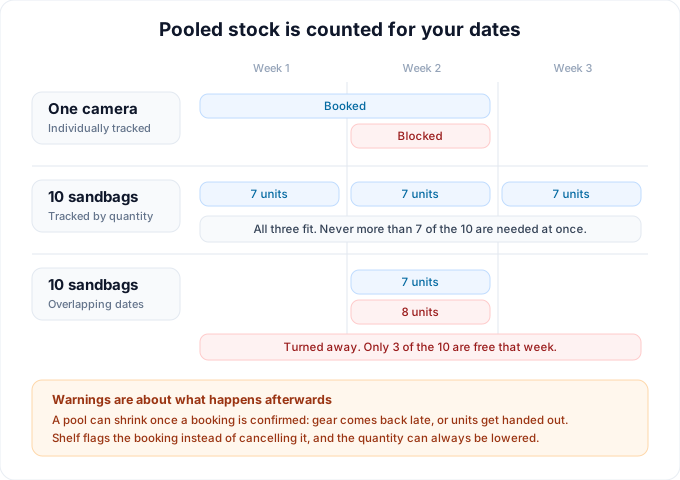
This is the part that surprises people coming from individually tracked gear, where a booked item is simply gone for anyone else. A pool isn't gone, it's counted, so gear that comes back before your booking starts is yours to book.
The one thing that ignores dates is an overdue booking. Nobody knows when a late return is coming back, so its units keep counting against every date until someone checks it in.
Picking a quantity
Open the asset's row on the booking and choose Adjust quantity. The dialog tells you what you've got to work with for these dates, written plainly as "4 of 12 sandbags available" with the date range underneath, plus how many units other bookings are holding. If your role can see other people's bookings, a View bookings link takes you to them.
Ask for more than the dates allow and the dialog stops you before it submits: Only 3 sandbags available. Please reduce the quantity. If the pool shrank while the dialog sat open, the refusal comes back from the server instead, and it names the asset and both numbers: Only 3 sandbags available for "Sandbag (Counterweight)" in this window — you requested 12. Reduce the quantity to continue. Going the other way, lowering a quantity always works, no matter what state the booking is in.
A pool with units out is not a closed door
An individually tracked camera that is checked out somewhere else is simply unavailable: there is one of it, and someone has it. A pool is a count, so the same sentence does not apply. Twenty-seven sandbags with eighteen out on other bookings still has nine free, and those nine are yours to book, including onto a booking that is already Ongoing or Overdue.
Shelf used to get this wrong on the way in. The add-to-booking guards read the asset's single status flag, which reads Checked out as soon as any unit leaves, so the picker would offer the asset, label it "9 available", and then refuse the save. Every route now counts units instead: the Manage assets modal, Add to existing booking from the asset page, the assets-index bulk add, and the scan drawer.
What can still stop a pooled line is its own capacity for your dates, which is the check described above. The scanner distinguishes the two clearly: an individual asset that is out reads Already checked out, while a pool with nothing left for your window reads No units available, tooltip "Every unit of this asset is already in custody, in a kit or reserved for the booking window."
Reading the asset page
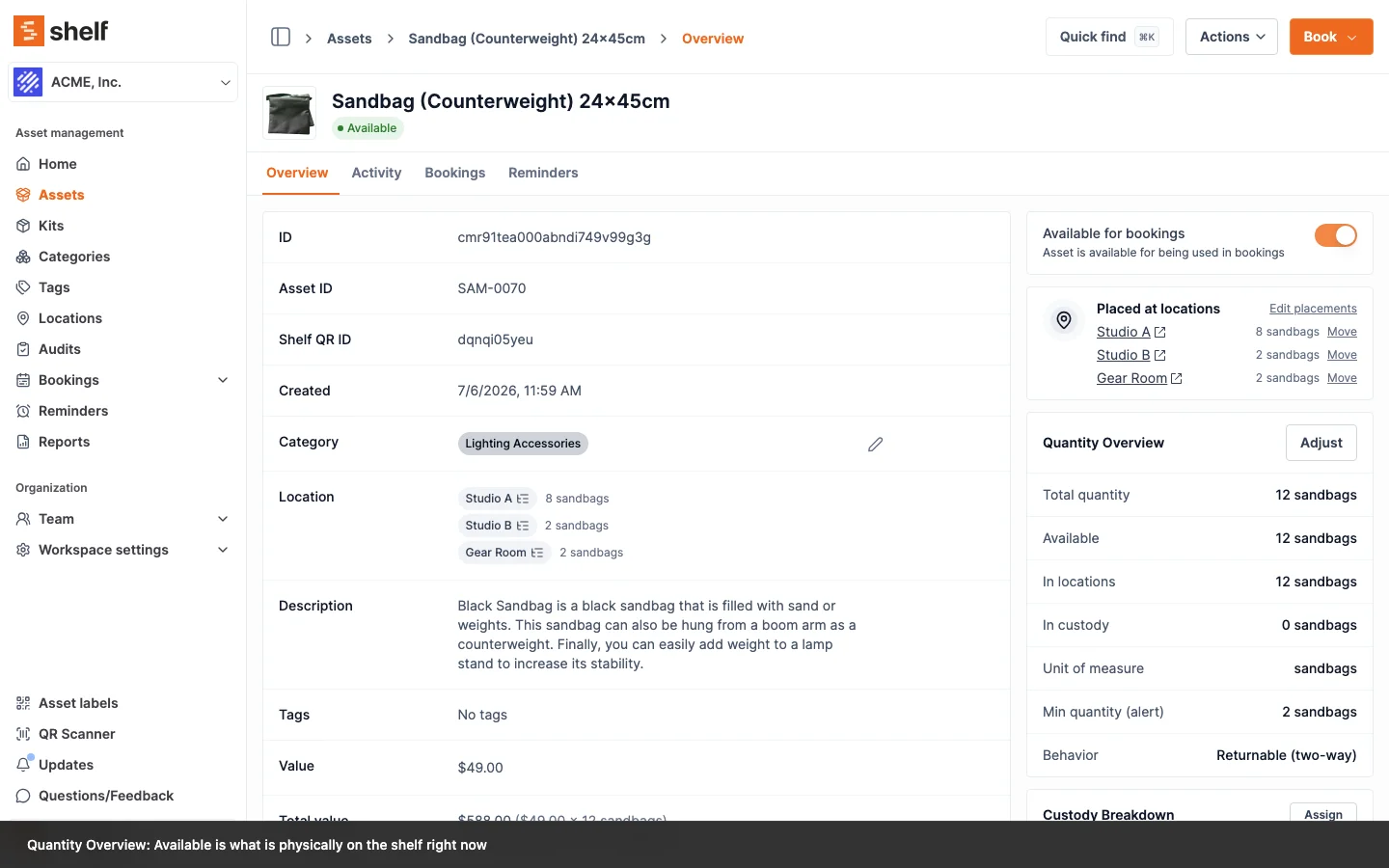
The Available row on the Quantity Overview card answers a different question: what's on the shelf right now. It's the total, less anything in someone's custody, held by a kit, or checked out on its own. A booking three weeks out doesn't touch it. Those units sit on their own Reserved (bookings) row, with a tooltip saying how many bookings they're spread across.
Units a kit holds are counted once, under In kits, whether the kit is sitting on the shelf or out on a booking. Checked out (bookings) is the fuller picture: every unit physically out, loose ones and kit-held ones together. The two rows overlap on purpose, so don't add them up.
Locations are listed separately, on In locations, and don't reduce anything. A sandbag can be in Studio A and still be free to book.
If a booking is flagged
Since the check runs when you book, you shouldn't be able to over-reserve a pool in the first place. What no system can prevent is the pool getting smaller after the fact: a previous booking comes back late, or someone hands units out as custody in the meantime. Rather than quietly cancel a booking somebody is relying on, Shelf marks it and lets a human decide:
- Stock conflict, an amber pill on any bookings list, means one of that booking's pooled items is short for its dates. Open the booking to see which.
- Insufficient stock, a red badge on an item's row, is the item in question. Lower the quantity, or free units elsewhere by releasing custody or checking in the late booking.
- Checked out elsewhere, an amber badge, is not a blocker. Your dates are fine; some units just happen to be out right now and are due back before you need them. On used-up stock, read it as a maybe rather than a promise: units that go out are consumed when that booking is checked in, not returned, so the pool can end up smaller. If that leaves you short, the row turns red and a restock clears it.
Those last two badges are about the loose pool, so a row a kit put on the booking carries neither of them. Its units come out of the kit's own slice, which was already taken off the loose pool before these figures were worked out. A kit whose members have no loose units left used to read "requested 1, only 0 available" in red on every pooled member, while reserving and checking that booking out worked perfectly — the badge was the only thing that disagreed. A member later removed from the kit goes back to being measured against the loose pool.
Stock is also protected when you reduce the total quantity. You can't lower an asset's total quantity below what's already promised to custody, kits, or overlapping bookings — nor below what your manual placements already claim. Try it, on the edit form, with a quick adjustment, or through a CSV update, and Shelf refuses with the numbers: "Cannot reduce 'Gaffer tape' to 40 rolls — 55 rolls are assigned to locations. Lower the placements first, then reduce the total." Nothing has physically moved in that case, so you get the chance to unplace first rather than being left with a figure to reconcile afterward.
Coming back
For returnable assets, check-in reconciles what came back versus what was consumed before the booking closes. That reconciliation runs on the web and in the Companion app, so a partial return can be settled on the floor.
What total value counts
The value you set on an asset is its per-unit value. For a quantity-tracked asset Shelf multiplies it by a count, and the count is the one that fits the number you are reading. A box of 100 cables at €2 each is €200 of stock, and the five of those cables that sit in a kit are €10 of that kit.
| Where the total appears | What it counts |
|---|---|
| Dashboard inventory value, the Asset Inventory, Asset Distribution and Idle Assets reports, and the Total value column of a standard CSV export | Everything you hold: per-unit value times the asset's full quantity |
| A kit's total value on the kit overview | Only the units that kit holds |
| A booking's total value, including the pull-list PDF | Only the units booked for those dates |
| The Custody Snapshot report | Only the units that custodian is holding |
| Value at risk on the Overdue Items report | Only the units still out on the late booking |
So a booking that reserves 5 cables out of a 100-cable pool shows €10, not €200, and the same 5 cables show €10 on a kit that holds them.
A standard export carries both numbers side by side: Value is the per-unit price and Total value is the quantity-aware total. The import-ready export carries only the per-unit price, so the file re-imports without inflating anything.
Individually tracked assets are unaffected. With a quantity of one, per-unit and total are the same number.
Low-stock alerts
If you set a min quantity, Shelf watches the available count for that asset. When a stock adjustment, a custody assignment, or a booking check-in takes the count to or below the threshold, the workspace owner and every admin get an email so someone can reorder before you run out, and whoever made the change gets an in-app notification.
The email is sent once per crossing, not once per decrement. An item that is already flagged stays quiet until it recovers, so drawing a pool down over several days does not fill anyone's inbox. When stock rises back above the threshold through a restock or returns, the same people get a Back in stock email and the Low stock badge on the asset page clears itself.
Finding everything that is running low
The alert tells you about one item at a time. To see the whole picture:
- Open Assets with the advanced asset index enabled.
- Click Filter, then tick Low stock only (labelled at or below reorder threshold). The list narrows to quantity-tracked assets at or below their minimum.
- Optionally add the Min quantity column from the column picker so each item's threshold sits next to its live count.
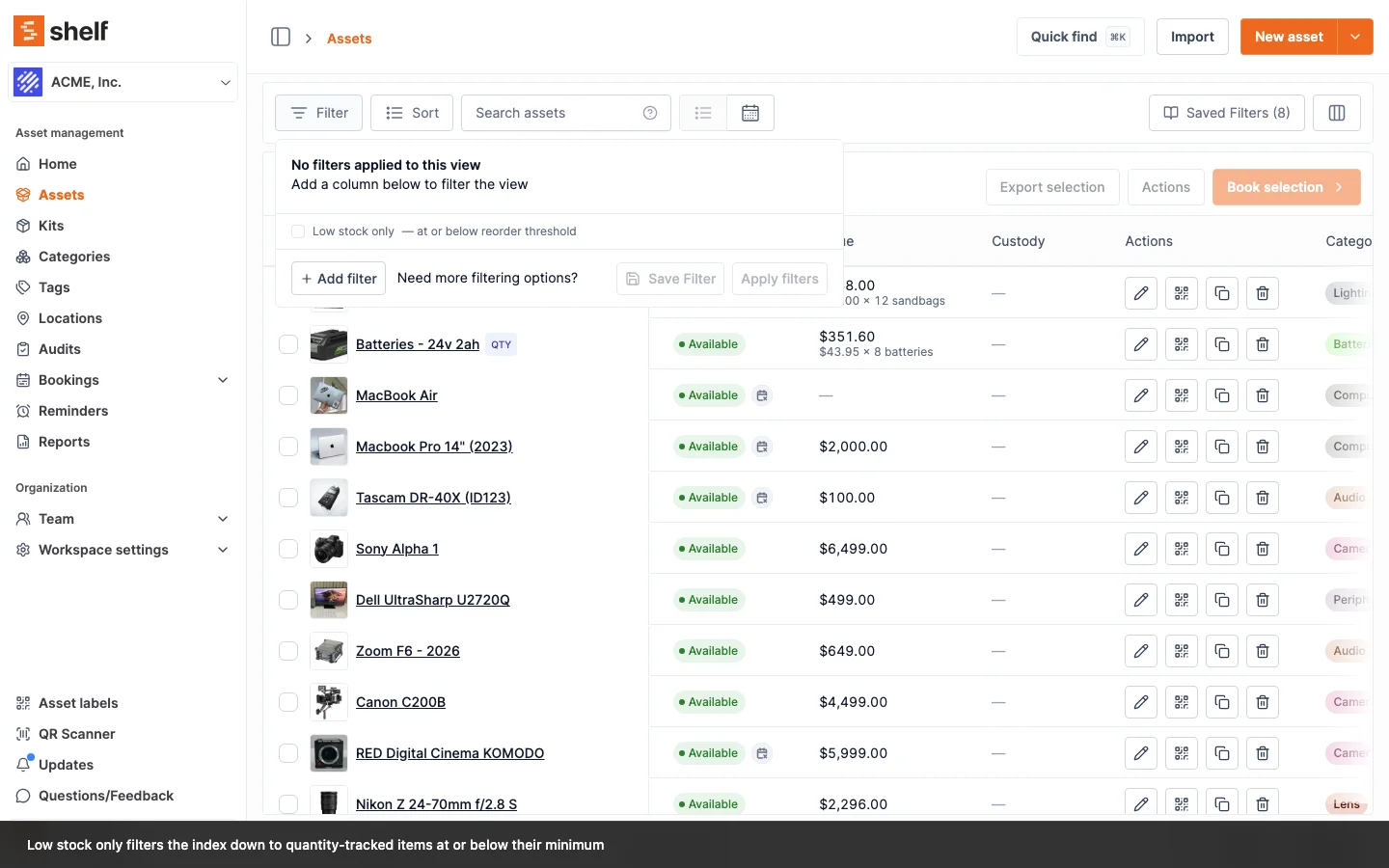
The filter clears with the rest of your filters, and it counts toward the filter badge on the Filter button.
Every quantity change is logged
Quick adjustments are not the only thing recorded. Changing the quantity on the asset edit form, changing the min quantity threshold, the decrements a booking check-in applies, and the units consumed when a custody hold ends each write an entry to the asset's Activity tab with the previous and new value and the person responsible, plus a stock adjustment against the pool. Consumed and returned units are logged separately, so a partial settlement shows both halves. Whatever route stock took, the history explains it.
Editing stock in bulk
Resetting thresholds across a shelf of supplies, or correcting counts after a stocktake, is faster from a spreadsheet than one asset at a time. Export the assets, edit the file, and upload it to Assets → Import → Update existing, which previews every change before anything is saved. Quantity, Min quantity, Unit of measure, and Consumption type are all updatable this way.
Pick the Import-ready export format for this. It already includes all four columns and writes the quantity as a plain number. A Standard export writes the quantity with its unit attached, as 10 boxes, and does not include the other three at all, so it needs a manual pass first.
An asset whose units sit in more than one location is the one exception: the Location column is flagged and skipped on those rows, because a single cell cannot say which placement you meant. Everything else on the row still applies. Full walkthrough: Bulk Updating Assets via CSV.
Batch actions on the asset index
The Actions menu on the asset index works on individually tracked assets. Five of its entries — Assign custody, Release custody, Update location, Add to kit and Update asset model — skip quantity-tracked assets, because each of them needs a number of units that a single batch cannot supply. A mixed selection still runs on the individually tracked assets in it, and the dialog tells you up front how many will be skipped. Do these on the asset itself, where you can name the quantity. See Quantity-Tracked Assets in a Batch.
Asset models (optional)
You can group individually tracked assets under an Asset Model (for example, "Dell Latitude 5550") so that shared defaults — like category and valuation — are pre-filled when you create new assets from that model. A model also holds one cover image that stands in for every unit without a photo of its own. Asset models are managed under Settings → Asset models, and you can bulk-create assets from a model. To group units you already own, select them in the asset index and use Actions → Update asset model, or Remove from asset model to ungroup them. Models also unlock booking by model: reserve "4x" of a model and scan any 4 units at pickup. Note that models group individually tracked assets only; a quantity-tracked pool cannot join a model, and quantity-tracked assets caught in a bulk grouping are skipped with a count rather than failing the batch.
When to use which method
- Use Individually tracked when each unit needs its own QR code, custody chain, and history — laptops, cameras, vehicles, instruments.
- Use Tracked by quantity when only the count matters — cables, adapters, gloves, fasteners, and other supplies.
For the full decision framework, including when a fleet of identical units belongs under an Asset Model, see How to Choose a Tracking Method.
Need per-unit history on a pooled item? Printing several QR labels for one quantity-tracked asset still points every label at the same pool — they all show and adjust the same count. If you need independent history per unit, track those items individually instead. Already created the pool? See how to move from a pool to units.
Related Articles
- Consumables Tracking — track consumables by quantity, with units, low-stock alerts, and quantity-aware custody
- How to Choose a Tracking Method — individual assets, Asset Models, or quantity tracking, per item type
- Adding New Assets — the full asset creation walkthrough
- Adding Additional Fields to Assets — capture business-specific data
- How to Create a Booking — reserve assets, including quantities
- Troubleshooting: Booking Conflicts, for when a booking is blocked or a pool is over-reserved
- Using Categories to Organize Your Asset Inventory
Ready to try Shelf?
Put what you're learning into practice. Free plan available — no credit card required.