

Getting Started with Reports
Run your first report in Shelf — pick a report, set the timeframe, apply filters, and export the result to CSV or PDF.

Reports turn the data Shelf already captures — bookings, custody, assets — into answers you can read, filter, and export. This guide walks through running your first report.
Open the Reports Index
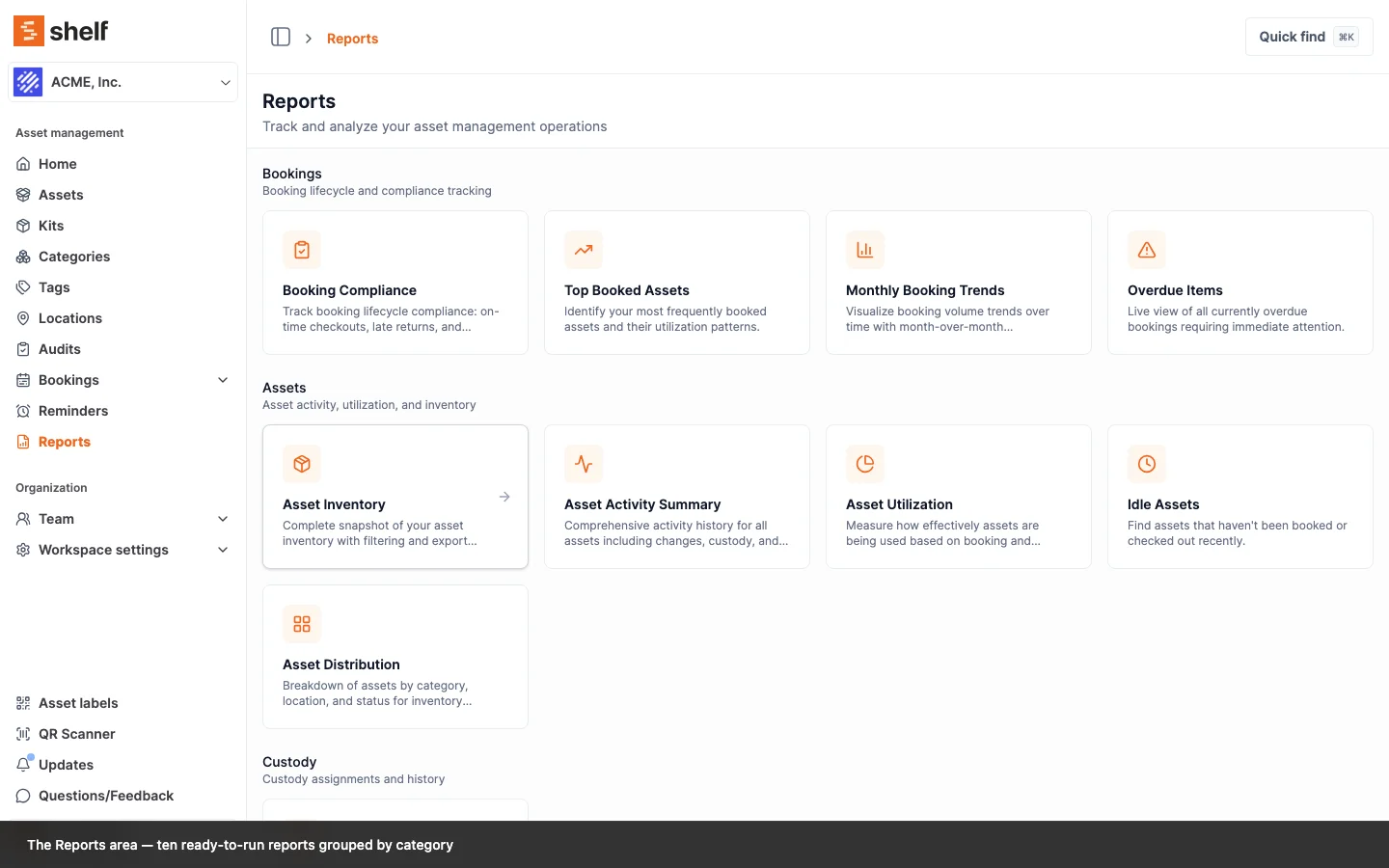
In the sidebar, click Reports. The index lists every available report grouped by category:
- Bookings — Booking Compliance, Top Booked Assets, Top Booked Kits, Monthly Booking Trends, Overdue Items
- Assets — Asset Inventory, Asset Activity Summary, Asset Utilization, Idle Assets, Asset Distribution
- Custody — Custody Snapshot
Each card describes what the report shows. Click any enabled card to run it.
Pick a Timeframe
Time-based reports — Booking Compliance, Top Booked Assets, Top Booked Kits, Monthly Booking Trends, Asset Activity Summary, Asset Utilization, Idle Assets — include a timeframe picker at the top of the page.
- Click the timeframe picker.
- Choose a preset — Today, Last 7 days, Last 30 days (the default), Last 90 days, This month, Last month, This quarter, This year, All time, or define a custom range.
- The report re-runs against the new timeframe.
Snapshot reports — Asset Inventory, Custody Snapshot, Overdue Items — always reflect the current state of the workspace, so they do not show a timeframe picker.
Apply Filters
Two controls sit on the report page itself: the timeframe picker described above, and, on Idle Assets, an idle-threshold selector for how many days count as idle.
The narrower filters are URL parameters. Add them to the address bar, or share a link that already carries them, and the report runs filtered. That is what makes "Idle Assets in the Amsterdam warehouse, last 90 days" a link you can bookmark and send to a colleague.
| Report | Parameters it honours |
|---|---|
| Booking Compliance | None. Sorting only (sortBy, sortOrder) |
| Top Booked Assets | category, location |
| Top Booked Kits | None |
| Monthly Booking Trends | None (see the note below) |
| Overdue Items | custodian |
| Asset Inventory | categories, locations, statuses (each accepts several values, comma-separated) |
| Asset Activity Summary | asset, category |
| Asset Utilization | category, location |
| Idle Assets | category, location, plus days for the idle threshold |
| Asset Distribution | None |
| Custody Snapshot | teamMember, location |
Monthly Booking Trends ignores
categoryandlocation. The page accepts both parameters and then runs the report over every booking anyway. Nothing warns you, so a trends link that looks filtered is not. Its CSV export deliberately does not forward them either, rather than claim a filtering it does not perform. Wiring them up is tracked separately.
Values are ids, not names. The easiest way to get one is to open the category, location, team member or asset in Shelf and copy the id out of its own URL.
Read the Result
Reports are laid out in three layers:
- KPI cards at the top — headline numbers like total bookings, on-time rate, or assets outstanding.
- Charts in the middle — trends, distributions, or compliance breakdowns.
- Tables at the bottom — the underlying records that make up the numbers.
Compliance and utilization reports use color to flag entries that need attention — late bookings, idle assets that have not moved in months, or custodians with overdue items.
How Booking Compliance Decides On Time or Late
Booking Compliance answers one question: was the deadline the custodian agreed to honoured? The report says so in its own words, in the How it's calculated line under the headline rate.
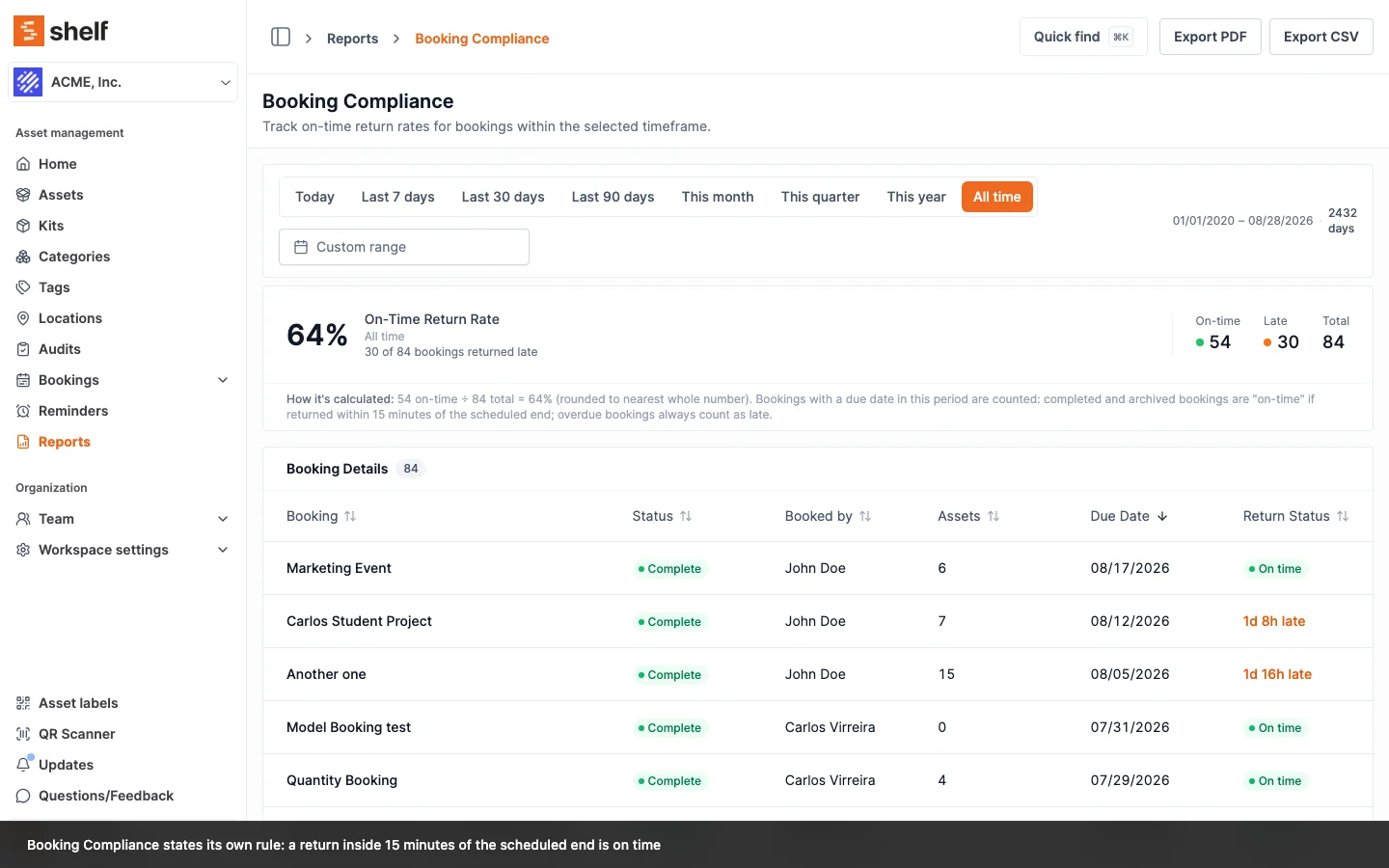
Four rules govern every number on the page.
It measures against the planned end date, not the current one. A booking's planned period is recorded when the booking is created, still moves with any edit made while it is a draft, and is fixed from the moment it is reserved. Extending a booking, or checking it in early, moves the live dates and leaves the planned dates alone. So a booking that was due Friday and came back Monday is a late return, whether or not someone extended it to Monday first.
A return inside 15 minutes of the scheduled end is on time. That grace absorbs the walk back to the counter and the scan at the desk, so a queue at the cage does not read as a compliance failure.
Only finished or overdue bookings are counted. Complete and Archived bookings are measured against their check-in time. Overdue bookings are always late, by definition. Drafts, reservations, bookings currently Ongoing and cancelled bookings are left out: they have not run yet, are still inside their window, or never happened. A reservation archived without ever being checked out is excluded too, so it neither helps nor hurts your rate. See what archiving means for reports.
A booking is counted in the period its planned end falls in. Because the planned end never moves, a booking stays in the same period for its whole life instead of sliding into the next month when someone extends it.
The Return Status column shows the verdict per booking: On time, or how far past the deadline it came back, as 1d 8h late.
Why Booking Compliance and Overdue Items Can Disagree
The two reports ask different questions, so for an extended booking they will legitimately give different answers.
| Booking Compliance | Overdue Items | |
|---|---|---|
| Question | Was the agreed plan honoured? | What is late right now? |
| Measures against | The planned end date | The current end date |
| An extended booking | Still measured against the original deadline | Measured against the new deadline |
An overdue booking extended to next week disappears from Overdue Items straight away, because it is no longer late against its current deadline. It still counts as a late return in Booking Compliance once it comes back, because the deadline it was agreed to has already passed. Extending a booking is a way to keep operations moving, not a way to clear a late return from the record.
What Counts as a Booking in Each Report
The booking reports used to disagree about their own headline. Three of them could give three different answers to "how many bookings?" for the same workspace and the same window. They now share one set of rules, and the rules are worth knowing because they explain figures that will have moved.
Drafts and cancelled bookings are not usage. A draft is a plan and a cancellation never happened, so neither is counted in Top Booked Assets, Monthly Booking Trends or Asset Utilization. "Total Bookings" means the same thing in Top Booked and in Trends: real bookings, not plans.
Booking Compliance keeps its own, narrower definition on purpose, because it answers a different question: only bookings with a measurable outcome (returned or overdue) can tell you whether a deadline was honoured. Its hero says so on the page.
A booking that spans the window counts in it. Top Booked Assets, Asset Utilization and Top Booked Kits select bookings that overlap the timeframe rather than bookings that start inside it. A month-long booking viewed through a one-week lens is a booking that week, which is what anyone reading the report already assumed.
One booking counts once per asset. An asset can reach one booking twice, loose and again inside a kit. It is now counted once for that booking, so a pack-out that happens to include a kit no longer inflates the asset's rank.
Archiving no longer erases history. Archiving rewrites a booking's status, so reports that matched on Complete used to lose every completed booking the moment it aged into the archive. Both Monthly Booking Trends ("Completed") and Idle Assets ("last used") now count an archived booking as a real, returned use, as long as it was actually checked in. An archive that went straight from Reserved without ever being checked out still counts as nothing, because nothing went out. See what archiving means for reports.
Utilization cannot exceed 100%. Days in use is the merged union of a booking's days inside the window, not the sum of them, so two overlapping bookings of the same asset no longer count the same Tuesday twice.
Kit rankings are frozen at the time of booking. Top Booked Kits credits a kit from what the booking itself recorded when the gear went out, not from the kit's membership today. Two consequences: booking an asset on its own no longer credits a kit that happens to contain it, and editing a kit's contents no longer rewrites its booking history. Bookings made before Shelf started recording that provenance fall back to current membership.
"Unique Assets Booked" works. The Monthly Booking Trends CSV has carried this column since launch and it read 0 for everyone. It is now populated with the count of distinct assets booked in each month.
Your numbers will have moved. These are corrections, not new features, so a report you ran last week and run again today can legitimately give a different figure. Utilization and trend volumes generally go down (drafts and cancellations dropped out); Trends "Completed" and Idle Assets "last used" generally improve (archived bookings came back); kit rankings can reshuffle.
How Money Is Counted
Several reports put a value on things: Asset Distribution, Overdue Items, Asset Inventory and Custody Snapshot. Shelf stores one value per unit on an asset, and every money figure in a report is that per-unit value multiplied by the quantity the figure is actually about.
Which quantity that is depends on what the number is answering:
| Where you see it | What it multiplies by |
|---|---|
| Overdue Items, value at risk | The units booked on the overdue booking |
| Asset Distribution, category and status buckets | The asset's workspace stock |
| Asset Distribution, location buckets | The units placed at that location |
| Asset Inventory | The asset's workspace stock |
| Custody Snapshot | The units that custodian holds |
For an individually tracked asset all of these are one, so its value appears once and the distinction never comes up. For quantity-tracked stock it is the difference between a report that adds up and one that does not: a $100 item with 5 units booked is $500 of value at risk, not $100.
A headline figure and the breakdown underneath it now agree. A pool split across two locations has its value split with it rather than counted at full value in both, so the category and status breakdowns each add back up to the headline.
Locations carry one deliberate exception. No Location is the bucket for assets with no placement recorded anywhere, and it holds their full value, but the unplaced remainder of a partly placed pool is not added to it — six units at a location and four not yet put anywhere contribute six. That keeps the bucket describing exactly the assets you reach by clicking it. On a workspace that keeps partly-placed stock, then, the location buckets can total less than the headline. Category and status always account for every unit.
Export the Result
Every report supports CSV export. Click Export at the top right of any report to download the data shown.
An export carries the same filters the page is showing. If you opened a report with a custodian or location parameter on the URL, the CSV and the PDF run with it too, and the Booking Compliance CSV keeps the sort order you were reading. Before this, both exports quietly dropped the parameters and returned the whole workspace, so a filtered view on screen and the file it produced were two different reports. Monthly Booking Trends is the one exception, and it is deliberate: its query ignores category and location, so the export does not forward parameters that would not have done anything.
Two of those files spell the value arithmetic out rather than leaving you to redo it in a spreadsheet:
- Asset Inventory carries Quantity, Unit Value and Total Value.
- Custody Snapshot carries Units Held, Unit Value and Total Value.
The PDF versions total the same way, so a printed report and the CSV behind it never disagree.
Money reads in your workspace's currency. Every monetary KPI now formats through the workspace currency set in Settings → General, on the page and in both exports. A handful of headline figures were still printing a hard-coded $ regardless of that setting; they are not any more, so a EUR workspace no longer sees dollar signs on top of euro amounts. Number grouping stays US-style on purpose so a report file parses the same way wherever it is opened.
Report CSVs are written as UTF-8 with a byte order mark, so category, location and custodian names in any alphabet open correctly in Excel without an import wizard. See How the file is encoded.
Reports with charts also support PDF download — Shelf renders the charts and tables into a print-ready document. PDF download is available for chart-based reports (Booking Compliance, Top Booked Assets, Monthly Booking Trends, Asset Activity Summary, Asset Utilization, Asset Distribution); reports without a chart — Asset Inventory, Idle Assets, Overdue Items, Custody Snapshot, and Top Booked Kits — export to CSV. PDFs are useful for board packs, audit trails, and sharing with people outside the workspace.
Who Can Run Reports
Reports are for Administrators and Owners. A report reads across every booking, custodian and asset value in the workspace at once, which is a wider question than any single page answers, so the whole area is theirs.
Reports has never appeared in the sidebar for Self-service and Base users. It is now refused by direct link as well: the report pages, the CSV export and the PDF export all turn those two roles away, so a bookmarked or forwarded report URL no longer opens for them. Neither of the workspace visibility toggles changes this, and reports remain included on every plan.
What each report shows is still scoped to the workspace it was run in.
Common Reports by Use Case
- "What's overdue right now?" → Overdue Items
- "Which assets are getting the most use?" → Top Booked Assets, Asset Utilization
- "Which kits get booked most often?" → Top Booked Kits
- "What can we redistribute or retire?" → Idle Assets, Asset Distribution
- "How well are we returning bookings on time?" → Booking Compliance
- "Who has what right now?" → Custody Snapshot
- "What's the inventory state for an audit?" → Asset Inventory
- "How are bookings trending month over month?" → Monthly Booking Trends
Related
- Dashboard — always-on operational view of the workspace
- Exporting workspace data from Shelf
- Booking notification settings
- Run your first audit
Ready to try Shelf?
Put what you're learning into practice. Free plan available — no credit card required.