

Booking Notification Settings
Control who receives booking email notifications at the workspace level and per booking. Configure creator notifications, admin broadcasts, always-notify users, and per-booking recipients.

Shelf lets you control exactly who receives email notifications for booking events — at both the workspace level (default rules for all bookings) and per individual booking. This prevents notification noise for admins who don't need to track every booking, while ensuring the right people stay informed.
How Notification Recipients Are Resolved
For every booking email, Shelf determines recipients by combining these layers in order:
- Custodian — Always notified for all booking events. This cannot be turned off. The custodian has to be a Shelf user account for this to reach anyone: a booking held by a Non-Registered Member has no mailbox attached to it, so nothing is sent on their behalf.
- Workspace defaults — Configured in Settings > Bookings, applied to every booking unless overridden.
- Per-booking recipients — Specific users added on an individual booking, in addition to workspace defaults.
Recipients are deduplicated before sending — no one receives the same email twice even if they appear in multiple layers.
Workspace-Level Notification Settings
Go to Settings > Bookings and scroll to the Email Notification Recipients section to configure workspace-wide defaults.
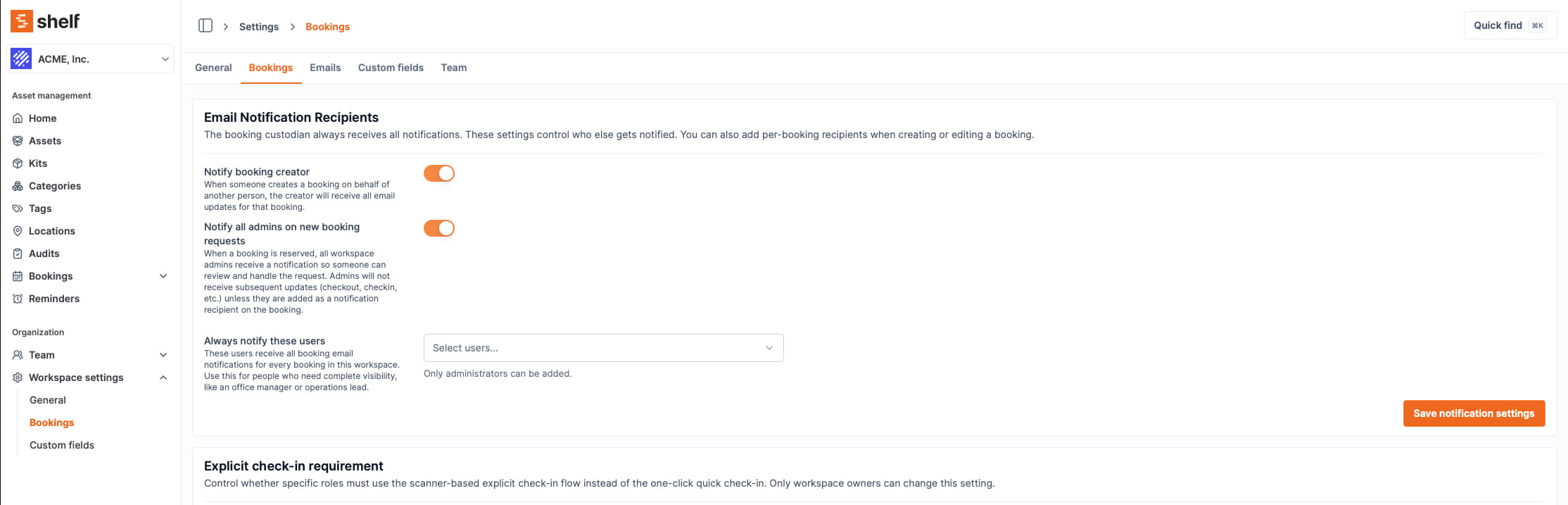
Notify Booking Creator
Default: On
When enabled, the user who created a booking receives all email notifications for that booking (if they are not already the custodian). This ensures that anyone who books equipment on behalf of someone else stays informed about checkout reminders, overdue notices, and completion.
To disable this for your workspace, toggle Notify booking creator off in Settings > Bookings.
Notify All Admins on New Booking Requests
Default: On
When enabled, all users with Admin or Owner role receive a notification when a booking is reserved. This is a one-time broadcast for the reservation event only — admins do not receive subsequent lifecycle emails (checkout reminders, check-in reminders, overdue notices, completed, or cancelled) unless they are explicitly added as a notification recipient on the booking or are in the Always Notify list.
The purpose of this setting is to alert the admin team that a new booking needs attention. Once someone takes ownership or processes the booking, only people explicitly attached to it continue to receive emails.
When to turn this off: If your workspace has many admins and you want to reduce notification noise, disable this toggle and use the Always Notify list below to target the specific people who should receive new booking alerts.
Always Notify These Users
Default: Empty
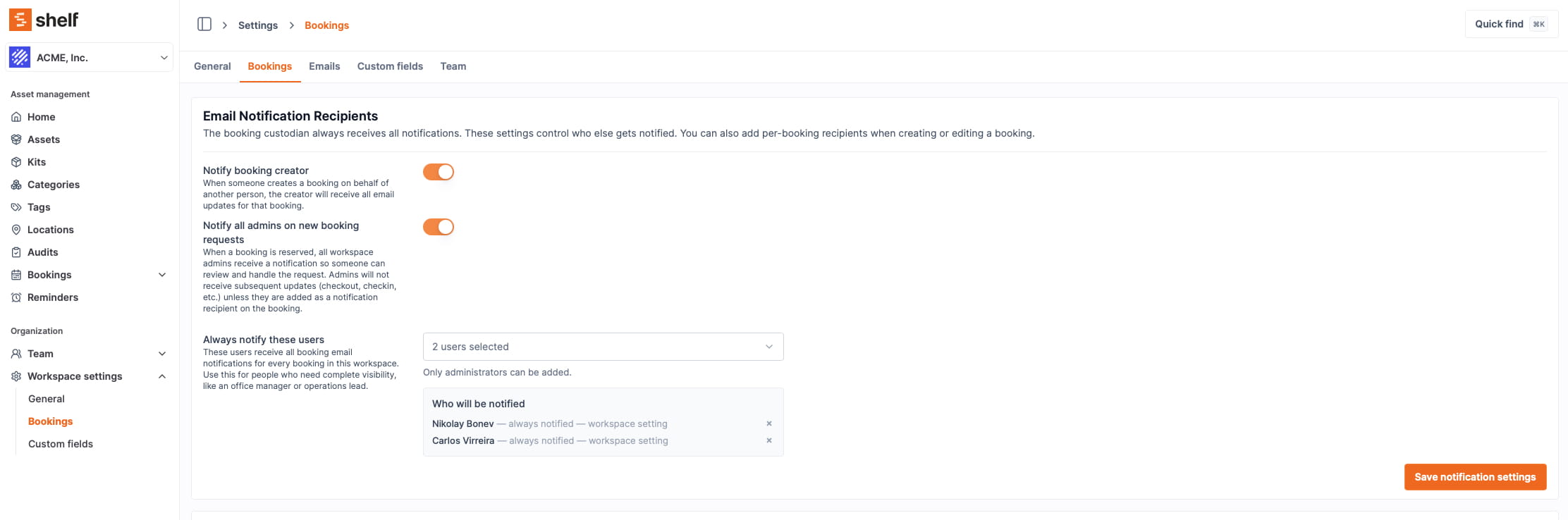
Add specific users who should receive all booking email notifications for every booking in the workspace — not just the reservation, but every update (checkout, check-in, overdue, completed, cancelled, extended, deleted).
Use this for people who need complete visibility across all bookings, such as an equipment manager, office manager, or operations lead. This setting is additive — it works alongside (not instead of) the other notification settings above.
To add a user:
- Go to Settings > Bookings
- Click + Add user in the Always Notify section
- Search for the user by name or email
- Click Save
Per-Booking Notification Recipients
When creating or editing a booking, you can add specific users to receive notifications for that booking only — in addition to workspace defaults.
Use this for bookings that need extra attention from people not already covered by workspace settings. For example, a high-value equipment checkout that a department head should know about, or a complex booking where multiple people need to stay coordinated.
Adding Recipients to a Booking
- Open an existing booking or start creating a new one
- Scroll to the Notification recipients section (optional, collapsible)
- Click + Add recipient and search for users by name or email
- The selected users will receive all email notifications for this booking
Notification Preview
If you have Admin or Owner role, the booking form shows a notification preview — a real-time summary of everyone who will receive emails for the booking, grouped by reason:
- Custodian
- Creator (if workspace setting is on)
- Always-notify users (if configured)
- Added recipients (if any)
- Admin broadcast note for the reservation event
Base-role and Self-Service users do not see the full recipient list.
Complete Notification Matrix
| Booking Event | Custodian | Creator (if on) | All Admins (if on) | Always-Notify Users | Per-Booking Recipients |
|---|---|---|---|---|---|
| Reserved | Always | Yes | Yes | Yes | Yes |
| Reverted to draft | Always | Yes | No | Yes | Yes |
| Checkout Reminder | Always | Yes | No | Yes | Yes |
| Checkin Reminder | Always | Yes | No | Yes | Yes |
| Overdue | Always | Yes | No | Yes | Yes |
| Completed | Always | Yes | No | Yes | Yes |
| Cancelled | Always | Yes | No | Yes | Yes |
| Extended | Always | Yes | No | Yes | Yes |
| Updated | Always | Yes | No | Yes | Yes |
| Deleted | Always | Yes | No | Yes | Yes |
Note: The All Admins column applies to the reservation event only. This is intentional — it is a broadcast signal that a new booking needs attention. Subsequent lifecycle events are targeted to specific people attached to the booking.
Note: The person performing an action is normally left out of the email it triggers — they already know what they did. Two recipients are exempt, because the whole point of their place on the list is a complete record of the booking: the custodian always receives the email, even when they are the one who acted, and so does the creator while Notify booking creator is on. Someone who is on the list for any other reason — an admin on the always-notify list, say — is left out of the email for their own action as before. The exclusion does not apply at all to scheduled reminders (checkout reminder, check-in reminder, overdue), which are sent to every recipient regardless of who did what.
When a Reservation Is Sent Back to Draft
A reserved booking can be sent back to Draft from the booking's Actions menu, using Revert to Draft. It is the reply to a reservation request: the booking is not cancelled and nothing is lost, it simply becomes editable again so dates, items or the custodian can be changed and the booking reserved a second time. Administrators and Owners can do this on any reserved booking; a Base or Self-service user reaches the Actions menu only on a booking they are the custodian of, so they can send their own reservation back but nobody else's.
Shelf now emails the same people this event would reach if it were any other lifecycle transition. The subject reads "↩️ Booking reverted to draft (booking name)", and the body tells the recipient they can review the booking, make changes and submit it again.
Recipients follow the Reverted to draft row in the matrix above: the custodian always, the creator while Notify booking creator is on, everyone on the always-notify list, and anyone added to that booking. The admin broadcast does not fire — that one is reserved for new reservation requests, and this event is the answer to a request rather than a new one.
This matters most for the request-and-approve pattern. A Base or Self-service user submits a reservation with Request reservation, an administrator sends it back for changes, and until now the requester was told nothing: their booking quietly became a draft again and they found out the next time they opened it. Every other transition on a booking — reserved, cancelled, checked in, extended, deleted — already sent an email; this one was the gap.
Related Articles
Ready to try Shelf?
Put what you're learning into practice. Free plan available — no credit card required.