

Audits
Run physical inventory audits with structured scan workflows, automatic found/missing/unexpected detection, and exportable reports.
Trusted by innovative teams































































Audits let you verify that your physical inventory matches your records. Define which assets should be in a location, hand someone a phone, and let them scan. Shelf flags what was found, what is missing, and what showed up unexpectedly. When the audit is complete, download a PDF receipt that carries the counts, the full asset list, and the notes and photos your auditor recorded, grouped by the item each one is about.
Audits is a paid add-on available on any Shelf plan, with a 7-day free trial to test it on your own inventory.
Why Physical Audits Matter
Digital records drift. Equipment moves, gets misplaced, or is retired without updating the system. Without periodic physical verification, your asset database becomes a fiction:
- Ghost assets: Records show items that no longer exist, inflating counts and distorting budgets.
- Untracked equipment: New items enter the field without being logged, creating blind spots.
- Location mismatches: Assets are recorded in one building but physically sitting in another.
- Compliance gaps: Insurance audits, regulatory reviews, and internal controls all require proof that equipment exists where records say it does.
- Shrinkage blind spots: Without verification, missing items go unnoticed for months.
Regular audits close the gap between what your system says and what actually exists.
How Shelf Audits Work
1. Define the Scope
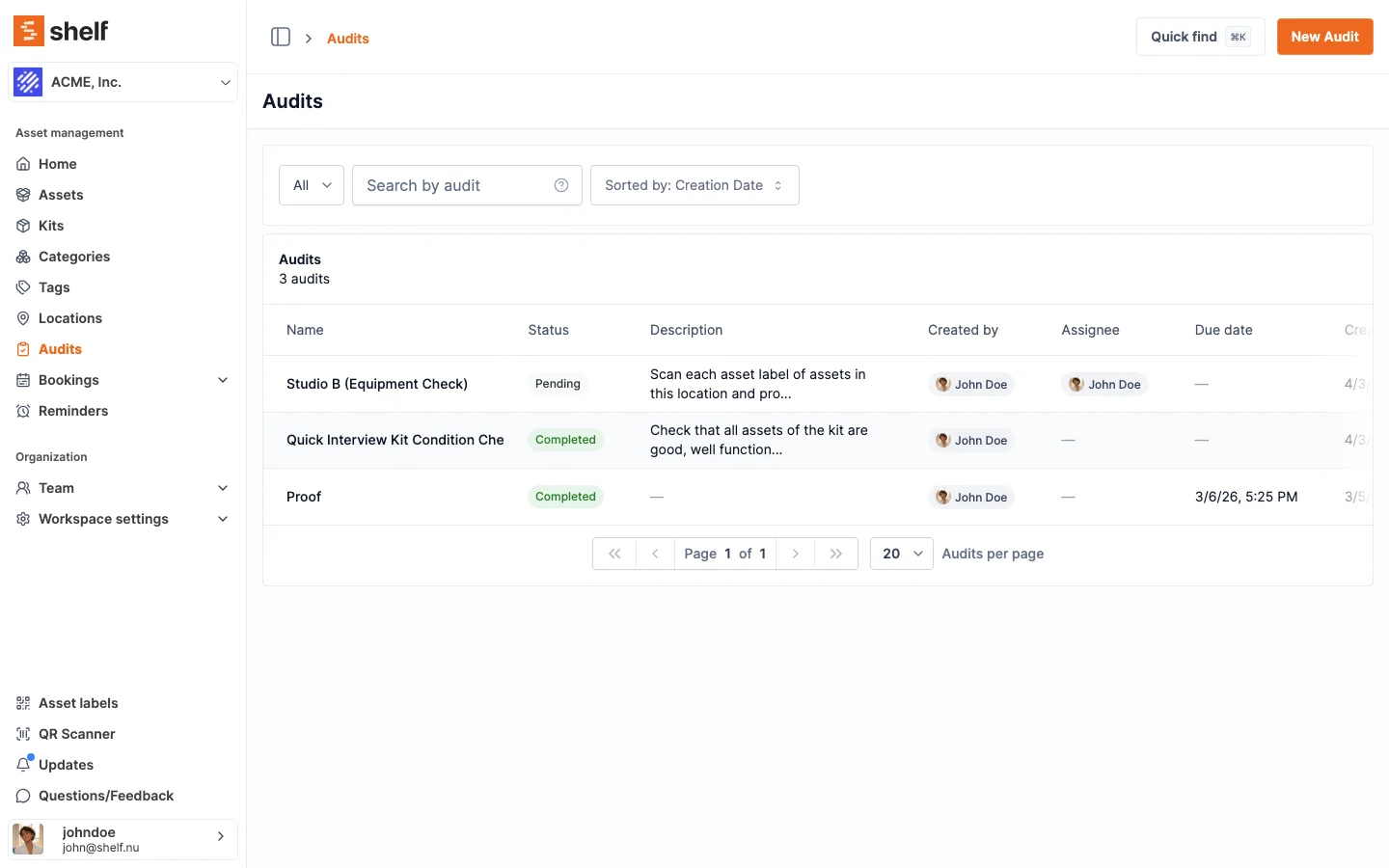
Create an audit session and select which assets to include. You can scope by location, category, team, or any combination. Shelf builds the expected asset list automatically from your existing records.
There are three ways to start an audit, all from the New Audit dialog: from the Assets list in advanced mode, or directly from one or more selected locations or kits. To audit by location or kit, select the rows you want on the Locations or Kits page and choose Actions → Create audit — Shelf builds a single audit covering the union of all assets in your selection, so a multi-location or multi-kit count is one session rather than many. Selecting all with an active search or filter audits exactly the rows that match.
2. Assign and Scan
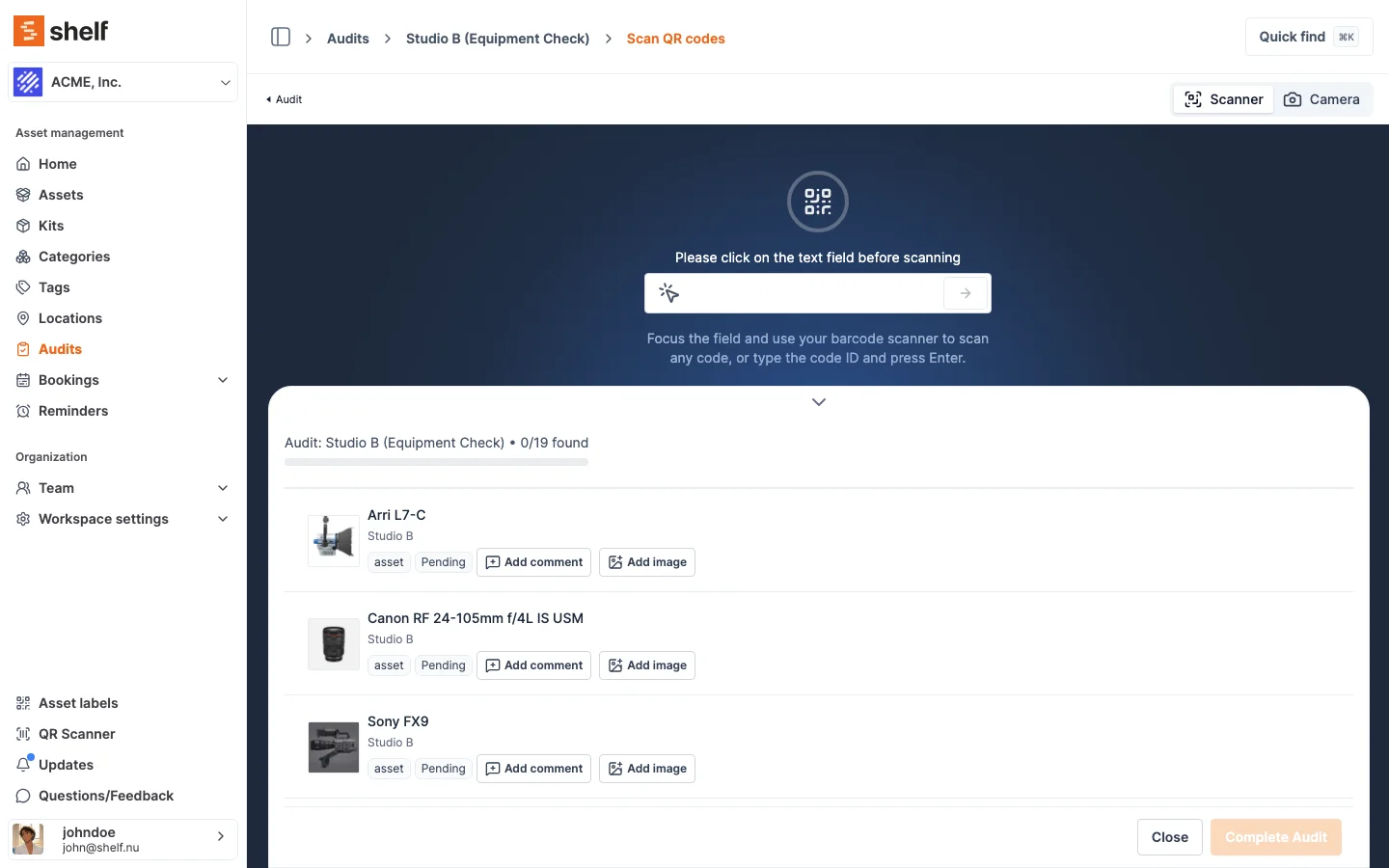
Assign the audit to a team member, or just start scanning yourself — owners, administrators and managers can perform any audit in the workspace, assigned or not. Whoever runs it opens a dedicated scan page on any phone or tablet — in any browser, or in the free Shelf Companion app on iPhone and Android — and starts scanning QR labels. Each scan registers the asset as Found.
The scan page is purpose-built for audits — separate from regular check-in/check-out — so there is no confusion about what workflow is active.
A scan can be taken back off. Every scanned row carries a bin icon, and removing a scan puts an expected asset back to Not scanned or drops an unexpected one out of the audit entirely. The counts are recounted from the rows rather than nudged down, so a corrected audit reports the truth rather than an approximation of it. Correction is only open while the audit is live: once it is Completed or Cancelled its numbers have been reported and the scans are fixed.
3. Review Results
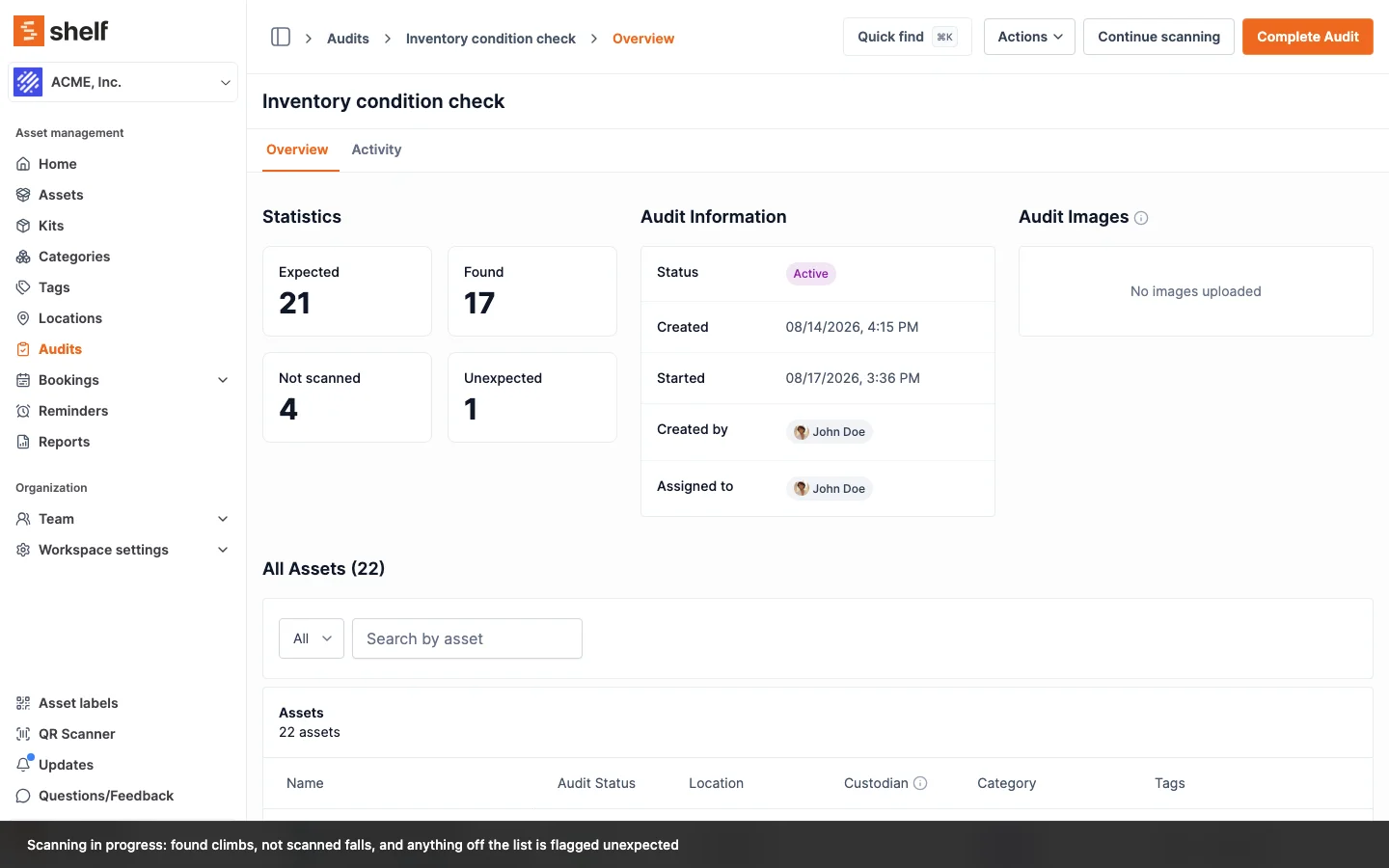
As scanning progresses, Shelf tracks each expected asset in real time:
- Found: The asset was scanned and matches the expected list.
- Not scanned: The asset is on the expected list and nobody has reached it yet. This is what an audit shows while it is still running, including a brand new one where nothing has been scanned at all.
- Unexpected: An asset was scanned that was not part of the expected list — flagging items that have moved or were never recorded.
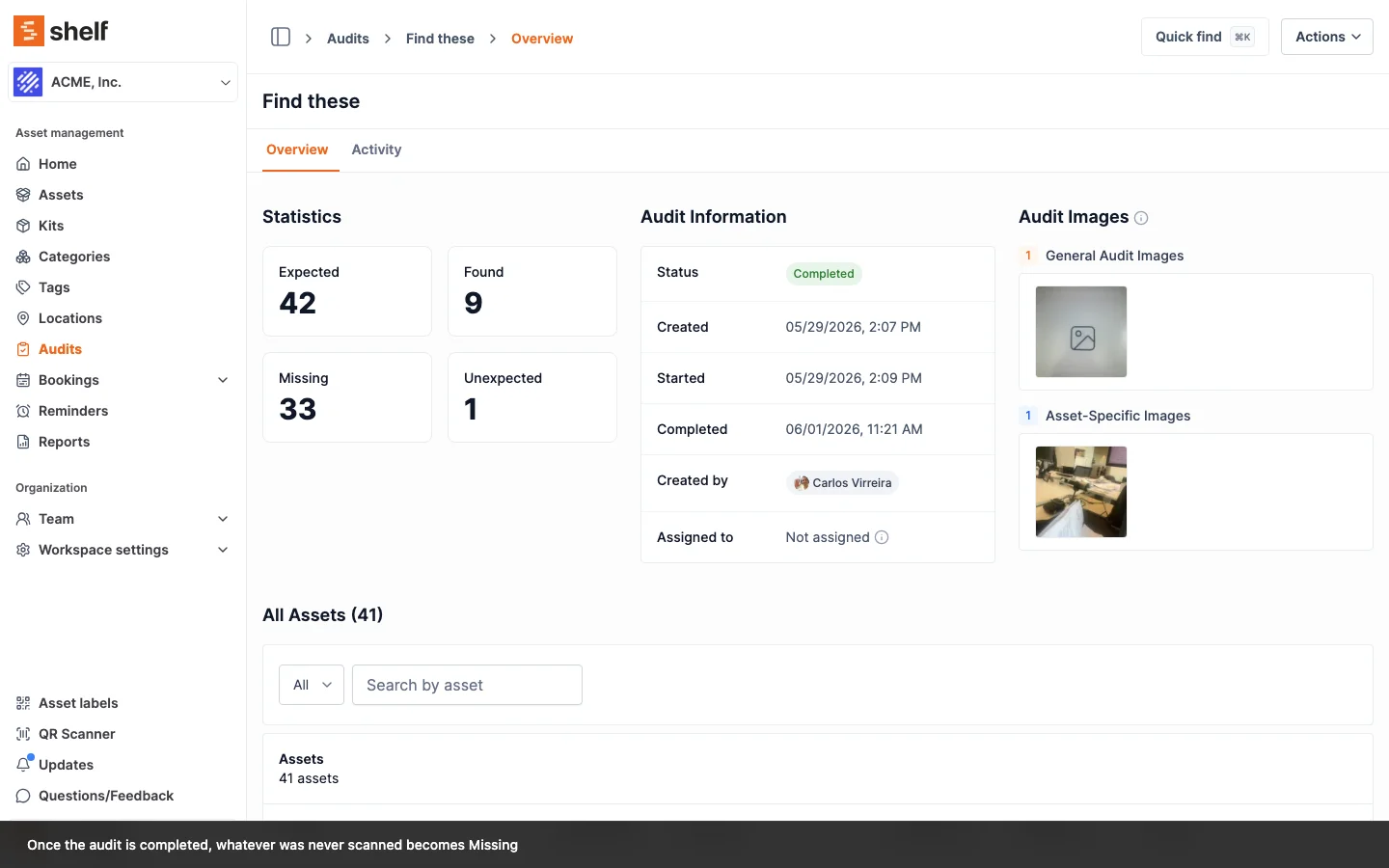
- Missing: Reserved for the end. When you complete the audit, everything still unscanned becomes Missing, and that is the number the PDF receipt and the summary email carry.
Nothing is called missing while the count is still going on. A running audit only ever tells you what has been found and what has not been reached yet, so the word means something when it finally appears.
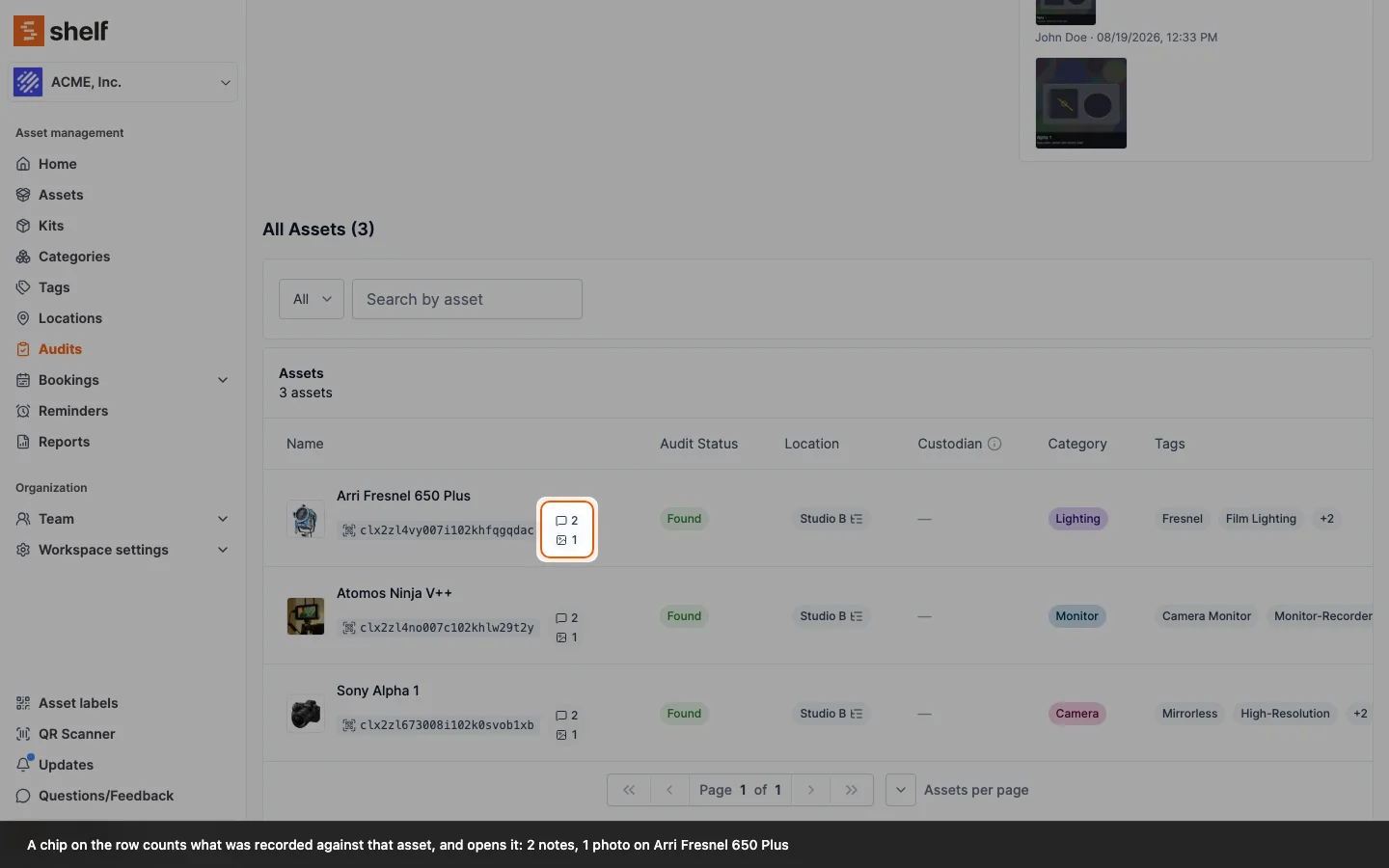
Auditors can add notes and photos to any asset during the audit, documenting damage, wrong labels, or condition issues. This works on the web and in the Shelf Companion app: open a row, write a condition note, and attach a photo from the camera or the photo library. A row that carries evidence says what it holds — "1 note, 2 photos" — and opens the full record, on the phone as well as the web, so the person still on the floor can read what a colleague wrote about the same item ten minutes earlier. Notes and photos are counted separately, so one note plus one photo never collapses into an ambiguous "2". Everything lands on the same audit record. When the audit is completed, cancelled or archived, that record closes to new notes and photos, so what the receipt shows is what was recorded during the count.
You do not have to find something to record something about it. Add comment and Add image sit on rows nobody has scanned yet as well as on the ones already found, so a photo of the empty shelf where the camera should have been is part of the same record as the gear that turned up.
After an audit is completed, the same tile changes its word: everything nobody reached is reported as Missing.
Findings: what people actually recorded
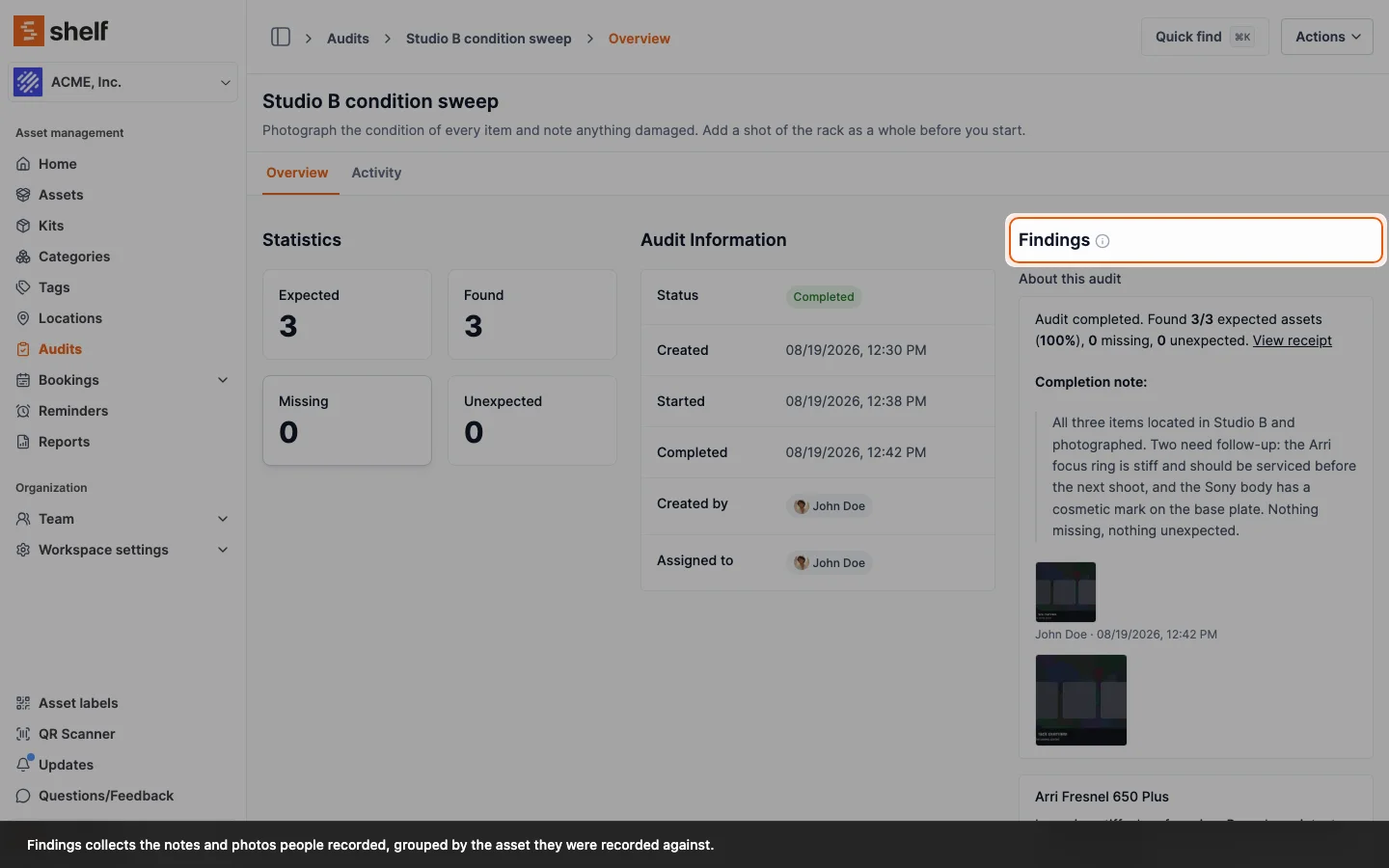
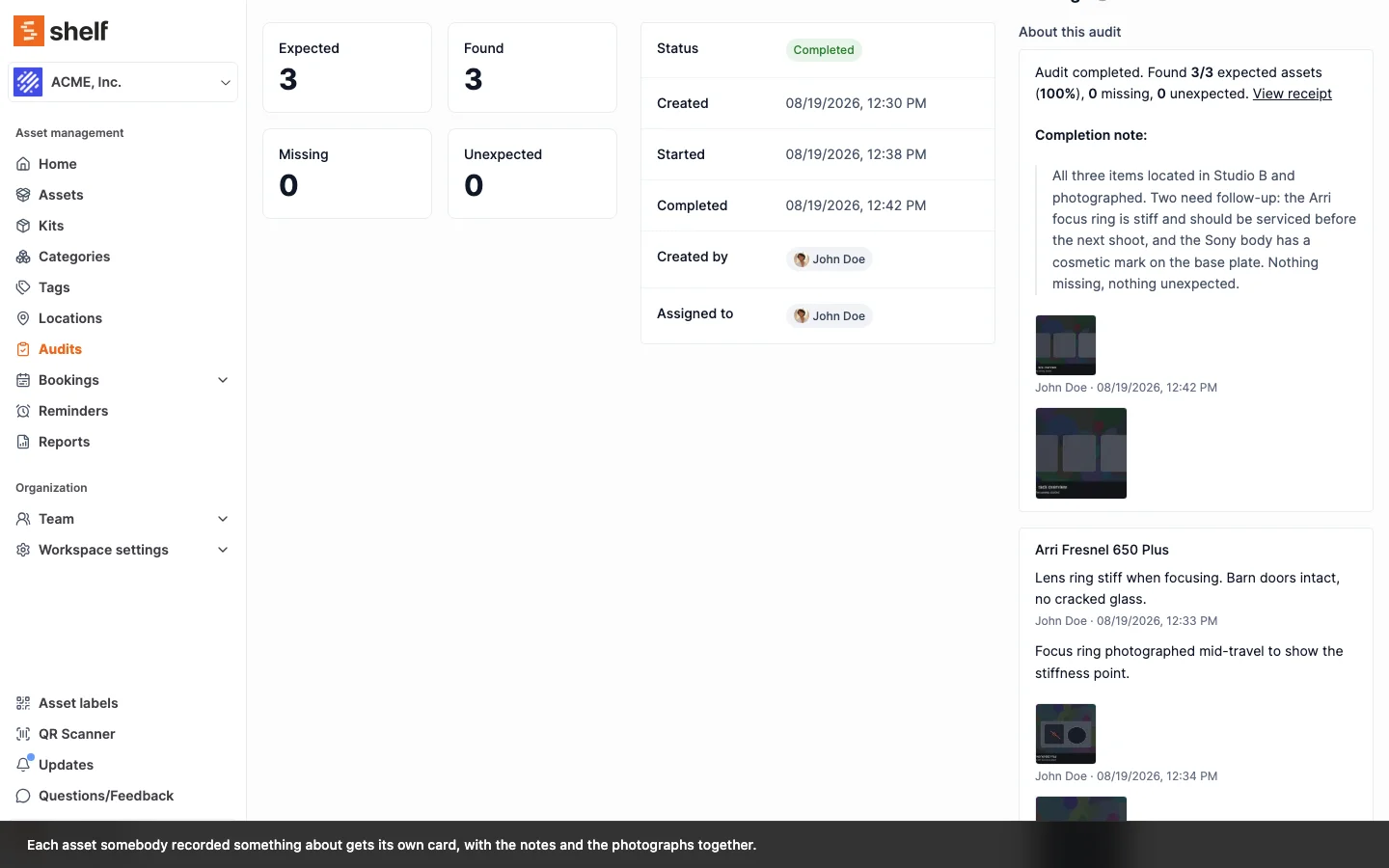
The counts tell you how many. Findings, in the right-hand column of the audit, tells you what was seen. It collects every condition note and photo taken during the count, grouped by the asset it was recorded against, so the written observation sits beside the picture of the same item instead of in a separate list.
About this audit comes first, holding the completion note and any photos of the count as a whole. Below it, one card per asset somebody recorded something about, each with the note, its author, the time, and the photographs. An audit where nobody wrote anything says so plainly: Nothing was recorded during this audit. System activity stays on the Activity tab, so Findings is people's observations only.
On a large count, the asset table is where you go looking. Each row carries a small chip counting what was recorded against that asset, notes and photos separately, and opens straight into it. On a 200-item audit that is what tells the one damaged camera apart from the 199 that were fine.
4. Complete and Report
When scanning is finished, complete the audit. Completing is also what settles the numbers: everything still unscanned becomes Missing. Shelf sends a summary email to the audit creator with counts of found, missing, and unexpected assets.
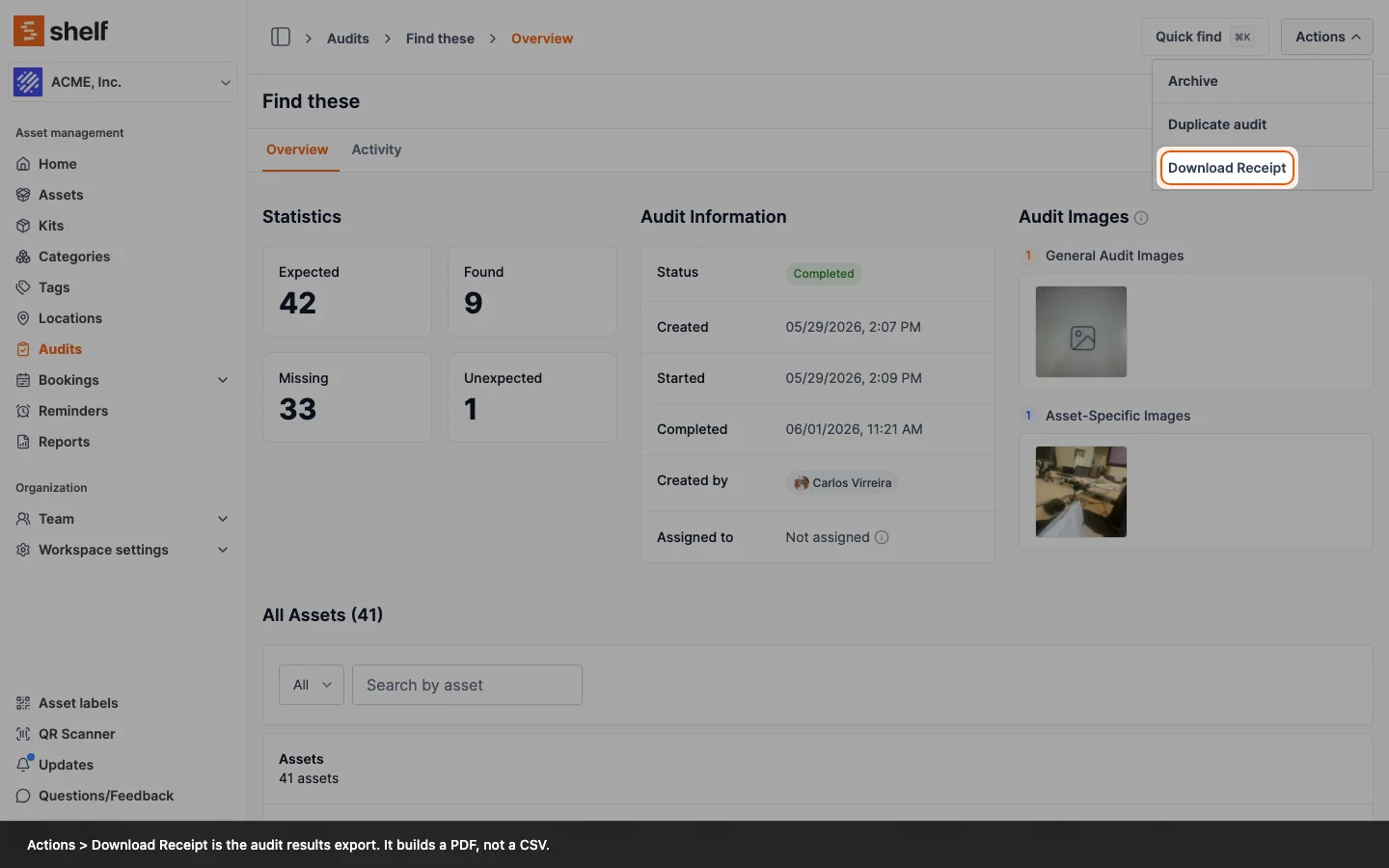
For the record itself, open the audit and choose Actions → Download Receipt. The receipt is a PDF holding the audit's details (who created it, who it was assigned to, and when it was created, started and completed), the Expected / Found / Missing / Unexpected counts, a Findings section carrying the notes and photos grouped by the asset they were recorded against, a line-item table of each asset with its category, location, status and QR code, and the full activity log. Anyone who can view the audit can download it, at any point, not only after completion.
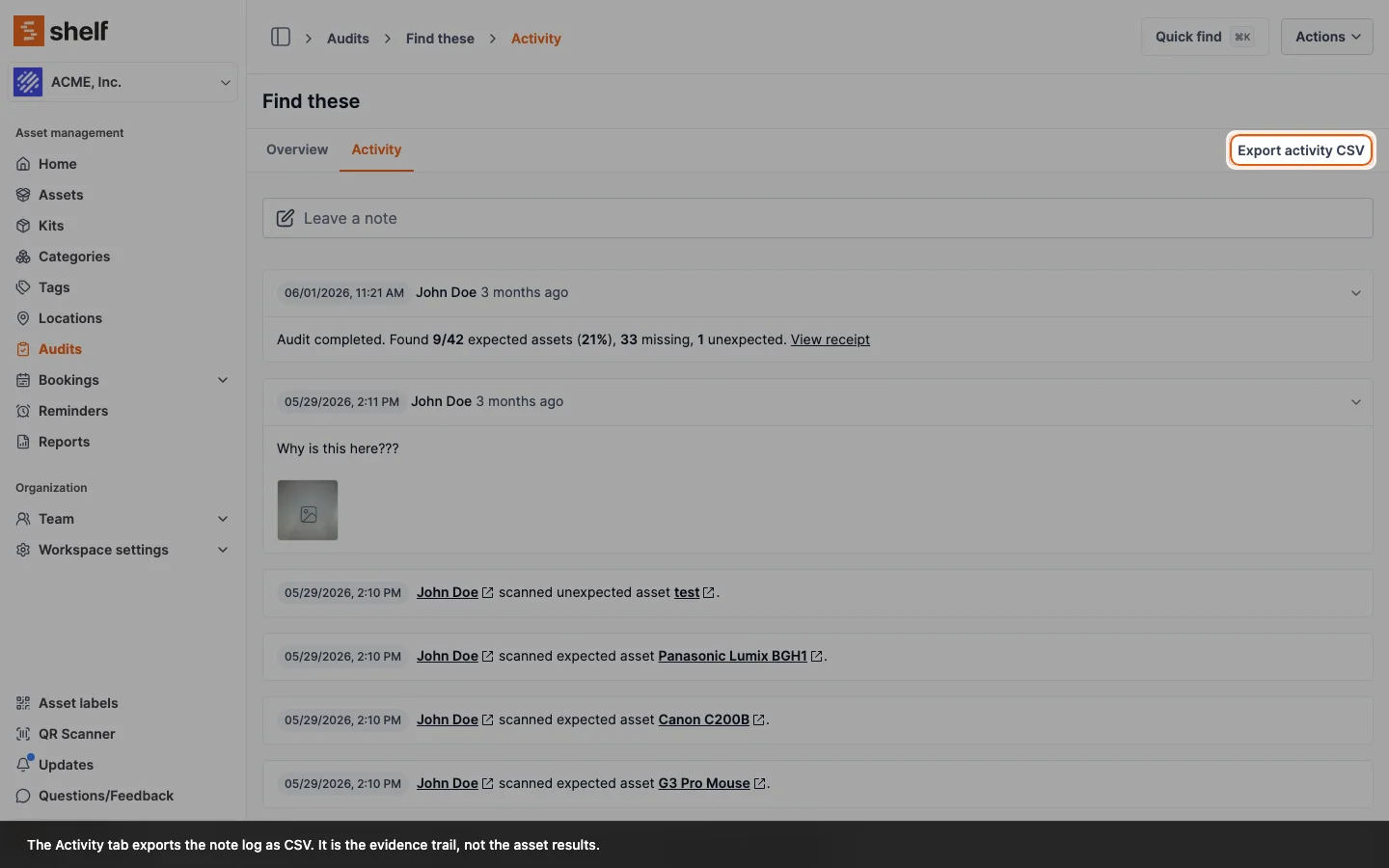
The audit's Activity tab has a separate Export activity CSV button once the audit has activity on it. That file is the note log (date, author, type, and content), not the asset list, so it suits an evidence trail rather than a spreadsheet of results.
5. Edit, Duplicate, Archive, and Delete for Record-Keeping
While an audit is still Pending or Active, owners, admins and managers can open it and choose Actions → Edit details to change its name, description, due date and assignee. A count that slips by a week or passes to a different person is a quick edit rather than a rebuild. Once the audit reaches a terminal state the record is fixed, which is what makes its receipt worth keeping.
Once a completed or cancelled audit is no longer actively referenced, owners, admins and managers can archive it. Archived audits are removed from the default audit list but remain accessible by filtering for the Archived status.
To archive a single audit, open it and select Archive from the actions menu (⋯). To archive several at once, return to the audit list, use the checkboxes to select audits, then choose Archive from the Actions dropdown. See Bulk Archive Audits for step-by-step instructions.
When you want to permanently remove an archived audit and all its scan data, notes, and images, you can delete it. Deletion requires the audit to be archived first — open the archived audit, choose Delete from the actions menu, and type the audit name to confirm. Bulk deletion is also available: filter the list to Archived, select multiple audits, and choose Delete from the Actions dropdown. See Permanently Delete Archived Audits for full instructions.
For recurring audits — monthly stock counts, post-event sweeps, quarterly compliance checks — you don't have to rebuild the scope each time. Duplicate any Completed, Cancelled, or Archived audit and Shelf creates a fresh Pending session with the same name (with a "(Copy)" suffix), description, and asset list. If some of the original audit's assets have since been deleted, the dialog warns you with the dropped count before you proceed; if every original asset is gone, the duplicate is blocked. See Duplicate an Audit for full instructions.
Key Capabilities
- Structured verification: Define expected assets up front so scanning confirms presence rather than just listing what was found.
- Start from locations or kits: Bulk-select on the Locations or Kits page and choose Actions → Create audit to spin up one audit covering the union of every asset in the selection — no need to rebuild the scope by hand.
- Found / Not scanned / Unexpected detection: Three-way reconciliation that catches both losses and untracked items. Not scanned becomes Missing once the audit is completed.
- Dedicated scan page: Purpose-built audit scanning interface, separate from check-in/check-out workflows.
- Notes and photos per scan: Document conditions, discrepancies, or issues as you go, from the web app or from the Shelf Companion app on iPhone and Android. Photos can be taken with the camera on the spot or picked from the photo library. Add comment and Add image work on assets nobody has scanned yet as well, so the empty shelf gets photographed too.
- Findings, grouped by asset: One column on the audit collects every note and photo people recorded, with the words and the pictures for the same item together. Each row in the asset table carries a chip counting what is on it, so a large count shows at a glance which items were worth writing about.
- Correct a mis-scan while the audit is live: Remove a scan from the scan page and the asset goes back to Not scanned, or leaves the audit if nothing but the scan put it there. Counts are recomputed from the rows, and the change is attributed in the audit's activity. Scans are fixed once the audit is Completed or Cancelled. From Shelf Companion 1.5.0 the same correction is available on the phone, where the mis-scan usually happens: open the scanned row and tap Remove scan. Notes and photos survive it, because evidence is attached to the audit's row for the asset rather than to the scan.
- Real-time progress: Live counts of expected, found, not scanned, and unexpected assets update as scanning happens, on the audit itself and in the audit list.
- Location context in scan list: When auditing by tag, category, or any non-location filter, each asset in the scan list shows its current location beneath its name — helping auditors identify where they need to look without leaving the scan view. Location is automatically hidden when the audit is scoped to a specific location to avoid redundancy. In Shelf Companion 1.5.0 a scanned row carries the same answer: where the asset lives, rather than the word "Found" that every row on that list already was. An asset the audit did not expect reads Not on this audit, and the count of those is tappable to filter the list down to just them.
- PDF audit receipt: Actions → Download Receipt produces one document with the counts, the full asset table, a Findings section pairing each asset's notes with its photos, and the activity log, for compliance, insurance, or management review. The Activity tab exports its note log separately as CSV.
- Completion notifications: Email summaries sent automatically when an audit is completed.
- Full audit lifecycle management: Archive completed or cancelled audits to remove them from the default list while keeping the data accessible. When the data is no longer needed, permanently delete archived audits — individually or in bulk — removing all scan records, notes, and images. Archive individually or in bulk from the Actions dropdown; delete follows the same pattern with a type-to-confirm safety step.
- One-click recurring audits: Duplicate any Completed, Cancelled, or Archived audit to re-run it on the same asset list. The copy starts clean (no notes, no scans, no assignee, no due date) and inherits the source's name, description, and scope. If the source's assets have shifted, Shelf reports the dropped count up front and blocks the duplicate if every asset is gone — no silent failures.
- Runs on any device: Browser-based scanning on phone, tablet, or laptop — you can run audits from your phone in any browser — plus a native iPhone and Android experience via the Shelf Companion app.
Common Use Cases
- Annual inventory reconciliation: Verify every asset in your system against what physically exists. Identify ghost assets, untracked items, and location mismatches in a single pass.
- Location-based spot checks: Audit a specific room, warehouse, or vehicle to confirm its contents match records — useful after moves, events, or shift changes.
- Compliance and insurance audits: Generate documented proof that equipment exists where records say it does. Export PDF reports with timestamps for audit trails.
- Post-event equipment verification: After a conference, production shoot, or field deployment, scan everything that comes back to confirm nothing was left behind.
- Onboarding new locations: When taking over a new facility or inheriting equipment from another department, audit to establish a verified baseline in Shelf.
- Shrinkage detection: Run periodic audits to identify patterns of loss before they become expensive.
- Tracking whether audits get done: The Audit Completion report lists every audit with the workspace's completion rate, the overdue audits and the assets the completed ones found missing, so a quarterly counting program can be checked in one screen.
Pricing
Audits is a paid add-on, available on any Shelf plan. Pricing is managed through your Shelf account with monthly or yearly billing options. A 7-day free trial is included so you can test the feature on your own inventory before committing.
Visit the Audits section in your Shelf workspace to activate the trial.
Frequently Asked Questions
Is Audits included in my Shelf plan?
No. Audits is a paid add-on, separate from your Shelf subscription tier. It is available on every plan — Free, Plus, Team, and Enterprise. You can activate a 7-day free trial from within your Shelf workspace.
Do I need a special app to run audits?
Not mandatory. Audits run in any modern phone browser using the device's camera — nothing to install. For a native experience, you can also run audits from the free Shelf Companion app on the App Store and Google Play: scan, watch found/expected counts update in real time, add notes and photos to individual scans, and complete the audit on the floor.
Can I scope an audit to a specific location or category?
Yes. When creating an audit session, you select which assets to include. You can filter by location, category, or other criteria to focus the audit on exactly what you need to verify.
Can I start an audit straight from the Locations or Kits page?
Yes. On the Locations page or the Kits page, select one or more rows, open the Actions dropdown, and choose Create audit. Shelf creates a single audit covering the union of every asset across the selected locations or kits — useful for a room-by-room sweep or for confirming that kit contents are complete. If you select all with a search or filter applied, only the matching rows are included. Creating audits this way requires the same audit permission as the New Audit button, so it's available to anyone on your team who can already create audits.
When does an asset count as missing?
Only once you complete the audit. While the audit is running, an asset nobody has scanned yet reads Not scanned, because the count is not finished and no conclusion has been drawn. Completing the audit is the moment Shelf turns whatever is still unscanned into Missing, and that is the figure the PDF receipt and the summary email report.
Missing assets are flagged in the report but are not automatically changed in your Shelf database. You decide what action to take — follow up with the last known custodian, mark the asset as lost, or investigate further.
Who is allowed to run an audit?
Owners, administrators and managers can scan, add condition notes and photos, and complete any audit in their workspace — assigning one to a colleague does not lock them out of it. The Manager role, added in October 2026, can also create, edit, cancel, archive and delete audits without being able to change the catalogue, which suits an equipment-room lead who counts stock but does not administer the workspace. Self-service and base users work only on the audits they have been assigned, which is how you hand a count to a technician or a student without opening the rest of the inventory to them. The same rule applies in the browser and in the Companion app.
Can multiple people scan during the same audit?
Currently, each audit session supports a single assigned scanner. For large-scale audits, you can create multiple audit sessions scoped to different areas and assign each to a different team member.
How do I export audit results?
Open the audit, click the actions menu, and choose Download Receipt. Shelf builds a PDF containing the audit details, the Expected / Found / Missing / Unexpected statistics, any photos taken during the count, a numbered table of every asset with its category, location, status and QR code, and the activity log. It is available to anyone who can view the audit, whether or not the audit has been completed.
There is no CSV of the asset results. The one CSV an audit produces is Export activity CSV on the Activity tab, which downloads the note log with a date, author, type and content column. If you need audit results in a spreadsheet, export the assets themselves from the asset index and reconcile against the receipt.
Can I change an audit's name, due date, or assignee after creating it?
Yes, while it is still running. Open the audit, click the actions menu (⋯), and choose Edit details. The dialog updates the audit's name, description, due date and assignee in one go, so a count that slips a week or moves to a different person does not have to be rebuilt from scratch.
This is an Owner, Admin or Manager action, and it is available on Pending and Active audits only. Once an audit is Completed, Cancelled or Archived its record is fixed, which is what makes the PDF receipt worth keeping. To re-run a finished audit on the same scope, duplicate it instead.
The audit's scope is not editable here. The asset list is set when the audit is created, so use Duplicate if you need a different set of assets.
Can I cancel an audit?
Yes. The creator of an audit can cancel their own audit at any time before it reaches a terminal state. Workspace owners, admins and managers can also cancel any audit in the workspace — including audits created by other team members. Open the audit, click the actions menu (⋯), and select Cancel. Once an audit is Completed, Cancelled, or Archived it can no longer be cancelled.
Cancelling sends a notification email to the audit creator and any assigned scanner.
Can I archive an audit?
Yes. Owners, admins and managers can archive any audit that is Completed or Cancelled. Open the audit, click the actions menu (⋯), and select Archive. You will be asked to confirm before the action is applied. Archiving removes the audit from the default list but it remains accessible by filtering for the Archived status. Archiving is permanent — it cannot be undone.
To archive multiple audits at once, go to the audit list, use the checkboxes to select the audits you want to archive, and choose Archive from the Actions dropdown. See Bulk Archive Audits for full instructions.
Can I permanently delete an audit?
Yes. Owners, admins and managers can permanently delete any Archived audit. Archiving must happen first — it acts as a safety step before deletion. Open an archived audit, click the actions menu (⋯), select Delete, and type the audit name to confirm. Deletion permanently removes all scan data, notes, and images and cannot be reversed.
To delete multiple archived audits at once, filter the audit list to the Archived status, select the audits using checkboxes, choose Delete from the Actions dropdown, and type the number of audits selected to confirm. See Permanently Delete Archived Audits for full instructions.
Can I duplicate an audit to re-run it?
Yes. Owners, admins and managers can duplicate any Completed, Cancelled, or Archived audit from the actions menu (⋯). The new audit inherits the source's name (with a "(Copy)" suffix), description, and asset list, and starts in a clean Pending state — no notes, scans, assignee, or due date carry over. If some of the source audit's assets have since been deleted, Shelf shows a yellow warning with the dropped count before you proceed; if every asset is gone, the duplicate is blocked and you'll need to create a new audit instead. Pending and Active audits don't show the Duplicate option — they have their own Edit and Cancel actions. See Duplicate an Audit for full instructions.
The free Shelf Companion app on the App Store and Google Play lets you run audits live from the floor: scan, watch found/expected counts update in real time, add a note or a photo to any scan, and complete the audit when done. Free with any Shelf account.
Related Features
- Reports — the Audit Completion report
- Custody
- Location Tracking
- Dashboard
- Kits
Ready to organize your assets?
Join thousands of teams who trust Shelf to manage their physical assets. Free forever, or try the Team plan free for 7 days.
Out in the field? Shelf Companion is free on iPhone & Android.