

Permanently Delete Archived Audits
Remove archived audits and all their scan data, notes, and images from Shelf permanently — one at a time or in bulk.

Once an audit is archived, it can be permanently deleted. Deletion removes all scan data, notes, images, and audit-related uploaded files — this action cannot be undone.
Deletion is only available for Archived audits. Audits must be archived before they can be deleted — Shelf enforces this as a safety step. Only Owner, Administrator and Manager roles can delete audits.
Delete a Single Audit
- Open the audit from the list
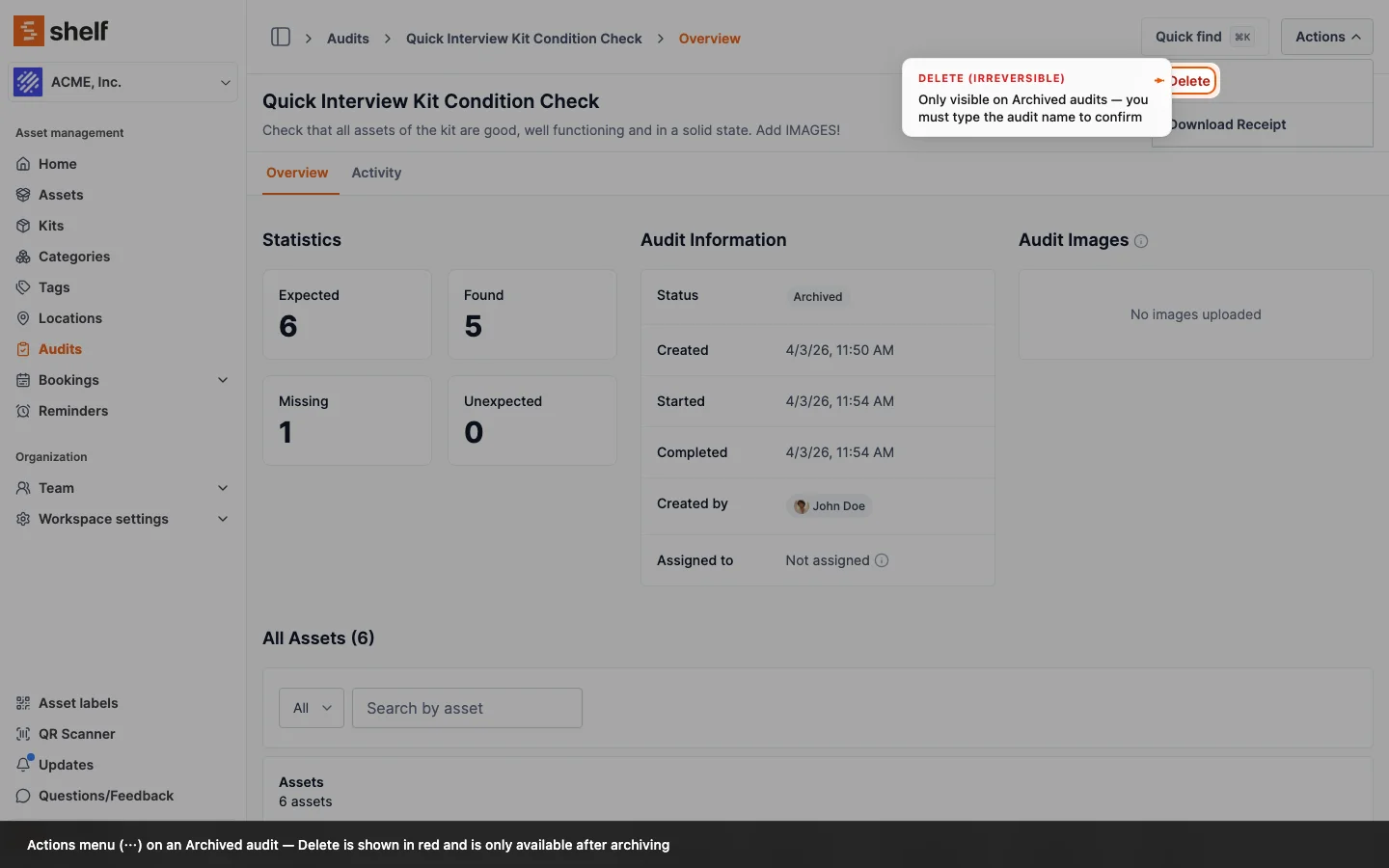
- Click the actions menu (⋯) in the top-right
- Select Delete (shown in red — only visible on Archived audits)
- In the confirmation dialog, type the audit's name exactly to unlock the button
- Click Delete to permanently remove the audit
Bulk Delete Archived Audits
To delete multiple archived audits at once:
Step 1: Filter to Archived
On the audits index page, filter the list by Status → Archived. This is required before using Select All with bulk delete — otherwise the count shown would be misleading.
Step 2: Select the Audits
Use the checkboxes on the left of each row. To select all archived audits at once, click the checkbox in the column header, then click "Select all X audits" when the banner appears.
Step 3: Open the Actions Dropdown
Click the Actions button that appears in the top-right once at least one audit is selected.
Step 4: Choose Delete
Select Delete from the dropdown. If any selected audits are not archived, the Delete option will be disabled with a tooltip explaining why.
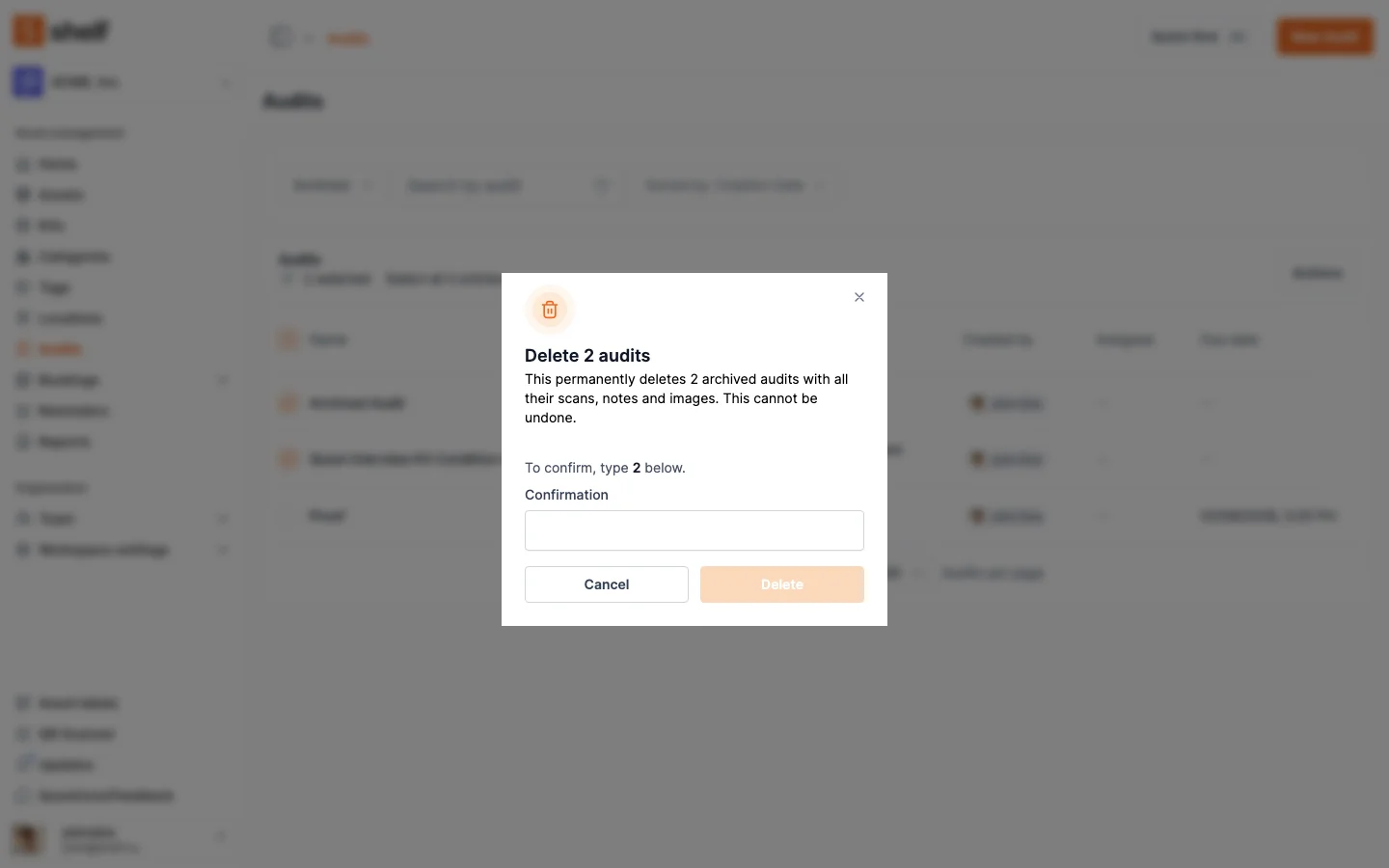
Step 5: Type the Number to Confirm
The dialog title shows how many audits you are deleting, for example Delete 2 audits. Type that number in the confirmation field and click Delete to proceed. If the archived list changed after you used Select all, Shelf deletes nothing and asks you to type the new number.
What Gets Deleted
Permanently deleting an audit removes:
- All scan records (the Found, Missing or Unexpected status held against each asset)
- All notes added during the audit
- All photos uploaded to audit assets
- The audit session record itself
The underlying assets are not affected — only the audit data is removed.
Notes
- Deletion is permanent and cannot be reversed.
- Archiving must come first. Active, Completed, or Cancelled audits cannot be deleted directly — archive them first.
- For large-scale audit operations (e.g., running 100+ audits per month), bulk delete is the recommended path for periodic cleanup.
- The bulk delete option is disabled if you have selected audits across mixed statuses — all selected audits must be Archived.
Archive First, Then Delete
The standard audit lifecycle in Shelf is:
- Create the audit session
- Scan assets to complete it
- Complete or Cancel the session
- Archive it when it's no longer actively referenced
- Delete it when you want to remove it entirely
If you only want to hide old audits from the default list without removing data, archiving alone is sufficient. See Bulk Archive Audits for instructions.
Related Articles
- Bulk Archive Audits — how to archive multiple audits at once
- Run Your First Audit — full audit walkthrough from start to finish
- Audits Feature Overview — full feature description, pricing, and FAQ
Ready to try Shelf?
Put what you're learning into practice. Free plan available — no credit card required.