

Run Your First Audit
Step-by-step guide to running your first physical inventory audit in Shelf — from creating the session to exporting the PDF report. Covers the 7-day free trial.

Audits let you verify that what's physically in a location matches what your records say should be there. Shelf flags what was found, what's missing, and anything unexpected that showed up. When the audit is done, export a PDF report.
Audits is a paid add-on available on any Shelf plan. It includes a 7-day free trial so you can test it on your own inventory before committing. This guide walks you through your first audit — start to finish — in about 20 minutes.
Before You Start
You need three things in place:
- Assets in Shelf — at least a few items in the location you plan to audit. If your inventory is empty, add some assets first.
- QR labels on those assets — the audit scan page reads QR codes to confirm physical presence. If you haven't printed labels yet, see Using Shelf QR Codes with Avery Label Sheets or Printing Custom Branded QR Code Labels.
- Audits activated — from the sidebar, click Audits. If you haven't activated the add-on yet, Shelf shows an unlock page. Only the workspace owner can start the trial or subscribe, since it is the owner's card the add-on bills to and each workspace gets the free trial once. Administrators and everyone else see "Contact your workspace owner to enable the Audits add-on for your organization" instead of the buttons. No credit card is required to start the trial.
Step 1: Create an Audit Session
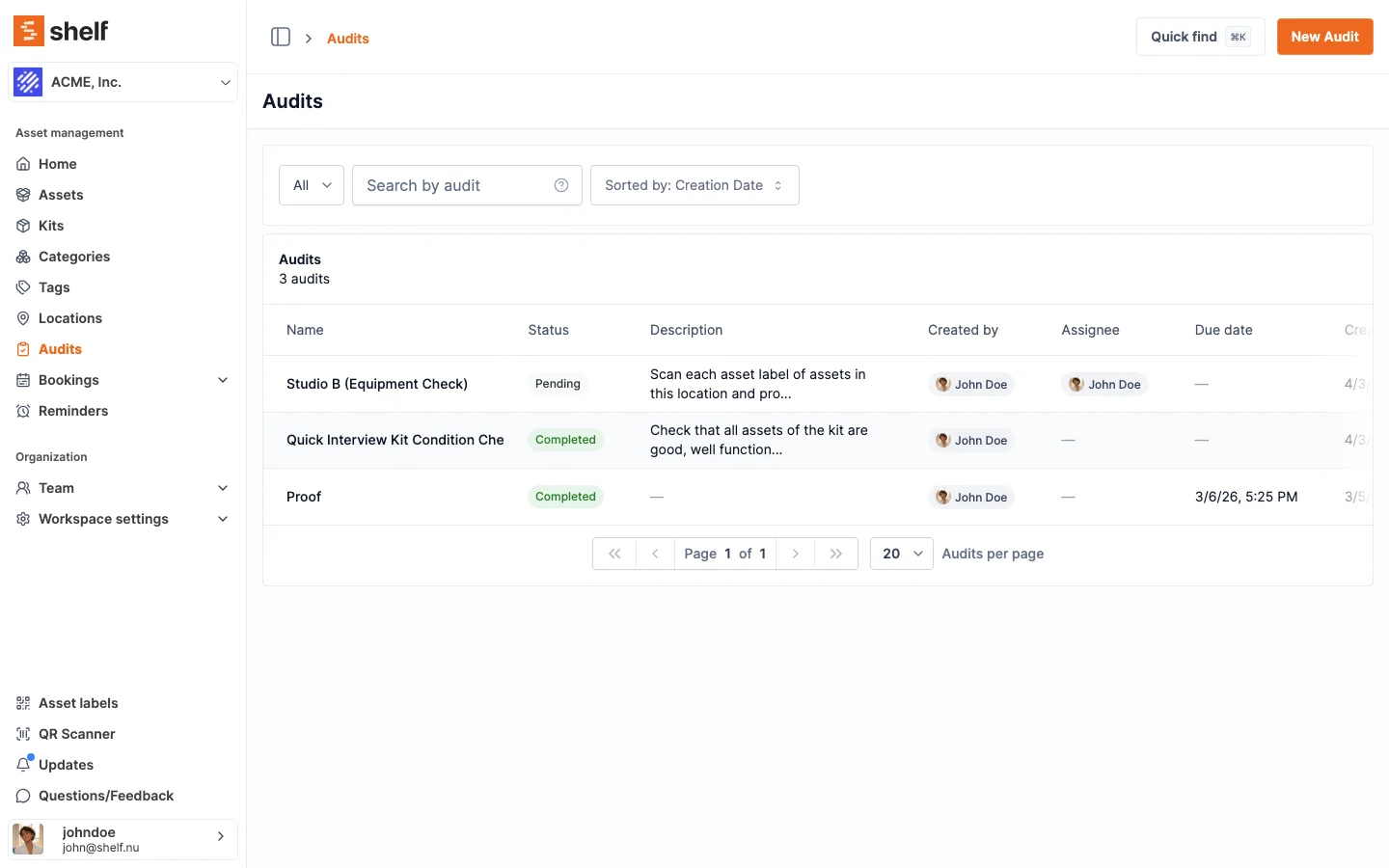
- Click Audits in the sidebar
- Click New Audit (top-right)
- Fill in:
- Name — something descriptive for your team (e.g. "Studio B Equipment Check", "Server Room Q2 2026")
- Description (optional) — instructions for the person doing the scan (e.g. "Scan each asset and provide a condition photo")
- Due date (optional) — when the audit should be completed by
- Select which assets to include — you can scope by location, category, tag, or any combination. Shelf builds the "expected" asset list from your current records.
- Assign the audit (optional) — pick a team member who'll do the scanning. Owners, administrators and managers can perform any audit in the workspace whether or not it is assigned, so assigning is how you hand the job to a self-service or base user. It also tells everyone else whose job it is.
- Click Save to create the session
Shortcut: start an audit from your Locations or Kits. Instead of building the scope inside the dialog, you can kick off an audit straight from a list page. On the Locations page (or the Kits page), tick one or more rows, open the Actions dropdown, and choose Create audit. Shelf creates a single audit covering the union of every asset across the selected locations or kits — ideal for a room-by-room sweep or for confirming kit contents are complete. If you select all with a search or filter active, only the matching rows are included. You'll still name the audit and (optionally) assign it before it's created.
Step 2: Open the Audit Overview
Click into the audit you just created. The Overview tab shows:
- Statistics — Expected / Found / Not scanned / Unexpected counts. On a fresh audit, everything sits under Not scanned, because nothing has been counted yet
- Audit Information — status, created date, assignee, due date
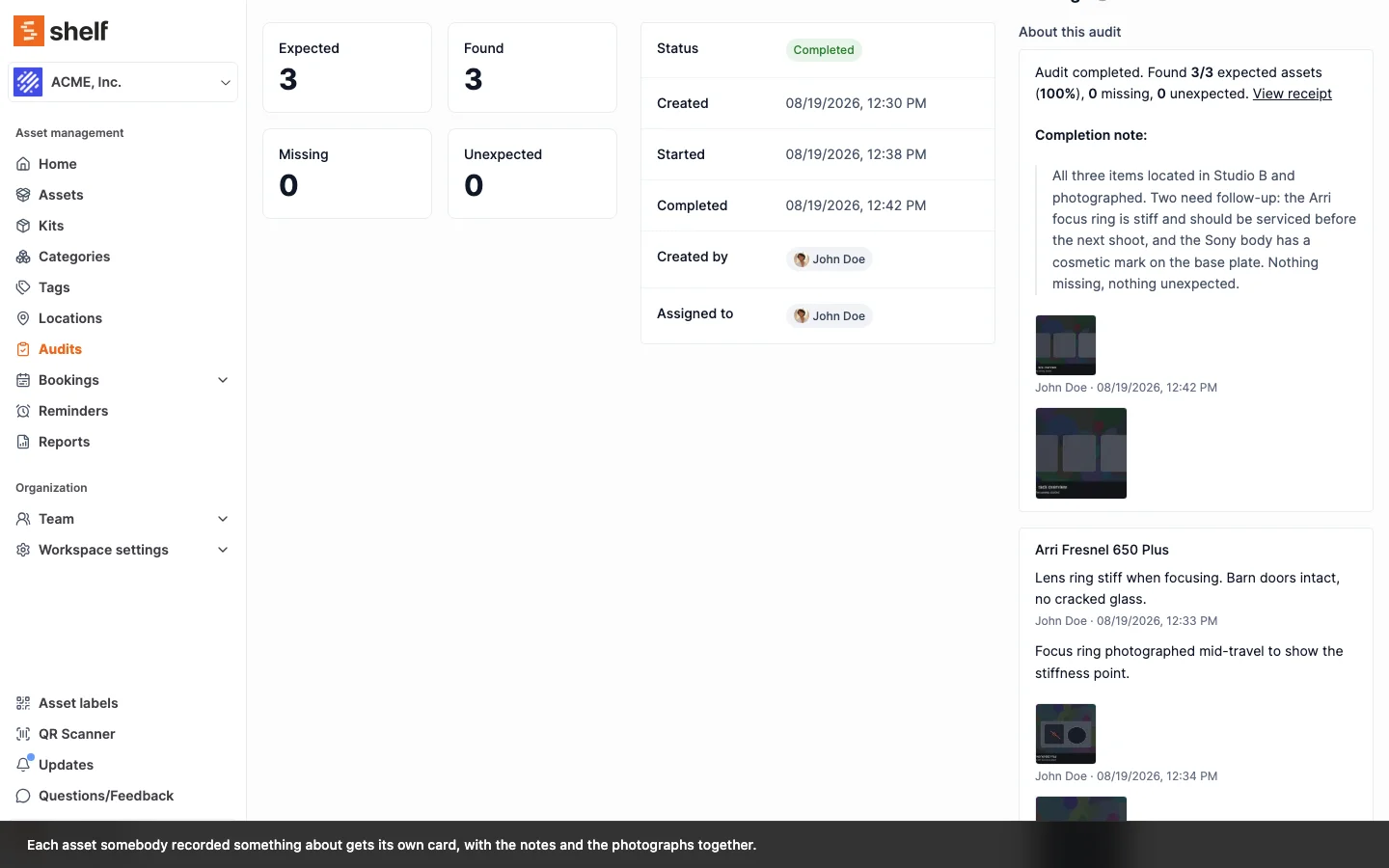
- Findings — the notes and photos people record as they go, grouped by the asset each one is about. On a fresh audit it reads Nothing was recorded during this audit
- Asset list — every asset Shelf expects to find, each with a Not scanned chip until someone reaches it
This is your live dashboard. As scanning progresses, the counters update in real time.
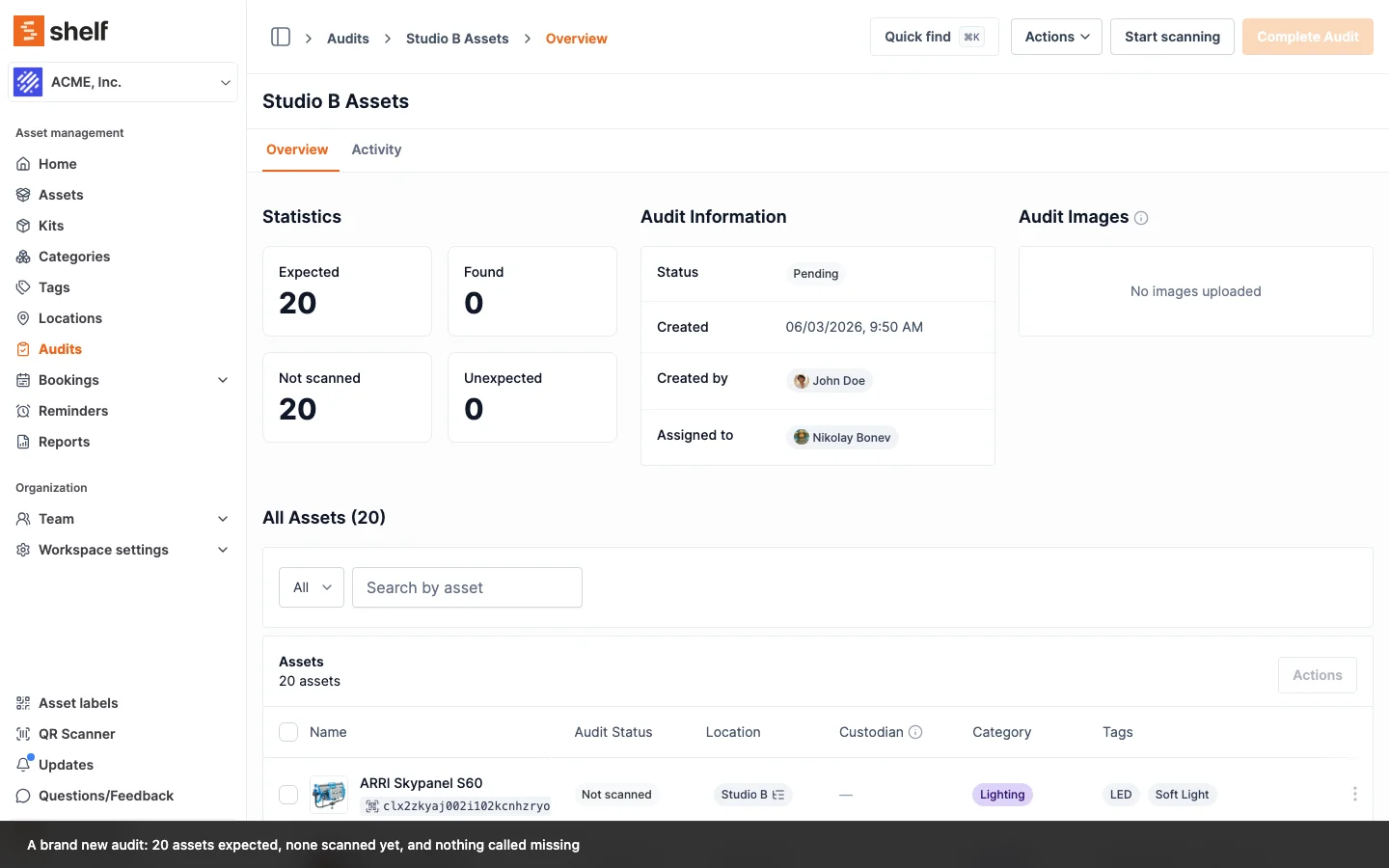
Note what a new audit does not say. Nothing is called missing yet, because nobody has looked. Shelf saves that word for the moment you complete the audit.
Step 3: Start Scanning
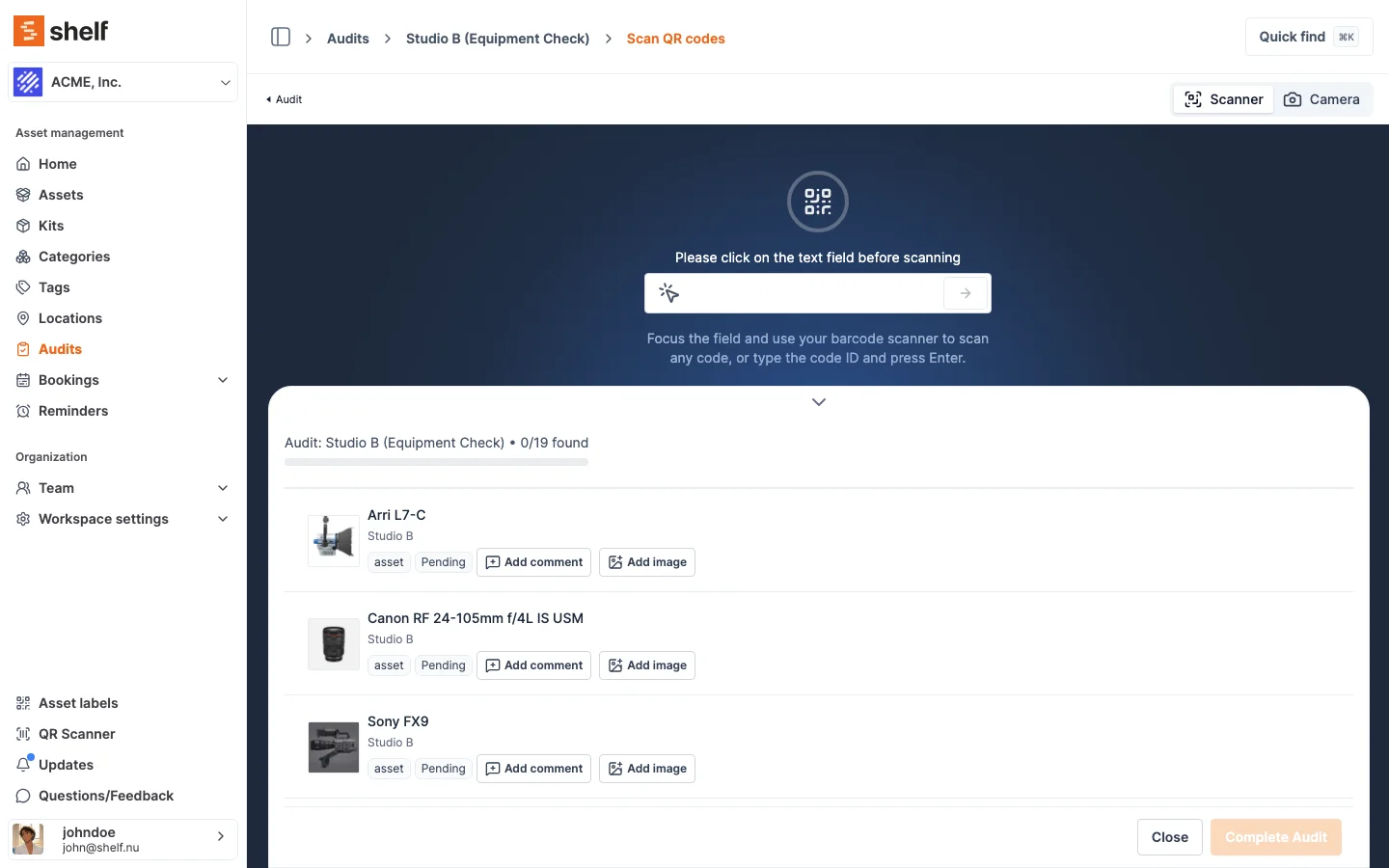
Click Start scanning (in the header) to open the dedicated scan page. This page is purpose-built for audits — separate from the regular QR Scanner — so there's no confusion about which workflow you're in.
Two ways to register assets:
- Scanner mode — focus the text field and use a handheld barcode scanner to scan QR labels rapid-fire
- Camera mode — toggle to Camera in the top-right and use your phone or laptop camera to scan the QR
Each scan registers the asset as Found. The progress bar updates live: "Audit: Studio B (Equipment Check) • 3/19 found".
You can also Add comment or Add image per asset during the scan — useful for documenting condition, damage, or wrong labels.
Those two buttons sit on assets you have not scanned yet as well as on the ones you have. That is deliberate: the empty shelf where the camera should have been is worth photographing, and the note belongs on the audit whether or not the item ever turned up.
A scan that cannot count toward the audit is set aside in a Needs attention card at the top of the list: a kit's code ("1 kit was scanned. Audits track assets. Scan the kit's assets instead.") or a code that matches nothing in the workspace ("1 QR code is invalid."). Remove each with Remove from list, or all of them with Resolve all. Opening Add comment or Add image keeps the list on screen as it was; before 8 October 2026 it emptied it.
Undoing a Scan
Scan the wrong label and you can take it straight back off. Every scanned row on the scan page carries a bin icon at the end of it, and clicking it removes that scan from the audit.
What happens next depends on what you scanned:
- An asset that was on the expected list goes back to Not scanned, and the time of the scan and the name of the person who made it are cleared with it. It is as though nobody had reached that shelf yet.
- An asset that was not on the list leaves the audit entirely. Nothing but the scan put it there, so removing the scan removes the row.
The Found, Not scanned and Unexpected counts are then recounted from the rows themselves rather than nudged down by one, so the totals can never drift away from the list they summarise. The Activity tab records who removed which scan.
You are not limited to the scans you made in this sitting. Reopening the scan page restores everything already recorded on the audit into the list, so a mis-scan from yesterday morning is as removable as one from a minute ago.
Removal only works while the audit is still running. Once it is Completed or Cancelled its numbers have been reported, and Shelf refuses the change with "This audit is no longer live, so its scans cannot be changed."
Undoing a Scan in the Companion App
From Shelf Companion 1.5.0, the same correction is available on the phone, where a mis-scan is most likely to happen in the first place.
- On the audit's scanned list, tap the row you want to take back. The sheet that holds its notes and photos opens.
- Scroll to the foot of the sheet and tap Remove scan.
- Confirm. The app asks "Remove this scan?" and explains that the asset "goes back to how it was before you scanned it. You can scan it again."
The outcome matches the web exactly: an expected asset returns to Not scanned, an unexpected one leaves the audit, and the counts recount from the rows.
When the row carries evidence, the sheet adds "Your notes and photos stay on the audit." That is literally true. Evidence is attached to the audit's row for the asset rather than to the scan, so undoing a mis-scan never costs you the photo you took, and the evidence is still there if you scan the asset again.
A Completed or Cancelled audit refuses the removal on the phone for the same reason it does on the web.
What a Scanned Row Says on the Phone
Also from 1.5.0, a scanned row's second line answers where the asset is instead of repeating the word Found, which every row on that list already was:
- An asset the audit expected shows its location, so a walk through a room tells you which of the found items are not where your records say they should be.
- An asset the audit did not expect reads Not on this audit, with its location after it when it has one. For that row, not belonging here is the useful fact.
The count of unexpected assets at the top of the screen is tappable: it filters the scanned list to just those, and tapping again restores the rest. Notes and photos are counted separately on each row, so one note plus one photo never reads the same as two photos.
Archived audits are reachable from the app, with an Archived filter, and the All filter includes them. An audits list you were used to on the phone will get longer.
If an Asset Is Deleted After It Was Scanned
An audit is a historical record, so a scan keeps its meaning even after the asset behind it is gone. Every scan stores the asset's name and whether the audit expected it, at the moment it is scanned.
Delete that asset later and the scan page still shows the row, named "Camera body A (deleted)", still counted as found, and still badged Expected if the audit had expected it. The row becomes read-only, since there is no asset left to open, comment on or photograph. A scan recorded before Shelf began storing names, whose asset has since gone, reads "Deleted asset" with the code that was scanned.
A live asset always shows its current name, not the stored one, so renaming an asset mid-audit is reflected straight away. The stored name is there to survive deletion, not to freeze naming.
One thing to know: the asset table on the audit's overview lists the assets the audit is scoped to, and a deleted asset is no longer one of them, so it has no row there while the audit's counts still include it. The scan page is where the full scan history lives.
Step 4: Review Results
Go back to the Overview tab at any point to check progress. Every asset carries one of these:
| Status | Meaning |
|---|---|
| Found | Scanned and matches the expected list |
| Not scanned | On the expected list, nobody has reached it yet. This is what you see for the whole of a running audit |
| Unexpected | Scanned but NOT on the expected list — the item has moved from another location, or was never recorded |
| Missing | What Not scanned turns into the moment you complete the audit: expected, never scanned, and now on the record as such |
Missing only appears after you complete the audit. Until then an unscanned asset is simply one you have not got to, so the statistics tile, the asset rows, the audits list, and the PDF receipt all read Not scanned instead. That means a count you started this morning never tells you half your inventory is missing, and when the word does appear it is a finding rather than a state of play.
Use the Filter by audit status dropdown to isolate items for follow-up. The filter follows the same rule: it offers Not scanned assets while the audit is open and Missing assets once it is completed.
Step 5: Complete the Audit
When scanning is done:
- Click Complete Audit (bottom-right of the scan page, or from the Actions dropdown on the overview)
- Check the Audit Summary in the confirmation dialog. It states the Expected, Found, Missing and Unexpected counts one last time, and completing cannot be undone. Here Missing is a preview: it counts the expected assets that are still Not scanned and will become Missing when you confirm
- Add a Completion Note and up to five photos if you have closing observations. Both are optional, and both print in the receipt's Findings section
- Confirm with Complete Audit. Shelf sends a summary email to the audit creator with final counts
- From the completed audit's overview, click Actions → Download Receipt to export a PDF report with found/missing/unexpected breakdowns
The PDF is your compliance artifact — hand it to insurance, your manager, or file it for regulatory review. It carries a Findings section as well as the counts: your completion note and its photos first, then one block per asset holding what was written about that item next to the pictures taken of it.
To see how audits are going across the workspace rather than one at a time, open Reports → Audit Completion. It lists every audit created in the timeframe with its expected, found, missing and unexpected counts and an accuracy figure, and puts the completion rate, the overdue audits and the assets found missing at the top. See How Audit Completion counts.
What the Receipt Prints for Each Asset
The receipt's last column is headed Code, and it prints the asset's code as text, with a picture of that same code above it. Which code that is follows Settings → General ▸ Preferred display code, the same workspace choice the on-screen chips follow: a SAM ID workspace gets SAM-0042, a QR Code ID workspace gets the QR id, and a workspace with the alternative-barcodes add-on gets the barcode's value. Where an asset has no code of the preferred type, the receipt prints its QR Code ID with the type name underneath in small text.
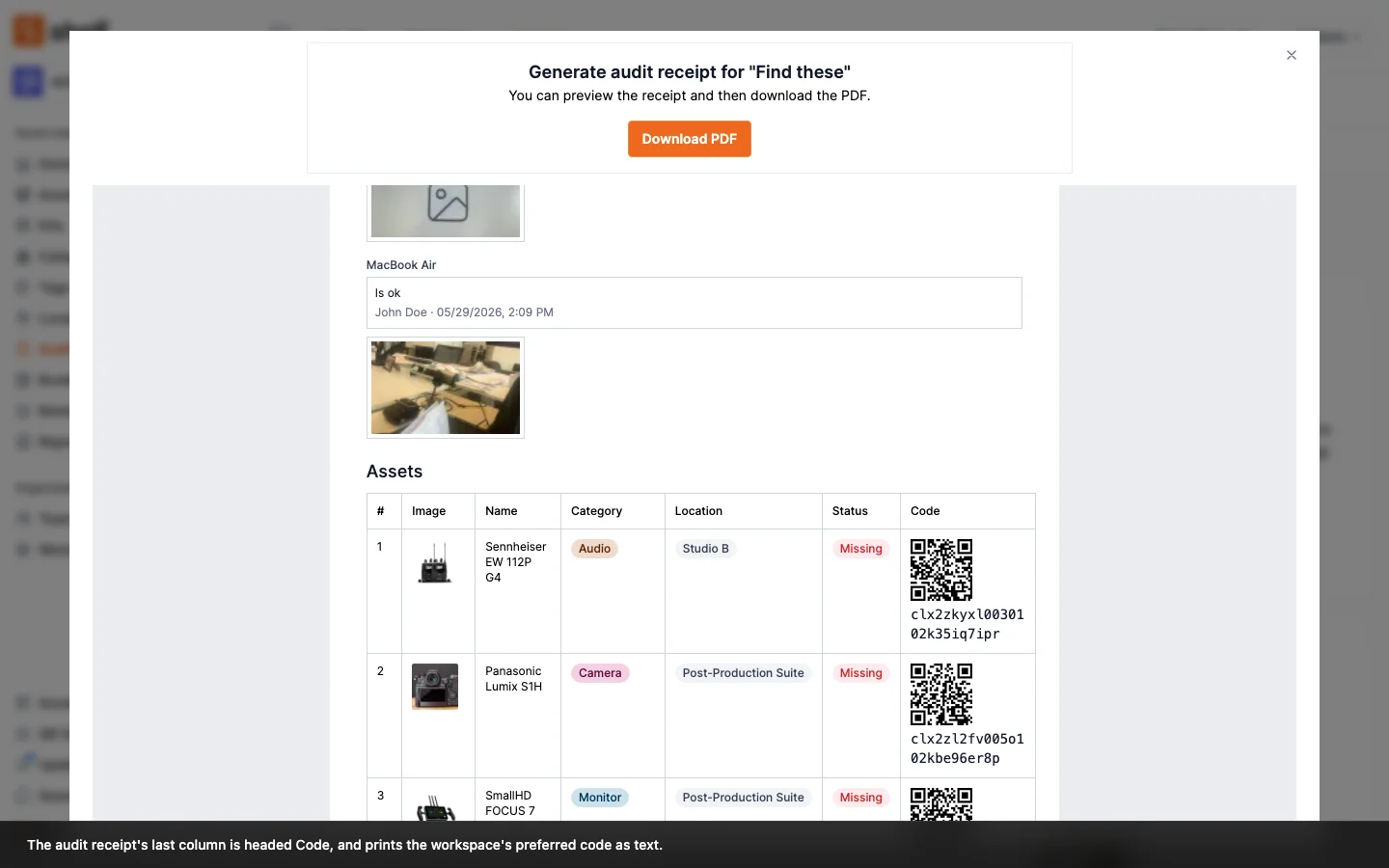
That matters for a receipt more than for most sheets. An audit is a claim about what was physically present, and a reviewer holding the paper has to be able to match a row to a shelf without a scanner.
The picture is always the code printed under it: a Code 128 row prints a Code 128 barcode that scans to that value, and QR Code ID and SAM ID rows print the asset's Shelf QR. A barcode value too long to print at a scannable size prints as text only. The booking checklist follows the same rules.
The picture is optional. An Owner or Administrator can turn it off for the whole workspace under Settings → General ▸ Code images on PDFs, by switching Print code images on PDFs off. The reason is the same one that applies to the booking checklist: the picture on the receipt is the same code as the sticker on the item, so it can be scanned from a desk. The switch is on by default, the code prints either way, and it covers both sheets at once.
Completing an Audit Where Nothing Was Found
An audit that turns up nothing is still a finding, and often an urgent one: the cupboard is empty, the van was cleared out, the room was cleaned before anyone counted it. You can complete it.
The confirmation dialog says what that decision means before anything is written. For an audit that expects 20 assets, it reads:
No assets were scanned. Completing now marks all 20 expected assets as missing.
Confirm and every expected asset is recorded as Missing, exactly as an asset you scanned past would have been. The receipt, the counts and the audits list all read the same way they would after any other completion.
After the Trial
The 7-day trial gives you unlimited audits. When it expires:
- Completed audits stay visible — you keep full access to results, reports, and PDFs from audits run during the trial
- New audits require the paid add-on — activate from Audits in the sidebar; pricing is managed through your Shelf account
- No data lost — nothing is deleted when the trial ends
If you found value during the trial, the add-on is available on every Shelf plan (Free, Plus, Team, Enterprise).
Tips for a Successful First Audit
- Start small: audit one room or one category, not the entire inventory. Prove the workflow before scaling.
- Print test labels first: run a test print and scan several codes before committing a full batch.
- Assign the audit to yourself for your first run — you'll understand the scan flow before delegating to someone else.
- Use the camera toggle on your phone if you don't have a handheld scanner. It works with any phone camera, no app needed.
- Add photos during the scan for anything that looks damaged, misplaced, or mislabelled — it saves a second pass later.
FAQ
Who can perform an audit?
- Owners, administrators and managers can scan, add notes and photos, and complete any audit in their workspace, assigned or not. Assigning an audit to someone else does not lock them out of it. A Manager can also create, edit, cancel, archive and delete audits, the same as an administrator.
- Self-service and base users can only work on audits they have been assigned to. Everything else in the audit list is out of reach for them.
The rule is the same on the web and in the Shelf Companion app, so an action that works in the browser works on the phone too.
Where do the notes and photos end up?
On the audit's Overview tab, in the Findings column on the right.
About this audit comes first: the completion note and any photos of the count as a whole. Under it, one card per asset somebody recorded something about, with the note, who wrote it, when, and the photographs of that same item together.
The asset table below points you at them. Every row that carries something shows a small chip counting the notes and the photos separately, and clicking it opens that asset's notes and images. On a long list that chip is how you tell the one item worth following up from the rest.
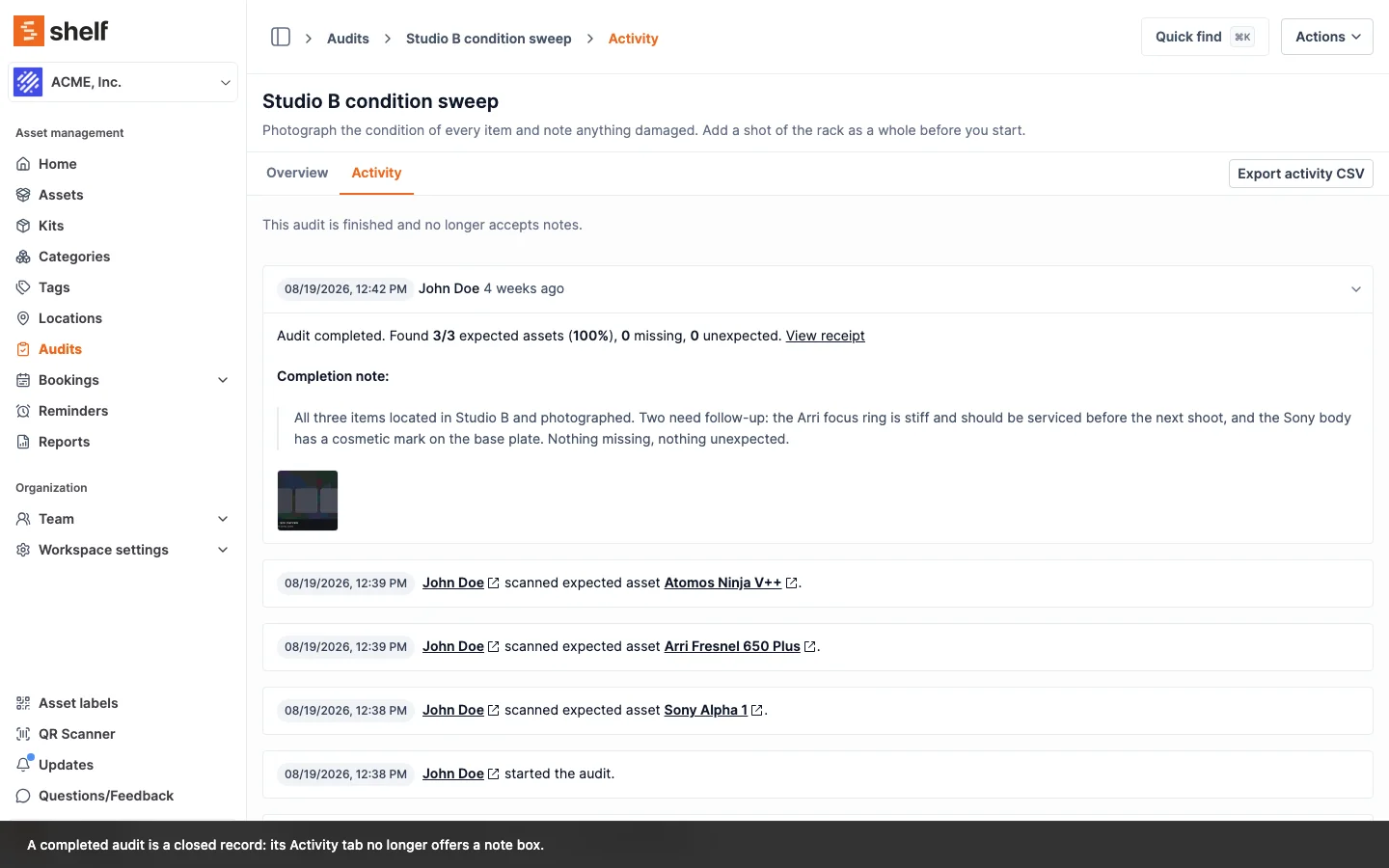
Findings holds what people recorded. Shelf's own trail (statuses changing, the audit being started and completed) stays on the Activity tab, and that tab is where the note log downloads as CSV.
Can I add a note after the audit is finished?
No. Notes and photos can be added while an audit is Pending or Active. Once it is Completed, Cancelled or Archived, it is a closed record: its receipt prints the findings collected during the count, and a note added later would look as if it had been recorded then.
On a finished audit, the place where you would write a note reads "This audit is finished and no longer accepts notes." The rule holds on the server too, for notes and photos sent from the website or the Shelf Companion app, including a page left open from before the audit closed. Anything worth recording afterwards belongs on the asset itself, or on the next audit.
Can I record a note on something I could not find?
Yes, and it is one of the more useful things you can do. Add comment and Add image appear on rows that are still Not scanned, so you can photograph the empty slot or write down what the storeroom manager told you. The note stays on the audit record and prints in the receipt's Findings section, whether or not that asset was ever scanned.
I scanned the wrong thing. Can I take it back?
Yes, while the audit is still running. Click the bin icon at the end of the scanned row on the scan page. An expected asset returns to Not scanned with the scan time and scanner cleared; an asset that was not on the list disappears from the audit altogether. The counts are recounted from the rows, and the Activity tab keeps a record of who removed what.
Reopening the scan page restores every scan already on the audit, so this is not limited to the ones you made in this sitting. A Completed or Cancelled audit refuses the change: its numbers have already been reported.
Can I complete an audit if I found nothing at all?
Yes, and Shelf tells you what that means first. The confirmation dialog says "No assets were scanned. Completing now marks all N expected assets as missing.", where N is the number of assets the audit expects. Confirm and every expected asset is recorded as Missing. An empty cupboard is a finding worth putting on the record, not a reason to leave the audit hanging.
What happens to an audit if I delete an asset that was already scanned?
The scan stays. Its row on the scan page keeps the name the asset had when it was scanned, marked (deleted), and it still counts toward the audit's found total and still shows whether the audit expected it. The row is read-only from then on, because there is no asset page left behind it. The asset table on the audit's overview lists the assets the audit is scoped to, so a deleted asset has no row there.
Can multiple people scan the same audit?
Currently, each audit session supports a single assigned scanner. For large-scale audits, create multiple sessions scoped to different areas and assign each to a different team member.
Can I create an audit from the Locations or Kits page?
Yes. You don't have to build the scope inside the New Audit dialog. On the Locations page or the Kits page, select one or more rows, open the Actions dropdown, and choose Create audit. Shelf creates one audit covering the union of every asset across the selected locations or kits. Selecting all with a search or filter applied audits only the matching rows. This is the fastest way to start a multi-location or multi-kit audit, and it requires the same permission as the New Audit button — so anyone who can already create audits can use it.
Why does my audit say "Not scanned" instead of "Missing"?
Because the count is not finished. An expected asset nobody has reached yet reads Not scanned for as long as the audit is open. Complete the audit and everything still unscanned becomes Missing, on the statistics tile, on the asset rows, in the audits list, and on the PDF receipt you download.
What happens to assets marked "Missing"?
Nothing is automatically changed in your Shelf database. Missing means "expected, and never scanned before the audit closed" — you decide what action to take: follow up with the last known custodian, mark as lost, or investigate.
Can I re-open a completed audit?
No. Completed audits are final — their results, statuses, and PDF receipt are preserved exactly as they were when the audit closed.
If you want to re-run the same scope, duplicate the audit instead of starting from scratch. Owners, administrators and managers can open any Completed, Cancelled, or Archived audit, click Actions → Duplicate audit, and Shelf creates a fresh Pending session with the same asset list, name (with a "(Copy)" suffix), and description. No notes, scans, or assignee carry over — the duplicate is ready to scan. See Duplicate an Audit for full instructions.
Can I cancel an audit?
Yes. The audit's creator can cancel their own audit at any time before it reaches Completed, Cancelled, or Archived. Owners, administrators and managers can also cancel any audit in the workspace — including audits created by other team members — using the same Actions → Cancel menu. Self-service and base users can only cancel audits they created themselves.
Can I archive old audits?
Yes. Owners, administrators and managers can archive any Completed or Cancelled audit via Actions → Archive. Archived audits are removed from the default list but stay accessible via the status filter.
Can I permanently delete an audit?
Yes. Owners, administrators and managers can permanently delete any Archived audit — archiving must happen first as a safety step. Open the archived audit, click Actions → Delete, and type the audit name to confirm. To delete multiple audits at once, filter the list by Archived, select them, and choose Delete from the Actions dropdown (type DELETE to confirm). See Permanently Delete Archived Audits for full instructions.
Related Articles
- Audits Feature Overview — full feature description, pricing, and FAQ
- Duplicate an Audit — re-run the same scope without rebuilding the asset list
- Bulk Archive Audits — keep the audit list focused once recurring audits accumulate
- Permanently Delete Archived Audits — remove archived audit history when no longer needed
- Adding New Assets — prerequisite: get assets into Shelf
- Using Shelf QR Codes with Avery Label Sheets — print QR labels for the assets you'll scan
- Using External Barcode Scanners with Shelf — hardware scanner setup
Ready to try Shelf?
Put what you're learning into practice. Free plan available — no credit card required.