

Using Shelf QR Codes with Avery Label Sheets
Shelf exports square QR code images. Here is which Avery label sheets fit out of the box, which need a custom template, and the workflow for each.

Shelf gives you a square QR code image. You bring the label sheet. This article explains which Avery sheets plug in directly, which need a custom template, and the workflow for each path.
The One-Line Truth
Shelf exports square PNG QR codes (1:1 aspect ratio). Any Avery sheet with square or round label cells is a natural fit. Sheets with rectangular cells (address labels, shipping labels) work too, but they need a simple custom template so the code sits centered with room for the asset name.
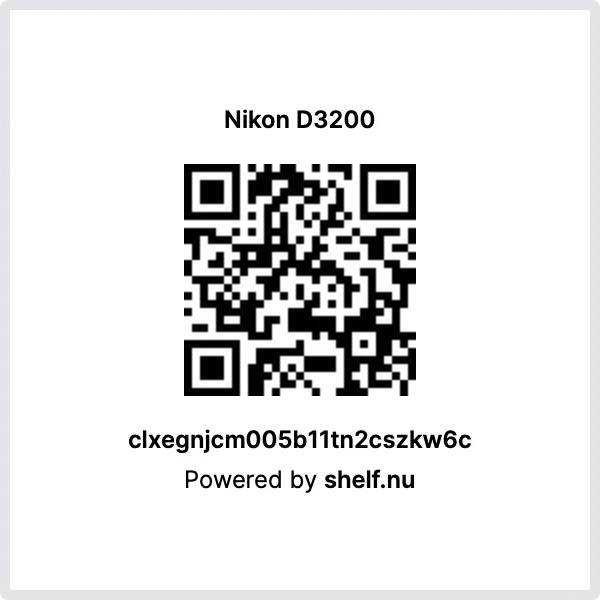
Shelf's QR Download Specs
- Format: PNG (raster image, standard format any design tool can import)
- Aspect ratio: 1:1 square
- Filename:
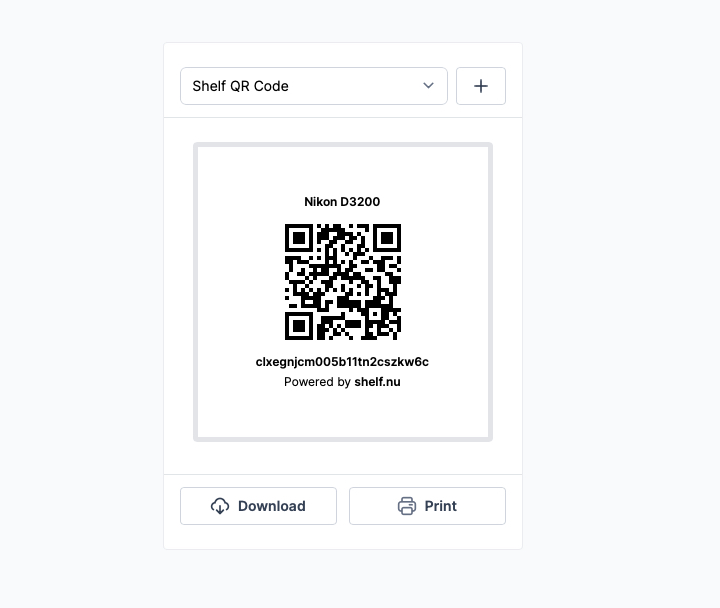
{asset-name}-{size}-shelf-qr-code-{qr-id}.png— includes the QR ID so bulk downloads stay unique - Where: on any asset page, right sidebar → Download button. For bulk, see Step-by-step: Yes path below.
Scan readability at any specific print size depends on your printer, ink or toner, paper, and how small you print the code. Always run a test print (see below) before committing a full batch — we can't guarantee results on printers or materials we haven't tested.
Does Your Avery Sheet Fit?
Square sheets — most direct fit
The downloaded PNG goes into each square cell in your Avery template. Test-print one sheet before running the full batch (see step 3 below).
| Avery SKU | Size | Labels per sheet | Best for |
|---|---|---|---|
| 6570 | 3/4" × 3/4" | 80 | Cables, adapters, small accessories |
| 22806 | 1" × 1" | 63 | Hand tools, mobile devices |
| 22805 | 1-1/2" × 1-1/2" | 24 | Laptops, cameras, most office equipment — a popular size for general use |
| 22816 | 2" × 2" | 12 | Flight cases, heavy machinery, warehouse shelving |
Round sheets — also fit
Shelf's square QR comfortably sits inside round labels. Any Avery round SKU (for example 22807 at 1-2/3" diameter) works — trim the design around the code to the circle diameter in your template.
Rectangular sheets — need a custom template
If you have address-label sheets (Avery 5160, 5163, 5167, etc.), the QR won't fill the whole cell. You'll want a template that places the QR on the left or centered with the asset name or ID next to it. See No path: custom template below.
Not listed? Measure one cell on your sheet. If it's square or round, go to the yes path. If it's rectangular, go to the no path.
Step-by-Step: Yes Path
For any square or round Avery sheet:
1. Export the QR codes
Single asset: open the asset in Shelf → right sidebar → Download.
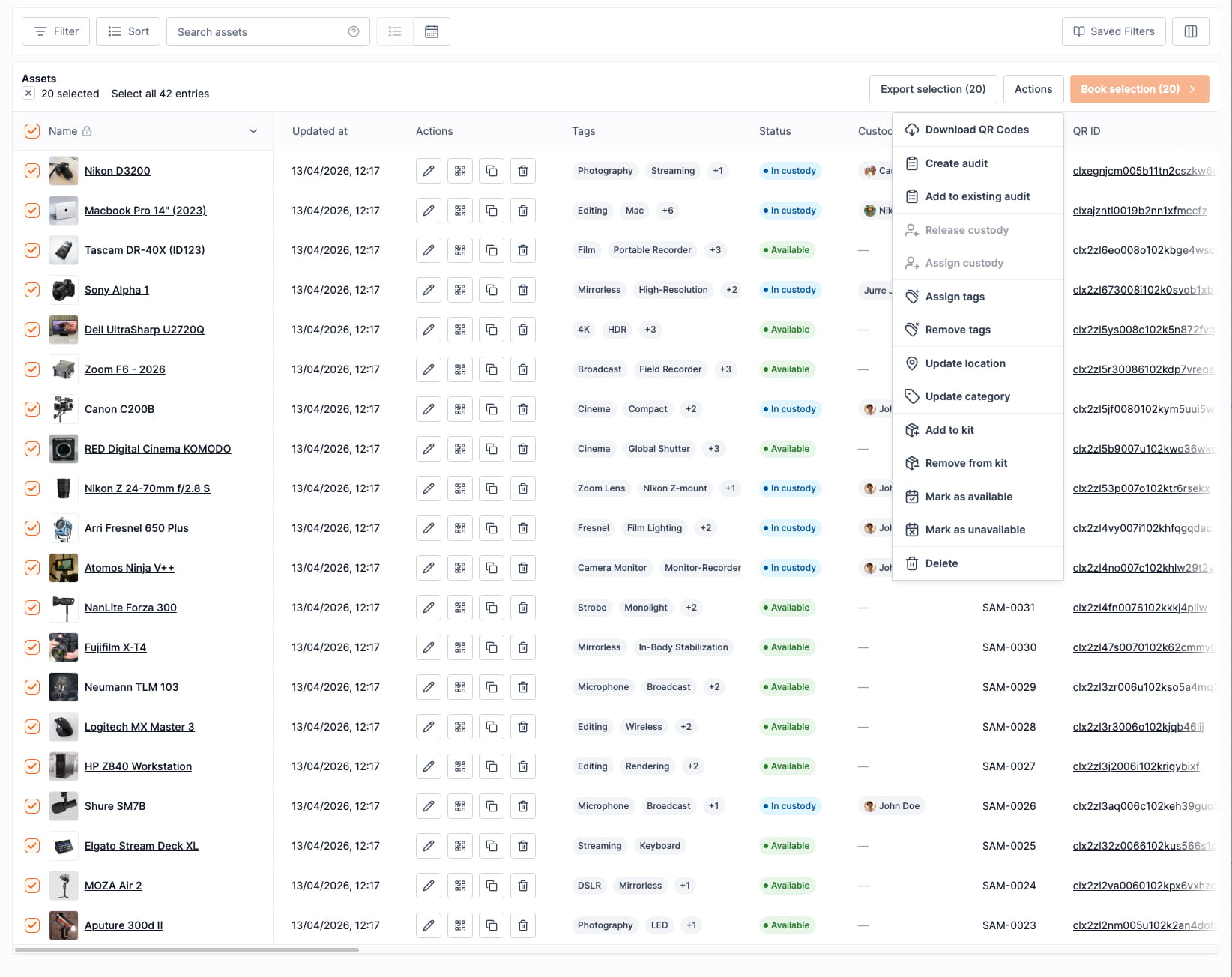
Multiple assets (see also):
- Go to the Assets index
- Select the assets you want to print (checkbox on each row, or the header checkbox for all)
- Click Actions → Download QR Codes
- Shelf delivers a
.zipof PNGs. Unzip into a folder.
2. Open Avery Design & Print
Avery's free online tool at avery.com/design-print lets you pick your SKU from a dropdown and lays out the grid automatically. Works in any browser, no install.
3. Drop in the PNGs and print — then test
- Pick your SKU in Design & Print → blank template
- For each cell, import one of the PNGs from your unzipped folder
- Preview the sheet → print on the Avery stock you already have
Always test-print one sheet before running your full batch. Print one sheet, then scan several codes with your phone camera to confirm they read cleanly. Readability depends on your printer, toner or ink level, paper type, and the final print size — a test sheet catches any of those factors before you commit your full Avery stock. If codes don't scan, try a larger label size, fresh toner, or a crisper paper.
No Path: Custom Template with Unclaimed Codes
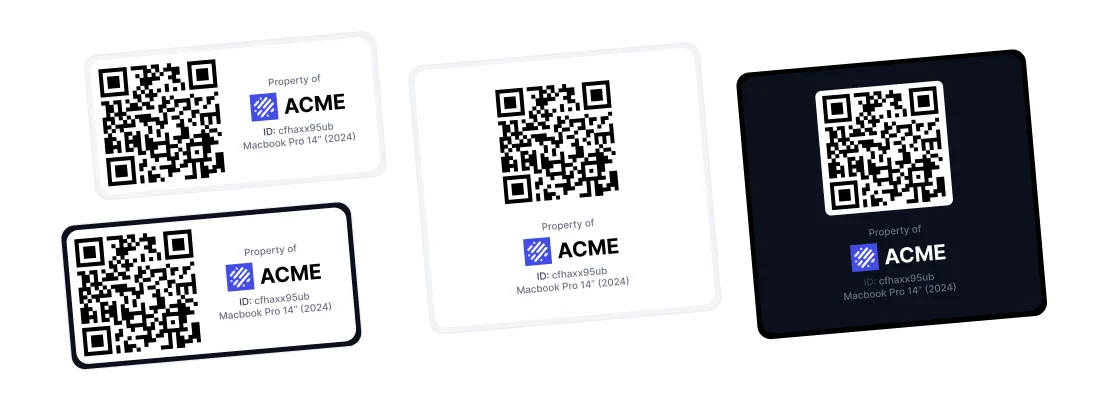
If your Avery sheet is rectangular — or you want branded labels with your logo, custom colors, or a layout Avery doesn't sell off the shelf — the path is Unclaimed Codes.
How Unclaimed Codes work
Unclaimed codes are QR codes that exist in Shelf's system but haven't been linked to an asset yet. You design your own label layout once, print a batch of pre-labelled stickers, and each code becomes live the first time someone scans it and attaches it to a real asset.
How to request a batch
Unclaimed codes are a Plus and Team plan feature — they can't be requested on the Free plan. Batches are delivered through Shelf support; it isn't a self-serve button in the app today:
- Contact Shelf support (in-app chat or hello@shelf.nu) with the quantity you need. Typical batches run from 50 to 1,000 codes.
- Receive a ZIP file from the team — one per batch. The ZIP contains the codes as individual SVG files, one per code, with filenames like
20260416 - aofj28an3x.svg. SVG is the format most design tools prefer for label work because it stays sharp at any print size. - Import the SVGs into your design tool of choice (Avery Design & Print, Canva, Illustrator, Figma, InDesign — anything that accepts SVG).
Design and print
Build your template once — QR placement, asset name field, logo, brand colors, whatever layout you want — then duplicate it across every cell on the Avery sheet. Print a test sheet, scan several codes with your phone, and only run the full batch once you're confident they read cleanly.
Claim the codes
When you physically stick a label on an asset for the first time, scan the code with the Shelf app. Shelf prompts you to either create a new asset or link the code to an existing one. That scan is the "claim" — from then on, the code is permanently bound to that asset in Shelf.
When unclaimed codes are the right path
- Your Avery sheet is rectangular and you want the QR + asset name + logo in one layout
- You're labeling at scale in the field (construction, events, warehouses) where pre-producing is faster than generating per-asset
- You need custom colors, logos, or durable material beyond what Avery offers
Full walkthrough in the dedicated article: How to Print Custom Branded QR Code Labels with Shelf.
Or skip the DIY design step and order ready-made Shelf-branded labels at store.shelf.nu.
FAQ
Can I print a mixed sheet — some QR codes plus some address labels?
Yes, but not in Avery Design & Print's template mode. Set up the sheet in a design tool that supports free-form layouts (Canva, Google Slides using a sheet-sized canvas, Illustrator) and place each label by hand.
Does the QR need a human-readable ID under it?
It's strongly recommended, and Shelf's default download already includes one. The Download button produces a label image with the asset name on top, the QR code centered, and the QR ID (or your Asset ID / SAM ID if you've configured that in Settings) underneath — see the sample at the top of this article.
Why it matters: labels get scratched, torn, or water-damaged. If the QR code is physically unreadable, the printed text is your recovery path. Asset names, Asset IDs (SAM-0042), and QR IDs are all searchable in Shelf — type any of them into Quick Find (⌘K) or the search bar, find the asset in seconds, then relink a fresh QR code to it. No data lost, no asset orphaned.
If you want a different layout — swap QR ID for Asset ID, add your own logo, change the font — use the asset-label-designer tool, or switch the ID display as described in Asset Identifiers.
What about DYMO, Brother, or Zebra label printers?
Those are roll-fed thermal printers — different workflow. Shelf supports them directly in the app via the asset page Print button. To choose which ID prints under the code, see Asset Identifiers.
Can I use Cricut or Silhouette cutting machines?
The Shelf QR download is a standard PNG, so you can import it into Cricut Design Space or Silhouette Studio like any other image. Capabilities and print quality vary by machine model — check your software's image-handling docs, and test one label before running a batch.
Do you sell the Avery-compatible labels?
Not directly. Buy Avery sheets wherever you'd normally get office supplies. If you want pre-printed, durable Shelf-branded labels (different material, not Avery paper), see store.shelf.nu.
Related Articles
- How to Print Custom Branded QR Code Labels with Shelf — the deep dive on Unclaimed Codes and custom templates
- Getting Started — where the bulk Download QR codes action lives
- Asset Identifiers: QR ID, SAM ID, and Your Own Reference Numbers — choose what prints on your labels and how assets are numbered
- Scanning an Asset — what happens after someone scans one of your printed labels
Ready to try Shelf?
Put what you're learning into practice. Free plan available — no credit card required.