

Asset Identifiers: QR ID, SAM ID, and Your Own Reference Numbers
Shelf gives every asset a system QR ID and a sequential SAM ID, and a text custom field carries your own numbering scheme. This guide explains each, when to use them, and how to choose which one shows on your list views and printed labels.

Shelf gives every asset two identifiers of its own, and there is a third way to carry the numbering scheme you already use. A workspace setting, Preferred display code, controls which identifier appears next to each asset on list views, and underneath the code on downloaded QR labels. This article covers all of them.
What's new (May 2026): the QR Code Display setting has been renamed to Preferred display code and expanded. Workspaces with the alternative-barcodes add-on can now choose a barcode type (Code 128, Code 39, DataMatrix, External QR, or EAN-13) as the workspace default, and override the choice per asset. See Section 4 below.
At a Glance
| Identifier | Set by | Format | Purpose |
|---|---|---|---|
| QR Code ID | Shelf (auto) | clxegnjcm005b11tn2cszkw6c | The canonical system ID; the target of every QR code |
| SAM ID (Sequential Asset Number) | Shelf (auto) | SAM-0001, SAM-0042 | Human-friendly reference used in conversation, reports, labels |
| Your own reference number | You (optional) | LAPTOP-001, CAM-02 | Your existing numbering scheme, held in a text custom field you create and name yourself |
All of them are searchable. If a label gets damaged and the QR can't be scanned, type any of them into Quick Find (⌘K) to locate the asset and relink a fresh QR code.
Looking for a field called "Property ID"? There isn't one, and there is no
/property/...lookup URL. Shelf does not ship a dedicated slot for your own identifier, because a custom field does the same job and lets you call it whatever your team already calls it. Section 3 covers how to set that up.
1. QR Code ID (system-generated)
The QR Code ID is the canonical, system-generated identifier every asset has from creation. It looks like clxegnjcm005b11tn2cszkw6c — unique across your whole workspace, guaranteed never to collide.
Every QR code you print from Shelf encodes a URL containing this ID. When someone scans the code, Shelf resolves the ID and opens the right asset page.
You can't change this ID. But you can re-link an asset to a different QR code — see QR code swapping for when that matters.
2. SAM ID — Sequential Asset Numbers
SAM IDs are clean, human-friendly numbers assigned automatically in order: SAM-0001, SAM-0002, SAM-0042, and so on. They make asset management conversational:
- "Can you check on SAM-0892?" is clearer than referencing the long system ID.
- Sequential numbers simplify tracking — spotting gaps, estimating growth, scanning down a list.
- Clean formatting looks more professional on reports, labels, and documentation.
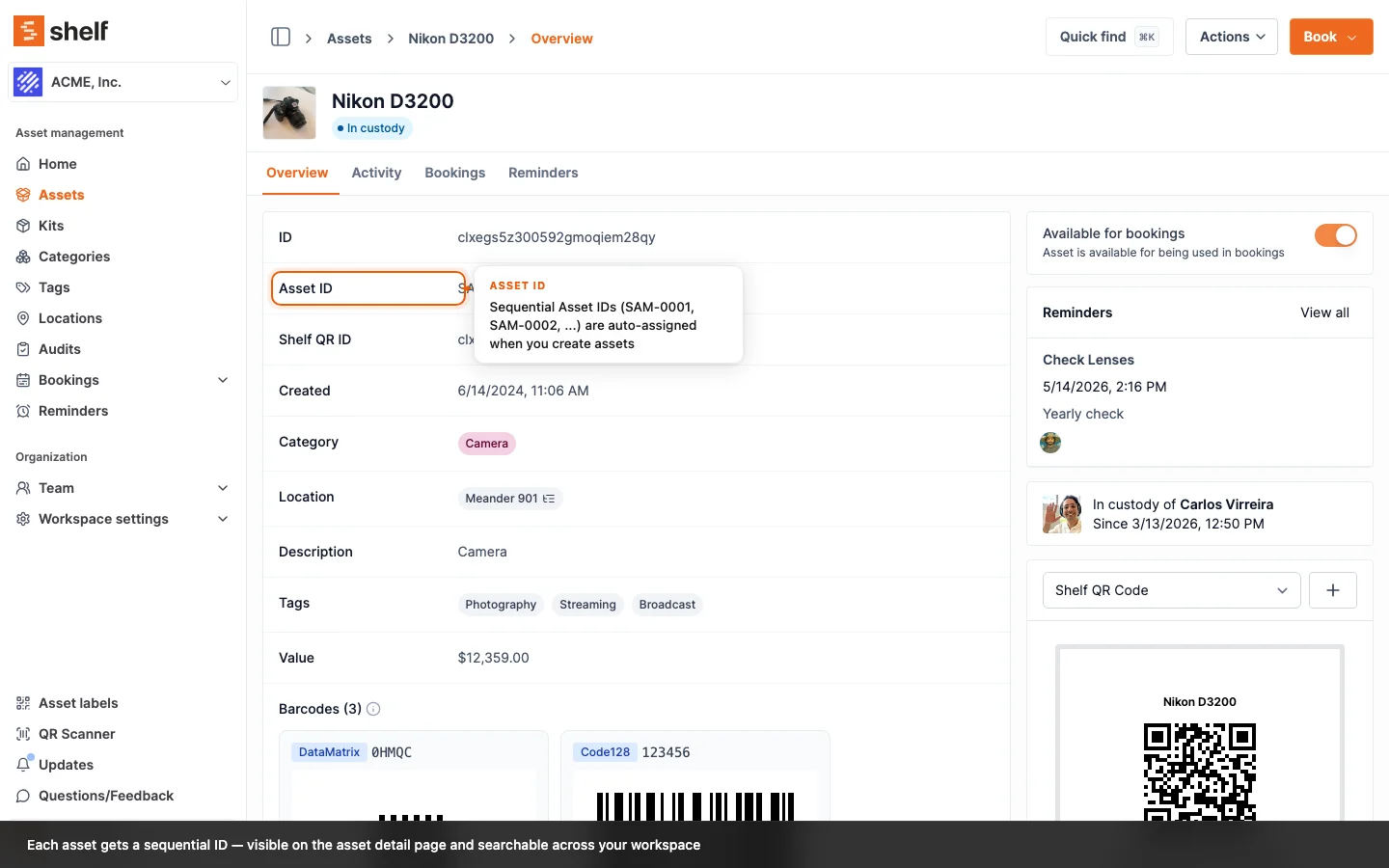
How SAM IDs work
- Automatic assignment: new assets receive the next number in sequence.
- Workspace-scoped: each workspace has its own independent sequence, and the first asset in a workspace is
SAM-0001. - Permanent once assigned: a number is never reused, so a deleted asset's number is retired with it and the historical record stays clean.
- Non-breaking: SAM IDs are display identifiers; URLs and integrations continue to use the QR Code ID.
Deleting an asset leaves a gap, on purpose
Because a number is retired with the asset it belonged to, deleting assets leaves gaps in the sequence, and the next asset you create carries on above the highest number the workspace has ever issued rather than filling one in. A workspace that has issued up to SAM-0480 and then deleted forty assets still hands the next one SAM-0481.
That is what keeps a SAM ID a stable reference. A number you wrote on a purchase order, or read off a printed label, can only ever have meant one asset.
Enabling SAM IDs
- New workspaces: enabled by default. Every asset gets a SAM ID at creation.
- Existing workspaces: a one-time migration dialog appears on your first login after SAM IDs are available. Shelf generates IDs for existing assets in order of their creation date. Migration is irreversible, but it doesn't affect any existing workflows or URLs.
Searching by SAM ID
Use the search bar or Quick Find (⌘K):
- Type
SAM-0001to find your first asset. - Type
1500alone to findSAM-1500(partial match works).
Can I change the SAM prefix?
Not currently — it's fixed at SAM (Shelf Asset Management). Custom prefixes may become configurable in a future update.
3. Your own reference numbers
Most teams arriving at Shelf already have a numbering scheme, and it is usually printed on stickers that are still on the equipment. You keep it by creating a text custom field and putting your existing values in it. That covers the three cases people ask about:
- You're migrating from an existing tracking system and need to preserve old labels or numbers in your records.
- Your organisation already has a numbering scheme (e.g.
LAPTOP-001,CAM-02,VEH-004). - You want asset references that embed meaning (asset type, department, location).
Shelf has no separate built-in field for this, on purpose. A custom field does everything a dedicated one would, and it carries your own name for the thing.
Setting it up
- Go to Workspace settings → Custom fields and create a field of type Text.
- Name it whatever your team already calls it: Tag Number, Inventory ID, Asset Tag, Old Asset No.
- Mark it required if every asset in your workspace is supposed to have one.
- Open an asset and fill the field in, or bring the values in during import.
Nothing about the asset's QR Code ID or SAM ID changes. Your own number sits alongside them.
If you want several parallel schemes, for example a manufacturer serial number and an internal tag number, create a field for each. There is no limit of one.
Bringing your existing numbers in from your old system
Migrating from another asset tracker? Your existing IDs come in via CSV import. Add a column named exactly after your custom field and map your old-ID column to it when uploading. The imported values are searchable from Quick Find and the asset index straight away, exactly like values typed in by hand. See Importing Assets to Shelf — CSV Guide.
Your own numbers do not print on Shelf's QR labels. Only the QR Code ID or the SAM ID can appear under the code on a downloaded Shelf label, and section 4 covers how to choose between them. If you need your own IDs physically on the labels, that is a custom-branded label template you design and print yourself.
Best practices
- Keep the values unique within your workspace. A custom field does not enforce uniqueness, so two assets can both claim
LAPTOP-001and searching for it will return both. - Use a consistent naming convention, and pick one separator and stick to it.
- Consider encoding type or location information:
LAB-OSC-003tells you it's a lab oscilloscope without looking the asset up.
4. Preferred display code — the workspace setting
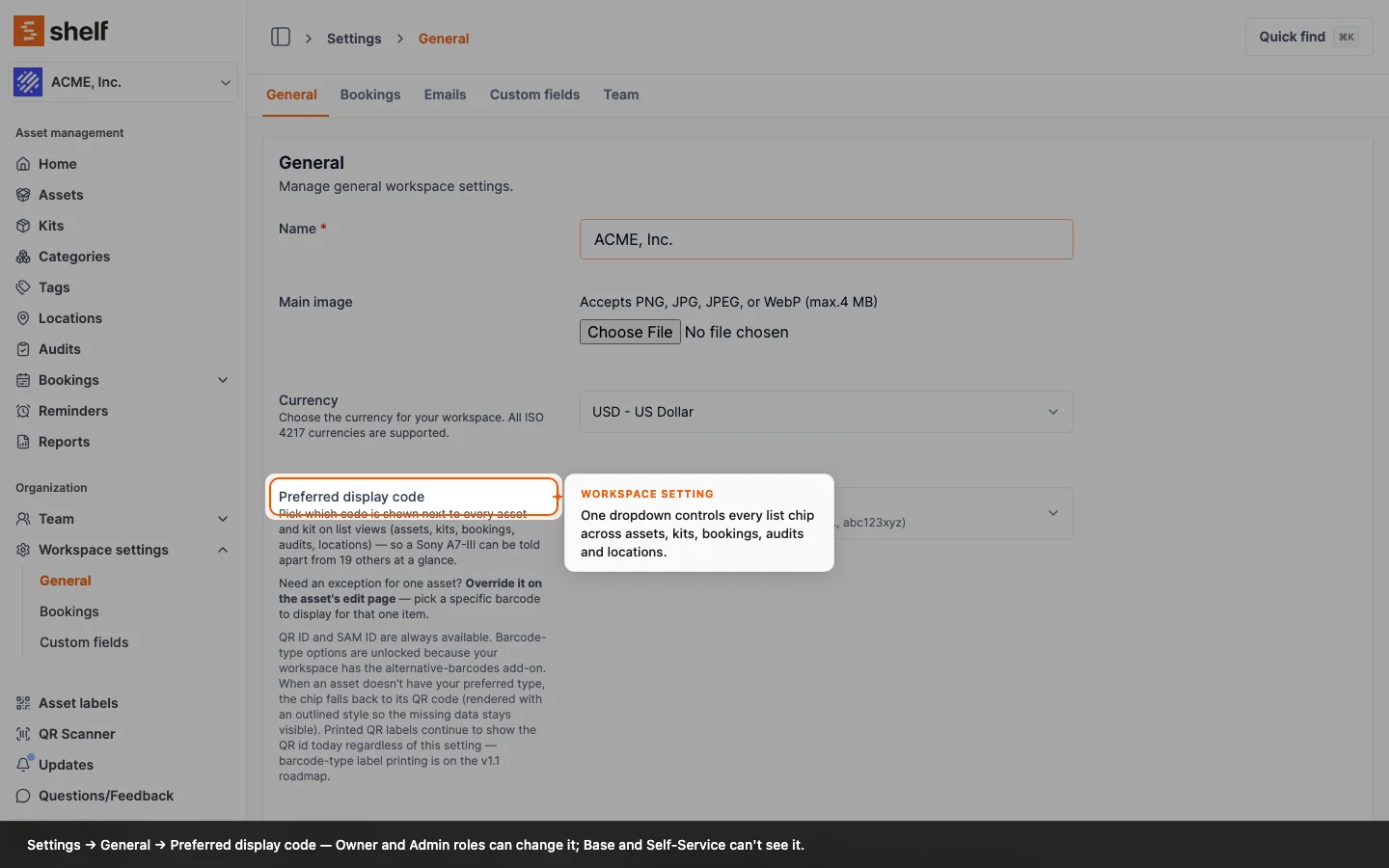
Every list row in Shelf now ends with a small chip showing each asset's chosen identifier. The Preferred display code workspace setting controls which identifier that chip shows — and which identifier appears underneath the code on downloaded QR labels. It lives at Settings → General.
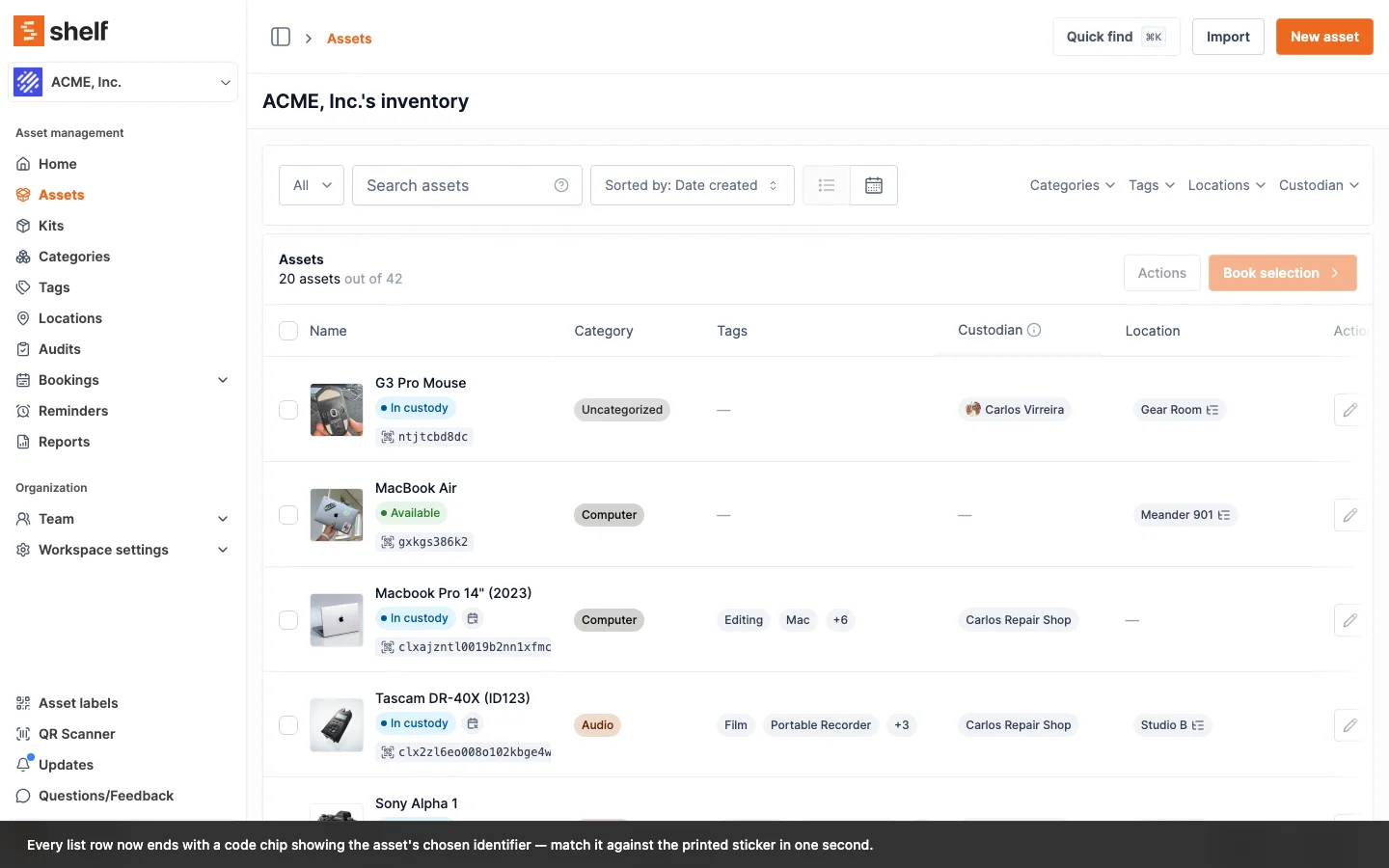
Where chips appear
The same chip vocabulary renders on every list view, so a label on the warehouse floor matches the row on the screen. Both assets and kits carry codes, and both get the chip:
/assets— both Simple and Advanced index modes (in Advanced mode the chip lives inside the QR ID and SAM ID columns)./kits, and the asset list inside a kit's detail page.- A location's Assets tab and its Kits tab, plus the Add kits picker you open from there.
- The booking detail page: the asset rows, the kit group headers, and the assets sidebar.
- The "add assets/kits to booking" modals.
- The kits Availability view, on the row label at the left of each kit's timeline.
- The audit overview.
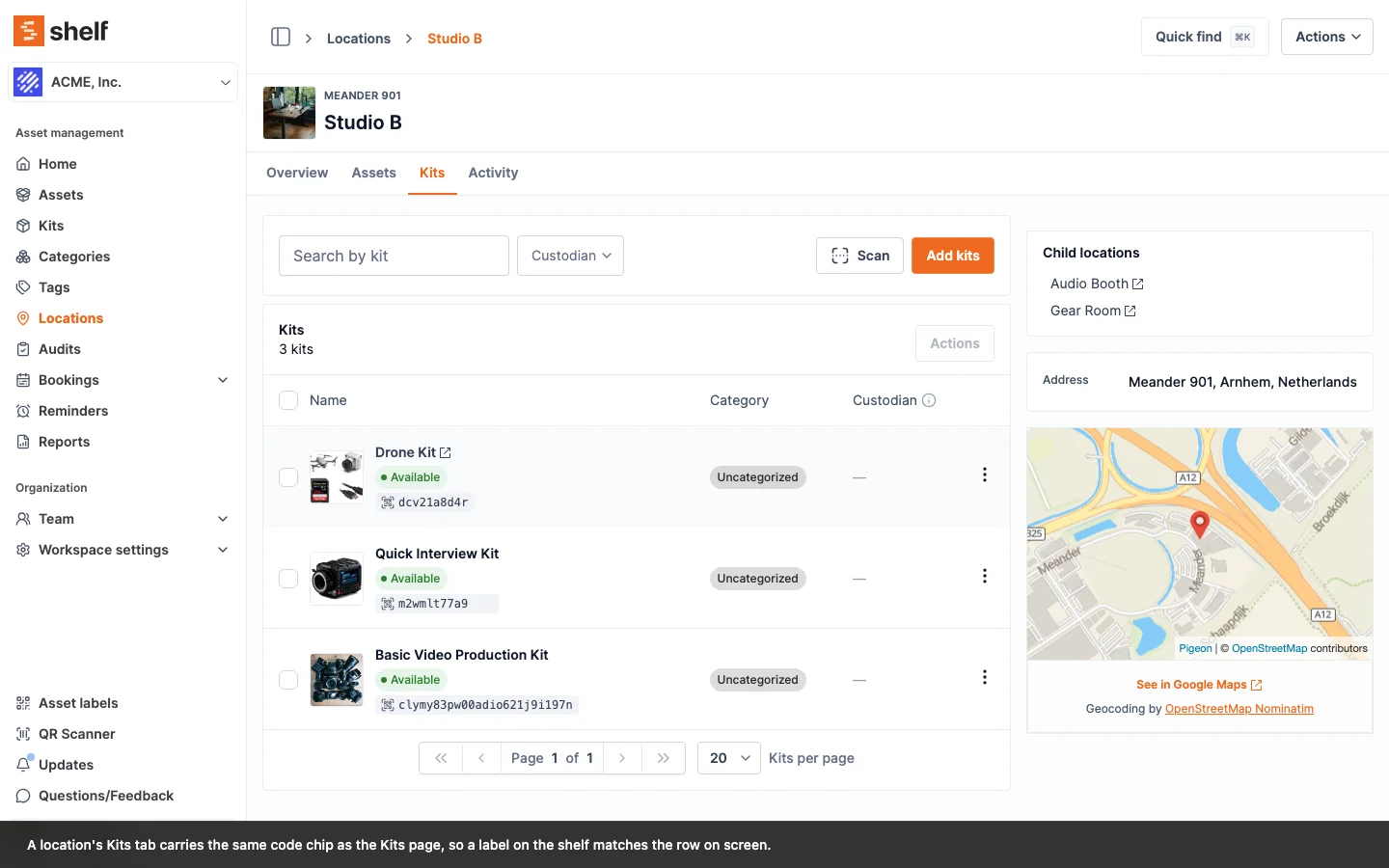
Who can change it
Both the workspace setting (Settings → General) and per-asset overrides are gated by the standard update permissions in the Shelf permission model — that means Owner and Administrator. Base and Self-Service users see the chips on every list but the controls themselves are hidden.
How to change the workspace setting
- Open Settings → General.
- Scroll to Preferred display code.
- Click the dropdown — each option shows a live preview chip so you can see what your list rows will look like before saving.
- Pick a value.
- Click Save changes.
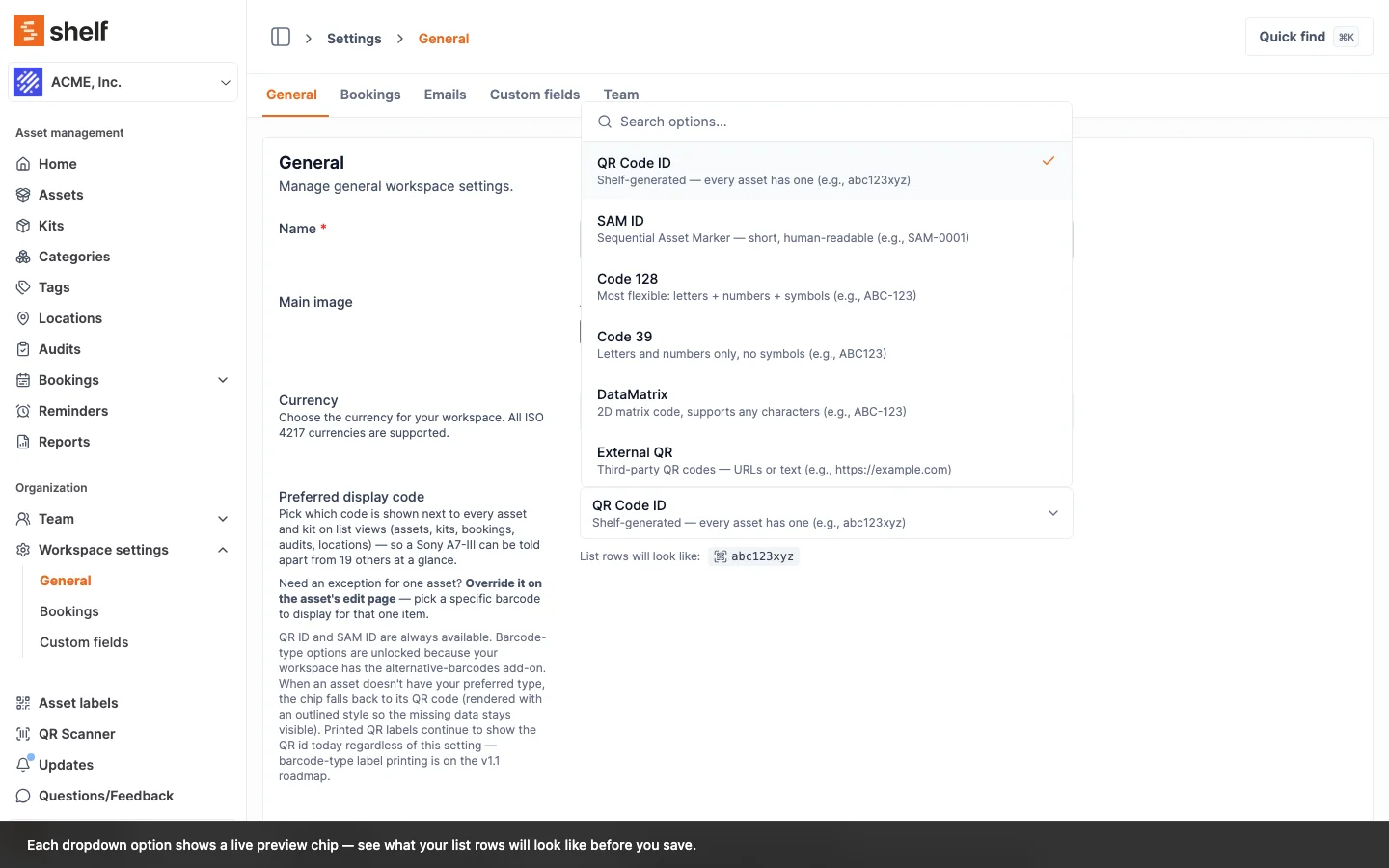
Available options
Every workspace gets two free options:
- QR Code ID (default) — Shelf-generated; every asset has one (e.g.
abc123xyz). - SAM ID — Sequential Asset Marker; short, human-readable (e.g.
SAM-0001).
Workspaces with the alternative-barcodes add-on (a 7-day free trial is available — any Owner can start it directly without contacting sales) unlock five more:
- Code 128 — most flexible: letters + numbers + symbols (e.g.
ABC-123). - Code 39 — letters and numbers only, no symbols (e.g.
ABC123). - DataMatrix — 2D matrix code, supports any characters (e.g.
ABC-123). - External QR — third-party QR codes; URLs or text (e.g.
https://example.com). - EAN-13 — retail barcodes, exactly 13 digits (e.g.
9780201379624).
Without the add-on the five barcode-type options are hidden from the dropdown — QR Code ID and SAM ID remain available to everyone.
Kits do not have a SAM ID
The setting is one choice for the whole workspace, and it covers kits as well as assets. SAM IDs are an asset-only identifier, so on a workspace that prefers SAM ID every kit row falls back to its QR Code ID and shows the quieter outlined chip. Hover it and the chip says so: Your workspace prefers SAM ID, which kits do not have. Showing the QR Code ID instead.
There is nothing to fix on your side. A kit has no SAM ID field and no place to set one, so the fallback is the answer rather than a gap in your data. If you want kits and assets to read the same way on every list, prefer QR Code ID, which both always have.
The per-asset override has the same boundary: "Preferred display code for this asset" lives on the asset edit page, and kits have no equivalent.
What this setting affects
- List-view code chips — every row across all the surfaces listed in "Where chips appear" above, for kits as well as assets.
- Printed QR labels — only when the preference is QR Code ID or SAM ID. Those are the two options whose value also appears underneath the code on the default Download output. A SAM-ID preference also adds the SAM prefix to bulk-download filenames (e.g.
SAM-0001_Laptop_Dell_abc123.pnginstead ofLaptop_Dell_abc123.png). - The two printed PDF sheets. The booking checklist and the audit receipt. Both have a Code column that prints the resolved code as text, for every preference including the five barcode types, with a picture of that same code: a Code 128 preference prints a Code 128 barcode, and QR Code ID and SAM ID preferences print the Shelf QR. A barcode value too long to print at a scannable size prints as text only. A fallback prints the QR Code ID with the type name underneath, which is the same explanation the on-screen chip puts in a tooltip.
What it does NOT affect
- Downloaded QR labels for barcode-type preferences. If your workspace prefers Code 128, Code 39, DataMatrix, External QR, or EAN-13, the downloaded label still shows the QR Code ID underneath the code today. (The two PDF sheets are different: they print the barcode itself and its value, so a barcode-type preference does reach them.) Barcode-type label printing is on the v1.1 roadmap. Until then, if you need a specific barcode value on the physical label itself, use a custom-branded label template.
- The QR code itself — it still encodes the canonical asset URL regardless of the preference.
- Existing printed labels — they keep working. The setting only affects the next label you download or print from Shelf.
- Integrations, exports, or URLs — those continue to use the QR Code ID as the unique key.
Per-asset override — picking a different code for one item
Most assets should leave the override on Workspace default. But sometimes one asset needs to show a different code than the rest — a partner-supplied loaner with its own sticker, demo gear that carries a manufacturer barcode, or an asset that has multiple barcodes of the same type where you want a specific one to surface.
Open the asset's edit page (Owner / Admin) and scroll to "Preferred display code for this asset" below the Barcodes section.
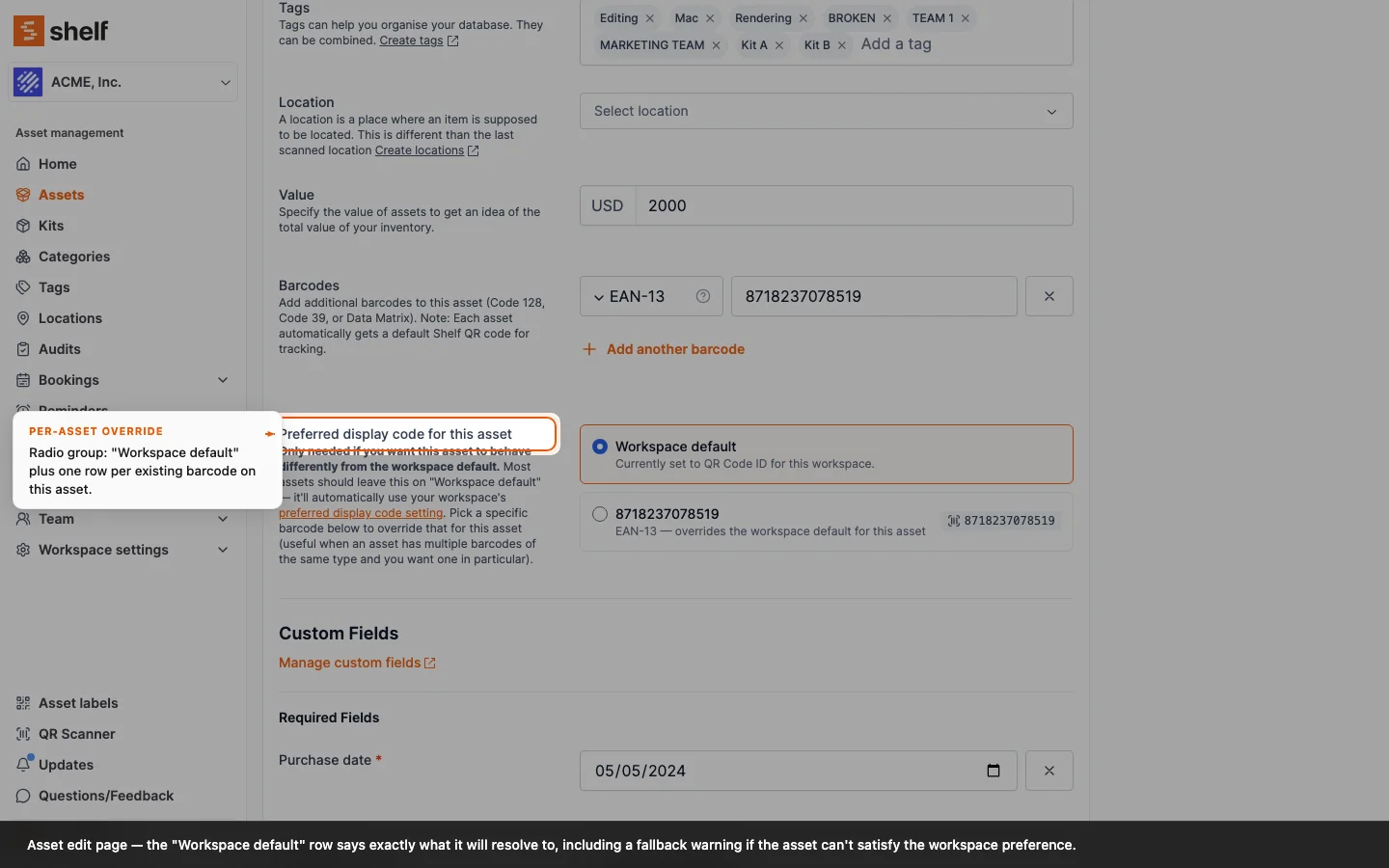
The radio group has a Workspace default row at the top plus one row per persisted barcode on the asset. The Workspace default row tells you in plain English what it will resolve to right now:
- If your workspace prefers QR Code ID or SAM ID, the row reads: "Currently set to QR Code ID for this workspace." (or "… SAM ID …").
- If your workspace prefers a barcode type and the asset has one of that type, same wording with the type label.
- If your workspace prefers a barcode type but this asset has none of it, the row shows a fallback warning: "Currently set to Code 128, but this asset has no Code 128 barcode. List views will fall back to its QR code (add a Code 128 above to fix)."
Selecting a specific barcode row forces that value to show on every list view for this one asset, regardless of the workspace preference. The chip's tooltip then explicitly reads as an override — see "Tooltip vocabulary" below.
If an asset has zero persisted barcodes, the section shows an empty state: "This asset has no barcodes yet, so there's nothing to override. … Add a barcode in the section above and save the asset — it will become selectable here on your next edit."
Per-asset overrides require the alternative-barcodes add-on. Without it, the entire override section is hidden and every asset follows the workspace default.
Chip color states — filled vs outlined
The chip renders in one of two visual states:
- Filled gray — the chip is showing the workspace's preferred type (or your per-asset override) and the asset has that data. The default, confident state.
- Outlined white — the workspace prefers a barcode type but this asset has no barcode of that type. The chip falls back to the QR Code ID and renders with a thin ring instead of a filled background. The row doesn't change height, but the missing data stays visible as a quiet hygiene signal.
To go from outlined back to filled on one asset, either add a barcode of the preferred type to that asset, set a per-asset override, or change the workspace preference itself.
Tooltip vocabulary — what each chip says on hover
Every chip has a structured tooltip with a bold title (code type + value) and a body explaining what's going on. The three states use distinct, verbatim copy from the product:
| State | Tooltip title | Tooltip body |
|---|---|---|
| Default (matches workspace) | Code 128: ABC-123 | Matches your workspace's preferred display code. Change in workspace settings. |
| Per-asset override | Code 39: TARGET | Per-asset override — overrides workspace's preferred Code 128. |
| Fallback (asset has no preferred type) | QR Code ID: abc123 (fallback) | Your workspace prefers Code 128 but this item has no Code 128. Add one (or change the workspace setting) to fix. |
The tooltip text is also mirrored to the chip's aria-label, so screen-reader users get the same explanation without opening the tooltip.
Clickable chips vs display-only chips
Some chips open a code-preview dialog when clicked — notably the chips in the QR ID and SAM ID columns of the Advanced asset index. Those chips show a small maximize-glyph at 50% opacity on the right edge — an at-rest interactivity hint, not just on hover. Chips without that glyph are display-only.
Activity log
Two activity events are emitted automatically:
- Workspace setting changes are logged as
ORGANIZATION_QR_ID_DISPLAY_PREFERENCE_CHANGED— captures the old preference, the new preference, and the actor. - Per-asset override changes are logged as
ASSET_PREFERRED_BARCODE_CHANGED— captures the old and new barcode id (ornullwhen reverting to Workspace default).
Both events appear in the standard activity feed and surface in reports alongside other asset-change events.
Troubleshooting — my chips didn't update
Chips render from loader-fetched data, not from the in-progress edit state. After saving a workspace-preference change or a per-asset override, refresh the list view (or navigate away and back) — the chips reflect the new preference on the next load.
When to pick each option
QR Code ID is the right choice when your team primarily scans labels rather than reading them — the visible chip is incidental because the scanner does the matching. It's also the safe default if you haven't yet standardised on a physical-label scheme, and the only sensible choice for workspaces that don't have SAM IDs assigned (the chip would fall back to QR Code ID anyway).
SAM ID is the right choice when your team talks about assets by short numbers in real workflows ("can you grab SAM-0042 from the cage?"), when you're migrating from a manual tracking system that already used short reference numbers, or when you print Avery-style sheets where a human-readable number under the QR makes pack-outs faster.
A barcode type (Code 128, Code 39, DataMatrix, External QR, EAN-13) is the right choice when your fleet is already stickered with physical barcodes — from a previous system, a manufacturer, or a retail purchase — and the sticker's value is what your team reads off pack-out lists, types into search, or matches against a screen during check-in/check-out. Pick the type that covers the majority of your assets and use per-asset overrides for the outliers; mixed populations fall back gracefully via the outlined chip state.
Hiding the SAM ID column in the asset index
If your team relies on its own reference numbers in a custom field for day-to-day work and the SAM ID column is creating noise, you can hide it from the asset index:
- Open the asset index.
- Click Configure columns (the column-toggle control above the table).
- Uncheck SAM ID.
- Save.
The SAM ID is still assigned and still searchable from Quick Find — you've just removed the column from the table view. Anyone on the team can re-enable it from the same menu later.
See: Advanced Asset Index — Complete Guide.
FAQ
Can I use all three identifier types at once?
Yes. Every asset has a QR Code ID, and it has a SAM ID once your workspace has SAM IDs, which new workspaces get by default. You can carry your own reference number on top in a text custom field. All of them are searchable in Quick Find and the asset index.
Which one should I use when searching?
Whichever you remember. Shelf's search resolves all of them. If you see an asset labelled SAM-0042, type SAM-0042 or just 42. If you see one of your own numbers like LAPTOP-001 on a sticker, type that.
What if I delete an asset and want the SAM ID back?
SAM IDs are not reused. A deleted asset's SAM ID stays out of circulation — this preserves historical accuracy. The next new asset receives the next unused number.
If you only want the asset out of your lists, archive it instead of deleting it. An archived asset keeps its SAM ID and QR code, and reinstating it brings both back into use.
Does Shelf have a "Property ID" field?
No. There is no Property ID field on the asset form, no Property ID import column, and no app.shelf.nu/property/... lookup URL. Your own numbering scheme lives in a text custom field you create and name yourself, which is searchable, importable, and can be made required. Section 3 walks through it.
What if one of my barcode values looks like a SAM ID?
It still resolves. A value with the SAM shape — letters, a hyphen, and four or more digits, such as LAPTOP-0001 — is tested against your workspace's sequential IDs first. When no asset carries it, the scan falls through to your barcodes and opens the asset or kit the value is registered on. That fallback is part of the alternative-barcodes add-on: without it your workspace has no barcode values to fall back to, and a SAM-shaped code matching no asset still reports SAM ID not found. An asset's real SAM ID always takes precedence, so your own sequence is never shadowed by a barcode someone typed onto another item.
Can I change my own reference number after setting it?
Yes. Open the asset, edit the custom field, and save. The old value is replaced.
Do my own reference numbers need to be unique?
Shelf doesn't enforce uniqueness on custom field values, so two assets can share one. In practice, keep them unique. You'll have a bad time searching if two assets both claim LAPTOP-001.
Will changing the Preferred display code setting break existing labels?
No. The QR codes on existing printed labels encode the canonical asset URL, not the displayed text — scanning them still resolves to the right asset regardless of the setting. The setting only affects (a) the chips on list views in the app, and (b) what value Shelf prints under the QR on the next label you download. For (b), only the QR Code ID and SAM ID preferences change the printed text; barcode-type preferences don't affect printed labels yet (see "What it does NOT affect" in Section 4 above).
Can I print my own reference number on the QR labels Shelf generates?
Not in the default downloaded labels. The Preferred display code setting picks among QR Code ID, SAM ID, or — with the alternative-barcodes add-on — a barcode type as the value shown on list-view chips, with QR Code ID and SAM ID also appearing as the text under the code on downloaded labels. Custom field values are stored on the asset and searchable, but Shelf does not currently inject them into the printed label format. If you need your own IDs physically on the labels, the path today is a custom-branded label template using unclaimed QR codes — you design the layout in your own tool and print externally.
Can I override the preferred display code on a single asset?
Yes — with the alternative-barcodes add-on. Open the asset's edit page, scroll to "Preferred display code for this asset", and pick a specific barcode from the radio group (or leave it on Workspace default). The chip on every list view will then show that asset's overridden value with a tooltip noting it as an override. Without the add-on, the override section is hidden and every asset follows the workspace default.
What happens if my workspace prefers Code 128 but an asset doesn't have one?
The chip falls back to that asset's QR Code ID, rendered with a quieter outlined style (instead of the filled gray used when the preference is satisfied). The tooltip title becomes QR Code ID: <value> (fallback) with body "Your workspace prefers Code 128 but this item has no Code 128. Add one (or change the workspace setting) to fix." To resolve it, either add a Code 128 barcode to that asset, set a per-asset override, or change the workspace preference.
Why does one chip in my list look outlined while the rest are filled gray?
That's the fallback state — your workspace prefers a barcode type, but that one asset has no barcode of that type, so its chip falls back to the QR Code ID rendered with a thin ring instead of a filled background. Hover the chip to see exactly which type is missing.
Is there an activity log entry when someone changes the setting or sets an override?
Yes — workspace-preference changes emit ORGANIZATION_QR_ID_DISPLAY_PREFERENCE_CHANGED and per-asset override changes emit ASSET_PREFERRED_BARCODE_CHANGED. Both appear in the standard activity feed alongside other asset and workspace events.
Who can change the workspace setting or set an override?
Owner and Administrator roles. Base and Self-Service users see the chips on every list view but the controls themselves are hidden.
My team uses its own IDs in a custom field and the SAM ID column is confusing. Can I hide it?
Yes. Open the asset index, click Configure columns, uncheck SAM ID, and save. The SAM ID stays assigned and remains searchable in Quick Find — you have just removed the column from the table.
Related Articles
- Printing Custom Branded QR Code Labels — design your own template around unclaimed codes
- Using Shelf QR Codes with Avery Label Sheets — the simple label-printing path
- Understanding QR Code Swapping — re-link a damaged label to a new code
- Adding Additional Fields to Assets — create the text custom field that carries your own reference numbers
Ready to try Shelf?
Put what you're learning into practice. Free plan available — no credit card required.