

Check Bookings Out and In From the Bookings List
Move bookings along from the Bookings list without opening each one: a Check out or Check in button on every row that can take it, and bulk Check out and Check in in the Actions menu for up to 50 bookings at once.

On a busy counter the Bookings list is where you work. It checks bookings out and in without opening them, through the same dialogs as the booking page's header, one row at a time or for a selection.
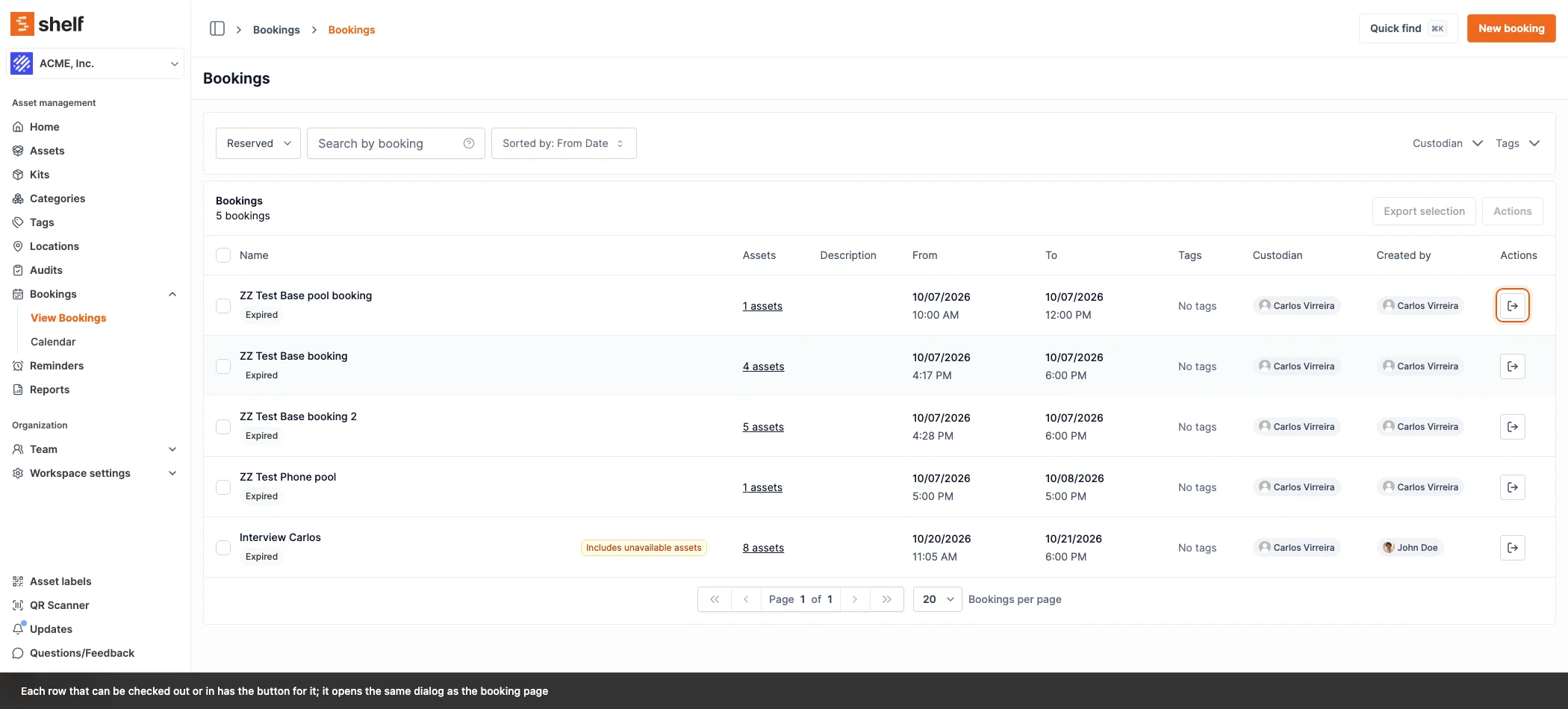
The buttons on each row
The last column of the list holds the actions the booking can take right now. Hover a button for its name.
| Booking status | Buttons |
|---|---|
| Reserved, including one that reads Expired | Check out |
| Ongoing or Overdue with items still to hand out | Check out remaining and Check in |
| Ongoing or Overdue with everything out | Check in |
| Draft, Complete, Cancelled, Archived | none |
Each button opens the dialog the booking page would open, so nothing is checked out or in without the confirmation you already know:
- Check out opens Check out booking, naming the booking. A booking that starts more than 15 minutes from now gets the early check-out question; a reservation whose end date has passed gets Reservation dates have passed, where the row can only check it out as overdue. To start such a booking now with a new end date, open it and use Check out in its header (why).
- Check out remaining takes out everything on an Ongoing or Overdue booking that has not gone out yet, as the header's button does, and the list stays where you are.
- Check in opens Check in booking. A return more than 15 minutes before the end date gets the early check-in question, Adjust Date or Don't Adjust Date; a return on an Overdue booking moves its end date to now, as every check-in of an overdue booking does.
The success message, the activity lines on the booking and on each asset, and the emails are the ones the booking page sends.
When a row shows no button, or a greyed one
- Your role cannot do it. The buttons follow the same grants as the booking page: Owners, Administrators and Managers see them on every booking, a Self-service user on their own bookings, and a Base user never, since Base users cannot check gear out or in. Seeing someone else's booking through the booking visibility setting does not add buttons to it.
- Your workspace requires each item to be scanned or selected for your role in that direction. The one-click hand-over is exactly what that setting removes, so the row shows no Check out (or no Check in) and you open the booking to scan or select. See Require Explicit Check-in and Check-out.
- Reserved units are still unassigned. A Reserved booking that reserves gear by asset model and has units nobody has assigned keeps Check out greyed out, with "Can't check out yet. Open the booking to assign the reserved units first." The booking page's Check out leads to the fulfil scanner for those.
- A pool is kept at several locations. When a quantity-tracked item on the booking is placed at two or more locations, the check-out has to ask where the units leave from. The row cannot ask, so the check-out is refused with "This booking needs a from-location choice. Open the booking to check it out." and nothing changes.
Several bookings at once
Tick the bookings, open Actions and the menu offers Check out and Check in ahead of Cancel, Archive and Delete.
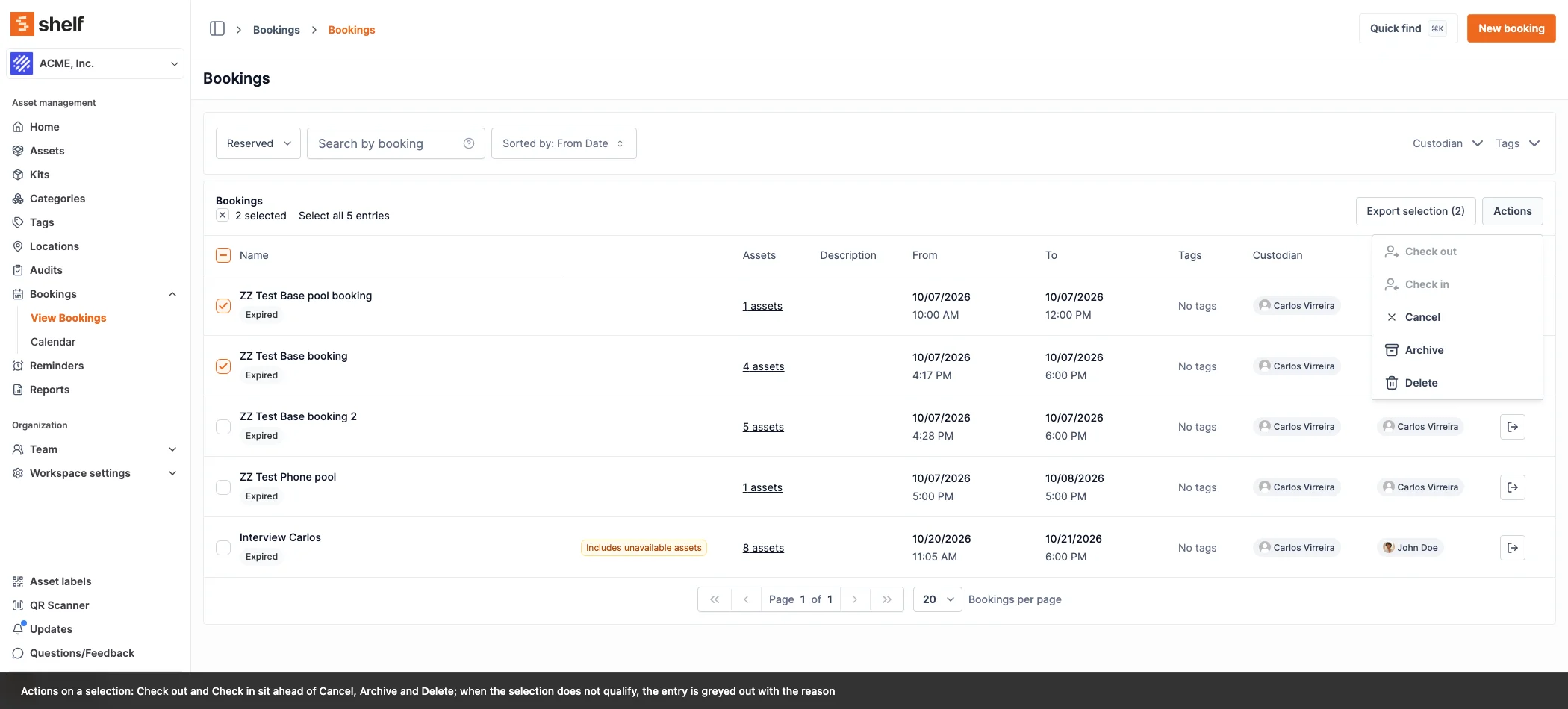
- Check out needs every selected booking to be Reserved and still inside its dates. Otherwise it is greyed out with "Some of the selected bookings are not reserved. You can only check out reserved bookings.", or, for a reservation whose end date has passed, "Some of the selected reservations have passed their dates. Open each one to check it out.", because an expired reservation needs a choice only the booking page can ask.
- Check in needs every selected booking to be Ongoing or Overdue, with the matching reason when one is not.
- At most 50 bookings. A larger selection greys both out with "You can select at most 50 bookings at once. Narrow the selection and try again." Select all counts the same way, and a select-all that reaches more than 50 is refused with nothing changed.
- Both are greyed out with a reason when your role lacks the permission, or when your workspace requires explicit check-out or check-in for your role: "This workspace requires explicit check-out for your role. Open each booking and scan or select its assets." The Actions menu itself is only there for Owners, Administrators and Managers.
The confirmation says what will happen and how: "This checks out every asset of the selected bookings and starts them. Start dates are kept. Bookings are processed one by one: if one cannot be checked out, the ones before it stay checked out and the rest are left as they are." The check-in twin reads "This checks in every asset of the selected bookings and completes them. End dates are not moved earlier, and an overdue booking's end date is set to when it is checked in."
Two things follow from that:
- The whole selection is checked before anything moves. A booking with the wrong status, a reservation whose end date has passed, a Reserved booking with unassigned model units, or a booking whose check-out needs a from-location choice refuses the batch with the bookings named and Nothing was changed in the title.
- Then each booking runs through the booking page's own check-out or check-in, one at a time, with the same asset notes and emails. The dates are kept: an early check-out keeps its start date, an early check-in keeps its end date, and an overdue booking's end date moves to the moment it is checked in, as always. If one booking fails partway, the message names it, says how many before it were done and that the rest were not touched, so you know exactly where to pick up.
What the list does not do
- It does not scan. Scan to check out, Scan to assign, Fulfil reservations & check out and Explicit check-in live on the booking page.
- It does not reschedule an expired reservation; see above.
- The Shelf Companion app's bookings list has no row buttons; open the booking there.
Related Articles
Ready to try Shelf?
Put what you're learning into practice. Free plan available — no credit card required.