

Progressive Checkout: Hand Out Booking Items as They're Picked Up
Progressive checkout lets you check out a booking's assets one at a time by scanning, or in bulk from the Actions menu, instead of only all at once — perfect when gear leaves the cage in stages.

What Is Progressive Checkout?
Until now, a reserved booking was checked out all at once: one Check Out action flipped every item to "Checked out" together. That works when the whole kit list leaves at the same moment, but real handoffs are often staggered — a custodian collects half their gear in the morning and the rest after lunch, or items come out of the cage one shelf at a time as they're located.
Progressive checkout is the checkout counterpart to partial check-ins. It lets you check out a booking's assets:
- One at a time, by scanning each item as it's handed over, or
- In bulk, by selecting specific rows and using the Actions menu,
instead of only all at once. The booking becomes active (Ongoing) on the first item you check out, while everything you haven't reached yet stays reserved for the booking and keeps its Available status until it's checked out.
It works like opening a tab: the booking is "open" from the very first item that leaves, and you keep adding to it as more gear is handed over — with a running tally of what's gone out and what's still waiting.
How Progressive Checkout Works
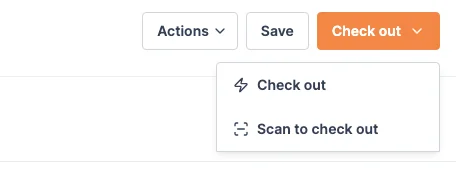
When a booking is Reserved and ready to go, the Check out button at the top of the booking opens a menu with two ways to start:
- Check out: the traditional all-at-once action that checks out every remaining item together.
- Scan to check out: opens a dedicated scanner so you can check out items individually as they're picked up.
Both options live in that one menu; there is no second scan button elsewhere on the page. Once every item has been checked out, Scan to check out is no longer offered, since there is nothing left to scan. When only one of the two options applies, Shelf shows it as a plain button instead of a menu.
Once the booking is Ongoing or Overdue, the same button reads Check out remaining instead of Check out. It does what the name says: it takes out everything on the booking that hasn't gone out yet, including anything you added after checkout began.
The Booking Lifecycle Bar
When a booking has any progressive checkout or check-in activity, the single check-in progress bar is replaced by a segmented lifecycle bar that shows the whole journey at a glance. Its legend has four buckets:
- Booked (gray): reserved items not yet checked out
- Partial (amber): a quantity-tracked line with some, but not all, of its units out
- Fully out (purple): items currently in the custodian's hands
- Returned (green): items already checked back in
Only quantity-tracked lines can sit in Partial, because an individually tracked asset has either left or it hasn't. The bar's tooltip says as much: "Partial means a quantity-tracked asset has some, but not all, units out."
The headline above the bar adapts to the phase you're in. While any items are still Booked, it reads "Check-out progress" and counts how many items have left. Once everything has left, it switches to "Check-in progress" and counts how many have come back. A legend underneath shows the exact count in each bucket.
What a Finished Booking Shows
A Complete or Archived booking reports what its records actually say, rather than assuming everything came back. A line that went out and was checked back in reads Returned. A line that went out with no return recorded against it stays Fully out, and a quantity-tracked line with only some of its units back reads Partial, so a closed booking still holding gear says so on its face. Older bookings that were checked out all at once, before Shelf recorded checkout on each line, have nothing to read per line and still show as fully Returned.
If your workspace counts each kit as a single unit, the lifecycle bar honors that setting too — the tooltip reads "Kits count as one item." Otherwise every asset is counted individually, with the tooltip "All assets inside kits are counted individually."
Checking Out by Scanning
- From the Check out menu at the top of the booking, choose Scan to check out.
- The scanner opens with the booking's details and the lifecycle bar at the top.
- Scan each asset's QR code or barcode as it's handed over.
- Shelf validates every scan against the booking — it blocks items that aren't part of the booking, are already checked out, are in custody elsewhere, or break kit rules.
- The first successful scan moves the booking from Reserved to Ongoing (or Overdue if the end date has already passed), and schedules the check-in reminder.
- Keep scanning across as many sessions as you need. The lifecycle bar updates after each scan so you always know what's still booked.
If you scan before the booking's scheduled start time, Shelf shows the same early-checkout warning as a normal check-out — you can cancel, adjust the start date to now, or proceed without changing the dates. See Early Check-in and Check-out of Bookings.
Checking Out in Bulk
When scanning isn't practical — damaged labels, or you're working from a pick list — check out specific items from the booking list instead:
- On the booking detail page, tick the checkboxes next to the assets being handed out.
- Open the Actions dropdown.
- Choose Check out selected items.
- Confirm. The selected assets are checked out, and the booking goes Ongoing if it wasn't already.
Bulk checkout works with both individual assets and complete kits.
The Actions menu matches your current selection: Check out is greyed out (with a short explanation) when every selected item is already checked out, and Check in is greyed out when none of the selected items are checked out yet. If you pick a mix, the action stays available and runs on just the eligible items, telling you how many were skipped. Shelf clears the selection automatically after each batch, so you can move straight on to the next group.
Checking Out From the Phone
The free Shelf Companion app on iPhone and Android offers both styles on a booking's screen:
- Scan to Check Out opens the phone's scanner for that booking. Scan each asset or kit as you hand it over, then send the list. Like the web scanner, it refuses anything that is not on the booking or can't go out, and says why. A kit's code adds the kit's assets that can go out.
- Select to Check Out lets you tick assets and kits on the booking's list and check them out together. A kit is picked as one thing, with one tick box for the whole kit.
Both stay on the booking until everything has gone out, so a booking that went Ongoing on its first item can keep handing gear over from the phone. Scanning a quantity-tracked asset on the phone checks out every unit still waiting; use Select to Check Out when you want to take fewer, and the app asks how many. Self-service members see these options on bookings they created or are the custodian of, and Base members, who can't check gear out, don't see them. See Getting Started with Shelf Companion for the full walkthrough.
Tracking Who Took What, and When
As soon as one item has been scanned out, the booking's asset list adds "Checked out on" and "Checked out by" columns, mirroring the existing check-in columns, so you can see when each item left and who processed it. (For kits, Shelf shows the kit-level status rather than per-asset dates.)
The columns fill in from the scanning and bulk sessions that recorded each handover. An item that went out with the plain Check out button, which takes everything at once in a single action, shows a dash in both columns, and a booking checked out entirely that way does not show the columns at all. Shelf records the checkout of every item either way, so check-in and reporting are unaffected; it is only these two display columns that need a session to name a time and a person.
Adding More Items While a Booking Is Open
Because the booking stays open like a tab, you can keep adding to it after checkout has already started. Add assets or kits to an Ongoing or Overdue booking from the asset page, a kit page, the booking's Manage assets modal, the bulk Add to booking panel, or by scanning, and they join the booking as line items that stay Available until you check them out. Adding something mid-booking never force-checks it out, so a late addition waits its turn just like anything else you haven't handed over yet.
When you are ready to hand it over, a late addition checks out exactly like the rest of the list: scan it with Scan to check out, tick its row and use Actions → Check out selected items, or use the checkout button, which reads Check out remaining once a booking is Ongoing or Overdue and takes out everything still waiting in one go. This is true no matter how the booking got started, including one that was checked out all at once with the plain Check out button, and it covers quantity-tracked lines as well as individual assets.
The one thing Shelf won't allow is pulling in an individually tracked item that's already checked out on another active booking, which would double-book it.
Quantity-tracked stock is judged differently, because it is a count rather than a single thing. A pool with 18 of its 27 units out elsewhere still has 9 free, and those 9 can join your booking. What stops a pooled line is its own capacity for your dates, not the fact that some other units are out. The scanner says which of the two you have hit: an individual asset that is out reads Already checked out, and a pool with nothing left reads No units available, with the tooltip "Every unit of this asset is already in custody, in a kit or reserved for the booking window."
The Mixed State: Items That Never Left
Progressive checkout introduces a legitimate new situation: an Ongoing booking where some items were never checked out at all — maybe a custodian decided they didn't need a particular lens after all.
Shelf handles this honestly so your records and reports stay accurate:
- Progressive check-in won't let you check in an item that was never checked out, since there's nothing to return. It refuses with "Cannot check in assets that were never checked out: [item names]."
- An item you have already checked in is refused separately, with "These assets are already checked in.", so the reason you see matches the reason you were stopped.
- Quick and full check-in won't log or label never-checked-out items as "returned." They're skipped from the activity log, system notes, and the per-row Returned badge.
- A kit only counts as returned once all of its assets were actually checked out — so a kit that went out incomplete won't be marked fully returned.
Unlike check-in, progressive checkout never auto-completes the booking. Checking out the last item simply finishes the checkout phase; you still check the items back in when they return.
Mixing All-at-Once and Scanning on One Booking
The two checkout styles combine freely on the same booking. A common shape is a whole list going out with Check out in the morning, then an item added later in the day and scanned out on its own.
Shelf now records the fact of checkout on each line of the booking, at the moment that line goes out, rather than inferring it from the booking as a whole. That is what lets the two styles mix. Whether an item can be checked back in is answered by that item's own record, so adding a scanned handover to a booking that started all at once does not change the standing of anything already out.
If you saw "Cannot check in assets that were never checked out" on items the page showed as Checked out, that was this. Shelf was reading the question at the level of the booking, so a booking that started with the Check out button and later gained a single scanned item stopped recognising everything the button had sent out. It is fixed, and no action is needed on your side.
When a Mixed Booking Finishes
A booking is finished when everything that actually went out has come back, and that is judged line by line from each line's own record, exactly the way check-in eligibility is. A line that never left carries no return obligation and never holds the booking open. A line that did leave has to be reconciled before the booking can close, whether it left on a scan or with the Check out button.
For a quantity-tracked line the obligation is counted in units. Units that a scan recorded are counted from the scan; units the Check out button sent out are counted from the line itself, even though no scan ever named them. Both kinds have to be settled before the booking closes.
If a booking of yours closed itself while stock was still out, that was the same booking-level reading. One scanned handover put the whole booking into "only scanned units count" mode, so quantity-tracked stock the Check out button had sent out stopped counting toward completion. The booking then completed on the last individual return while those units were still on the road, and check-in is only offered on an Ongoing or Overdue booking, so there was no longer a way to record them coming back. New bookings can no longer end that way. If you have a closed booking whose stock never got checked back in, contact support and we will correct the counts with you.
Sending an Item Out a Second Time
A booking that is already Ongoing or Overdue still accepts a check-out. That is what lets you keep handing gear over after the booking has started, and it also means an item that has come back can go out again on the same booking — the tripod returned at lunchtime and taken out again for the afternoon shoot, on the booking that is still running.
Both trips count. The second departure refreshes the item's check-out record and clears the check-in that closed the first one, so the row reads as out again rather than keeping the stamp from the trip that already ended. The booking then waits for that second trip to be checked back in before it can close, exactly as it waited for the first.
For a quantity-tracked line the count is cumulative. An item that has gone out twice has sent out more units than it ever booked, and Shelf measures the obligation against everything that left rather than against the booked quantity, so a second batch of units still has to come back before the booking is finished.
If a booking of yours completed while a second handover was still out, this was why. The re-departure grew the count of units sent out but left the row still stamped as checked in, and the completion check read that stamp as proof the item was back. A booking whose items only ever went out once was never affected. New bookings cannot close this way; a booking that already closed with gear outstanding needs its counts corrected by hand, because check-in is only offered while a booking is Ongoing or Overdue. Contact support with the booking and we will put it right with you.
Best Practices
Use Scan to check out when:
- Gear leaves the cage in stages throughout the day
- You want physical verification of each item as it's handed over
- You're working a busy counter and items go out as people arrive
Use Bulk (Actions > Check out selected items) when:
- Labels are damaged or scanning isn't practical
- You're working from a printed pick list
- You want to hand out a specific subset in one click
Use the all-at-once Check Out when:
- The entire booking leaves together
- You've already verified everything is present
Continue Learning
- Partial Check-ins: Efficiently Handle Incomplete Returns — the return counterpart to progressive checkout.
- Introduction to Bookings — how a booking moves through its states.
- Early Check-in and Check-out of Bookings
Need help getting started? Contact the support team or schedule a demo to see progressive checkout in action with your workflow.
Ready to try Shelf?
Put what you're learning into practice. Free plan available — no credit card required.