

Require Explicit Check-in and Check-out
Make Admins and Managers, or Self-service users, scan or select the assets instead of handing a whole booking over at once. Two workspace settings, one per direction.

By default, anyone who can check a booking out can do it in one go: Check out sends everything on the booking at once, after a Check out booking confirmation that names the booking, and Quick check-in takes it all back the same way, after a Check in booking confirmation. That is the right default for a small team that trusts its own count.
Some workspaces want the count made with the gear in hand instead. Two settings do that, one for each direction, and they can be switched on for Admins and Managers, for Self-service users, or for both.
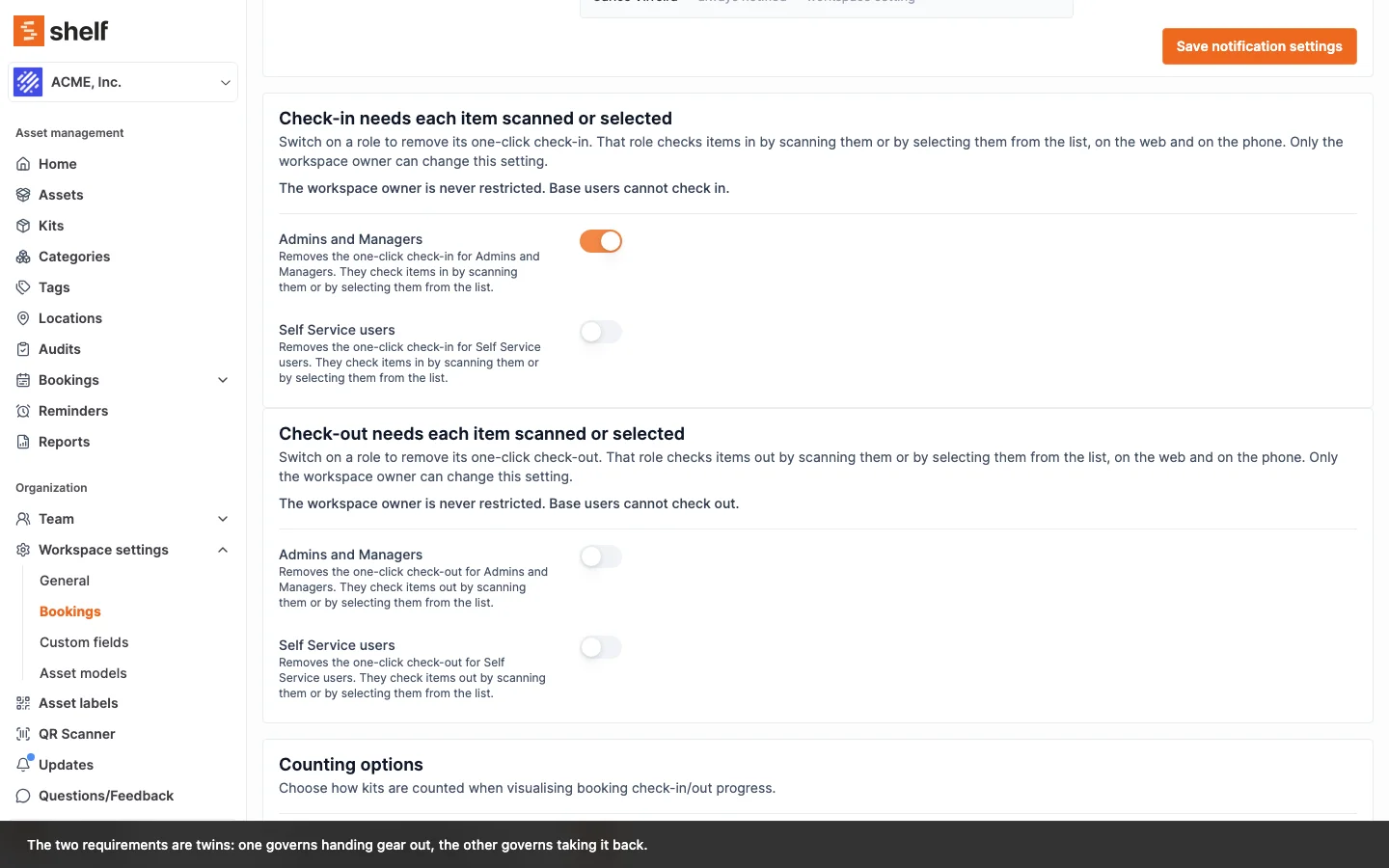
Where to find them
Go to Settings ▸ Workspace settings ▸ Bookings. Two cards sit next to each other:
- Check-in needs each item scanned or selected
- Check-out needs each item scanned or selected
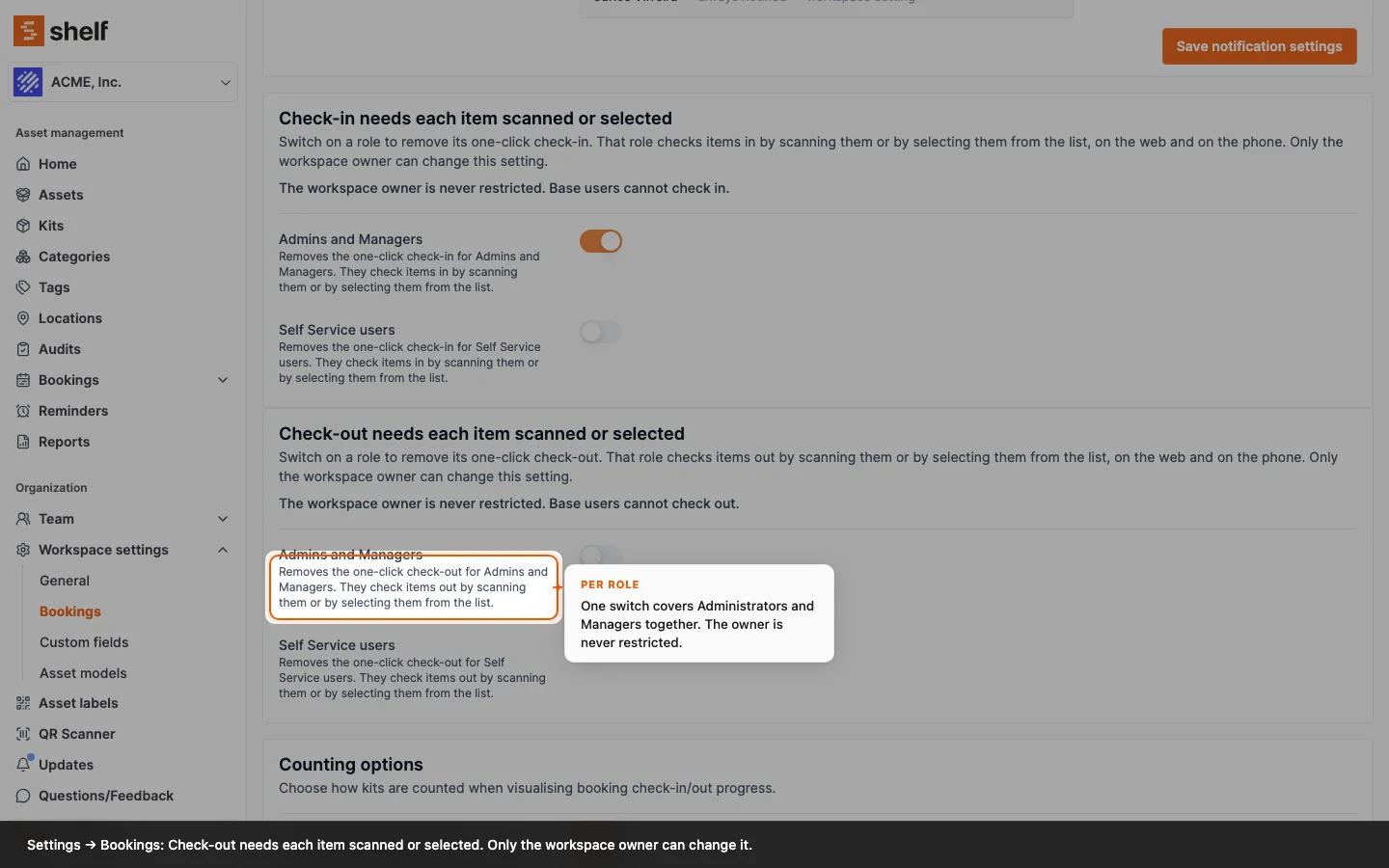
Each card holds two switches, Admins and Managers and Self Service users, and says under each one what it does, for example "Removes the one-click check-out for Admins and Managers. They check items out by scanning them or by selecting them from the list." All four start off. Until 15 October 2026 the first switch was called Admins; it now covers the Manager role as well, so a workspace that already had it on now applies it to its Managers too.
Under its heading, each card also says who the switches never reach: "The workspace owner is never restricted. Base users cannot check out." (or check in). Until 8 October 2026 the cards were called Explicit check-in requirement and Explicit check-out requirement; the switches and what they do did not change.
Only the workspace owner can change them. An Administrator can read the cards but not save them, which is the point: a rule about how Admins hand gear out should not be one an Admin can lift.
What each switch does
Check-out needs each item scanned or selected
For a covered role, the one-click hand-out disappears and the server refuses it:
- The check-out control on the booking page offers only Scan to check out. The Check out button on a Reserved booking, and Check out remaining on an Ongoing or Overdue one, are not shown.
- In the Shelf Companion app, Check Out All Assets is hidden on the booking screen, and in its place the screen says "Your workspace requires each item to be scanned or selected to check out." Select to Check Out and Scan to Check Out stay.
- If the request reaches the server anyway, it is refused: "This workspace requires explicit check-out. Scan or select the assets to check them out."
What stays open is everything that already makes the person name the items:
- Scan to check out — the progressive check-out scanner on the web.
- Actions ▸ Check out selected items — ticking rows on the booking's asset list.
- Select to Check Out on the phone.
- Fulfil and check out — the scanner that settles a model reservation and checks out what it just assigned, on the web and on the phone.
Check-in needs each item scanned or selected
The mirror image, on the way back:
- The check-in control becomes a single Check-in button that opens the explicit check-in scanner straight away. There is no dropdown and no quick check-in.
- Selecting still works: tick the rows on the booking's asset list and choose Actions ▸ Check in selected items, or use Select to Check In on the phone.
- In the app, Check In All is hidden and the booking screen says "Your workspace requires each item to be scanned or selected to check in."
- The server refuses a quick check-in from a covered role on the web and on the phone alike.
Which roles are covered
| Role | Can the switch reach them? |
|---|---|
| Owner | Never. The owner is always exempt, on both settings. |
| Administrator | Yes, with the Admins and Managers switch. |
| Manager | Yes, with the same Admins and Managers switch. |
| Self-service | Yes, with the "for Self Service" switch. |
| Base | Not covered, and it does not need to be — a Base user cannot check gear out or in at all. See User Roles and Their Permissions. |
A person can hold more than one role on a workspace. Shelf judges them by their most privileged role, so someone who is both Self-service and Administrator is treated as an Administrator by both settings — the Admins and Managers switch governs them, the Self-service one does not.
The two settings are independent. Requiring explicit check-out says nothing about check-in, and either one can be on for Admins and Managers while it is off for Self-service.
Every check-out and check-in says how it was made
Since 8 October 2026, Shelf records how each booking check-out and check-in was made and where, whether or not these switches are on. You can read it in two places:
- The booking's activity. The line ends with the method, for example checked-out the booking (selected on the phone) or performed a partial check-in: Tripod (scanned on the web). A one-click action reads in one click on the web or in one tap on the phone. A batch that mixed scans and ticks reads scanned and selected on the web.
- The check-in receipt. A Check-in method line in the header when every returned item came back the same way, otherwise the method under each row's Checked in by.
Check-outs and check-ins made before that date carry no method, and neither does one from a phone app that has not taken the update of 8 October 2026.
What this is good for
- Verification at the counter. Gear is scanned as it leaves the cage, so what the booking says went out is what physically went out.
- Staggered hand-offs. A custodian collects half their kit in the morning and the rest after lunch. The requirement makes that the only way, so nobody closes the whole booking early by habit.
- Audit trails that hold up. Every item carries its own check-out stamp rather than inheriting one from a booking-wide action.
Things worth knowing before you switch it on
- Existing bookings are not affected retroactively. The rule applies to the next action someone takes, not to history.
- Phones need the current app. The Companion app hides Check Out All Assets from a covered role once it has the update published on 15 September 2026, and explains why since the update of 8 October 2026. An older copy still shows the button; tapping it gets the server's refusal and nothing is checked out.
- A Reserved booking with nothing left to scan shows no check-out control to a covered role, because the only option left was the one the requirement removes. The owner, who is exempt, can still complete it.
- Fulfil-and-check-out narrows under the rule. It assigns the units you scanned and checks out only those, leaving the booking's other assets to be checked out separately. It takes kits: a scanned kit goes on the booking whole, its individually tracked members settle matching model reservations, and the whole case goes out with the scan. What it refuses is a loose scan of a unit that belongs to a kit nobody scanned — "Canon EOS R5 #0042" belongs to a kit, so it can't go out on its own — because sending that unit out alone would split the case.
- A scan is required, not a complete booking. Reserved model units nobody has assigned yet do not block the check-out: the scanner names them and asks you to confirm, and they stay open on the booking to be scanned later or released. What the rule does insist on is that the item going out is one you scanned, which is the point of the setting — a person handles every item that leaves. Scanning an item that is already on the booking is how that item gets checked out here; it used to be turned away as a duplicate, which left a covered role with no way to send those items out from this screen.
Related Articles
Ready to try Shelf?
Put what you're learning into practice. Free plan available — no credit card required.