

Print a Check-in Receipt for a Booking
Print a one-page record of what came back from a booking: each item's return state, when it was checked in and by whom, a totals ledger, and signature lines for the hand-back.

What the Check-in Receipt Is
The booking checklist PDF is a list of work to do: what to pack, with a tick box on every row. It looks the same before and after the gear comes back, so it cannot tell anyone what was actually returned.
The check-in receipt is the other half. It is a record of what happened on the way back, printed from the check-ins Shelf already stored. Hand it to the person returning the gear, attach it to a damage or loss claim, or file it with the job.
How to Print It
- Open the booking.
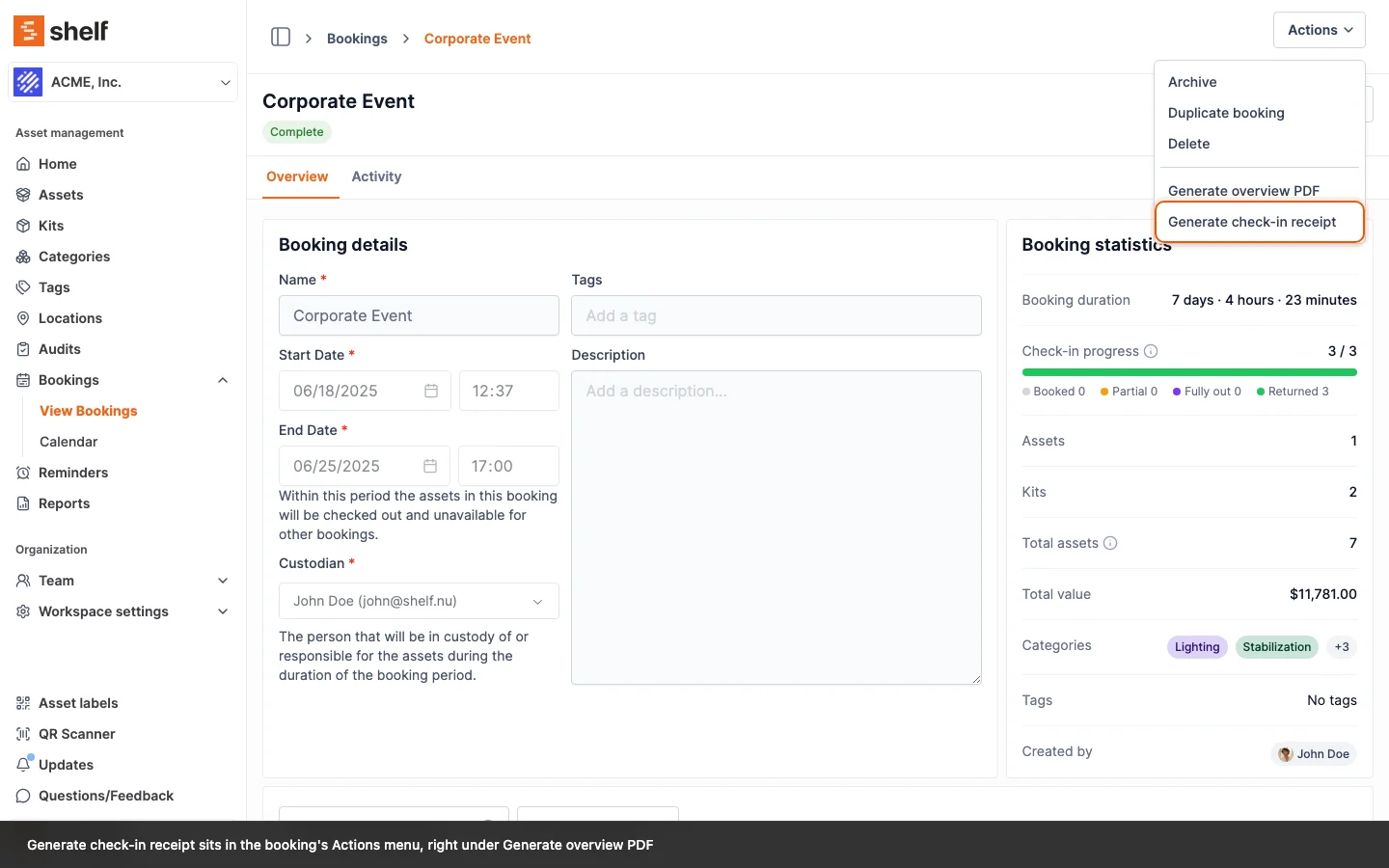
- Open the Actions menu in the top right.
- Choose Generate check-in receipt. It sits right under Generate overview PDF.
- The receipt opens as a preview. Click Download PDF to save or print it.
When the entry is available
You do not have to wait for the booking to finish. The entry works as soon as something went out and something has come back, so a partial return, the case a printed record is most often wanted for, can be printed while the rest is still out.
Until then the entry is greyed out and says why:
- "This booking was never checked out." Nothing on the booking left the shelf. A reserved booking that was archived without going out lands here too, because a return document for gear that never moved would be false.
- "Nothing has been checked in yet." The booking is out, but nothing is back.
What the Receipt Shows
The stamp
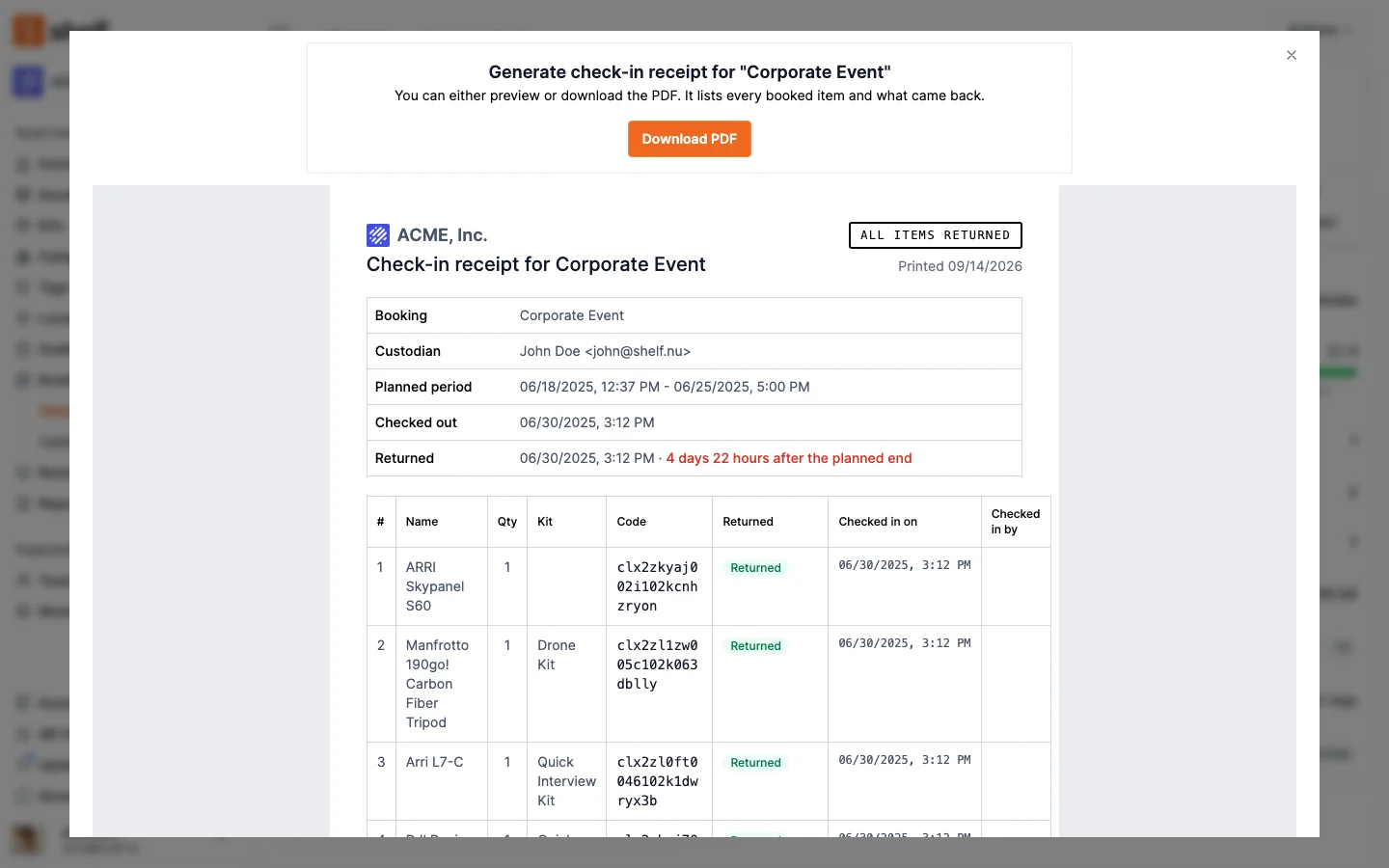
The bordered stamp in the top right is the one place on the sheet that states completeness. It reads one of these:
- All items returned: every unit that went out came back.
- All items accounted for: nothing is outstanding, but some units were marked consumed, lost or damaged rather than returned.
- Partial return · N still out: some units came back and N are still out.
- Nothing returned · N still out: units are still out and none came back. Some may have been written off.
The outstanding count is in units. An individually tracked item counts as 1, and a quantity-tracked line counts every unit it still owes.
The booking details
- Booking and Custodian.
- Planned period: the dates the booking was made for. Checking a booking out early, or checking it in after it ran late, can change the dates shown on the booking page. The receipt still prints the dates that were agreed.
- Checked out, with the name of the person who checked it out when Shelf recorded one.
- Returned, the moment the return was recorded, plus how it compares to the planned end: on time, early, or for example 4 days 22 hours after the planned end. A booking closed entirely through consumed, lost or damaged units labels this row Accounted for instead, because nothing was returned.
- Checked in by, every person who received a return.
- Check-in method, when every returned item came back the same way, for example Scanned on the phone or Selected on the web. When they differ, the method prints under each row's Checked in by instead.
- The booking's description and tags, when it has them.
One row per booked item
Each row gives the item's name, quantity, kit, and code, then what happened to it:
- An individually tracked item reads Returned, Still out, or Never checked out.
- A quantity-tracked line lists its units by outcome, for example 5 returned and 1 damaged, or 3 returned and 3 still out while a return is still in progress.
Checked in on and Checked in by are filled in from what Shelf recorded at check-in. When the header has no single Check-in method, each row says under its Checked in by how the item came back, for example Scanned on the web. Check-ins from before 8 October 2026 have no method, and a quantity-tracked line returned in parts by two different methods prints none. On older bookings the Checked in by column can be empty, because Shelf did not always record who checked each item in. The receipt leaves it blank rather than filling in the custodian or the person printing.
The Code column prints the code your workspace chose under Settings → General ▸ Preferred display code, as text, the same code the checklist prints. The receipt never prints a QR image, because it is a record rather than a sheet to scan from.
A row for an item that was taken out of its kit after the booking was made says so in the Kit cell: Removed from kit — kept as a record of what was booked.
Totals and signatures
Under the table, a ledger counts Items booked, Units sent out, Returned, Consumed, Lost, Damaged, and Still out. Every line prints, zeros included, because a zero is evidence that nothing was lost.
At the foot of the sheet are two signature lines for name, signature and date. When units came back they read Returned by (custodian) and Received by. When nothing was returned they read Confirmed by (custodian) and Recorded by, so nobody is asked to sign for a return that did not happen. The signatures are on paper only; Shelf does not collect them.
The receipt prints no asset values and no prices, so it is safe to hand to a custodian or a client.
Who Can Print It
- Owners, Administrators and Managers can print the receipt for any booking in the workspace.
- Self-service and Base users can print it for bookings where they are the custodian, the same rule that applies to the checklist PDF.
Related Articles
- How to Generate a PDF Overview of Your Bookings, the checklist for the way out
- Partial Check-ins
- Progressive Checkout
- Quantity-Tracked Assets and Consumables
Ready to try Shelf?
Put what you're learning into practice. Free plan available — no credit card required.