

QR Code Asset Tags: What to Encode, Size, Print and Scan


A QR code asset tag is a label that carries a QR code linked to one item's record, so anyone with a phone camera can scan it and see what the item is, where it belongs and who has it.
This guide covers the QR-specific decisions: what the code should point to, how much error correction to use, what size to print, and what happens when someone scans it. For tag materials, numbering formats and placement on every kind of equipment, see the main asset tags guide.
Why QR codes work well for asset tags
QR code tagging has three practical advantages over other codes.
- Every phone is a scanner. On an iPhone, the Camera app reads a QR code and shows a link to tap. Android phones read them through the camera or Google Lens. You do not need to buy handheld scanners to start.
- They survive damage. QR codes carry built-in error correction, so a scuffed or partly covered code can still be read. More on choosing the level below.
- They fit on small items. A QR code reads from any angle and needs a square, not a wide strip. That suits camera bodies, tools and small electronics.
The QR code was developed by DENSO WAVE and announced in 1994. It was designed to hold more information than a 1D barcode and to read faster.
QR is not the right code for every job. A short comparison:
| Code | Scan tool | Best for |
|---|---|---|
| QR code | Any phone camera or scanning app | Most equipment teams. One scan opens the record. |
| 1D barcode (Code 128, Code 39) | Handheld barcode scanner or a phone app | Teams already invested in handheld scanners |
| Data Matrix | Imager or a phone app | Tiny parts, and US defence items that must carry a unique item identifier |
| RFID | RFID reader | Counting many items at once without line of sight |
The asset tags guide compares cost and lifespan in full.
What a QR asset tag should encode
There are two ways to use a QR code on an asset, and only one ages well.
- Data in the code. The QR code holds the item's details as text: name, serial, owner. Every change means a new label. Anyone who scans it sees everything.
- A link to a record. The QR code holds a short URL or an ID that points to a record in your asset system. The record changes. The label never does.
Use the second. Asset details change all the time: who holds the item, where it is, when it was last serviced. A QR code that points to a record stays correct for the life of the tag. It also keeps details private, because the system decides who sees what after the scan.
Whatever the code holds, print a human-readable ID next to it. When the code is damaged, someone can still type the number. The numbering section of the hub covers formats and check digits.
Choosing the error correction level
QR codes come with four error correction levels. DENSO WAVE, the company that created the QR code, lists how much of the data each one can restore:
| Level | Data that can be restored (approx.) | When to use it |
|---|---|---|
| L | 7% | Clean environments, very small labels |
| M | 15% | The most common choice. Offices, schools, AV gear. |
| Q | 25% | Workshops, field kit, anything handled with dirty hands |
| H | 30% | Harsh environments, outdoor equipment, labels with a logo over the code |
DENSO WAVE notes that M is the level most often selected, and that Q or H suit factory settings where codes get dirty. Higher levels add more modules, so at the same printed size each square gets smaller. If you raise the level, check that the code still scans at the distance you need.
A short code helps. A link that holds only an ID, not the item's details, keeps the QR code simple and easy to read at small sizes.
Size, print and material
Size. Match the size to the item and the scan distance. The free Shelf asset label designer offers three sizes as a starting point: 25 mm for small tools and devices, 40 mm for laptops, monitors and office equipment, and 60 mm for flight cases, server racks and heavy machinery. If people scan from further away, such as a rack or a vehicle, go larger.
Print. Keep it high contrast: dark modules on a light background. Leave a clear white margin, the quiet zone, around the code, with no text or border touching it. Avoid inverted colours and pale brand colours: scanners need strong contrast.
Material. QR asset tags are only as durable as what they are printed on. Laminated polyester suits most indoor equipment. Anodised aluminium suits outdoor equipment, vehicles and tools. Paper only suits temporary labels. A matte finish avoids glare under bright light. The material by environment table in the hub has the full list.
Placement. Put the code on a flat spot you can reach without moving the item, never over the serial number. Tight curves, such as a tripod leg or a cable, distort the code. Use a flag label there. The hub has a placement table by asset class.
What happens when someone scans a Shelf QR tag
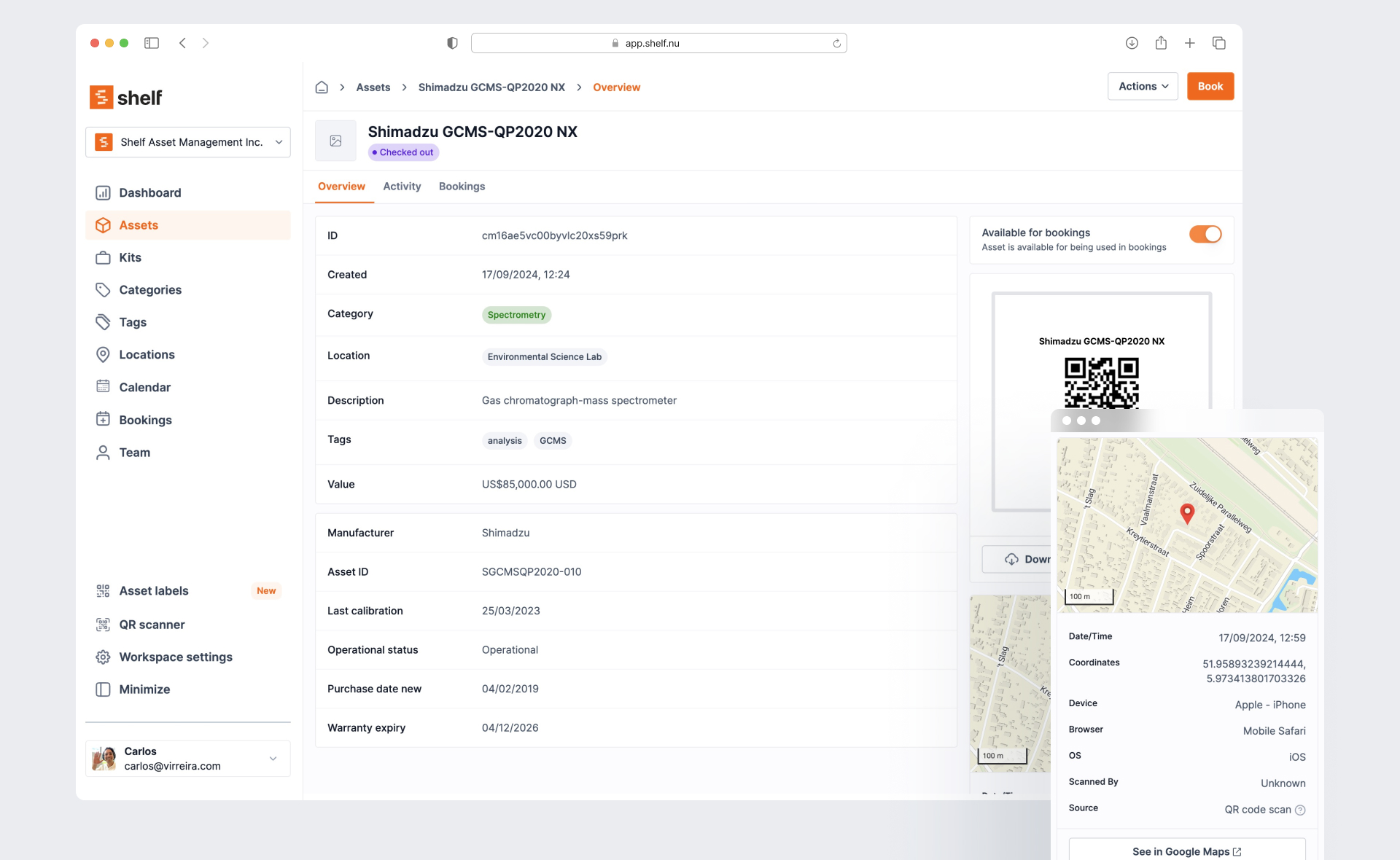
In Shelf, every asset gets its own QR code automatically. The code points to the asset's record, not to a copy of its data.
- A team member scans with a phone camera. The code opens the asset in Shelf, with its details, location, custody and history.
- A team member scans with the in-app scanner in the web app or the free Shelf Companion app on iPhone and Android. They go straight to the asset, with quick actions such as assigning custody.
- Someone outside your workspace scans it. If the person is not signed in, Shelf shows a contact-owner form instead of the asset's details. A message from that form goes to the account owner's inbox. That makes a QR tag a practical "if found, return to" label.
- A tag gets damaged. Use "Relink new code" on the asset page and scan a fresh sticker. The asset keeps all its information. The old code becomes unlinked and stays in your workspace, ready to reuse.
If your equipment already carries barcodes or QR codes from another system, the Alternative Barcodes add-on on the Team plan lets you attach those codes to Shelf assets instead of re-tagging.
How to set up QR code asset tagging
- List what to tag first. Start with items that move between people: laptops, cameras, tools, loaner kits.
- Create or import the records. Each record gets its QR code. Add your own ID in a custom field if you have a numbering scheme.
- Print or order the tags. Print from the asset label designer or from Shelf in batches. Or order pre-printed QR tags from the Shelf store: they arrive unclaimed, and you scan each one to link it to a new or an existing asset.
- Clean, stick and scan. Wipe the spot with isopropyl alcohol, apply the tag, then scan it once to confirm it opens the right record.
- Use it. Scan to assign custody when an item goes out, and again when it comes back. A walk-through scan of every tag is your audit.
When you need software, not just tags
A QR code is only as useful as the record it opens. If you are choosing the system behind your tags, start with asset tracking in Shelf, or see how QR code asset tracking works step by step. Shelf's Free plan is for a single user and includes unlimited assets, QR scanning and custody. Bookings and multiple users are on the Team plan.
Frequently Asked Questions
Are QR codes good for asset tags?
Yes, for most equipment. Any phone camera reads them, error correction keeps scuffed codes readable, and they fit on small items. Use RFID instead only when you must count many items at once without line of sight. Use Data Matrix when a US defence contract requires it.
What should a QR asset tag link to?
A record in your asset system, through a short URL or ID. Do not encode the item's details in the code itself. Details change, and a code that points to a record stays correct for the life of the tag.
How big should a QR code asset tag be?
Big enough for the scan distance. As a starting point, 25 mm suits small tools and devices, 40 mm suits laptops and monitors, and 60 mm suits cases, racks and heavy machinery. Go larger if people scan from further away.
Which error correction level should I use?
M (about 15%) for clean indoor equipment. Q (about 25%) or H (about 30%) for workshops, field kit and outdoor equipment where codes get dirty or scratched.
Can I make QR code asset tags for free?
Yes. The free Shelf asset label designer exports QR labels as PNG, SVG or PDF with no signup. To make each code open a live record with custody and history, track the assets in Shelf. The Free plan includes unlimited assets for a single user.
Sources
All checked on 5 October 2026.
- DENSO WAVE, History of QR Code
- DENSO WAVE, QR Code error correction feature
- Apple Support, Scan a QR code with your iPhone camera
- Google Chrome Help, Search with Google Lens in Chrome on Android
- Shelf, Scanning an asset
- Shelf, QR code swapping and management
- Shelf, What to do after purchasing asset tags
Ready to organize your assets?
Join thousands of teams who trust Shelf to manage their physical assets. Free forever, or try the Team plan free for 7 days.
Out in the field? Shelf Companion is free on iPhone & Android.
More from the blog
Asset Panda Pricing in 2026: Plans, Minimums and What It Really Costs
Asset Panda no longer lists prices on its website. Here is every figure we could source and date: its last public price list, third-party reports, seat minimums, extra users, onboarding, and worked totals for three real team shapes.
Asset Register Template (Excel) and Equipment Inventory List
A free fixed asset register template in Excel with straight-line depreciation formulas, plus an equipment inventory list in Excel and CSV that imports into Shelf. What a register must contain, how to fill it in a day, and when a spreadsheet stops being enough.

Asset Tags: Types, Materials, Numbering and Placement
What an asset tag is and what it must carry, tag types and materials compared, a numbering format with check digits, where to put tags on laptops, cameras, tripods, tools, chairs and vehicles, and what government property tags require.