

Where an Asset Was Last Scanned: the Last Scan Card
Every scan of an asset or kit is recorded, whether someone scanned its QR code, a barcode or its SAM ID, from the web scanner, a scanner list, an audit or the Shelf Companion app. The Last scan card on the asset page shows who scanned it last, when, from which device, with which code, and where, and View all scans opens the full history.

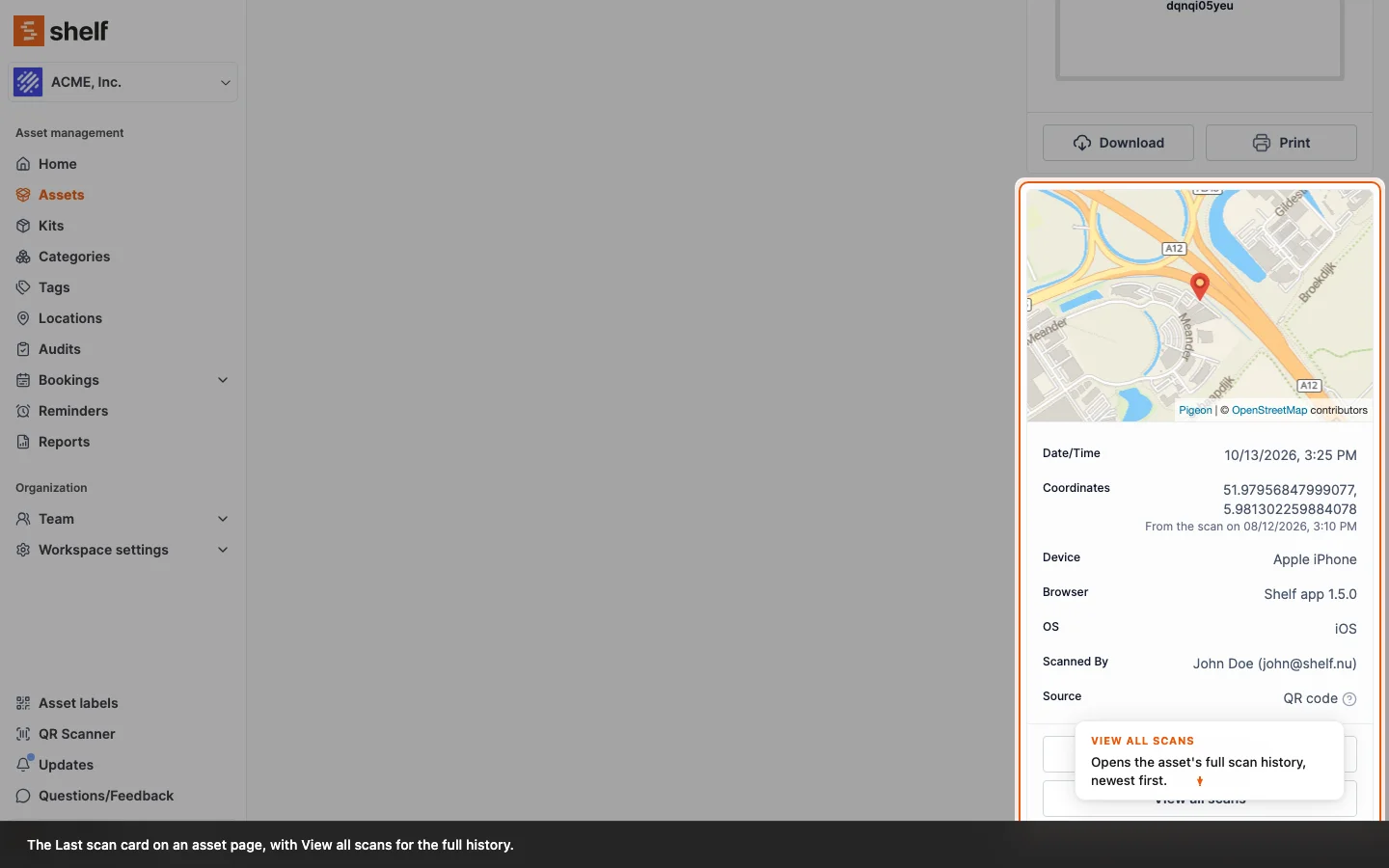
Every asset page and kit page carries a Last scan card: a map and a short table that answer "when was this last in someone's hands, and where", with a View all scans button that opens the full scan history. Shelf fills both from the scans people make. Since 16 October 2026 that means every scan, whichever code was on the label and wherever the scan happened.
Where to find it
Open an asset and stay on its Overview tab. The card sits in the right column, under the asset's QR code. A kit page has the same card in the same place. The rows are:
- Date/Time: when the last scan happened.
- Coordinates: where it happened, with a pin on the map above. When the last scan carried no location, the card keeps the location from the newest earlier scan that had one and says From the scan on that date underneath, so you can tell how old the pin is.
- Device, Browser and OS: what the scan was made with. A scan from the Shelf Companion app reads, for example, Apple iPhone, Shelf app 1.5.0 and iOS.
- Scanned By: the person, with their email address. A scan by someone who is not a member of your workspace, for example a visitor who pointed a phone camera at a sticker without signing in, reads Unknown.
- Source: how the asset was identified. QR code, Barcode followed by the barcode's value, SAM ID followed by the SAM ID, or Manual GPS update when someone used Update GPS coordinates (see below).
- See in Google Maps opens the coordinates in Google Maps, when there is a location.
- View all scans opens the scan history: every scan recorded on this asset, not only the last one.
An asset nobody has scanned yet shows Waiting for first QR code scan in place of the map.
Which scans are recorded
| Where the scan happens | Recorded on the card | Note on the asset's Activity tab |
|---|---|---|
| A phone camera on a Shelf QR sticker, which opens the asset in the browser | Yes, with the browser's location when it is allowed | Yes |
| The web QR Scanner with View asset, for a QR code, a barcode or a SAM ID | Yes | Yes |
| A web scanner list: scanning items into a booking, a kit, a location or a custody hand-over | Yes | No |
| An audit's scan page, on the web or in the Shelf Companion app | Yes | The audit keeps its own record of the scan |
| The Shelf Companion app's scanner | Yes. A QR scan carries the phone's location when you have allowed it; a barcode scanned in the app is recorded without a location | Yes |
| Update GPS coordinates from the asset's Actions menu | Yes, as Manual GPS update | Yes |
A location is attached when the scanning device shares one. The browser asks for permission on the public QR page and on Update GPS coordinates; the app asks once, when you first open its scanner. Scans made without a location still update the date, the device and the person on the card, and the pin stays where the newest located scan put it.
Three details worth knowing:
- Repeats fold together. If the same person scans the same code on the same asset again from the same scanner within 30 seconds, it counts as one scan. Opening a QR sticker's link always records a new scan.
- Scans stay with the asset they were made on. A scan is recorded against the asset or kit the code pointed to at that moment. If you later move a sticker to another asset, the earlier scans stay with the earlier asset. Scans made before 16 October 2026 count for the asset the code was linked to on that day.
- Unclaimed codes are not recorded. A sticker that no workspace has claimed yet has no asset to record a scan on.
The full scan history
The card shows the newest scan. Click View all scans under it and a panel slides in from the right with the asset's or kit's whole scan history, newest first. It loads 25 scans at a time; Load more at the bottom fetches the next 25, and if a page fails to load the scans already listed stay put with a Try again button. The panel is loaded when you open it, so a long history never slows the asset page down.
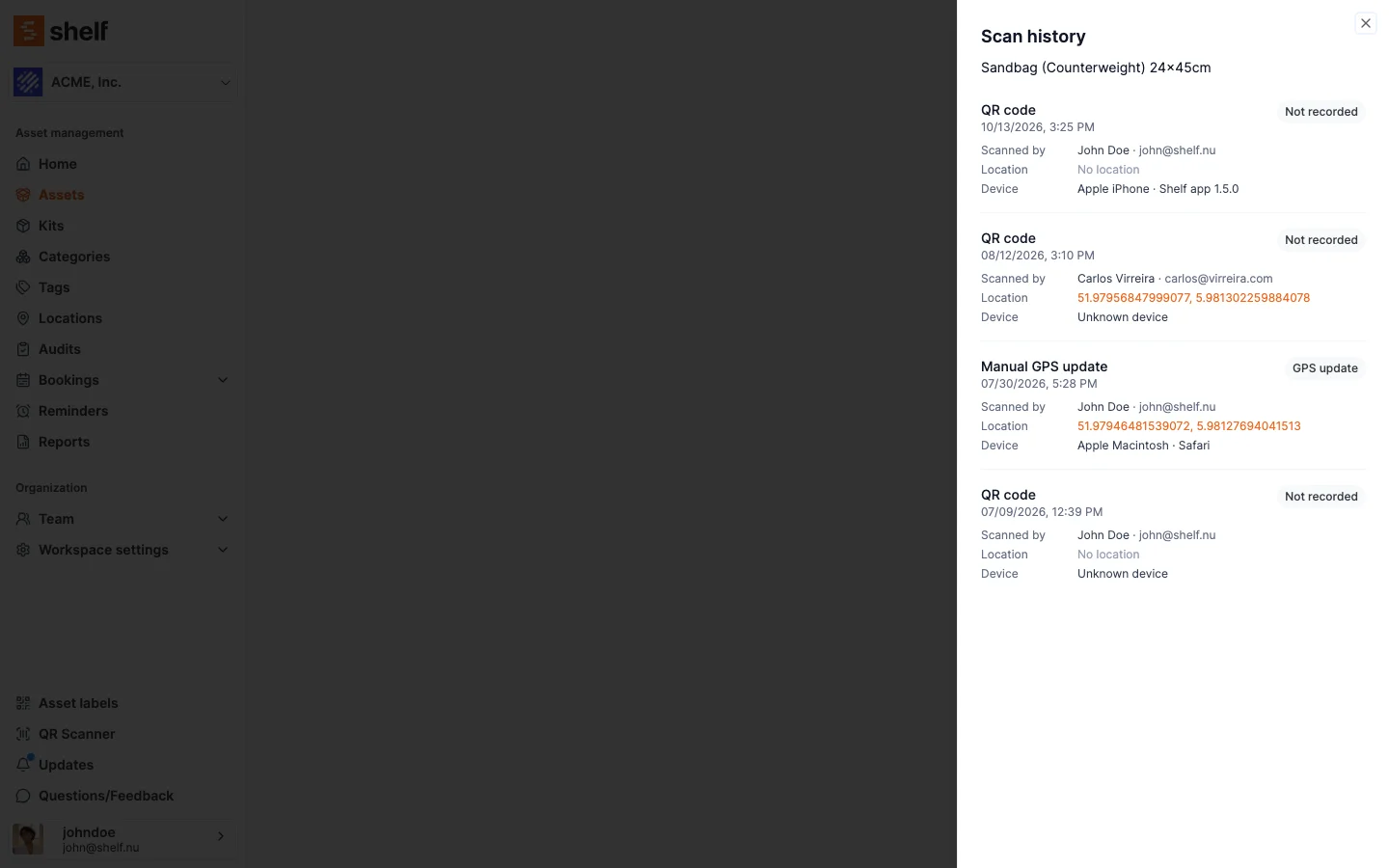
Each scan is a short block:
- What was scanned, as the headline: QR code, Barcode with the value, SAM ID with the ID, or Manual GPS update.
- Where it was recorded, as a label on the right: QR link (a QR code opened through its link: a phone camera on a sticker, or the web QR Scanner), Web scanner, Scanner list, Companion app, Audit or GPS update. A scan made before 16 October 2026 reads Not recorded, because the place it was made was not saved then.
- When, in your date and time preferences.
- Scanned by: the member's name and email, or Unknown for someone outside your workspace.
- Location: the coordinates as a link that opens Google Maps, or No location when the scan carried none. Unlike the card, a scan in the history never borrows an earlier scan's location.
- Device: the hardware and the app or browser, for example Apple iPhone · Shelf app 1.5.0 or Apple Macintosh · Safari, or Unknown device when the scan did not say.
The history follows the same rule as the card: it lists scans recorded on this asset or kit, in this workspace. Close the panel with the cross, Esc or a click outside it; opening it again starts from the newest scan.
What the Activity tab says
Where the table above says a note is written, the asset's Activity tab gets a line such as performed a scan of the asset QR code, performed a scan of the asset barcode with the value, or performed a scan of the asset SAM ID with the ID, attributed to the person who scanned. Scanner lists leave the Activity tab alone: the booking, kit, location or custody change a scanner list leads to is recorded in its own place. An audit keeps its scans on its scan page. A kit's scans are recorded on the kit's card and do not write a note.
Who sees the card
Owners, Administrators and Managers see the Last scan card and its scan history. Self-service and Base users do not; the asset page shows them everything else. The same rule applies to the asset's Activity tab, as listed on the roles page.
Pinning a location without a scan
When an item is where you say it is but nobody has scanned it there, open the asset, click Actions and choose Update GPS coordinates. The browser asks for permission to read your location, and the card then shows your coordinates with the source Manual GPS update. A manual update always writes a new record, even if you did one a moment ago, and it is listed in the scan history under the label GPS update.
Related
- Scanning an Asset: the ways a code can be scanned.
- Alternative Barcodes: adding Code 128, Code 39, EAN-13, Data Matrix and external QR codes to your assets.
- Asset Identifiers: QR ID and SAM ID: the codes a scan can match.
- Run Your First Audit: where audit scans live.
- Shelf Companion: Getting Started: scanning from the phone, and the one-time location permission.
Ready to try Shelf?
Put what you're learning into practice. Free plan available — no credit card required.