

Date, Time, and Time Zone Preferences
Choose how dates and times appear for your Shelf account: date order, 12 or 24-hour clock, which day the week starts on, and your time zone. The setting follows you across the app, exports, PDFs, and emails.

Is 04/03/2026 the 4th of March or the 3rd of April? Shelf used to answer that with your browser's language setting, which meant most people outside the US were reading American dates with no way to change it. You can now choose.
Available with: All Shelf plans and subscriptions
Where the setting lives
- Click your name at the bottom of the sidebar, then Account settings
- Stay on the General tab
- Scroll to the Language & region card
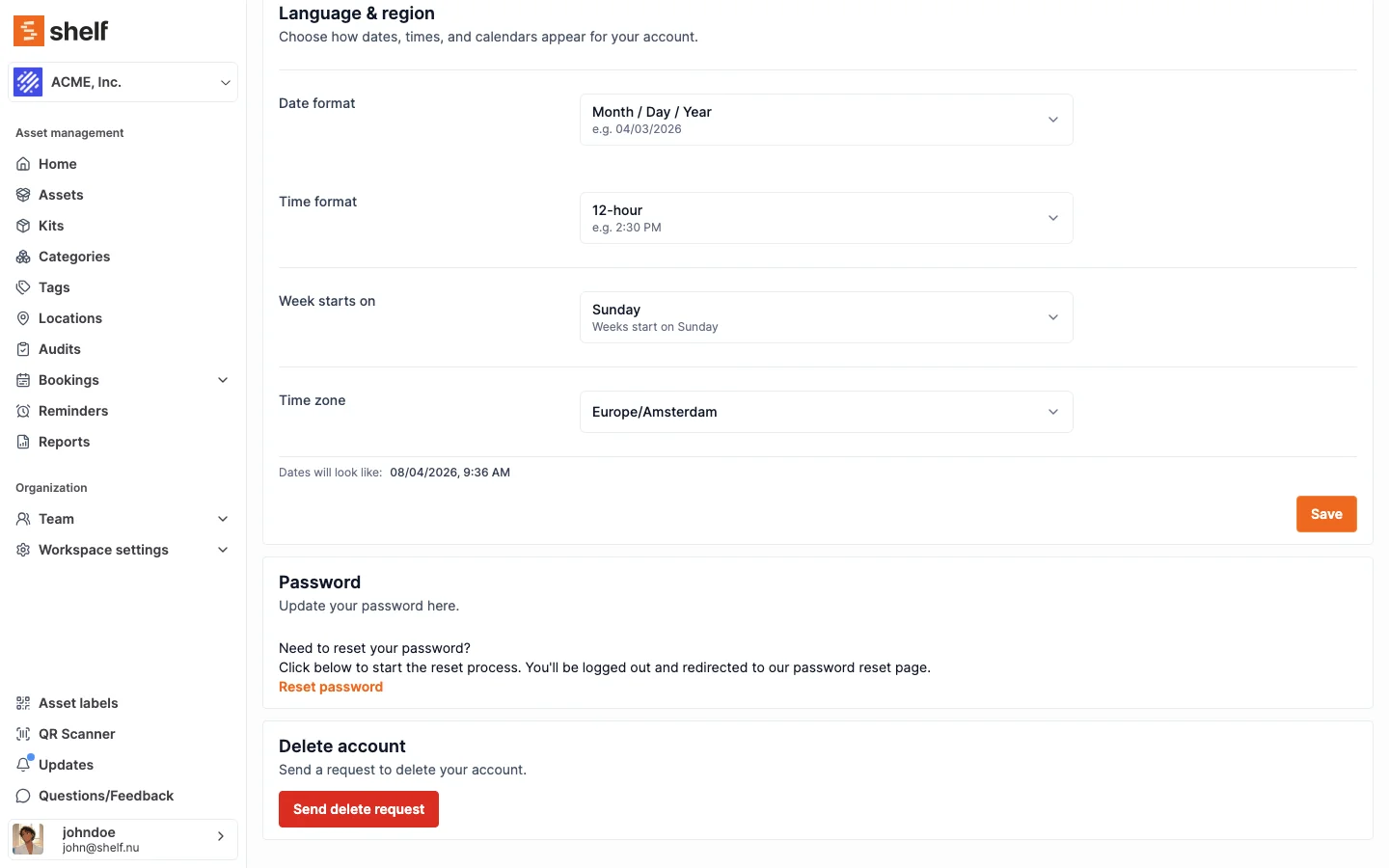
Change what you want, watch the Dates will look like preview at the bottom update as you go, then click Save.
The four settings
Date format
| Option | Looks like |
|---|---|
| Day / Month / Year | 03/04/2026 |
| Month / Day / Year | 04/03/2026 |
| Year / Month / Day | 2026-04-03 |
| Month name / Day / Year | Jul 20, 2026 |
| Day / Month name / Year | 20 Jul 2026 |
The two month-name options are the ones to pick if you never want to second-guess a date again. Month names are shown in English regardless of the option you choose; this setting controls the order and style of the date, not the language of the app.
Time format
12-hour (2:30 PM) or 24-hour (14:30).
Week starts on
Monday, Sunday, or Saturday. This is the first column in every calendar and date picker in Shelf, including the booking calendar and the availability view.
Time zone
A searchable list of time zones. Type a city or region name to narrow it down. Every timestamp in Shelf is stored the same way regardless of who is looking at it; this setting decides which clock it is shown on.
It is your setting, not your workspace's
These preferences belong to your user account, so two people in the same workspace can read the same booking in their own format and their own time zone. Nobody has to agree on a house style, and switching workspaces does not change how you read dates.
Where it applies
Once saved, the preference follows you everywhere a date or time appears:
- Around the app: asset and booking lists, the calendar, reports, reminders, filter chips, custom fields of type Date, and the command palette
- The Shelf Companion app: from version 1.3.0 the phone reads the same preference your account uses on the web, so booking dates, due countdowns, audit timestamps, and custody history match on both. From version 1.4.0 the booking date and time pickers work in that zone too, so a time you pick on the phone is the time the booking gets, even when the handset is set to a different zone. You set it once on the web; there is nothing to configure in the app
- Date and time fields you fill in: the booking form, reminders, audits, working-hours overrides, and advanced index filters all use one shared picker that reads in your format, starts the week on your chosen day, and offers a 12 or 24-hour time control to match
- CSV exports: assets, bookings, and notes export with your format, so a file you download does not need reformatting before it opens in a spreadsheet
- PDFs: booking and audit receipts and report exports
- Emails: booking notifications, audit reminders, and subscription notices
Emails follow the recipient's preferences rather than the sender's. If you book equipment for a colleague in another country, the confirmation they receive is in their format and their time zone, not yours.
Working hours are the one exception
Working hours are not shown on your clock, and they are not meant to be. A workspace's opening times describe when a physical place is open, so 09:00 to 17:00 means 09:00 to 17:00 on site for everybody. It does not become 02:00 to 10:00 because you are reading it from another continent. The settings page and the booking form both say so: Local hours of the physical location.
Closed-day overrides work the same way. The 24th is closed on the 24th, for everyone.
Your Time zone setting still decides how the booking's own start and end times are read when you fill the form in, and that is what the opening window is checked against. Book 09:00 from a zone three hours behind the site and Shelf reads 09:00 in your zone, so the same instant can pass for a colleague on site and be refused for you.
If you regularly book equipment kept in another country, setting your Time zone preference to the site's location makes the window read the way the schedule was written. Weigh it first: the preference is account-wide, so it also changes how every other booking, export, PDF, and email is shown to you. If your work spans several sites, leave the preference on the zone you actually live in and read the refusal message, which names what it compared against: Time must be between 09:00 and 17:00, Saturday is not a working day, or This date is closed.
What you will see the first time
Shelf detects your format and time zone from your browser the first time you sign in and saves those as concrete values, so a new account already reads correctly before anyone touches the settings. Existing accounts are filled in the same way on their next visit.
There is no "Automatic" option. What is stored is a real choice, which is what lets exports, PDFs, and emails render the same way as the screen, since those are produced on the server where there is no browser to ask.
Common questions
I changed the setting but an old export still looks wrong. Files are formatted at the moment they are generated. Export again and the new file follows the new setting.
My colleague sees a different time on the same booking. That is expected if you are in different time zones. You are both looking at the same moment, shown on your own clock. Check the Time zone row on each account if the difference does not match the offset you expect.
Why do the workspace's working hours not shift to my time zone? Because they are the opening times of a physical location, not a timestamp. A booking's start and end are moments, so they are shown on your clock; a working-hours window is a statement about a building, and a closed-day override is a calendar date. Neither of those two moves with the reader. See the exception above.
Can I set this for the whole workspace at once? No. The preference is per user by design, so a distributed team does not have to settle on one region's conventions. Each person sets their own once and it holds everywhere.
Can I change the language of the app? Not yet. This card controls date and time presentation only; the interface, including month names, is English.
Related Articles
Ready to try Shelf?
Put what you're learning into practice. Free plan available — no credit card required.