

Working Hours: Set Operating Schedules for Your Workspace
Define when your facility is open so equipment cannot be picked up or returned outside those hours. Covers the weekly schedule, holiday overrides, the messages people see when a time does not fit, and why working hours are the site's local hours rather than each viewer's time zone.

Why Working Hours Matters
The Problem It Solves
Without operational hour controls, users could reserve equipment during non-operational times -- such as 2 AM pickups when facilities open at 9 AM, weekend requests for weekday-only operations, or after-hours returns when staff is unavailable.
Systematic Scheduling Control
Working Hours provides automatic validation respecting actual operational capacity, reducing confusion and eliminating impossible booking scenarios.
Setting Up Working Hours
Step 1: Enable Working Hours
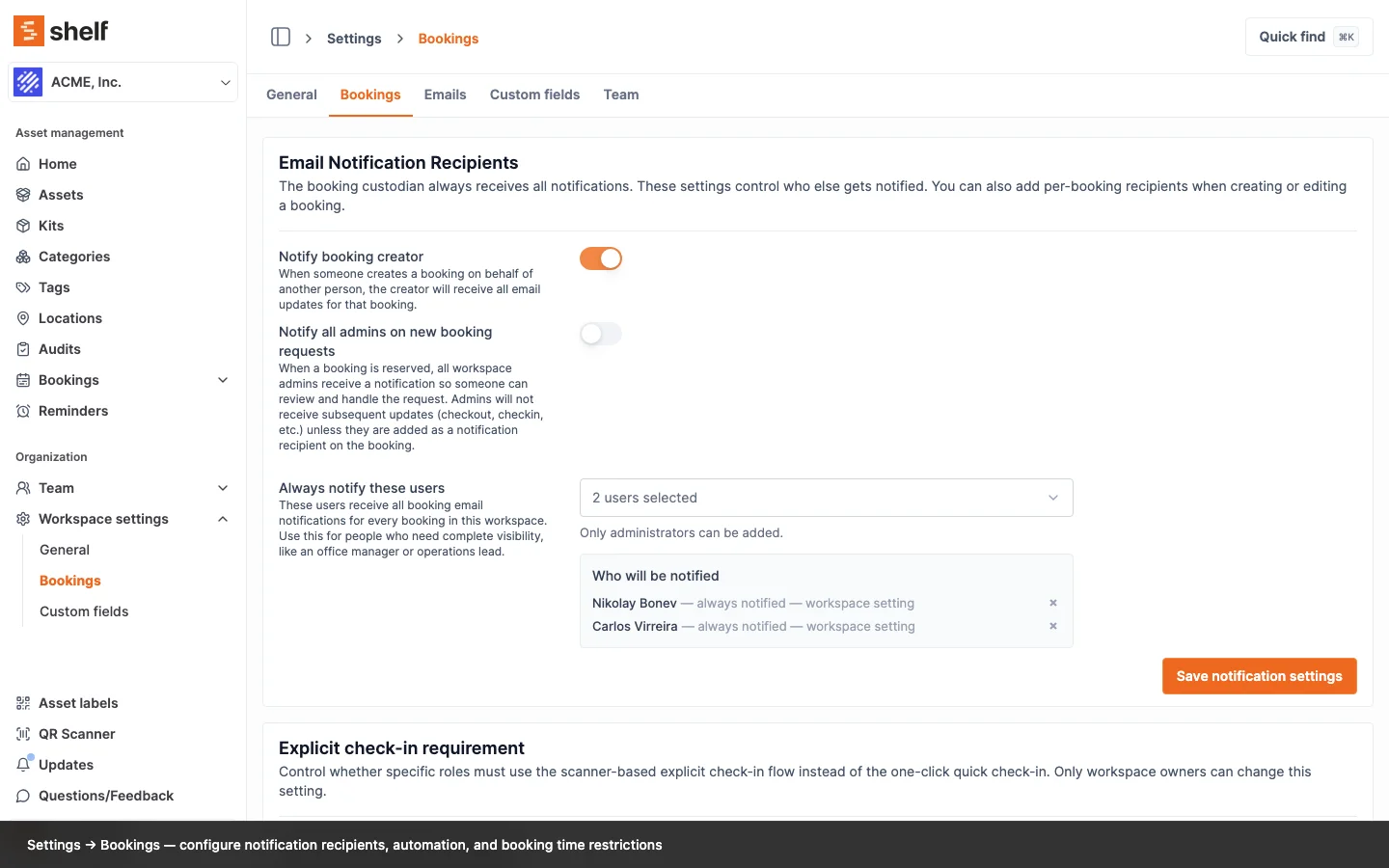
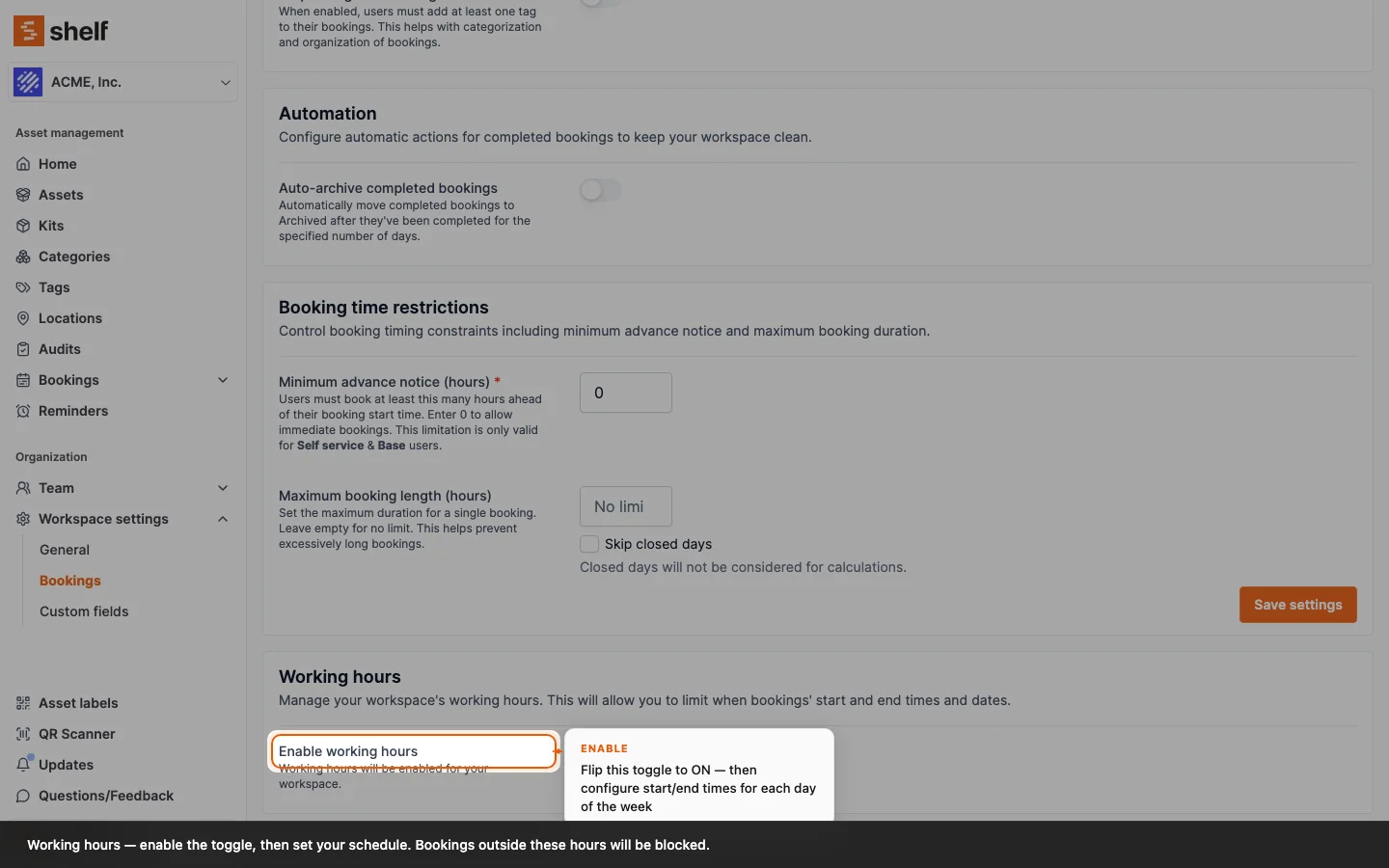
- Go to Workspace settings and open the Bookings tab
- Scroll to the Working hours section
- Toggle Enable working hours to activate the feature
- Working hours enforcement begins immediately for your workspace
The Weekly Schedule and Date overrides sections only appear once the toggle is on, so if you cannot find them, that is why. Working hours is a Team workspace feature; a Personal workspace has no Bookings settings tab.
Step 2: Configure Weekly Schedule
- In the Weekly Schedule section, set operational hours for each day of the week
- Use dropdown menus to select:
- Start time (e.g., 9:00 AM)
- End time (e.g., 5:00 PM)
- Toggle individual days on/off as needed
- Disabled days are treated as non-operational
Step 3: Save Your Schedule
- Review your weekly schedule configuration
- Click "Save Schedule" to apply settings
- Working hours become active and validate all new booking requests
Managing Date Overrides
When You Need Overrides
Date overrides modify standard schedules for specific dates:
- Holiday closures (Christmas, New Year's, etc.)
- Maintenance days (equipment servicing, facility upgrades)
- Extended hours (special events, extended operations)
- Training days (staff development, system maintenance)
Creating Date Overrides
- Below the weekly schedule, find Date overrides
- Click "Add override" to create a new exception
- Configure the override:
- Date: Select the specific date for the override
- Status: Choose "Open" (with custom hours) or "Closed" (no bookings)
- Operating Hours: Set custom start/end times if status is "Open"
- Reason: Add a description (e.g., "Holiday Closure", "Staff Training")
- Click "Create Override" to save
Managing Existing Overrides
Every override you have created is listed under Date overrides on the same settings page, each row showing the date, an Open or Closed chip, and either its custom hours or Closed all day.
There is no edit. To change an override, delete it with the bin icon on its row and add a new one. Shelf asks you to confirm the delete first.
People booking equipment do not have to come here to see them. When your workspace has overrides, the working-hours box on the booking form adds the line Special dates and holidays are also considered, and View full working schedule lists the next 30 days of them under Upcoming Schedule Changes.
What Time Zone Are Working Hours In?
Working hours are the local hours of the place your equipment lives. They are not converted to anyone's clock. If you set 09:00 to 17:00, that means 09:00 to 17:00 on site, for every person who looks at it, wherever they are.
That is deliberate, and it is the only sensible reading of the setting. Working hours describe when a physical counter is staffed and the door is unlocked. A store room in Amsterdam does not open at 02:00 because the person reading the page is in Los Angeles. The settings page says so under the Weekly Schedule heading, and the booking form repeats it under the working-hours box: Local hours of the physical location.
This is the one place in Shelf where your personal Time zone setting does not reshape what you see. Everywhere else, from booking dates to reminders to emails, a timestamp is shown on your own clock. See Date, Time, and Time Zone Preferences for the rest of that picture.
Date overrides are absolute calendar dates
A closed day means that calendar date, everywhere. Set the 24th as closed and the 24th is closed, not the 23rd for people west of you. Booking validation has read override dates this way since April 2026.
If someone books from another time zone
For a team at or near the site, which is the normal case, there is nothing to think about: the schedule and the person reading it are on the same clock.
Worth knowing if yours is not. Shelf reads a booking's start and end on the clock of the person entering them, which is their Time zone account setting.
If a colleague in another country books equipment against your schedule, set their Time zone preference to the workspace's location. Their booking times are then read the way you meant the schedule, and every date they see in Shelf lines up with the site as well.
How Working Hours Affects Bookings
What is checked
Working hours govern the two moments someone is at the counter: pickup and return. Shelf validates the booking's start date and end date, and does not require the days in between to be open. A camera collected on Friday afternoon and returned on Monday morning is fine over a closed weekend, which is what you want.
Three things are checked, in this order, for both the start and the end:
- A date override for that day. Overrides take precedence over the weekly schedule. A closed override refuses the date outright, and an open override with custom hours is compared against those hours instead of the usual ones.
- Whether that weekday is open at all in the weekly schedule.
- Whether the time falls inside that day's window.
What you see when a time does not fit
The date pickers do not grey out unavailable times. You can type or pick any moment; Shelf checks it and tells you what is wrong, naming the rule so the fix is obvious:
| Message | What it means |
|---|---|
| This date is closed (Public Holiday) | A closed date override covers that day. The reason you typed on the override is shown in the brackets |
| Monday is not a working day | That weekday is toggled off in the weekly schedule |
| Time must be between 09:00 and 17:00 | The day is open, but the time you chose sits outside its window |
What booking users see before they choose
Above the date fields, every booking form shows a working-hours box with your Working days and Working hours for the workspace, a note that Special dates and holidays are also considered when overrides exist, and the reminder that these are the local hours of the physical location. View full working schedule opens the whole week plus Upcoming Schedule Changes for the next 30 days, so the schedule is readable before anyone picks a date rather than only after a rejection.
Working hours and maximum booking length
If your workspace sets a Maximum booking length under Booking time restrictions on the same settings page, you can tick Skip closed days next to it. Closed days are then subtracted from a booking's measured duration, so a 72-hour cap does not spend two of its days on a weekend the equipment could not have been returned anyway.
Related Articles
- Date, Time, and Time Zone Preferences
- How to Create a Booking
- Introduction to Bookings
- User Types and Roles
Getting Help
Need assistance with Working Hours?
- Contact support team through the help widget
- Check the complete booking management guide
Note: Working Hours is available for all Team plan workspaces.
Ready to try Shelf?
Put what you're learning into practice. Free plan available — no credit card required.