

Equipment Sign-Out Sheet Template (Excel and PDF), and What Breaks

Short answer: an equipment sign-out sheet is a log with one row per checkout that records what left, who took it, when it is due back, when it came back, and in what condition. Download ours free, no email needed:
- Equipment sign-out sheet, Excel (.xlsx): sign-out log with condition dropdowns and red rows for overdue items, an item list, and a short how-to.
- Equipment sign-out sheet, printable PDF: one US Letter page, landscape, 20 blank rows.
- Equipment item list (.csv): your inventory list, with column headers that Shelf can import later.
The same file works as a tool sign-out sheet, a laptop loan log or a camera checkout form. Rename the title and keep the columns.
What an equipment sign-out sheet must capture
Each column answers one question. Drop a column and you lose the answer.
| Column | What goes in it | The question it answers |
|---|---|---|
| Item | The plain name: "Cordless drill", "Camera body" | What left the room? |
| Asset ID | The number on the item's label | Which of the four identical drills was it? |
| Borrower | One named person, never a team | Who do I ask when it is late? |
| Contact | Email, phone or extension | How do I reach them today? |
| Checked out (date/time) | When it left | How long has it been gone? |
| Due back | The agreed return date and time | Is it late yet? |
| Returned (date/time) | When it came back, filled in by staff | Is it really back? |
| Condition out | Good, Worn, Damaged or Missing parts | Was it already broken when it left? |
| Condition in | The same four options | Did it break on this loan? |
| Checked by | The staff member who handled it | Who saw it leave and come back? |
| Notes | Accessories, damage detail, anything odd | What else will I wish I had written down? |
Three of these do most of the work.
Asset ID. Without it, "Drill" in row 12 could be any drill. A label with a short ID on each item turns a vague log into a record per item.
Due back. A sheet with no due date cannot tell you anything is late. It only tells you something is out.
Condition out and in. Damage disputes come down to one question: was it like that before? Two condition columns answer it. A free-text note alone rarely does, because nobody writes "fine" on the way out.
The Excel template restricts both condition columns to a dropdown (Good, Worn, Damaged, Missing parts). That keeps the log sortable. You can filter for every "Damaged" return in a term. You cannot do that when one person writes "scratched", another writes "minor wear" and a third writes nothing.
How the template works
The Excel file has three sheets.
- Sign-out log. The columns above, a frozen header row, and three grey example rows to delete before you start. A row turns red when its Due back date is before today and Returned is still empty. That is the closest a spreadsheet gets to an overdue alert.
- Item list. One row per item you lend out. The column headers are
title,description,category,tags,location,custodianandvaluation, exactly as Shelf's CSV import expects them. Do not rename them. - How to use. Eight short lines, including how to export the item list as CSV.
The PDF is the same log for a clipboard. Print a stack, keep it at the counter, and file full pages in a binder by month.
Five ways paper and spreadsheet sign-out sheets fail
Sign-out sheets work on the day they are set up. These are the five ways they stop working.
1. Nothing tells you an item is overdue
A sheet records a due date. It does not act on it. Someone has to open the file, sort by Due back, and notice. On a busy week nobody does. The first sign of a late return is the next borrower asking where the item is.
The red-row rule in our template helps, but only when someone opens the file. Paper has no rule at all.
2. "Returned" is written, but the shelf is empty
A borrower drops a bag on the counter and says "it's all there". Someone writes the return time and moves on. Two days later the charger, the second battery or the lens cap is missing, and the sheet says everything came back.
This is a process gap, not a column gap. The fix is a rule: only staff fill Returned, and only with the item in hand. The template says this on the PDF footer and in the how-to. A rule on paper still depends on the busiest person at the desk following it.
3. Shared logins and anonymous edits
A shared spreadsheet often sits behind one login, or is open to "anyone with the link". Then the edit history says the same name on every change, or no name at all. When a row is changed from "Out" to "Returned", you cannot tell who made the change.
Paper has the same problem with initials. "AP" could be two people.
4. No condition photo
"Damaged" in a cell is a claim. A photo with a timestamp is evidence. Paper cannot hold a photo. A spreadsheet can, but nobody pastes images into row 214 at a busy counter.
So when a borrower says "it was cracked when I took it", the sheet cannot settle it.
5. No history per item
A sign-out sheet is sorted by time. The question you need answered is usually about an item: who had this projector in the last three months? How often does this drill come back damaged?
To answer that on a sheet you filter by Asset ID across every tab and every month, and hope everyone wrote the ID the same way. On paper you read the binder.
When a sheet is enough, and when it is not
These are rules of thumb, not hard limits. Use them to judge your own setup.
| A sheet is usually enough when | A sheet usually stops working when |
|---|---|
| You lend fewer than about 50 items | You lend a few hundred items, or many identical ones |
| One person runs the desk and knows every borrower | Several people hand gear out, across shifts |
| Borrowers are colleagues you see every day | Borrowers are students, contractors or visitors |
| Everything lives in one room or cabinet | Gear sits in more than one room, building or vehicle |
| Loans are same-day or overnight | People need to reserve gear days ahead |
| A late return costs you an inconvenience | A late return cancels a shoot, a class or a job |
If most of your answers sit in the left column, use the template and stop there. It is a good system for a small, stable setup.
If two or more sit in the right column, the five failures above will start costing you time each week.
The upgrade path: from sheet to Shelf
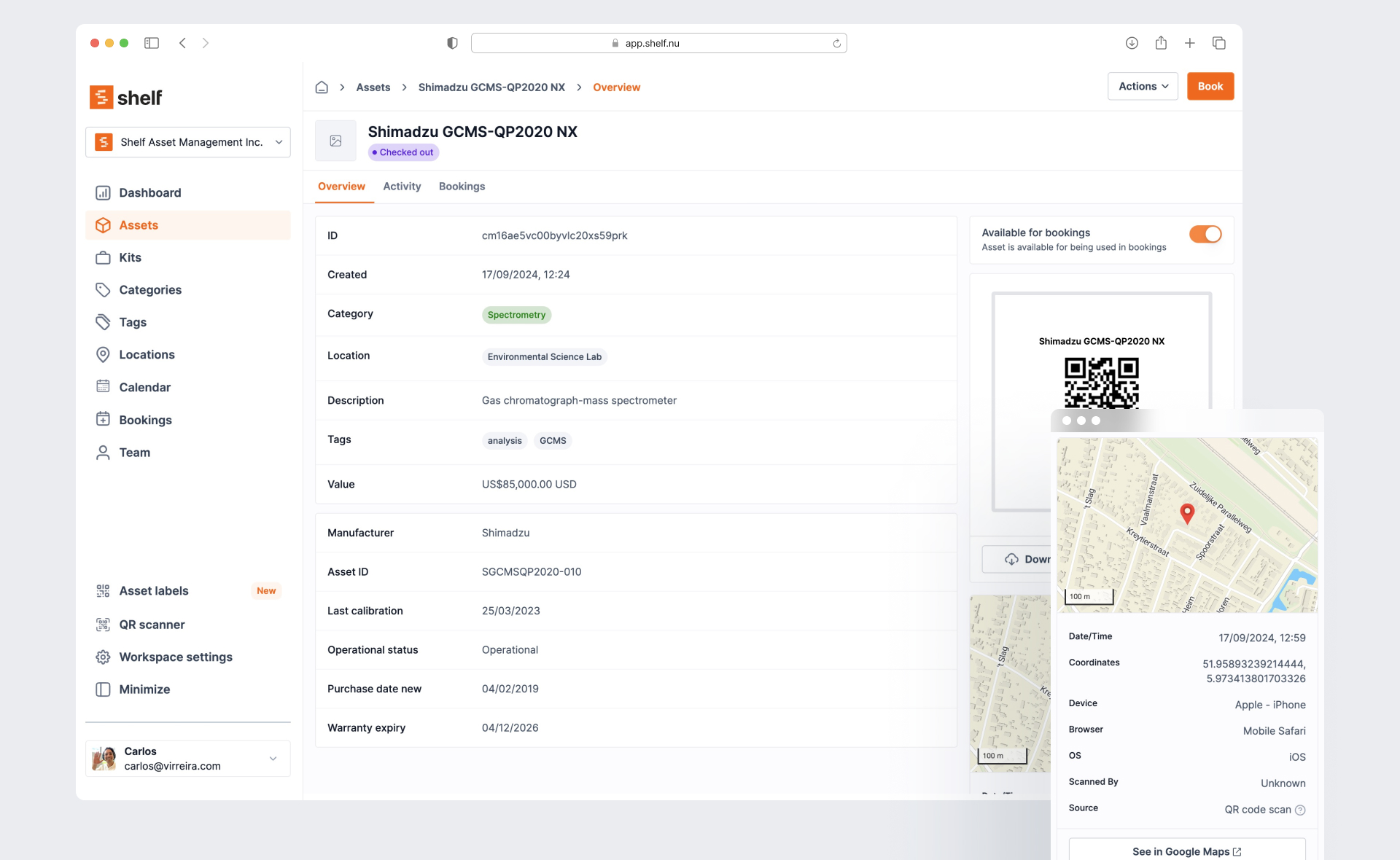
Shelf is equipment checkout software that does what the sheet cannot do on its own. The item list in the template is built so you do not have to retype your inventory.
1. Import the item list. Fill the Item list sheet, save it as CSV, and upload it in Shelf under Assets, then Import. Shelf creates each item with its own QR code, and creates any category or location that does not exist yet. CSV import is on the paid plans (Plus and Team). On the Free plan you add items one at a time. The CSV import guide lists every column.
2. Use custody for who-has-what. Custody records which person holds each item, with a timestamped log on the item's page. Custody is on every Shelf plan, including Free. That one feature fixes failure 5: every item keeps its own history of who had it and when.
3. Use bookings for due dates and reminders. Bookings let people reserve gear for a date range, and Shelf blocks double bookings. Shelf emails the custodian a reminder one hour before the end time, and an overdue notice when the end time passes. That fixes failure 1. Bookings are on the Team plan, with unlimited users, so each person signs in with their own account. That fixes failure 3. See Bookings.
4. Scan to check out and in. Print the QR labels and stick one on each item. Staff scan with a phone browser or with Shelf Companion, the free app for iPhone and Android. An owner can switch on a rule that makes staff scan or select each item at check-in, instead of returning a whole booking in one click. Kits flag any missing part when they come back. That closes most of failure 2.
Condition evidence, honestly. Each item's page holds its photo and timestamped notes, so damage found at return can be written against the item. Photos taken item by item during a count are part of audits, a paid add-on on the Team plan. Shelf does not force a photo at every return.
For the full workflow, see equipment checkout software.
Frequently asked questions
Is there a free equipment sign-out sheet template?
Yes. The Excel template, the printable PDF and the item list CSV on this page are free to download, with no email or sign-up. Copy them, change them and share them.
What should an equipment checkout form include?
At minimum: the item, its asset ID, the borrower's name and contact, the checkout date and time, the due date, the return date and time, the condition at checkout and at return, and the name of the staff member who handled it. Add a notes field for accessories and damage detail. The table near the top of this page explains why each field is there.
Can I get overdue reminders from a spreadsheet?
Not out of the box. Excel and Google Sheets can highlight an overdue row, as our template does, but neither sends a reminder when a date passes. Google Sheets' built-in notifications fire when someone edits the file, not when a due date arrives. Time-based emails need a script you write and maintain, such as Google Apps Script on a timer. Equipment checkout software like Shelf sends the reminder and the overdue notice for you, on the Team plan.
Google Sheets or Excel?
Use Google Sheets if several people update the log from different computers. Everyone sees the same copy, and the version history shows who changed what, as long as everyone signs in with their own account. Use Excel if one person keeps the log on one machine, or if you print it. Our .xlsx file opens in both: in Google Sheets, choose File, then Import, and the dropdowns and red overdue rows come with it.
How do schools handle student equipment checkout?
Most schools combine a written policy with a log. Students sign an agreement, borrow for a fixed window, and pay for loss or damage. Staff check the gear out and back in, and late returns lose borrowing rights for a period. The sign-out sheet is the evidence behind that policy. For a full policy, with reservation windows, inspections and penalties, see our guide to film school equipment checkout policies.
Ready to organize your assets?
Join thousands of teams who trust Shelf to manage their physical assets. Free forever, or try the Team plan free for 7 days.
Out in the field? Shelf Companion is free on iPhone & Android.
More from the blog
Asset Panda Pricing in 2026: Plans, Minimums and What It Really Costs
Asset Panda no longer lists prices on its website. Here is every figure we could source and date: its last public price list, third-party reports, seat minimums, extra users, onboarding, and worked totals for three real team shapes.
Asset Register Template (Excel) and Equipment Inventory List
A free fixed asset register template in Excel with straight-line depreciation formulas, plus an equipment inventory list in Excel and CSV that imports into Shelf. What a register must contain, how to fill it in a day, and when a spreadsheet stops being enough.

Asset Tags: Types, Materials, Numbering and Placement
What an asset tag is and what it must carry, tag types and materials compared, a numbering format with check digits, where to put tags on laptops, cameras, tripods, tools, chairs and vehicles, and what government property tags require.