

Enrich Your Entire Shelf Inventory with Claude
Use Claude (or any AI assistant) to bulk-fill empty tags, values, and custom fields across your Shelf assets — no integration, no code, just a CSV round-trip.

You have hundreds of assets in Shelf with bare-minimum data — a name, maybe a category. Tags are empty. Values are blank. Custom fields like "Manufacturer" or "condition" sit unfilled because nobody had time. Doing it by hand for 500 assets isn't realistic.
This guide shows you how to fill those gaps in minutes by round-tripping a CSV through Claude. No integration, no API, no code. You export from Shelf, Claude fills in the blanks, you review, and re-import via the bulk-update flow.
This workflow works with any AI assistant that handles CSV uploads — Claude, ChatGPT, Gemini, etc. We use Claude in the screenshots because it handles large file contexts well.
What You'll Need
- A Shelf workspace with admin access and assets you want to enrich
- A Claude account (claude.ai) — Pro or Team recommended for large files
- 15 minutes
Step 1: Toggle on the columns you want to enrich
The exported CSV only includes columns that are visible in your Asset Index. If a custom field isn't toggled on, it won't appear in the export — and Claude won't be able to fill it.
- Go to the Assets index
- Click the Columns control (top-right)
- Toggle on every field you want Claude to help with — Tags, Value, and any custom fields (Manufacturer, condition, Purchase date, etc.)
- Click Apply
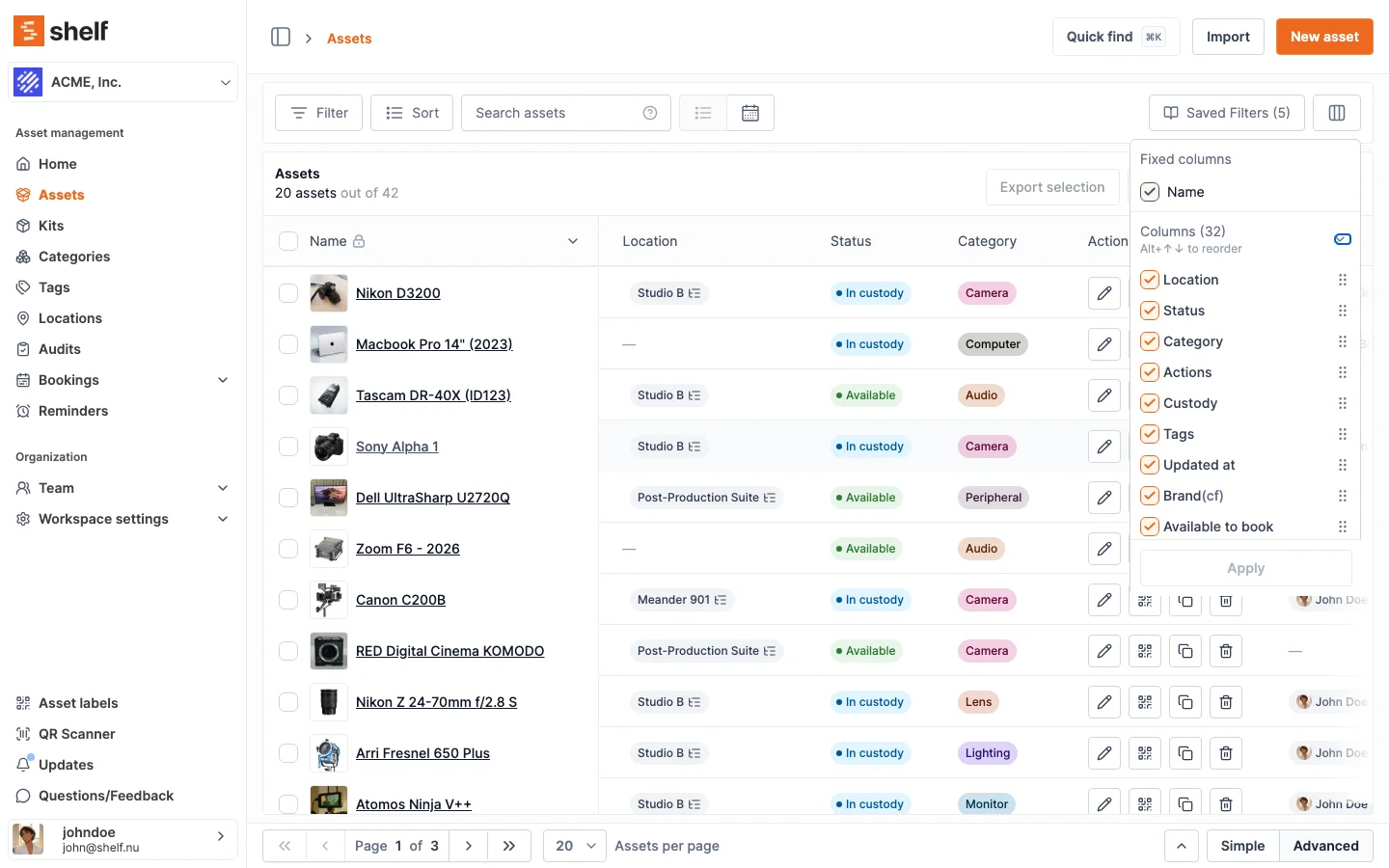
If the custom fields you need don't exist yet, create them first before exporting.
Step 2: Export your assets
- Select the assets you want to enrich (checkboxes, or Select all)
- Click Export selection
- Shelf downloads a CSV with the columns you toggled on
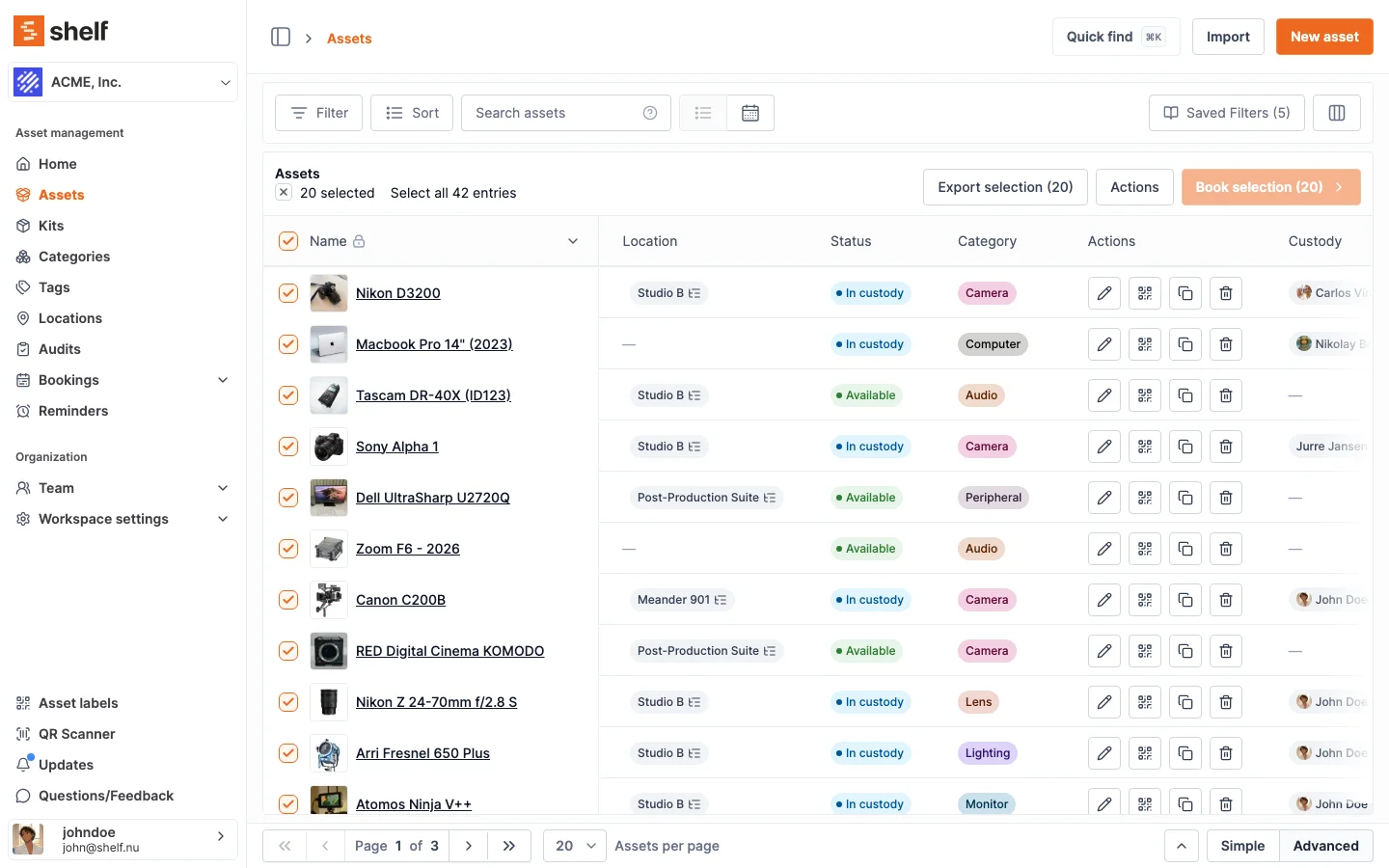
The exported CSV is the same file you'll re-import later — same columns, same headers. Claude will fill in empty cells; you won't need to add or rename any columns.
For a detailed walkthrough, see Exporting Data from Shelf.
Step 3: Upload to Claude and paste the prompt
- Open claude.ai → start a new conversation
- Attach your exported CSV (paperclip icon)
- Paste this prompt:
I'm uploading an asset inventory CSV. Many cells are empty.

Scan the file, tell me which columns have gaps you can help
fill based on the asset names, and preview your suggested
changes for 5-10 rows before doing the full file.

Rules: only fill blank cells, don't change existing values,
don't add or remove columns. Match the format of existing
values in each column exactly.

Do not touch these columns — our system ignores changes to
them on re-import and they would be silently lost:
Description, Status, Kit, Custody, ID, Asset ID, QR ID,
Created at, Updated at, Upcoming Reminder, Upcoming Bookings.
This prompt is intentionally short. Claude will analyse your file, infer the right formats from existing values in each column, and show you a preview before committing. You can steer the conversation from there — "skip the value estimates", "only do tags", "also try filling the Manufacturer column." The AI learns the shape of your data from the file itself; you don't need to spell out every format rule.
The skip list covers every column that Shelf's bulk-update flow silently ignores. If you need AI-generated descriptions, see What about Descriptions? below for the custom-field workaround.
Uploading a CSV to Claude (or any external AI service) sends your asset data to that provider's servers. If your inventory contains sensitive information — serial numbers, financial values, classified equipment — confirm with your organisation's data policy before uploading. Review Anthropic's usage policy and consider whether your plan's data retention settings are acceptable for your data.
Step 4: Download the enriched CSV
Claude returns the same CSV with previously-empty cells filled in. Download the file.
Do not re-import yet — review first.
Step 5: Review before re-importing
Open the CSV in Excel or Google Sheets and spot-check at least 10–20 rows. Look for:
- Values that seem off — AI pricing estimates can be unreliable for niche, vintage, or custom equipment
- Tags that don't match your existing taxonomy — rename to match before importing
- Custom field values the AI guessed wrong — delete any cells you're not confident about
- Cells that SHOULD be empty — an empty cell in the re-import clears the existing value in Shelf. If Claude filled a cell incorrectly and you delete it, that empty cell will wipe whatever was there before. Only delete values you genuinely want to clear.
Never use AI-suggested values for insurance claims, financial reporting, or tax purposes. They are conversation starters for your team's review, not authoritative figures.
Step 6: Re-import via bulk update
- Go to the Assets index in Shelf
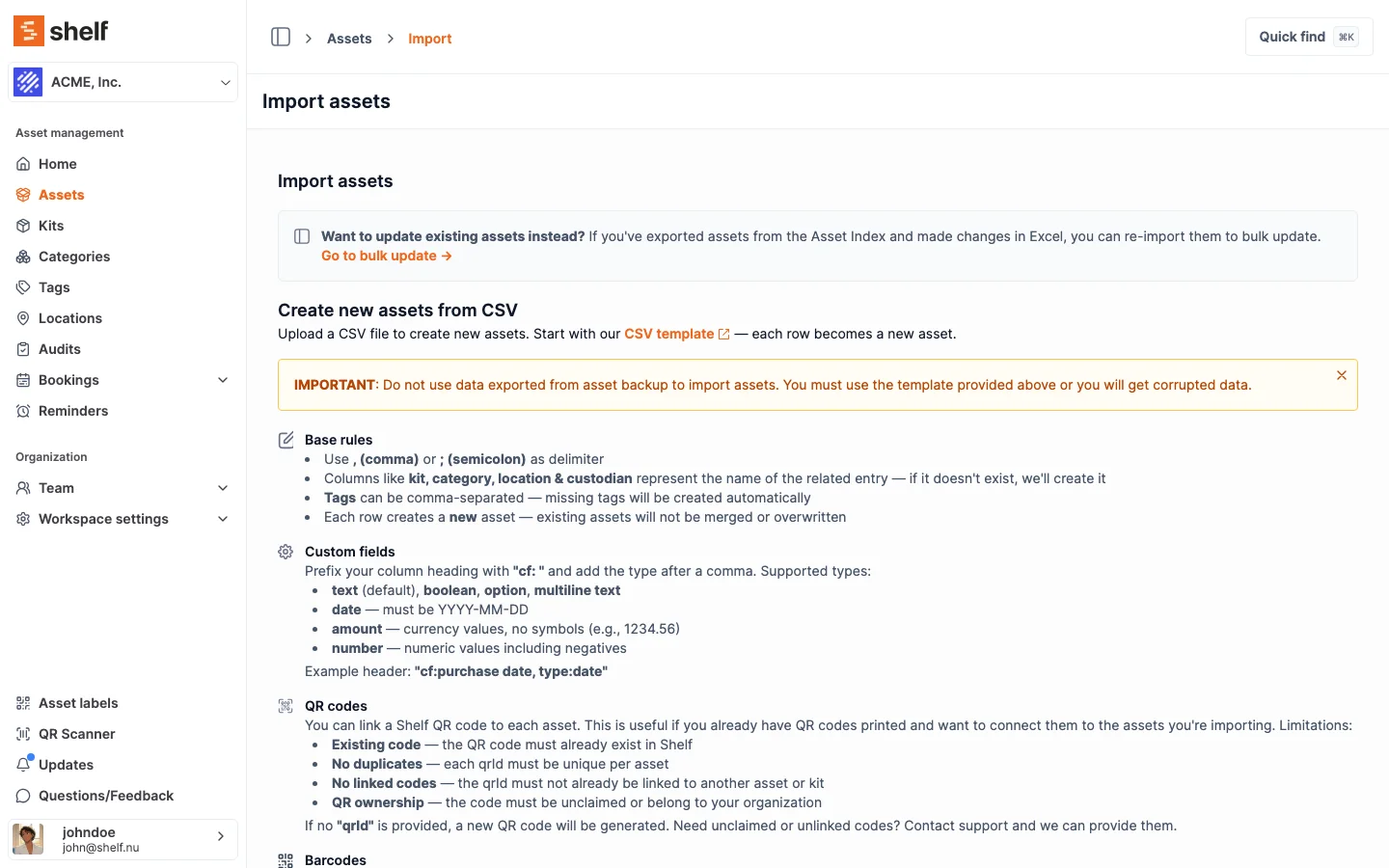
- Click Import → select the Update existing tab
- Upload your enriched CSV
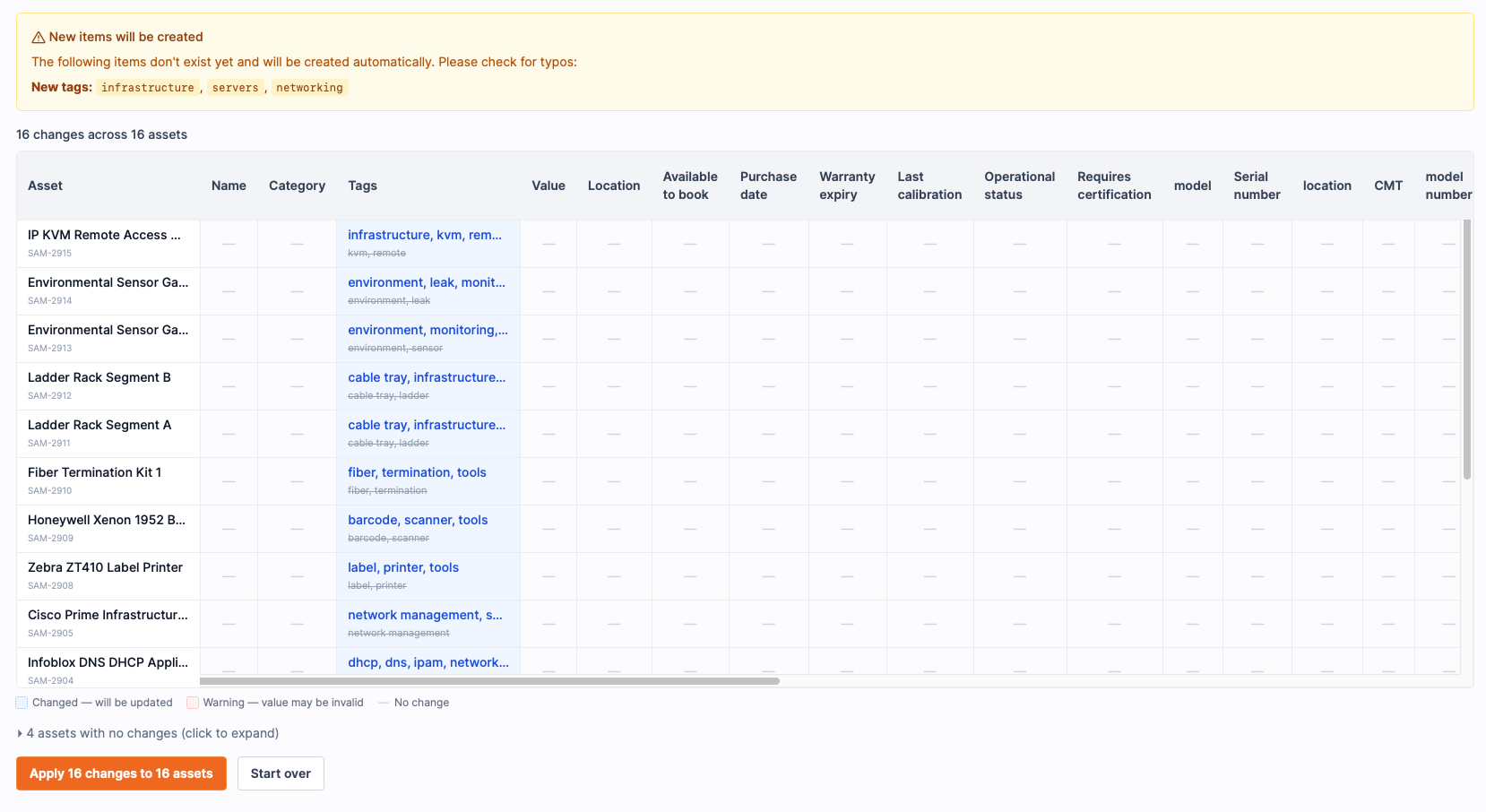
- Shelf shows a preview diff — every changed cell is highlighted with old and new values side by side
- Review the diff carefully, then type I AGREE and click Apply changes
The preview step is your safety net — you see every change before anything is saved. In the example below, Shelf detected 46 cell changes across 20 assets, with 0 failures:
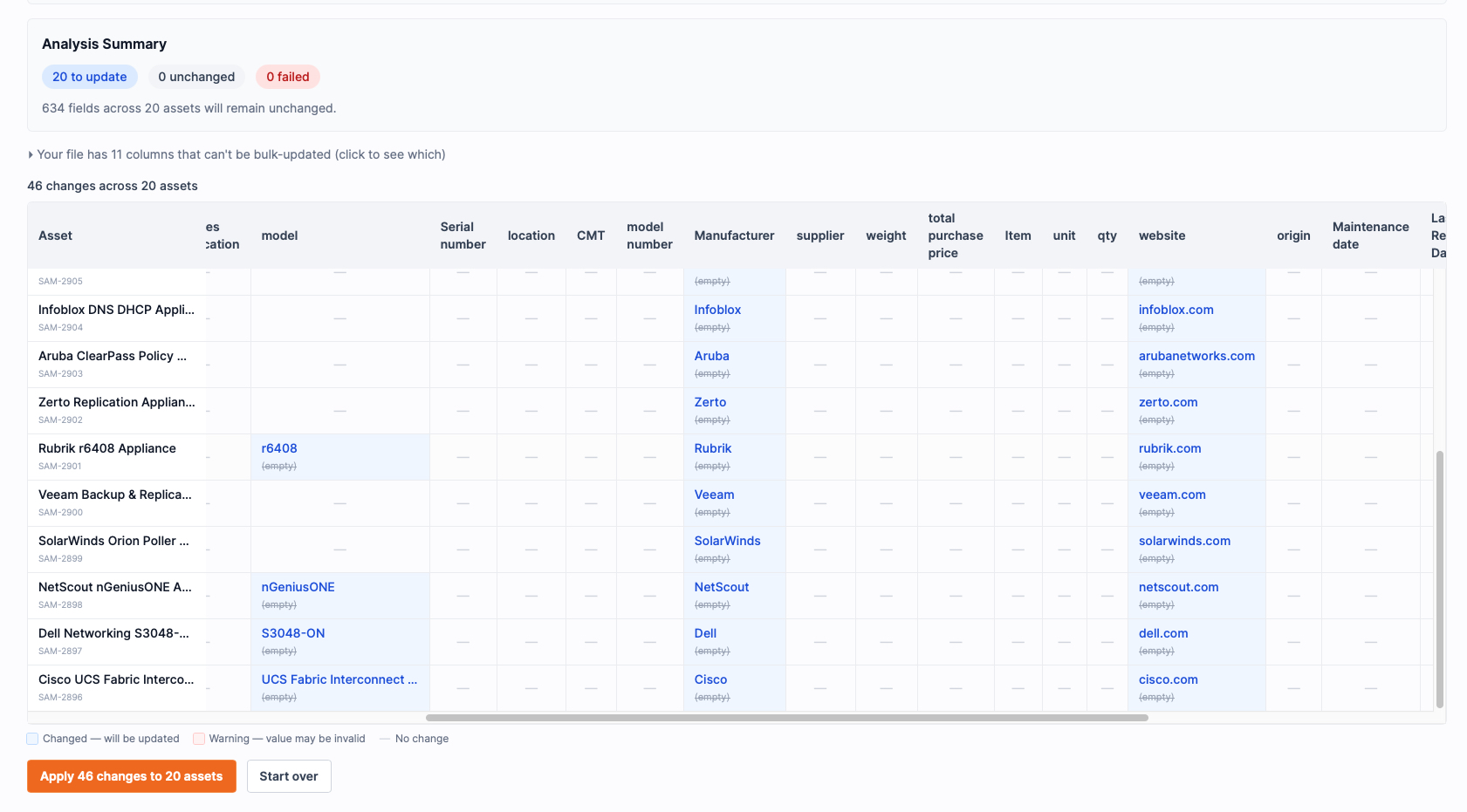
Nothing is saved until you type I AGREE and click Apply.
Important: Use the Update existing tab, not "Create new assets." The update flow matches rows by the ID or Asset ID column in your CSV and applies changes in place. Using the wrong tab creates duplicate assets. See Troubleshooting: CSV Import Issues if something goes wrong.
For the full bulk-update walkthrough, see Bulk Updating Assets via CSV.
What about Descriptions?
Shelf's bulk-update flow does not support the built-in Description field (along with Status, Kit, and Custody — each has its own dedicated workflow). Description is skipped during import to prevent formatting loss. If you want AI-generated descriptions:
- Option A: Create a custom text field called "AI Description" or similar. Toggle it on in the Asset Index, include it in your export, and Claude will fill it like any other custom field. You can copy the text into the built-in Description manually later.
- Option B: Use the descriptions Claude generates as reference material and paste them into individual asset pages — useful if you're enriching a small batch.
Limits and gotchas
- Empty cells clear values. This is the most important gotcha. In the bulk-update flow, an empty cell overwrites the existing value with blank. If Claude leaves a cell empty that previously had data, the re-import will erase it. Check the preview diff carefully.
- Context window: Claude Pro handles large CSVs well (~200K tokens). For very large exports (2,000+ rows), split into batches of 1,000 and process each separately.
- Currency formats: Shelf exports values with currency symbols (e.g.
¥5,400). If Claude outputs plain numbers, match the format your workspace uses before re-importing. - Up to 1,000 assets per bulk-update file. Split larger batches.
- Tags are case-sensitive. Shelf treats
networkingandNetworkingas different tags. If Claude adds a lowercase tag that already exists as capitalised, Shelf will create a duplicate. The prompt includes a guardrail for this, but always check the preview's "New items will be created" banner — if you see new tags listed that look like duplicates of existing ones, go back and fix the casing before applying.
- Tags are comma-separated in a single column. Claude should append to existing tags, not replace them.
- Rate limits: if Claude stops mid-output on a large file, ask "please continue from where you left off" and it will resume.
What to try next
Once you're comfortable with the enrichment workflow:
- Tag cleanup — ask Claude to normalise inconsistent tags (e.g. consolidate "photo", "Photography", "PHOTO" into one canonical)
- Category suggestions — if you have uncategorised assets, Claude can suggest categories based on asset names
- Custom field enrichment — populate empty fields like "Warranty expiry" or "Manufacturer" based on the asset name and your conventions
- Multilingual descriptions — ask Claude to translate custom field values into a second language for international teams
Related Articles
Ready to try Shelf?
Put what you're learning into practice. Free plan available — no credit card required.