

Booking Approval: Require a Yes Before Gear Goes Out
Make reservations by Base or Self-service users wait for an Owner, Administrator or Manager to approve them. Covers the two switches in Bookings settings, what the requester sees, how to approve a request or send it back, and what changes when you switch approval on or off.

With booking approval on, a reservation made by a Base or Self-service user is a request. The items are held for the dates, the booking shows Pending approval, and it cannot be checked out until an Owner, an Administrator or a Manager approves it. The requester, who is the booking's custodian (Base and Self-service users book for themselves only), gets an email when the request is received and another when it is approved.
Approval is off in every workspace until someone switches it on, and there is one switch per requesting role, so you can ask for a yes from one group and not from the other. Bookings are part of the Team plan; approval comes with them at no extra cost.
Switch It On
Owners and Administrators can change this setting.
- In the sidebar, open Workspace settings and choose Bookings.
- Find the Booking approval card.
- Switch on Base users request bookings, Self service users request bookings, or both.
There is no save button: the switch saves as you change it, and Shelf confirms with Settings updated.
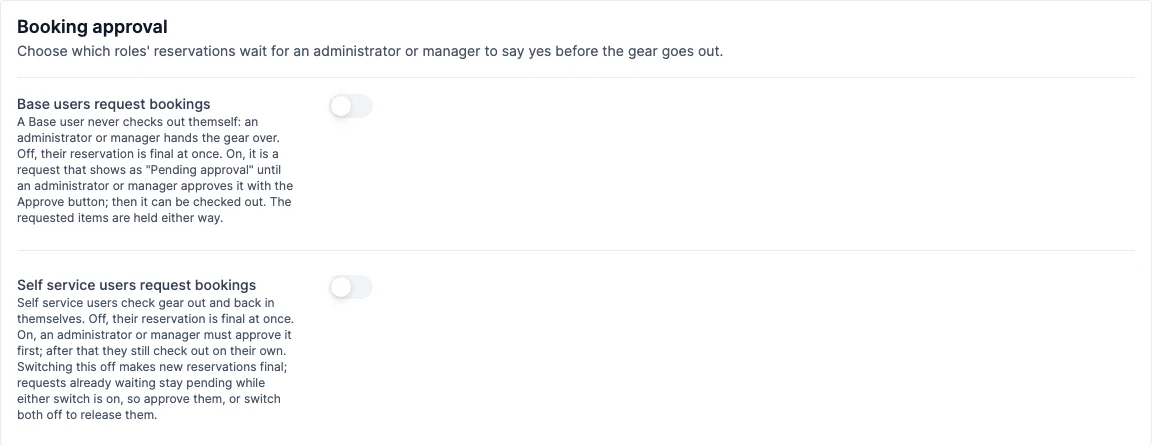
Which switch fits which team:
- Base users request bookings. Base users never check gear out themselves; an Administrator or Manager hands it over. With the switch off, their reservation is final at once. With it on, the hand-over waits for a recorded yes: someone approves the request first, and the check-out comes after.
- Self service users request bookings. Self-service users normally reserve, check out and check in on their own. With the switch on, their reservation waits for approval first. Once it is approved they still check out by themselves.
Switching approval on changes nothing for bookings that are already reserved. It applies to reservations made from that moment.
What the Requester Sees
- The requester builds the booking as usual. The button that reserves it reads Request reservation.
- Shelf confirms with Request sent and the booking moves to Reserved with a Pending approval badge beside the status.
- An email with the subject Booking request received tells them, as the booking's custodian, the items are held for the booking period and that an Administrator or Manager will review the request before check-out.
- When the request is approved, a second email with the subject Booking approved says the equipment can be checked out for the booking period.
A pending request holds its items exactly like a confirmed reservation: they count against availability for other bookings on overlapping dates while the request waits.
Approve a Request
Owners, Administrators and Managers can approve. Base and Self-service users cannot approve requests, their own included.
Find what is waiting
In the sidebar, View Bookings shows a count of the requests waiting for a decision. On the bookings list, the status filter has a Pending approval option while approval is on for at least one role.
Approve it
- Open the booking.
- Click Approve. The button takes the place of the check-out button while the request is pending.
- Confirm in the Approve booking request dialog.
Shelf stamps who approved and when, adds a note to the booking's activity, and emails the custodian. The Pending approval badge goes away and the booking can be checked out.
Approving and checking out are two separate steps. While a request is pending nobody can check it out, approvers included: the check-out button is not offered, and any check-out path that is tried anyway (a scan, a bulk action, the phone) is refused with "This booking request has not been approved yet. Approve the request first, then check it out. Only an owner, administrator or manager can approve it."
After approval, check-out works the way it does for that role without approval: a Self-service user checks out their own booking, and a Base user's booking is checked out by an Administrator or Manager.
Send a Request Back, or Decline It
To ask for changes, open the booking's Actions menu and choose Revert to Draft. The dialog has a Reason (optional) field of up to 500 characters. What you write there is sent to the custodian in the email about the revert, under What to change. The booking becomes a draft again, the requester edits it and submits it a second time. It is a pending request once more as long as approval is still on for their role.
To decline outright, cancel the booking as you would any other.
Rules Worth Knowing
- Approvers never wait. A reservation made by an Owner, an Administrator or a Manager is approved in the same step, with approval on or off.
- A request that has ended cannot be approved. If the booking's end date passes while it is still pending, cancel it or revert it to draft so new dates can be picked.
- You approve what you saw. If the request changed after you opened it (dates, items, quantities), Shelf asks you to reload and review it again before approving.
- An approval covers what was approved. If a requester whose role needs approval later asks for more on an approved booking that has not gone out yet (a larger quantity, another model reservation, a later end date), the booking becomes a pending request again. Once the booking is checked out, that kind of change is refused: someone who can approve adds the extra items, or the requester makes a new request for them. Asking for less is not affected.
- Switching a role's switch off makes new reservations by that role final at once. Requests that are already waiting stay pending for as long as either switch is on, so approve them, or switch both off to release them all: with both switches off, a waiting request can be checked out without a decision, under the usual check-out rules.
- On the calendar, a pending request is drawn in amber with a dashed border at tablet and desktop widths, in place of the blue of a reservation.
- Reports and exports count a pending request as a reserved booking. There is no separate booking status for it.
- In the Shelf Companion app the same guard applies: a pending request cannot be checked out from the phone. Approve it in the web app.
Related Articles
Ready to try Shelf?
Put what you're learning into practice. Free plan available — no credit card required.