

Every kit list now shows the kit's code
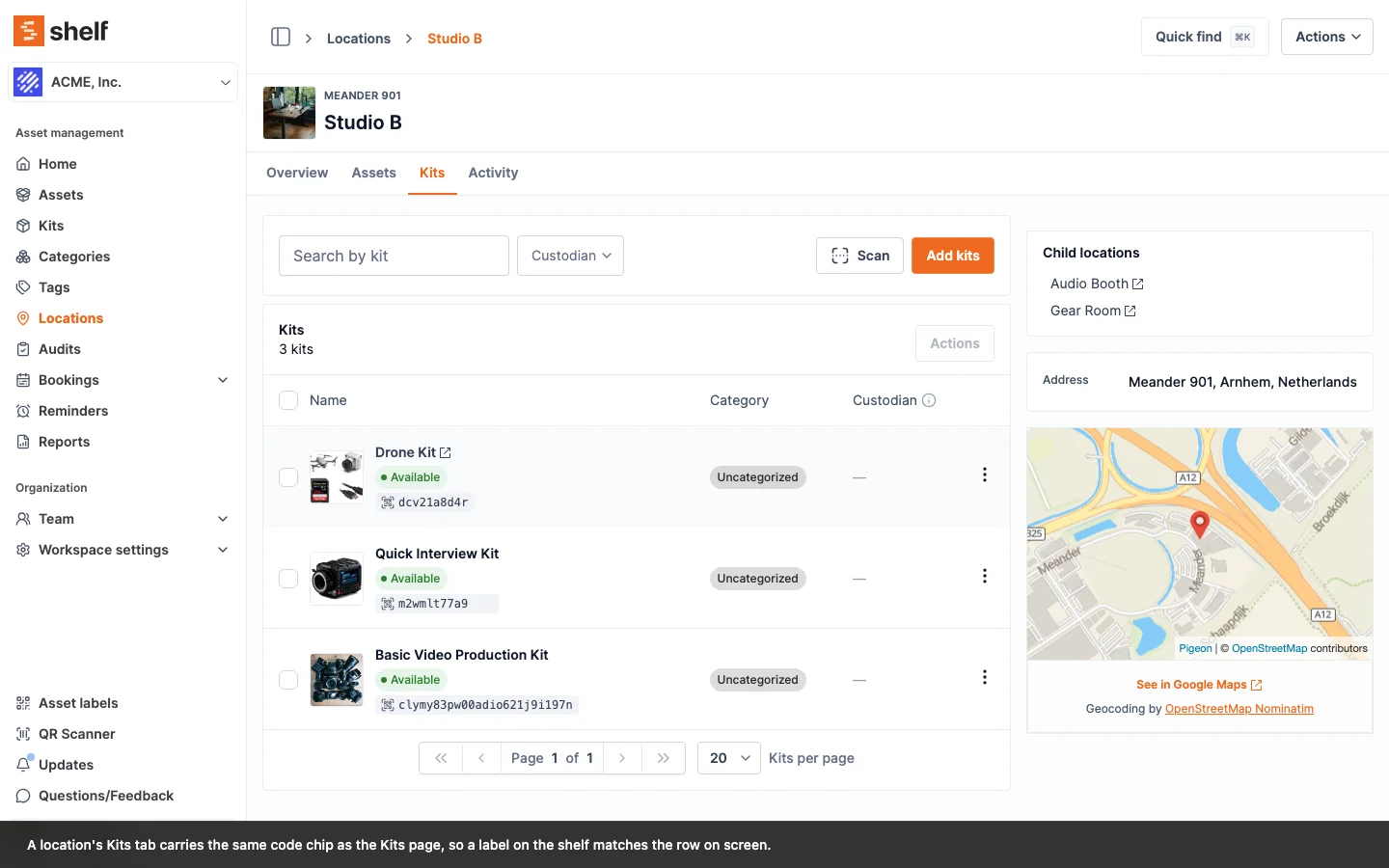
The code chip that lets you match a physical label to a row now renders on the five kit surfaces that were missing it, and the tooltip stops telling you to add a SAM ID that kits cannot have.
Kits carry codes the same way assets do, and the /kits page has shown the code chip since the Preferred display code setting arrived. Five other places that list kits did not, so whether you could match a sticker on the flight case to a row on screen depended on which page you happened to be on.
All five now show it: a location's Kits tab, the Add kits picker you open from there, the kit group header on a booking, the booking assets sidebar, and the row label in the kits Availability view.
There is one correction in here as well. On a workspace that prefers SAM ID, a kit falls back to its QR Code ID, and the chip's tooltip used to say "Add one (or change the workspace setting) to fix." SAM IDs are an asset-only identifier: a kit has no SAM ID field and no way to set one, so that was an instruction nobody could follow, dressed up as the reader's mistake. It now names the real situation: Your workspace prefers SAM ID, which kits do not have. Showing the QR Code ID instead. If you want kits and assets to read the same on every list, prefer QR Code ID, which both always have.
Ready to organize your assets?
Join thousands of teams who trust Shelf to manage their physical assets. Free forever, or try the Team plan free for 7 days.
Out in the field? Shelf Companion is free on iPhone & Android.