

Preferred display code — barcodes on every list row
Every list view (assets, kits, bookings, audits, locations) now shows a code chip next to each row. The workspace picks the format; individual assets can override it.
Wherever Shelf lists code-bearing items — /assets (simple and advanced), /kits, the booking detail page, the "add assets/kits to booking" modals, the locations page, the audit overview, the kit-detail asset list — there is now a small chip on each row showing that asset's chosen identifier. A pack-out picker can read the chip on screen and match it to the sticker on the gear in one second.
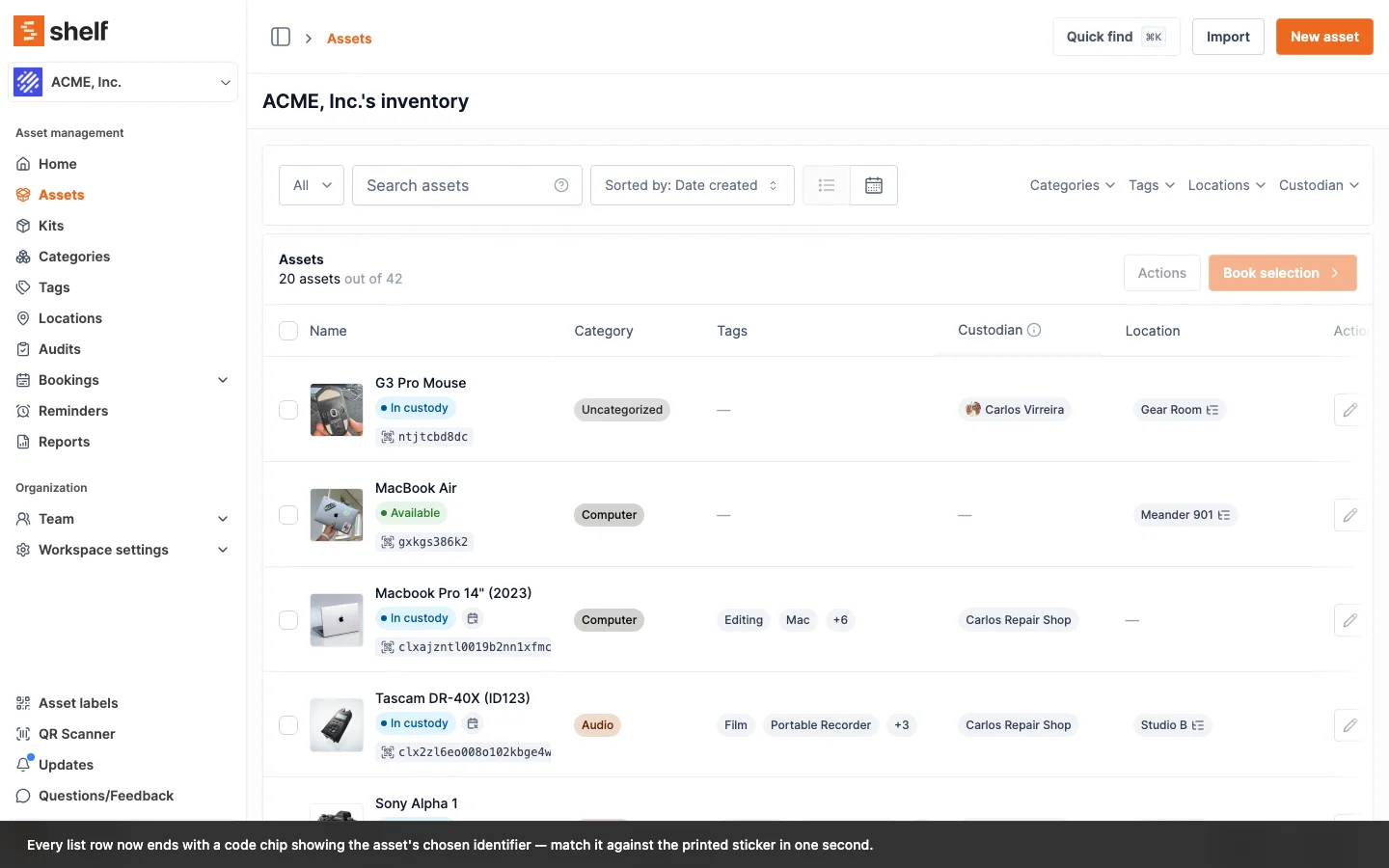
A new workspace setting at Settings → General, Preferred display code, controls which identifier the chip shows. Every workspace gets two free options — QR Code ID and SAM ID. Workspaces with the alternative-barcodes add-on unlock five more: Code 128, Code 39, DataMatrix, External QR, and EAN-13. When an asset doesn't have a code of the preferred type, the chip falls back to its QR Code ID with a quieter outlined style so the missing data stays visible.
If most of your fleet uses one identifier but a small subset needs a different one, the asset edit page now has a "Preferred display code for this asset" section — pick a specific barcode for that one item and the chip shows your override on every list view. The asset edit-page override and the barcode-type workspace preferences both require the alternative-barcodes add-on; free workspaces continue to use QR Code ID or SAM ID.
Ready to organize your assets?
Join thousands of teams who trust Shelf to manage their physical assets. Free forever, or try the Team plan free for 7 days.
Out in the field? Shelf Companion is free on iPhone & Android.