

Use Case Scenarios Explaining Our Bookings Feature
This article walks through common booking scenarios to clarify the concept and value of using Shelf's booking feature from both self-service user and administrator perspectives.

Overview
This article explores typical booking use cases from two distinct user roles. The booking workflow differs based on user permissions and responsibilities within the system.

User Role Differences
Self-service users have limited permissions. They can reserve assets for themselves by creating bookings, but depend on administrators to physically check out and check in equipment.
Administrator users possess full control. They can create, check out, and check in bookings, plus add, remove, or swap assets during ongoing bookings.
For more details on roles, see the user roles and permissions article.
Scenario 1: Self-Service User

Context
John, a marketing team leader at ACME, needs equipment for the Bit Summit 2024 convention (June 21-23). As a self-service user, he creates his own booking.
Step 1: Providing Initial Booking Information
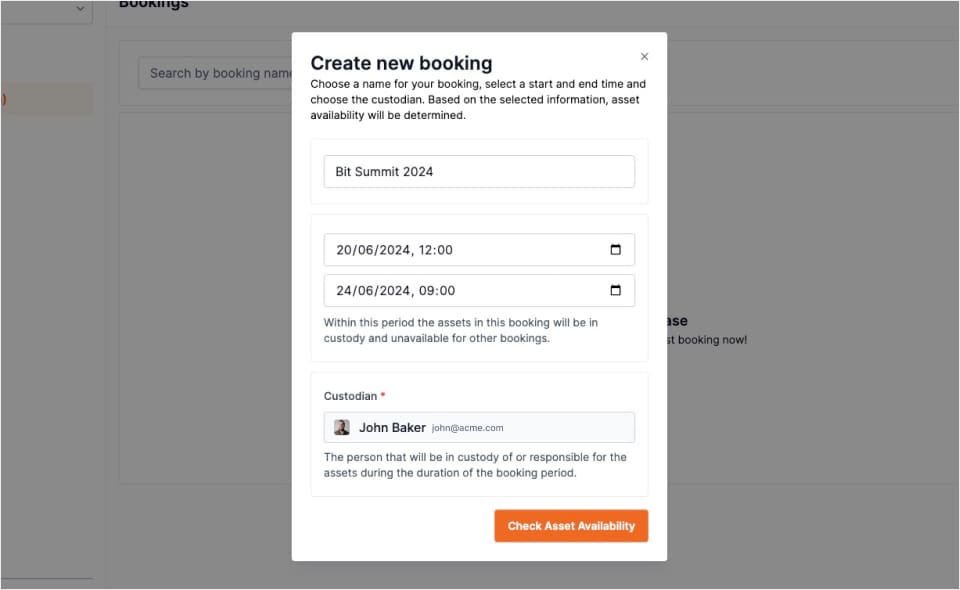
John logs into Shelf and creates a new booking with:
- Name: Bit Summit 2024
- Start date/time: 20/06/2024 12:00 PM
- End date/time: 24/06/2024 9:00 AM
- Custodian: Auto-filled (himself)
Step 2: Selecting Equipment
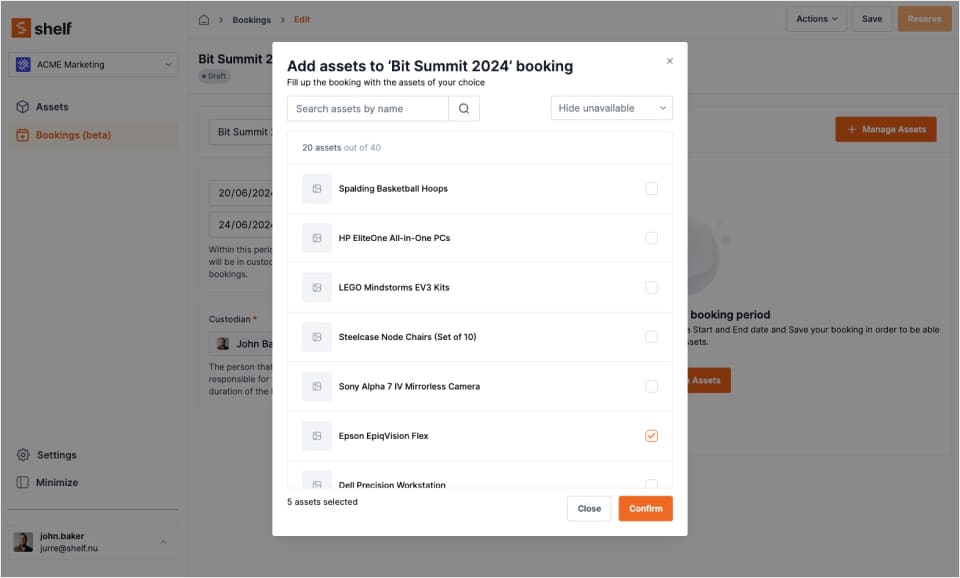
After submitting initial details, John views available assets for that period and selects:
- 1x Apple MacBook Pro 16-inch (2023)
- 1x Sony Alpha 7 IV Mirrorless Camera
- 1x Rode VideoMic GO II Shotgun Microphone
- 1x Epson EpiqVision Flex Portable Projector
- 2x HDMI Cables
- 4x Power Cables
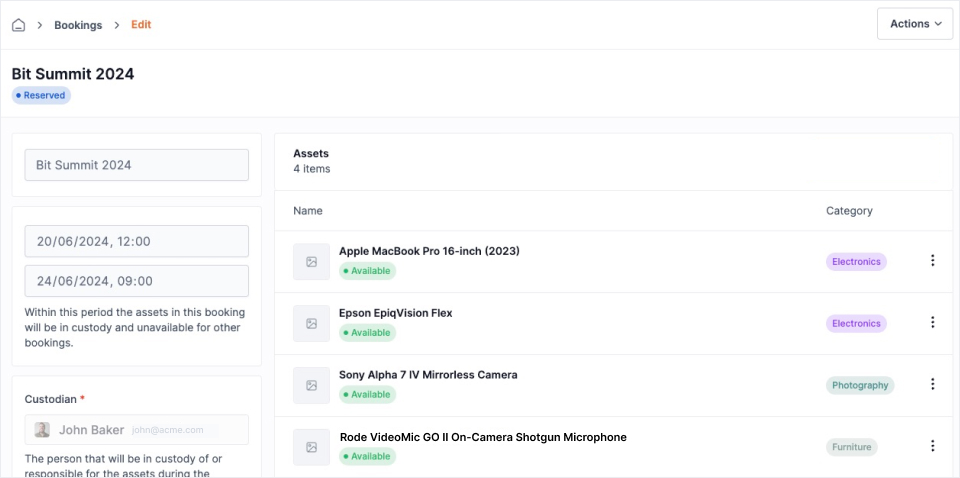
The booking remains in Draft status, allowing modifications. John can add/remove assets freely at this stage.
Once satisfied, John clicks Reserve, changing the status and confirming availability. He receives a confirmation email.
Administrators also receive notification of the new booking.
Step 3: Picking Up Equipment
On 20/06/2024 at 11:00 AM, John receives a check-out reminder email. He arrives at storage and speaks with Jill, the equipment manager.
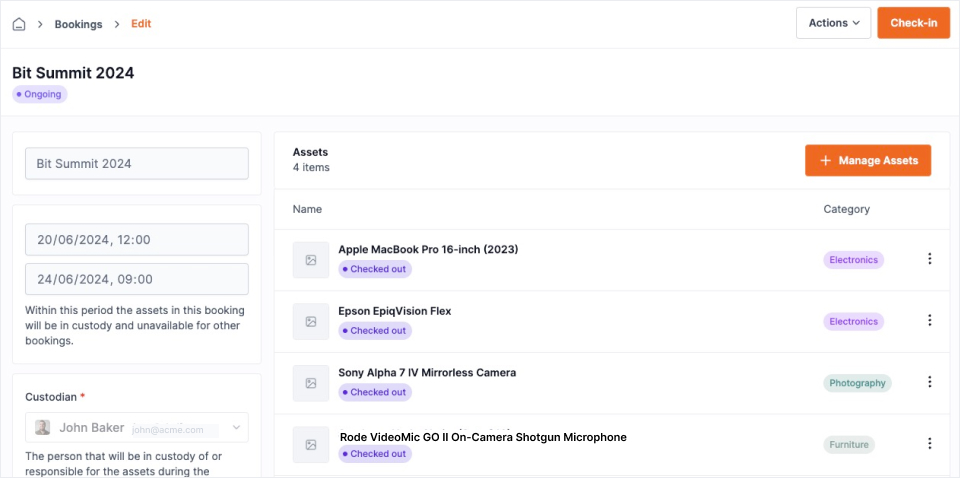
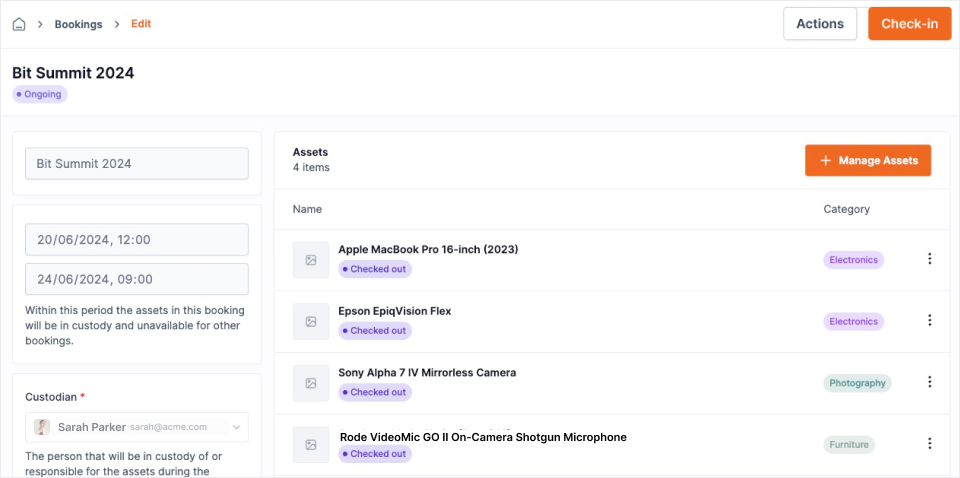 Jill locates the booking in Shelf, confirms everything is ready, and hands John the equipment. She then performs a Check-out action, changing the booking status to Ongoing.
If John could only collect part of his gear right away — say the projector wasn't back from another job yet — Jill wouldn't have to wait. She could hand out what's ready now and check the rest out later using progressive checkout (scan items out one at a time, or pick a subset from the Actions menu). The booking still goes Ongoing on the first item, and the remaining items stay reserved until they're collected.
Step 4: Returning Equipment
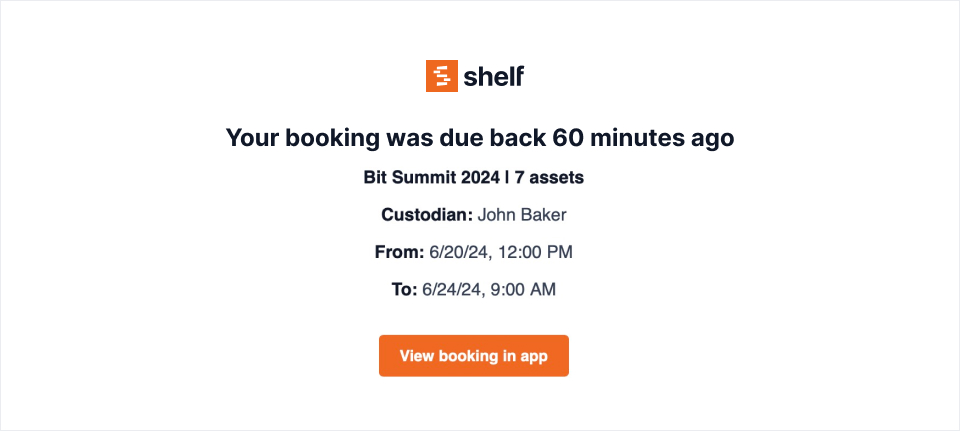
After the convention, John returns on 24/06/2024. He receives a check-in reminder email. However, he arrives after 9:00 AM, triggering an Overdue status notification.
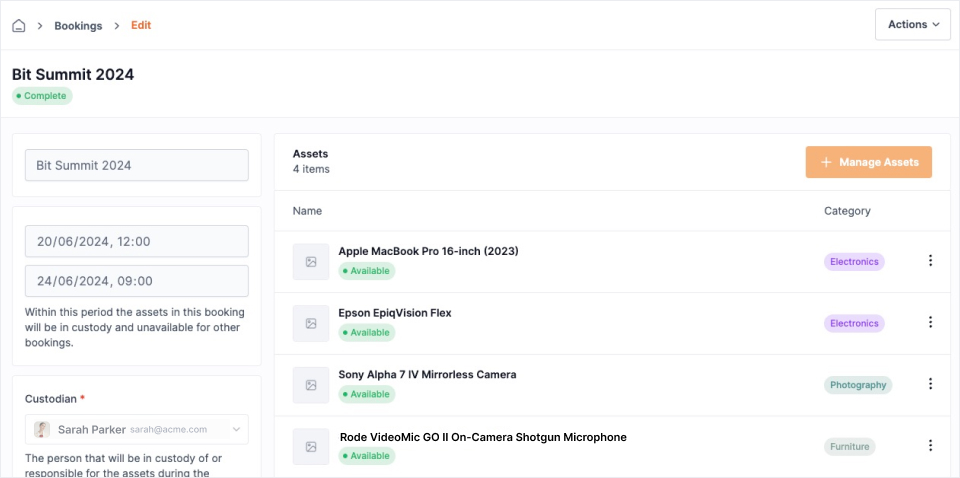 Mike, the equipment manager, receives the overdue alert but assures John it's manageable in this case. Mike emphasizes that late returns can conflict with subsequent bookings sharing the same assets.
Mike inspects all equipment with John, who reports minor pre-existing damage on the MacBook. Mike verifies this was already documented from another booking.
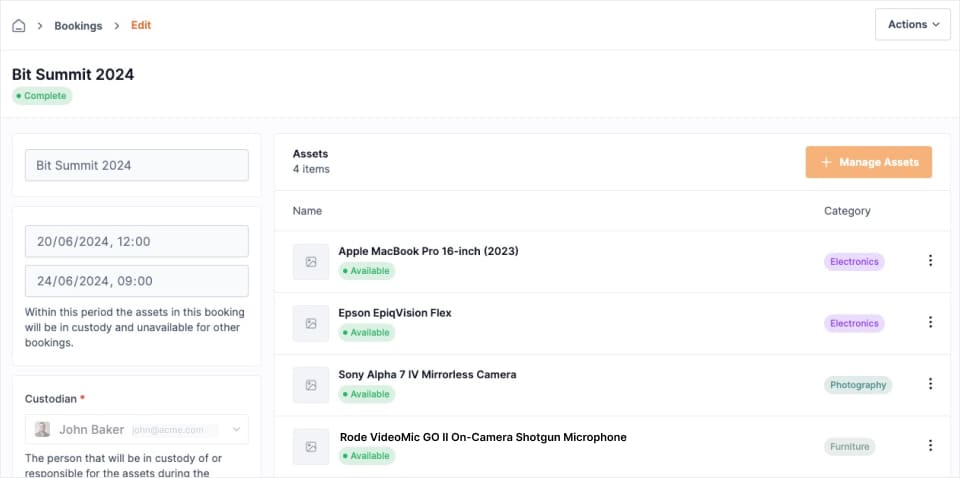
Mike performs a Check-in action, changing the booking to Complete and returning all assets to Available status.
Scenario 2: Administrator User
Context
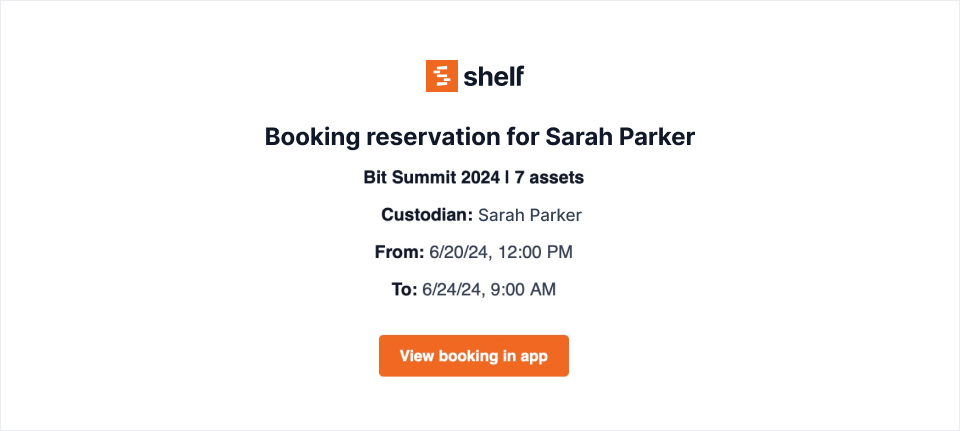
David, the equipment manager at ACME, helps Sarah (marketing team leader) book equipment for the same Bit Summit 2024 event. David has full administrative control.
Step 1: Providing Initial Booking Information
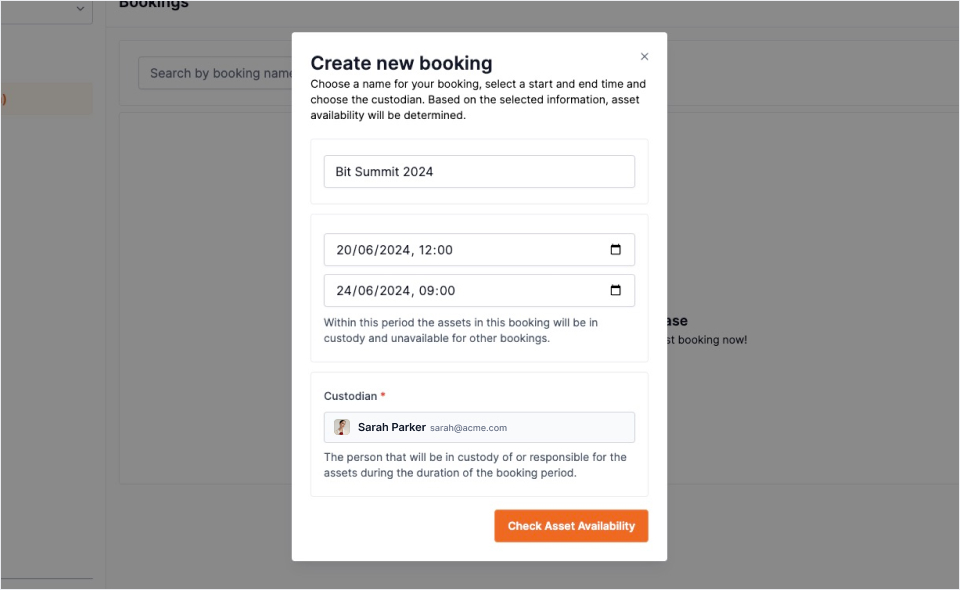
Sarah visits David's desk with event details. David opens Shelf and creates a new booking:
- Name: Bit Summit 2024
- Start date/time: 20/06/2024 12:00 PM
- End date/time: 24/06/2024 9:00 AM
- Custodian: Sarah (selected from eligible workspace members)
Step 2: Selecting Requested Equipment
Sarah provides David with equipment requirements:
- 1x Laptop (capable of 4K video playback)
- 1x DSLR Camera
- 1x Portable Microphone
- 1x Portable Projector
- 2x HDMI Cables (supporting 4K at 30Hz)
- 4x Power Cables
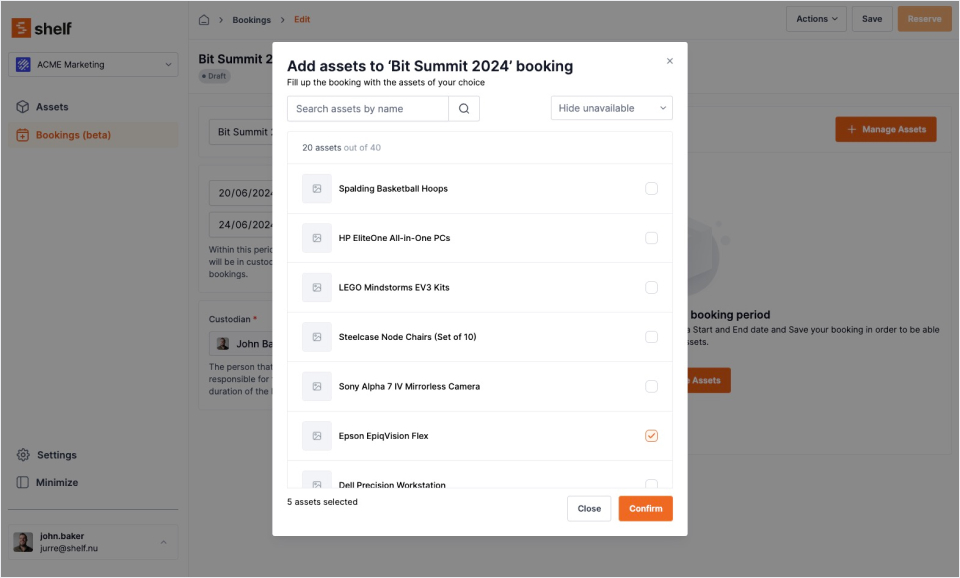
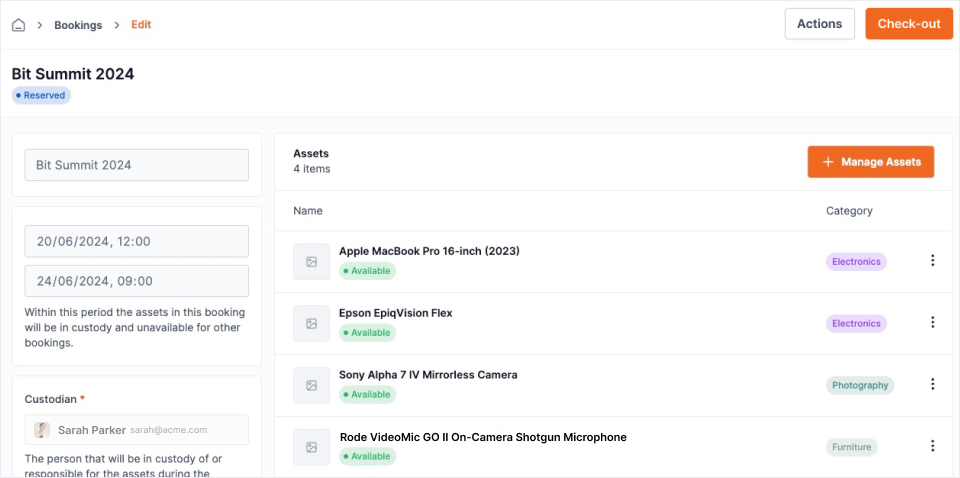
David uses the asset selection modal with search and filters to find suitable items matching Sarah's specifications. Once selected, he reviews the booking and clicks Reserve, confirming availability.
Sarah receives a confirmation email, and administrators (including David) receive notification of the new booking.
Step 3: Picking Up Equipment
On 20/06/2024, Sarah receives a check-out reminder. She arrives before 12:00 PM.
David locates the booking in Shelf, confirms readiness, and hands over the equipment. He performs a Check-out action, changing the status to Ongoing.
Step 4: Returning Equipment
On 24/06/2024 morning, David checks Shelf for scheduled returns. Sarah should arrive around 9:00 AM and should have received a check-in reminder.
Sarah arrives on time, reporting a successful event with no issues. David inspects the equipment for damage and completeness -- everything is in order.
David performs a Check-in action, changing the booking to Completed.
Key Differences Between Roles
| Action | Self-Service | Administrator |
|---|---|---|
| Create booking | Yes (self only) | Yes (anyone eligible) |
| Check-out assets | No | Yes |
| Check-in assets | No | Yes |
| Modify assets mid-booking | No | Yes |
| View all bookings | Limited | Full |
Booking Status Flow
- Draft - Editable, not confirmed
- Reserved - Confirmed, awaiting check-out
- Ongoing - Assets checked out and in use
- Overdue - Check-in deadline passed (if applicable)
- Complete - All assets returned and checked in
For additional details on booking statuses, see the introduction to bookings article.
Ready to try Shelf?
Put what you're learning into practice. Free plan available — no credit card required.