

Editing Asset Fields Inline
Edit asset fields directly from the asset detail page in a single click — no need to open the full edit form. Covers what's editable inline, who can do it, and how it interacts with custom fields and validation.

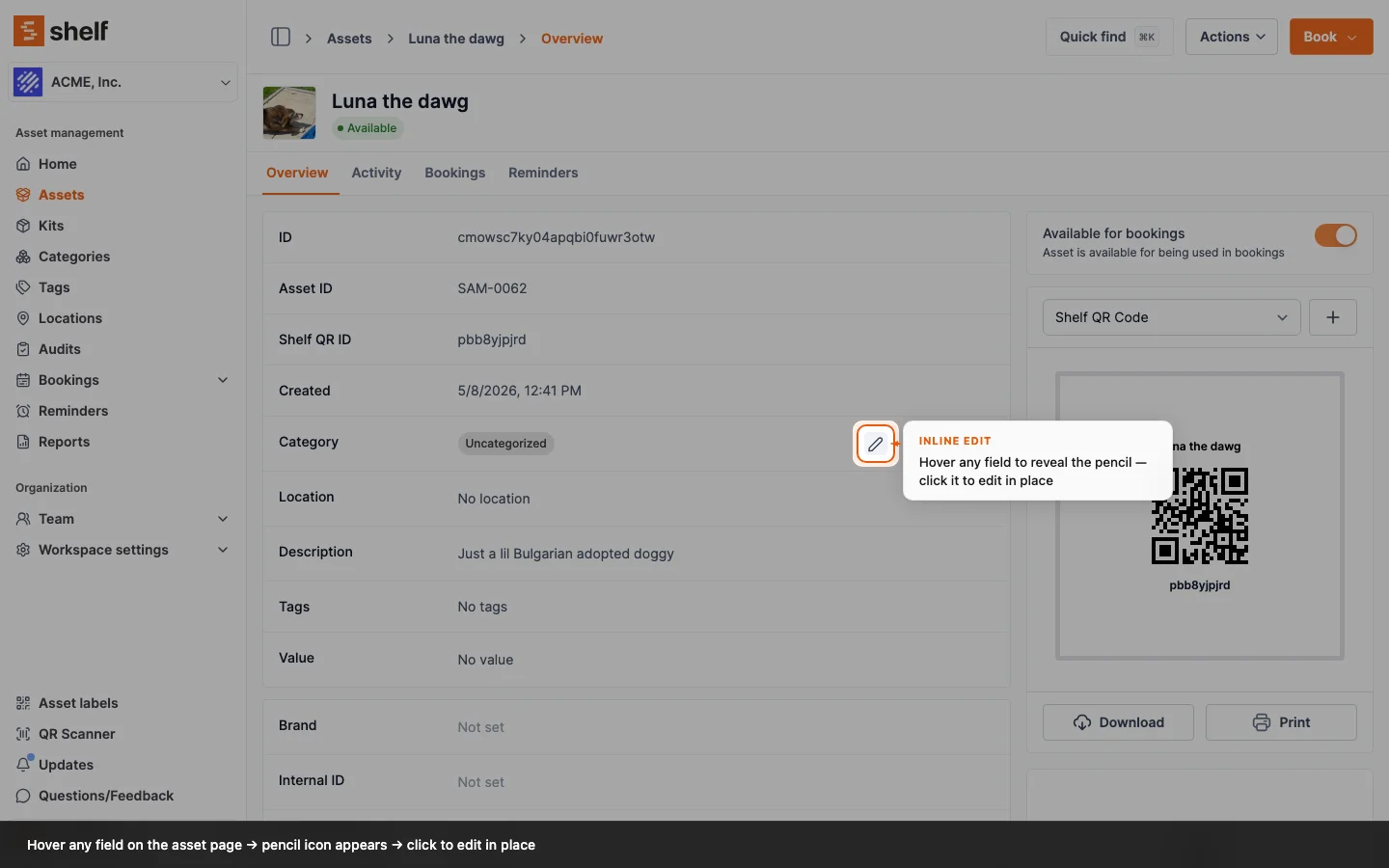
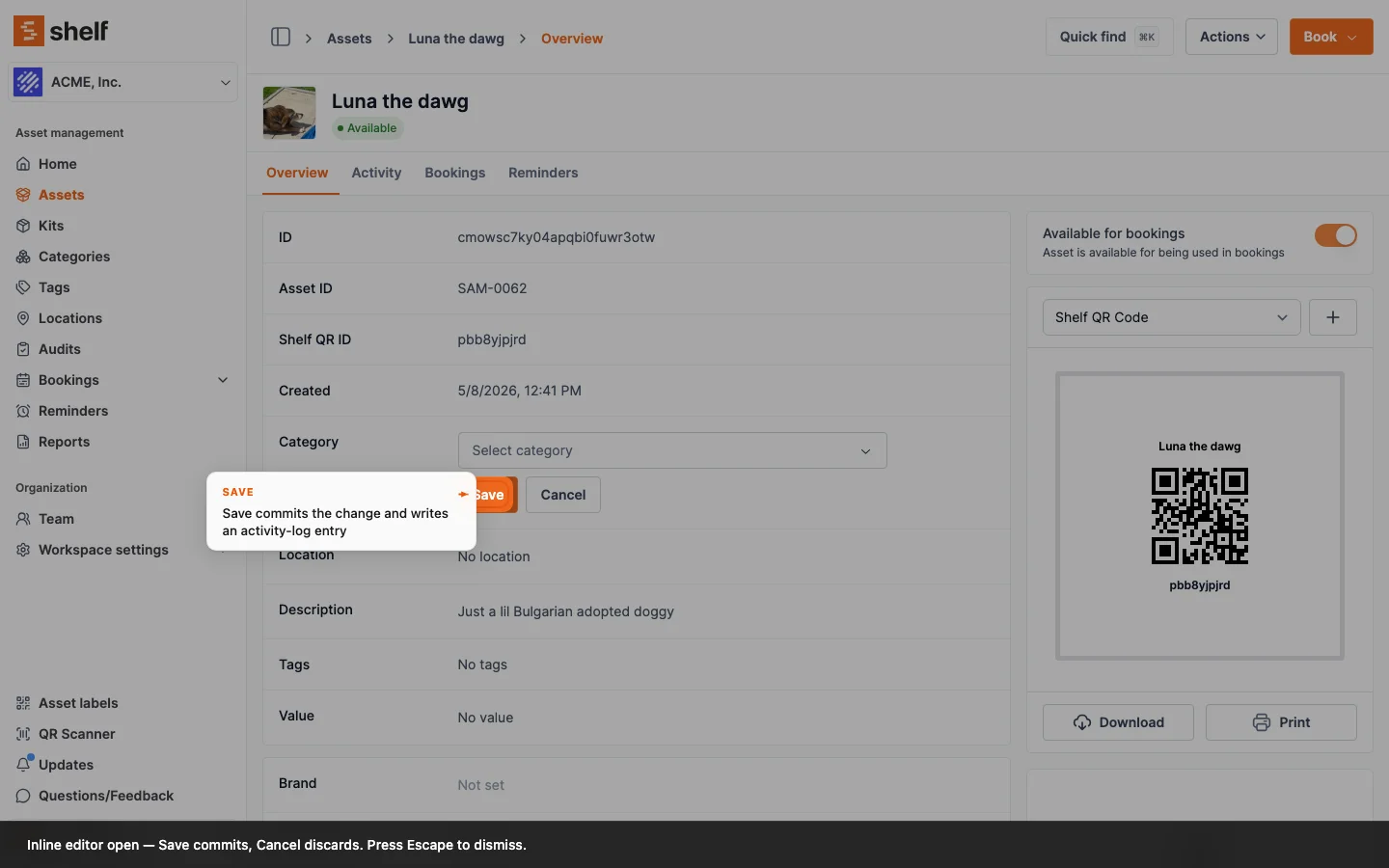
For quick, ad-hoc updates to a single asset, you no longer need to open the full Edit form. Hover any editable field on an asset's detail page and click the pencil icon to update it in place — Shelf saves the change, runs the same validation as the full edit form, and writes a corresponding entry to the asset's activity log.
How It Works
- Open any asset's detail page from the Assets index
- Hover over the field you want to change — a pencil icon appears
- Click the pencil to enter edit mode
- Make your change in the inline editor
- Click Save (or press Enter on single-line fields)
To dismiss your changes, click Cancel or press Escape.
What's Editable Inline
| Field | Editor |
|---|---|
| Description | Multi-line text area (up to 1,000 characters) |
| Category | Searchable select |
| Location | Searchable select with kit-blocked location warnings |
| Value | Decimal input |
| Custom fields — Text, Multi-line text, Boolean, Date, Option, Amount, Number | Per-type editor |
| Tags | Read-only — use the full Edit form to change tags |
For everything else (name, primary image, QR code, etc.) the Edit button on the asset detail page still opens the full edit form.
Custom Fields
All custom fields configured for the asset's category appear in a single alphabetically-sorted list on the asset page. Fields that have a value show their value with a pencil icon for editors; fields that don't yet have a value show Not set with the same pencil icon. Field positions stay stable as you fill them in — no jumping around when values are added or cleared.
If you change the asset's Category, the custom fields list refreshes to match the new category's definitions. Values for fields that exist in both the old and new category are preserved. A value left behind by a field that only belongs to the old category is still shown, but read-only: it has no pencil icon, because saving to a field outside the asset's current category is rejected. Re-assign the asset to that category to make the field editable again.
See: Adding Additional Fields to Assets for setting up custom fields on a category.
Permissions
Inline editing follows the same permissions model as the full edit form:
- Owners and Admins see and can edit every field
- Self-service users and Base users see every custom field that has a value, read-only. Fields still sitting at Not set are hidden from them, since there is nothing to read and nothing they can fill in.
Editors who don't have permission to update a particular field will not see the pencil icon for that field.
Validation and Errors
Inline edits use the same server-side validation as the full edit form:
- Value must be a finite decimal number (the input is plain text with
inputMode="decimal"so the validation message is shown directly under the field if you submit a non-numeric value) - Location rejects locations that are blocked by an active kit assignment, surfacing the conflict so you can resolve it before saving
- Custom fields apply the same per-type rules as the full form (date format, option whitelist, required-field guard, etc.)
If a save fails, the editor stays open with the error message visible and your input preserved — so you can fix the value without retyping.
Activity Log
Every successful inline edit creates a corresponding entry on the asset's Activity tab, just like edits made through the full form. The entry records who changed which field, when, and what the previous and new values were — so the change history stays complete regardless of how a field was updated.
See: Asset Pages for the full overview of what lives on the asset detail page.
Mobile
Inline editing is currently available on desktop only — the pencil icons are hidden below the medium screen breakpoint. On mobile, use the Edit button to open the full edit form.
Related Articles
- Adding Additional Fields to Assets — configure custom fields per category
- Custom Field Types in Shelf — what each custom field type accepts
- Bulk Updating Assets via CSV — for editing many assets at once
Ready to try Shelf?
Put what you're learning into practice. Free plan available — no credit card required.