

Deleting Assets, Kits, Bookings and More
Every permanent delete in Shelf tells you what goes with the item and asks you to type its name, or the number of items selected, before it runs. Here is what each delete removes and what it keeps.

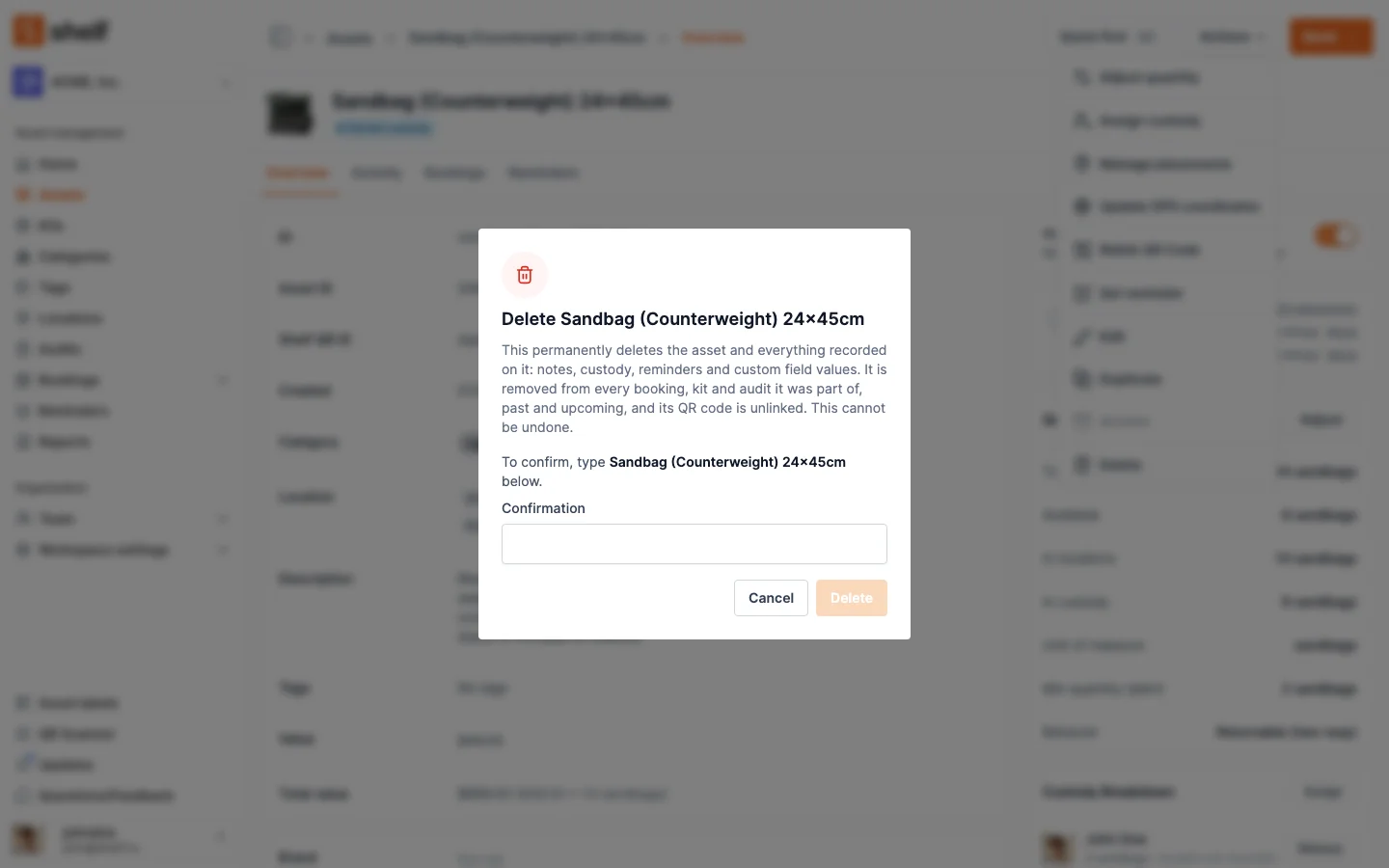
A delete in Shelf is permanent: there is no trash to restore from. So before anything is removed, Shelf tells you what goes with it, and Delete stays greyed out until you type what you are deleting.
If you only want an asset out of the way, archive it instead. Archiving hides it from your lists and keeps its history, and you can reinstate it at any time.
How to confirm a delete
One item: type its name in the confirmation field. The match ignores upper and lower case and extra spaces, so demo camera confirms Demo Camera.
On the web, an item with no name, such as an asset imported without a title, asks you to type the word delete instead.
- Open the item (or its row menu on the list) and choose Delete.
- Read what the dialog says goes with it.
- Type the item's name where it says To confirm, type ….
- Click Delete.
Several items at once: select them, choose Delete from Actions, and type the number of items selected. If you used Select all and the list has changed since you opened the dialog, for example someone added an asset that matches your filters, Shelf deletes nothing and tells you the new number: "Nothing was deleted. Your selection matches 4 assets, not 3. Type 4 to delete them." You are never committed to more than you typed.
Shelf checks what you typed on the server as well, so the rule also holds for an old browser tab or a script.
What each delete takes with it
| Delete | You type | What goes with it |
|---|---|---|
| Asset | Its name | Its notes, custody, reminders and custom field values. It is removed from every booking, kit and audit it was part of, past and upcoming, and its QR code is unlinked. |
| Kit | Its name | The kit itself. Its assets stay in your workspace and keep their location, but leave the draft and reserved bookings the kit was on. Custody of the kit is released and its QR code is unlinked. |
| Location | Its name | Its notes and image. Assets and kits stored there are left without a location, and child locations move to the top level. |
| Booking | Its name | Its notes, model reservations and check-in and check-out history. If it is ongoing or overdue, its assets become available. |
| Asset model | Its name | Every booking reservation made by that model. The assets are kept but no longer belong to a model. |
| Category in use | Its name | Its assets and kits become uncategorized, and asset models lose it as their default; they are kept. A category nobody uses deletes with one click. |
| Tag in use | Its name | It is taken off every asset and booking carrying it; those are kept. A tag nobody uses deletes with one click. |
| Custom field | Its name | The field disappears from every asset. |
| Archived audit | Its name | Its scans, notes and images. See Permanently Delete Archived Audits. |
| Any bulk delete | The number selected | The same as above, for each item. |
Removing something from something else, such as an asset from a booking, kit or audit, and deleting notes, images, reminders, saved filters or working-hours overrides keep their one-click confirmation: none of them removes a record you cannot recreate.
Select all acts only on what the list shows
Select all across a searched or filtered list of locations, categories or asset models now deletes exactly the items that list shows. Before, it could delete every location, category or asset model in the workspace. Tags already worked this way. Check the number in the dialog before you type it: it is the number that will be deleted.
The same goes for bookings. Select all on the Bookings list, or on a kit's or an asset's Bookings tab, now selects exactly the bookings that list shows with its current search, status, team member and tag filters, for Delete, Archive and Cancel alike. Before, it could reach bookings the list did not show, such as archived and cancelled ones.
Deleting from the Shelf Companion app
On the Shelf Companion app, deleting an asset or a booking opens the same confirmation: the sheet says what goes with it, and Delete unlocks once you type the name.
Who can delete
Nothing about who may delete has changed. Owners and Administrators can delete assets, kits, locations, categories, tags, asset models, custom fields and archived audits. Self-service and Base users can delete their own booking while it is a Draft. See User Roles and Their Permissions.
Related articles
- Archive and Reinstate Assets: take an asset out of service without deleting it
- Using Batch Actions in Shelf: bulk actions on the asset index
- Permanently Delete Archived Audits
Ready to try Shelf?
Put what you're learning into practice. Free plan available — no credit card required.