

Archive and Reinstate Assets
Archive an asset you no longer use to take it out of your lists, the booking picker and current-inventory reports without deleting it. Its history, ID and QR code stay intact, and you can reinstate it at any time.

Some equipment leaves service but should not leave your records: a camera that was retired, a laptop waiting for disposal, a kit you only bring out once a year. Deleting it loses its history for good. Archiving hides it instead. An archived asset drops out of your asset lists, the booking picker, the dashboard and your current-inventory reports, but the record stays, with its history, its SAM ID and its QR code. When you need it again, you reinstate it.
Archive, reinstate or delete?
An asset can be in one of three places:
| What it means | Can you undo it? | |
|---|---|---|
| Active | The normal asset. It shows in your lists and can be booked and assigned custody. | n/a |
| Archived | Still yours, but hidden from your lists and read-only. | Yes. Reinstate brings it back as it was. |
| Deleted | Gone for good, with its history. Use it for a record that was a mistake. Shelf asks you to type the asset's name before it deletes. | No. |
Archiving is separate from an asset's status. Status still describes custody and bookings (Available, In custody, Checked out); archiving is a second, independent switch.
Who can archive
Owners and Administrators can archive and reinstate assets and see the archived view. Self-service and Base users cannot: they never see archived assets in their lists, and the archive and reinstate actions are not offered to them. See User Roles and Their Permissions.
Archive a single asset
- Open the asset.
- Click Actions and choose Archive.
Shelf confirms with Asset archived. The asset page now carries an Archived badge in place of its status, reads Archived on with the date, and Book is greyed out. The asset's Activity tab records who archived it, and reinstating it later is recorded the same way.
If the asset sits in a Draft booking, the confirmation names that booking, because it will not reserve or check out with the archived asset on it.
If the asset is reserved by model in a booking and archiving it would leave that booking short of units, Shelf names the booking and asks before going ahead. Choose Archive anyway to continue. That booking's model reservation then shows how many units it is short (for example 1 short: none free), the booking gets a note saying who archived what, and the reservation can't be filled in full until it is reduced to what can be assigned.
Archive several assets at once
- On the Assets page, select the assets (or use Select all to take the whole view).
- Click Actions and choose Archive.
- Confirm in the Archive assets dialog.
Assets that cannot be archived are skipped rather than failing the batch: anything checked out, in custody, in a reserved or checked-out booking, tracked by quantity, or already archived. Shelf tells you how many were archived and how many were skipped. If none of the selected assets could be archived, it says so and names why, rather than reporting success. See Using Batch Actions in Shelf.
What cannot be archived (yet)
- Assets that are out. An asset that is checked out or in custody must be checked in or released first.
- Assets in a reserved or checked-out booking. Shelf refuses with "This asset is in a reserved or checked-out booking. Remove it from that booking, then archive it." An asset that only sits in a Draft booking can be archived, but that booking will not reserve or check out with it until you reinstate the asset or take it off. The booking page shows a banner naming the archived asset, and Reserve and Check out stay greyed out with the same reason.
- Quantity-tracked assets. For now only individually tracked assets can be archived. Quantity-tracked assets show "Quantity-tracked assets can't be archived yet."
Find your archived assets
The list title on the Assets page doubles as a view menu. Click Assets and choose:
- Active (the default): what you work with day to day.
- Archived: only archived assets. The title reads Archived assets.
- All: both, with archived assets marked by their badge. The title reads All assets.
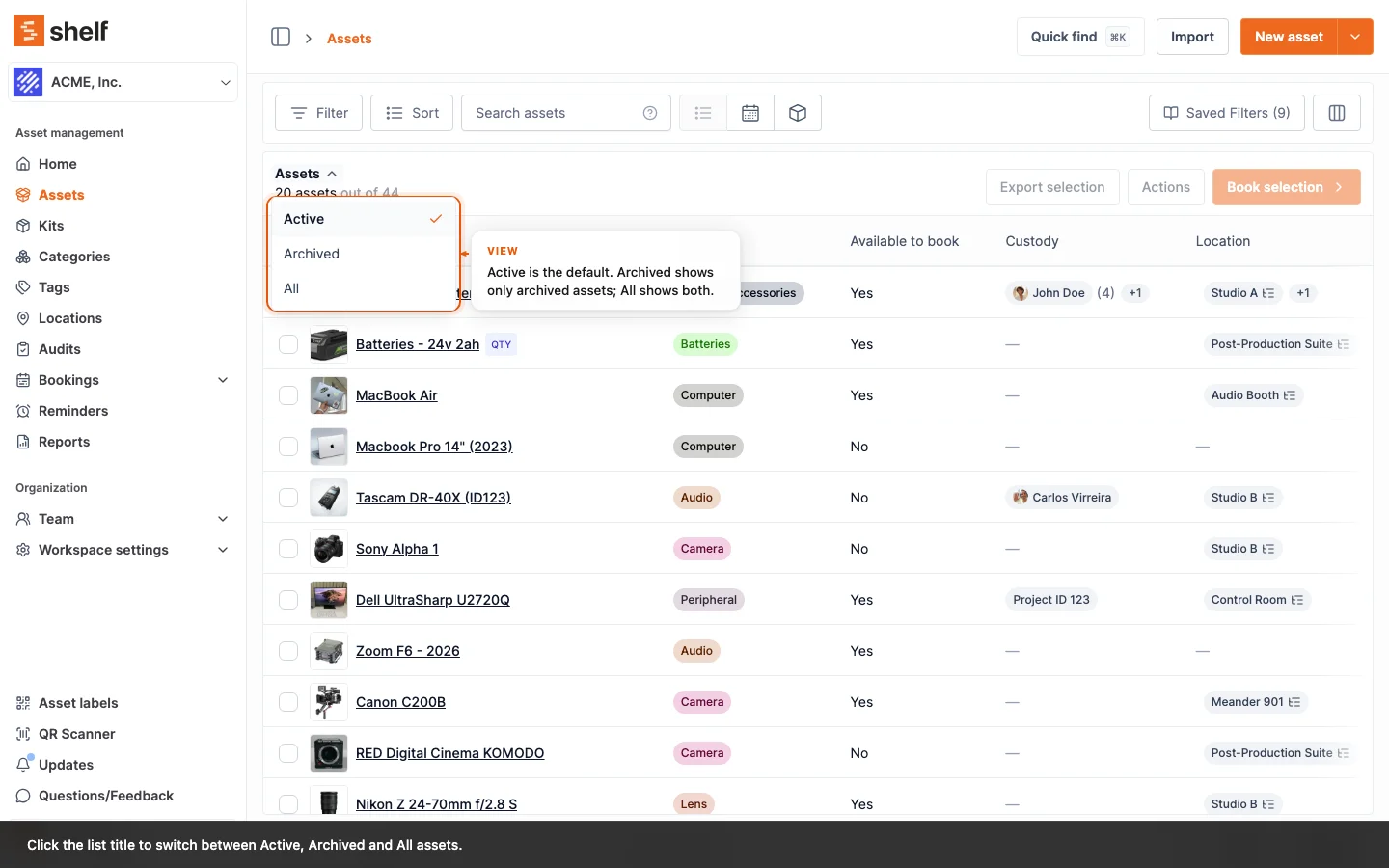
The same menu appears on a kit's assets and on a location's assets. It works in both the simple and the advanced asset index, and it sits alongside your other filters, so you can, for example, search the archived assets in one category. When a search finds nothing in the Active view, Shelf points you to the archived assets in case what you are looking for is there.
Reinstate an asset
- One asset: open it, click Actions and choose Reinstate.
- Several: switch the list to Archived, select them, then Actions ▸ Reinstate.
The asset is active again, exactly as it was. If it was switched off for bookings before you archived it, it stays that way, and the confirmation says so. If it belongs to a kit that is in custody or checked out, release or check in the kit first.
What an archived asset can still do
An archived asset is read-only. On the web you can still:
- Reinstate it or delete it permanently. Every other action is greyed out, with the reason shown.
- Add a note on its Activity tab, for example to record why it was retired.
- Open it from its label. Scanning its QR code opens the asset page with the Archived badge, so a physical label never leads to a dead end.
- Stay on past bookings. A booking that already held the asset keeps showing it, marked Archived, and you can still take it off a booking.
It cannot be added to a booking, booked by model, assigned custody, moved, edited or duplicated until you reinstate it. Its Available for bookings switch shows off, with "Archived assets can't be booked".
Reminders pause. Shelf sends no reminder emails for an archived asset. On the Reminders page its reminders carry the Archived badge and the status Paused, and they leave the upcoming reminders on your home dashboard.
Who sees what. Owners and Administrators read "Reinstate it to make changes" wherever an action is greyed out. Self-service and Base users who open an archived asset, for example from its QR code, read "Ask an admin to reinstate it" instead.
Archived assets in kits
A kit keeps its archived members, but works only with the active ones:
- Moving a kit to a new location moves its active assets only, and releasing a kit's custody leaves its archived members untouched.
- A kit whose assets are all archived can't be booked or assigned custody. The kit page says "No active assets in this kit" and how many archived assets are hidden, and Book and custody are greyed out with the reason. Reinstate a member, or add an active asset, to use the kit again.
- Booking a kit that has some archived members books the active ones, and Shelf tells you how many archived assets were left out.
How archived assets affect your numbers
Archived assets are out of service, so anything that describes what you have now leaves them out, and anything that describes history keeps them.
| Left out | Kept in |
|---|---|
| Asset lists, the booking picker and search | Bookings that already held the asset |
| Dashboard totals, value, status split and top locations | Activity, Asset Utilization and Top Booked reports |
| Asset Inventory, Asset Distribution and Idle Assets reports | |
| Asset counts on the locations, kits, categories and asset models lists, and a location's value | |
| Units available when booking by model |
So archiving a retired camera lowers your dashboard asset count and total value straight away, while last quarter's utilization still shows the bookings it was part of.
Exporting archived assets. In the Archived view, select the rows you want and export: Shelf exports exactly the rows you picked.
Frequently asked questions
Does archiving free up the asset's SAM ID or QR code?
No. Both stay with the asset, so when you reinstate it, its ID and labels still work. SAM IDs are never reused, even after a permanent delete.
Can I archive from the Shelf Companion app?
Archive from Shelf on the web. The Shelf Companion app's asset list leaves archived assets out, but an archived asset you open on the phone, for example by scanning its QR code, shows the Archived badge and a notice explaining why it is read-only, with custody, move, edit and photo actions turned off. Owners and Administrators can reinstate it from that notice. Scanning an archived asset into a batch on the Scan tab flags its row as Archived, so you can remove it before submitting.
Should I archive or delete?
Archive anything you might want to look up again: retired, lost, sold or seasonal equipment. Delete only records that should never have existed, such as a duplicate created by mistake.
Ready to try Shelf?
Put what you're learning into practice. Free plan available — no credit card required.