

An Unsaved Changes Bar on Asset, Kit, Location and Booking Forms
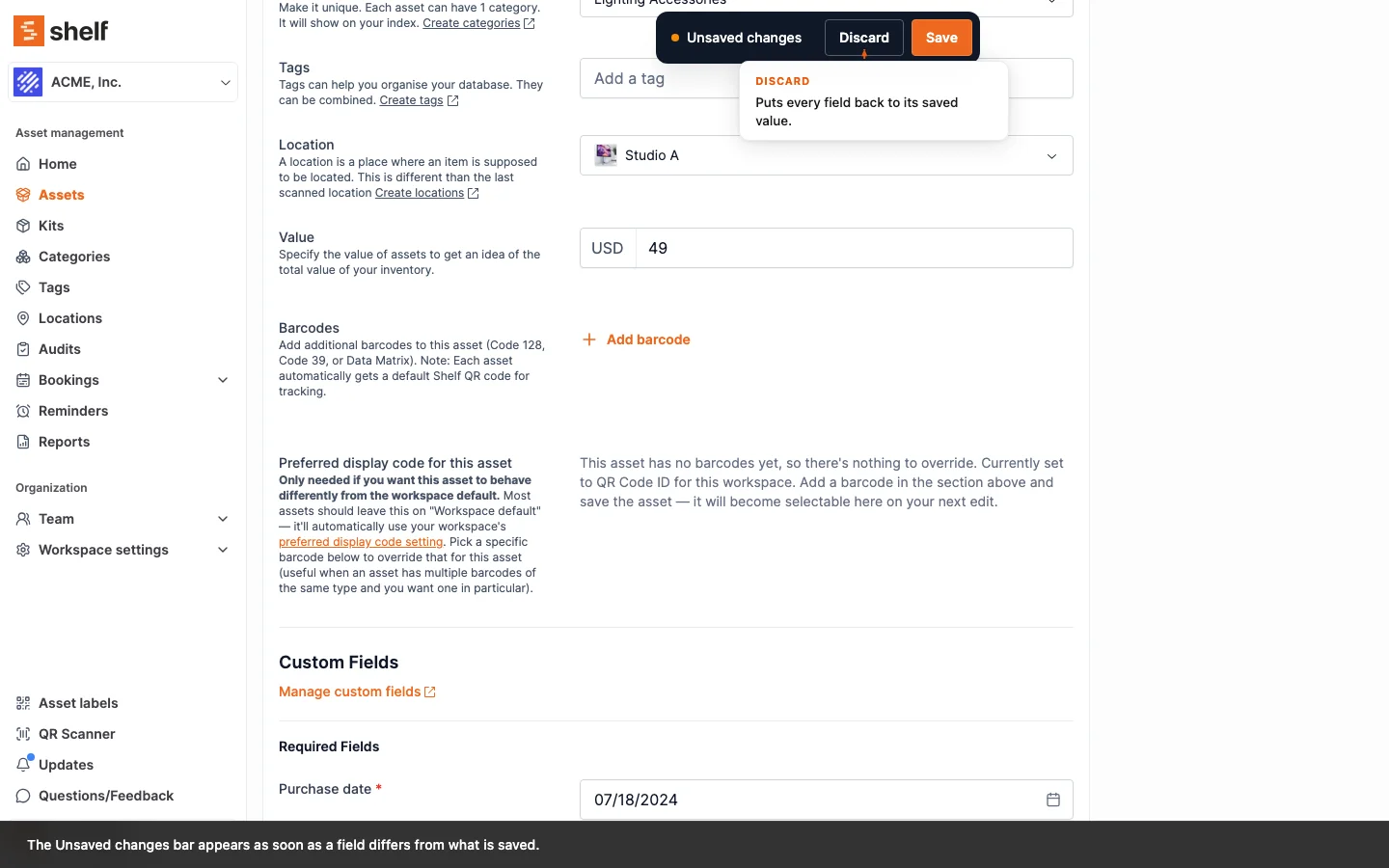
The asset, kit and location forms and the booking edit form show an Unsaved changes bar with Discard and Save the moment something changes, and ask before you leave the page with unsaved work.
The asset, kit and location forms (new and edit) and the form that edits an existing booking watch for changes.
As soon as a field differs from what is saved, an Unsaved changes bar appears, at the top of the page on a wide screen and along the bottom on smaller screens, with Discard and Save. Discard puts every field back to its saved value, including a category, tag or location you picked. Save saves as the form's own button does, and a refused save, for example for an empty name, keeps the bar. Leaving the page with unsaved work, by a link, the breadcrumb or the back button, asks "You have changes that are not saved. Leave this page and lose them?" with Leave page and Stay, and closing or reloading the tab asks too. Opening a dialog on the same page, such as Manage assets on a booking, is not leaving and asks nothing. See Adding New Assets.
Ready to organize your assets?
Join thousands of teams who trust Shelf to manage their physical assets. Free forever, or try the Team plan free for 7 days.
Out in the field? Shelf Companion is free on iPhone & Android.