

Asset Identifiers: QR ID, SAM ID, and Property ID
Shelf has three ways to identify an asset — the system QR ID, sequential SAM IDs, and your own Property IDs. This guide explains each, when to use them, and how to choose which one prints on your QR labels.

Shelf has three ways to identify an asset, and a setting that controls which identifier appears on your printed QR labels. This article covers all of them.
At a Glance
| Identifier | Set by | Format | Purpose |
|---|---|---|---|
| QR Code ID | Shelf (auto) | clxegnjcm005b11tn2cszkw6c | The canonical system ID; the target of every QR code |
| SAM ID (Sequential Asset Number) | Shelf (auto) | SAM-0001, SAM-0042 | Human-friendly reference used in conversation, reports, labels |
| Property ID | You (optional) | LAPTOP-001, CAM-02 | Your own numbering scheme, if you have one. Supports custom URL lookups. |
All three are searchable. If a label gets damaged and the QR can't be scanned, you can type any of the three into Quick Find (⌘K) to locate the asset and relink a fresh QR code.
1. QR Code ID (system-generated)
The QR Code ID is the canonical, system-generated identifier every asset has from creation. It looks like clxegnjcm005b11tn2cszkw6c — unique across your whole workspace, guaranteed never to collide.
Every QR code you print from Shelf encodes a URL containing this ID. When someone scans the code, Shelf resolves the ID and opens the right asset page.
You can't change this ID. But you can re-link an asset to a different QR code — see QR code swapping for when that matters.
2. SAM ID — Sequential Asset Numbers
SAM IDs are clean, human-friendly numbers assigned automatically in order: SAM-0001, SAM-0002, SAM-0042, and so on. They make asset management conversational:
- "Can you check on SAM-0892?" is clearer than referencing the long system ID.
- Sequential numbers simplify tracking — spotting gaps, estimating growth, scanning down a list.
- Clean formatting looks more professional on reports, labels, and documentation.
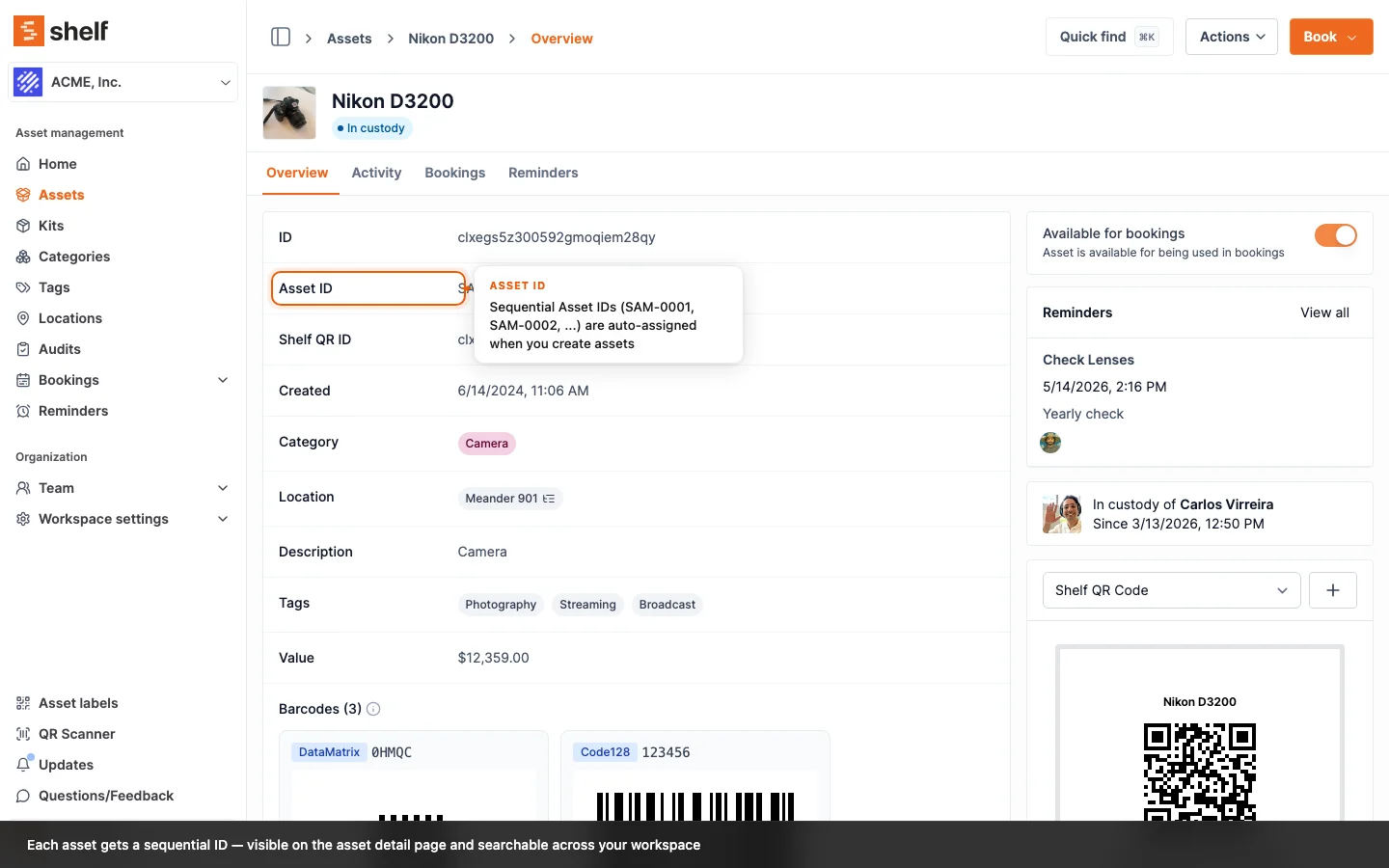
How SAM IDs work
- Automatic assignment: new assets receive the next number in sequence.
- Workspace-scoped: each workspace has its own independent sequence starting at
SAM-0001. - Permanent once assigned: deleted assets keep their SAM ID — numbers aren't reused, which keeps the historical record clean.
- Non-breaking: SAM IDs are display identifiers; URLs and integrations continue to use the QR Code ID.
Enabling SAM IDs
- New workspaces: enabled by default. Every asset gets a SAM ID at creation.
- Existing workspaces: a one-time migration dialog appears on your first login after SAM IDs are available. Shelf generates IDs for existing assets in order of their creation date. Migration is irreversible, but it doesn't affect any existing workflows or URLs.
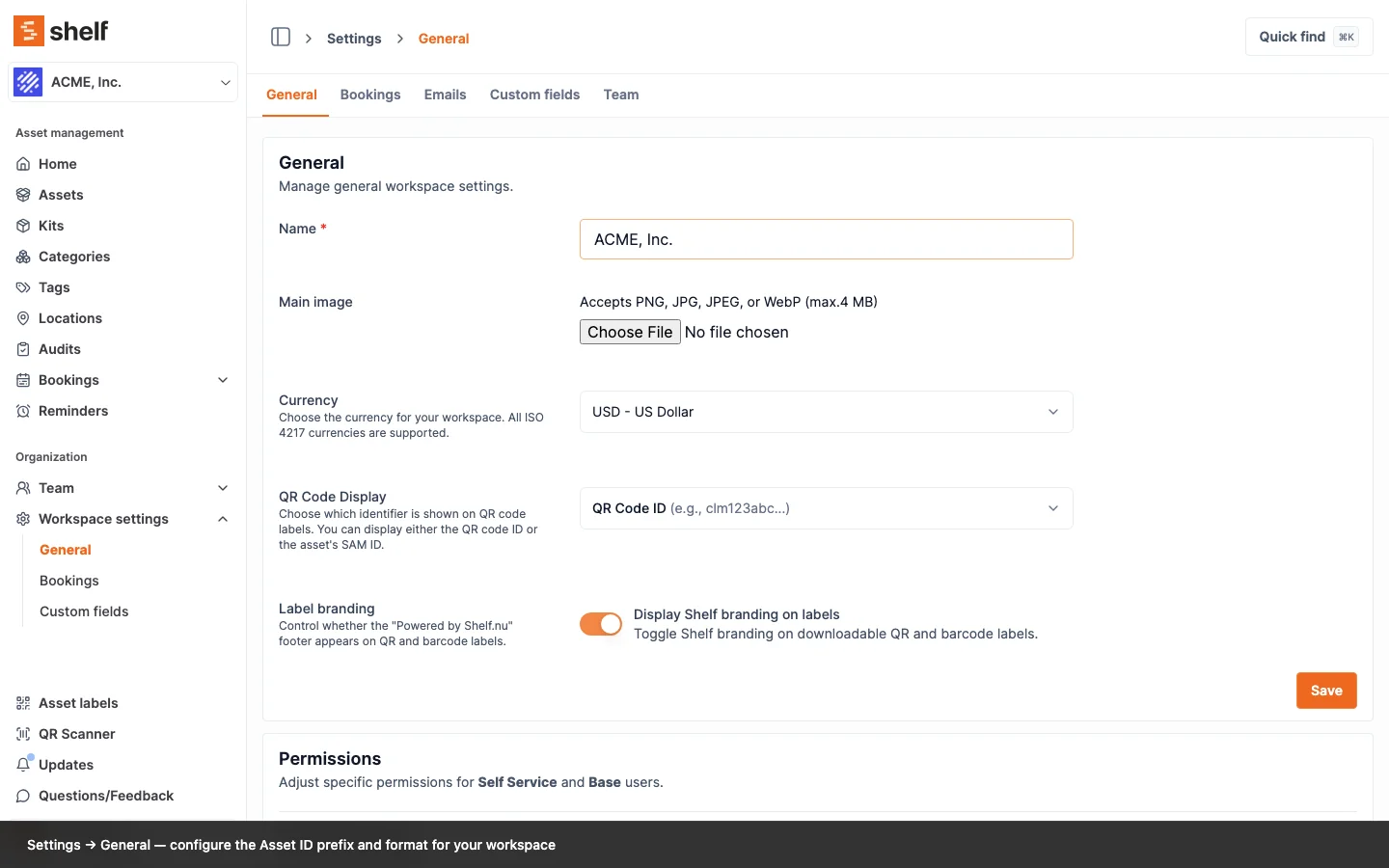
Searching by SAM ID
Use the search bar or Quick Find (⌘K):
- Type
SAM-0001to find your first asset. - Type
1500alone to findSAM-1500(partial match works).
Can I change the SAM prefix?
Not currently — it's fixed at SAM (Shelf Asset Management). Custom prefixes may become configurable in a future update.
3. Property ID — your own identifier
Property IDs let you record your own identifier on an asset — on top of the QR Code ID and SAM ID. Useful when:
- You're migrating from an existing tracking system and need to preserve old labels or numbers in your records.
- Your organisation already has a numbering scheme (e.g.
LAPTOP-001,CAM-02,VEH-004). - You want asset references that embed meaning (asset type, department, location).
Important — Property ID does NOT print on QR labels. The Property ID is a stored value you can search and reference, not a printable label format. Only QR Code ID or SAM ID can appear under the QR code on a downloaded Shelf label — see section 4 below for how to control that. If you need your own IDs on the printed labels themselves, that is a custom-template workflow, not a built-in Property ID feature.
Setting a Property ID
- When creating or editing an asset, locate the Property ID field.
- Enter any string (letters, numbers, hyphens).
- Save.
Property IDs are optional. If you don't set one, nothing changes — the asset still has its system ID and SAM ID.
Bulk-importing Property IDs from your old system
Migrating from another asset tracker? Your existing IDs can come in via CSV import. Map your old-ID column to Property ID (or to a custom field — see below) when uploading. The imported value is searchable from Quick Find and the asset index, exactly like a Property ID set by hand. See Importing Assets to Shelf — CSV Guide.
Alternative: Use a custom field for your own identifier scheme
If you want a different field name (e.g. Tag Number, Inventory ID, Old Asset No.), or you want multiple parallel ID columns, create a custom field of type Text. You can:
- Name it anything that matches your existing system
- Make it required for new assets if you rely on it
- Include it as a column when importing assets via CSV — old IDs from your previous system land directly in the new field
- Search for assets by that value from the asset index and Quick Find
A custom field behaves like the built-in Property ID for search, display, and import. The same caveat applies: a custom-field value does not appear on the printed QR label — only QR Code ID or SAM ID can show there.
The Property ID custom URL
Every Property ID gets a custom lookup URL:
https://app.shelf.nu/property/YOUR-PROPERTY-ID
Example: if your Property ID is LAPTOP-001, visiting https://app.shelf.nu/property/LAPTOP-001 redirects to the full asset page. This is useful for:
- Printing QR codes that encode your Property ID URL instead of the Shelf URL (requires a custom label template — see Printing Custom Branded QR Labels).
- Typing a familiar ID directly into your browser when you need to look something up fast.
- Sharing a compact link with team members.
Property ID best practices
- Keep them unique within your workspace — Shelf doesn't enforce uniqueness on Property IDs.
- Use a consistent naming convention (pick a separator and stick to it).
- Consider encoding type or location information (
LAB-OSC-003tells you it's a lab oscilloscope without looking up the asset).
4. Which identifier shows on your QR labels?
By default, Shelf's downloaded QR labels display the QR Code ID underneath the code. You can change this to the SAM ID so the printed label shows a human-readable number your team can reference without scanning.
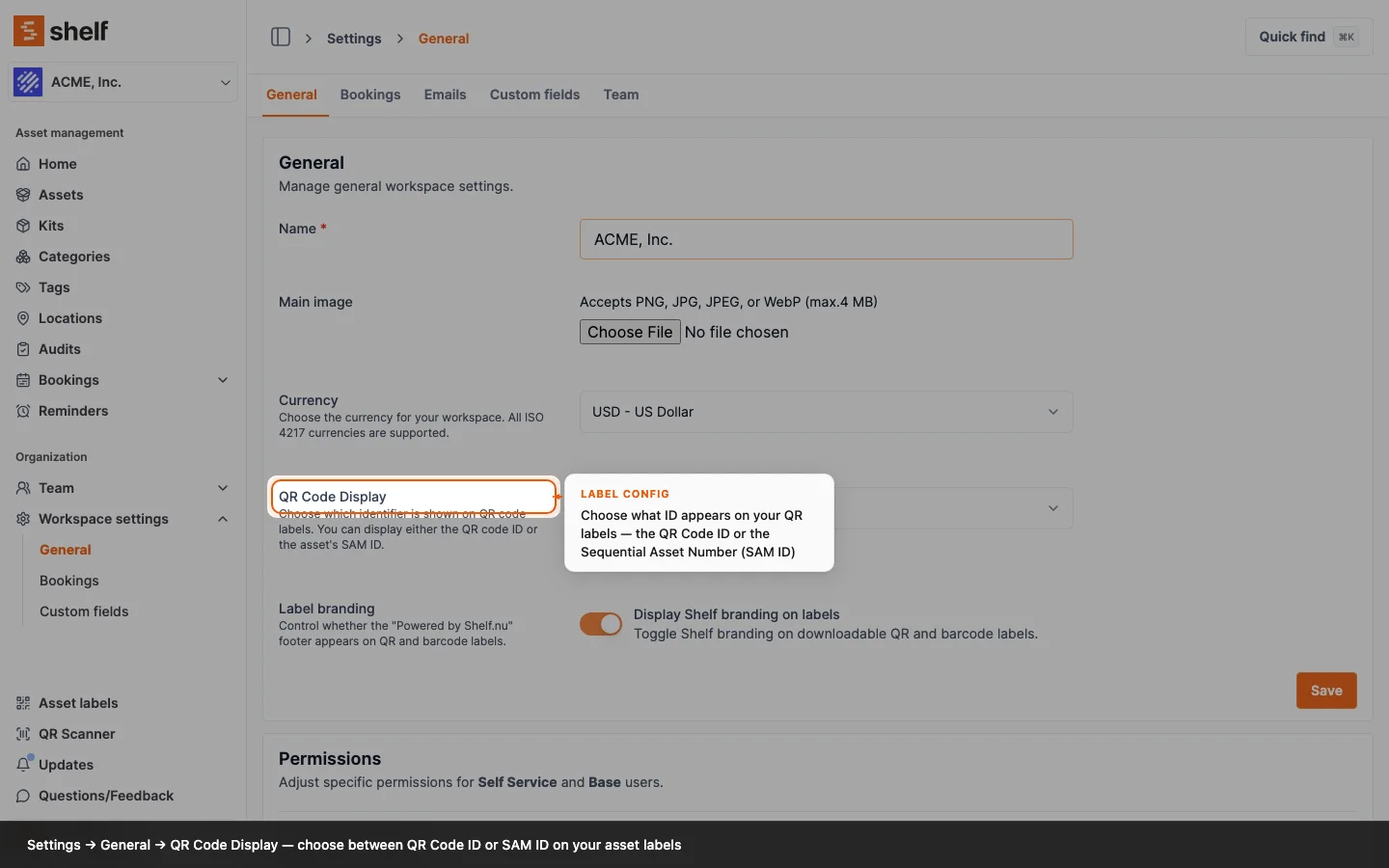
How to change the label display
- Click your workspace name in the top navigation
- Open Settings → General
- Scroll to QR Code Display
- Choose between:
- QR Code ID (default) —
clm123abc456def - Sequential Asset Number (SAM ID) —
SAM-0001
- QR Code ID (default) —
- Click Save changes
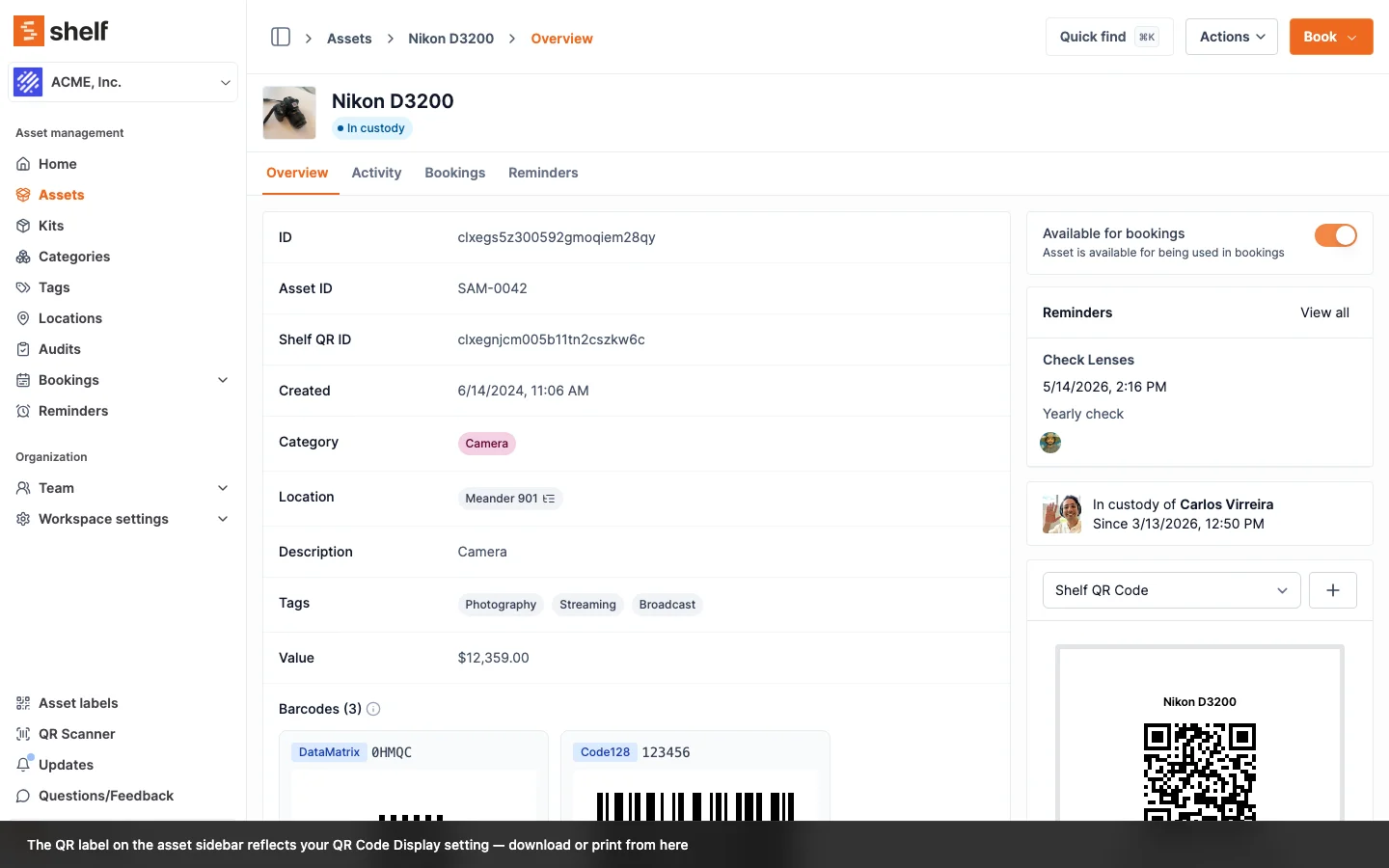
What this setting affects
- Printed QR labels — the text under the code in the default Download output.
- Bulk download filenames —
SAM-0001_Laptop_Dell_clm123abc456def.pngvs.Laptop_Dell_clm123abc456def.png.
What it does NOT affect
- The QR code itself — it still encodes the same URL either way.
- Existing printed labels — they keep working. The setting only applies to newly viewed or downloaded labels.
- Any integration, export, or URL — those continue to use the QR Code ID as the unique key.
When to choose SAM ID on labels
- Schools and institutions with numbered equipment ("Laptop #42" = SAM-0042)
- Organisations transitioning from a manual tracking system with existing numbers
- Teams that reference asset numbers verbally during handoffs or shift changes
- Mixed physical/digital workflows where quick visual reference matters
When to stay with QR Code ID on labels
- Teams that operate primarily by scanning — the printed text is rarely needed
- Workspaces without SAM IDs assigned (falls back to QR Code ID anyway)
- Cases where the label design already shows the asset name prominently
Hiding the SAM ID column in the asset index
If your team relies on Property IDs or a custom field for day-to-day reference and the SAM ID column is creating noise, you can hide it from the asset index:
- Open the asset index.
- Click Configure columns (the column-toggle control above the table).
- Uncheck SAM ID.
- Save.
The SAM ID is still assigned and still searchable from Quick Find — you've just removed the column from the table view. Anyone on the team can re-enable it from the same menu later.
See: Advanced Asset Index — Complete Guide.
FAQ
Can I use all three identifier types at once?
Yes. Every asset automatically has a QR Code ID and a SAM ID. You can optionally add a Property ID on top. All three are searchable in Quick Find and the asset index.
Which one should I use when searching?
Whichever you remember. Shelf's search resolves all three. If you see an asset labelled SAM-0042, type SAM-0042 or just 42. If you see a Property ID like LAPTOP-001 on a sticker, type that.
What if I delete an asset and want the SAM ID back?
SAM IDs are not reused. A deleted asset's SAM ID stays out of circulation — this preserves historical accuracy. The next new asset receives the next unused number.
Can I change a Property ID after assigning it?
Yes — open the asset, edit the Property ID field, save. The old value is replaced.
Do Property IDs need to be unique?
Shelf doesn't enforce uniqueness on Property IDs, so technically two assets can share one. In practice, keep them unique — you'll have a bad time searching if two assets both claim LAPTOP-001.
Will changing the QR Code Display setting break existing labels?
No. Existing printed labels continue to work — the QR codes on them encode the canonical URL, not the displayed text. The setting only affects the next label you download or print from Shelf.
Can I print my own Property ID (or a custom-field value) on the QR labels Shelf generates?
Not in the default downloaded labels. The "QR Code Display" setting only toggles between QR Code ID and SAM ID as the text under the code. Property IDs and custom-field values are stored on the asset and searchable, but Shelf does not currently inject them into the printed label format. If you need your own IDs physically on the labels, the path today is a custom branded label template using unclaimed QR codes — you design the layout in your own tool and print externally.
My team uses Property IDs (or a custom field) for our IDs and the SAM ID column is confusing. Can I hide it?
Yes. Open the asset index, click Configure columns, uncheck SAM ID, and save. The SAM ID stays assigned and remains searchable in Quick Find — you have just removed the column from the table.
Related Articles
- Printing Custom Branded QR Code Labels — design your own template around unclaimed codes
- Using Shelf QR Codes with Avery Label Sheets — the simple label-printing path
- Understanding QR Code Swapping — re-link a damaged label to a new code
- Adding Additional Fields to Assets — configure custom fields alongside Property IDs
Ready to try Shelf?
Put what you're learning into practice. Free plan available — no credit card required.