

Can't Find Your Team Workspace?
If you've been invited to a team workspace but only see your personal workspace when you log in, here's how to switch to the right one.

The Most Common Cause
When you log into Shelf, you land on the last workspace you were using — which is often your Personal workspace. This doesn't mean you've lost access to your team workspace. You just need to switch to it.
How to Switch Workspaces
- Look at the top of the sidebar — you'll see the name of your current workspace (e.g., "Personal")
- Click the dropdown next to the workspace name
- Select your team workspace from the list
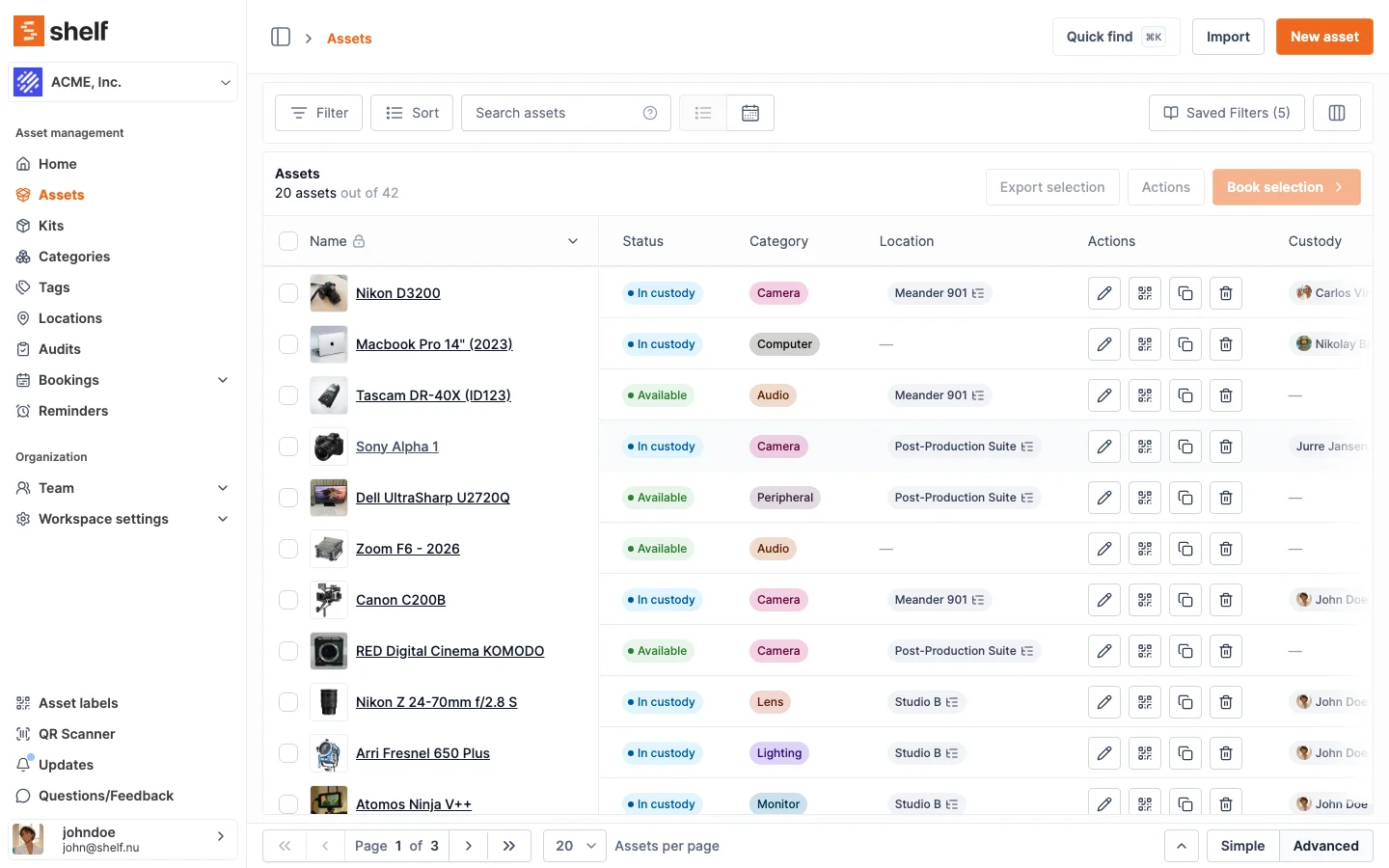
You'll be taken directly to the team workspace with all its assets, bookings, and team members.
I Don't See My Team Workspace in the Dropdown
If the workspace doesn't appear in the list, it could be one of the following:
- Your invitation expired or wasn't accepted. Ask your workspace owner to resend the invite and make sure to accept it from the email you received.
- You're signed in with a different email. If you have multiple accounts, make sure you're logged in with the same email address that received the invitation.
- You signed in via SSO. SSO users only see workspaces assigned by their administrator. Contact your IT team to make sure you've been assigned to the correct workspace group.
I Have Never Been Invited — I Want to Invite Others
If you are not looking for someone else's workspace but trying to add people to your own, and Users and Pending invites are locked, you are in a Personal workspace. Those hold one person. See Why You Can't Invite Anyone to a Personal Workspace.
Still Need Help?
If none of the above resolves your issue, reach out to support@shelf.nu and include the email address you're using to log in.
Ready to try Shelf?
Put what you're learning into practice. Free plan available — no credit card required.