

Import the Spreadsheet From Your Old Tool As It Is
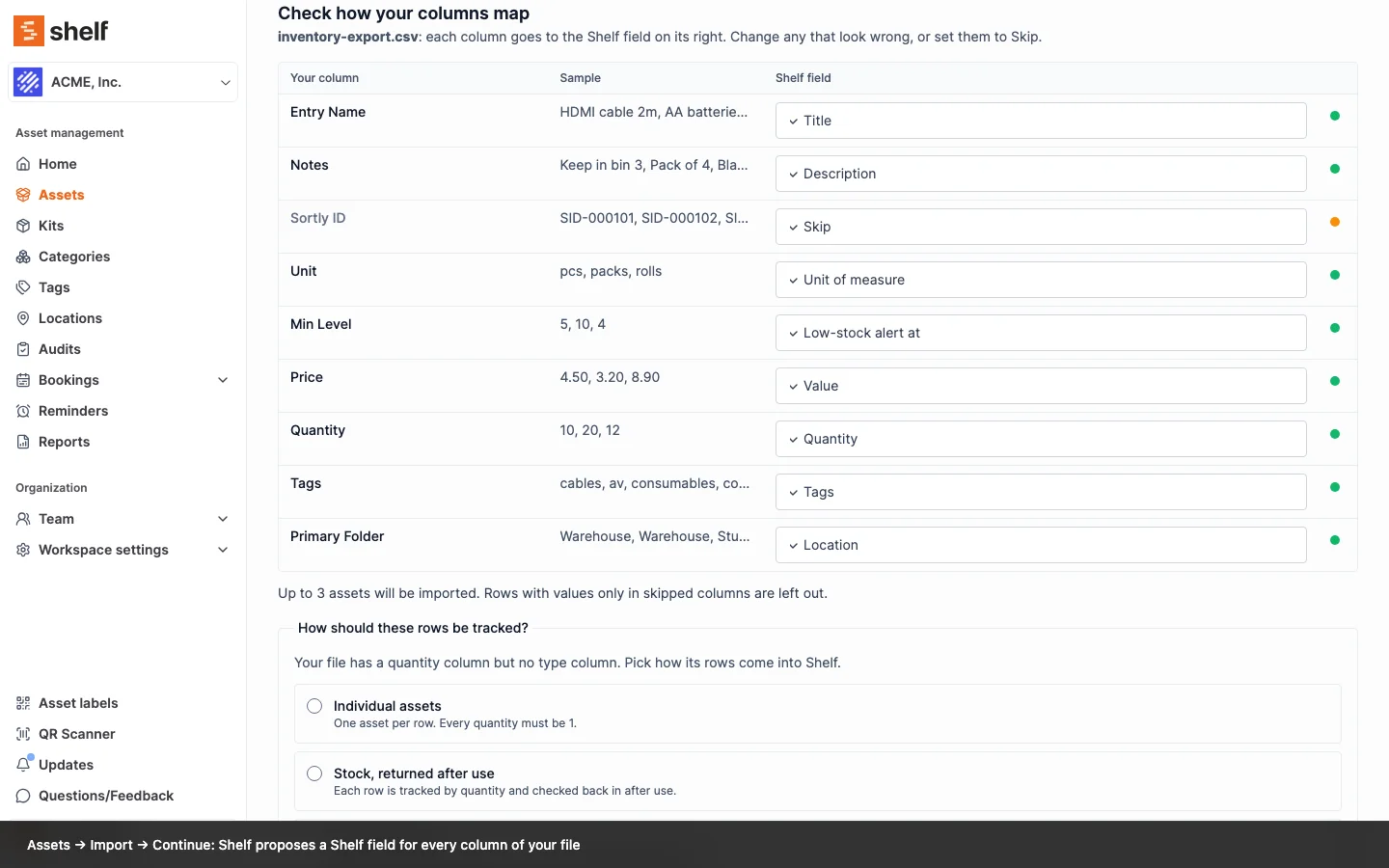
Asset import no longer needs Shelf's column names. Upload the CSV export of Sortly, Asset Panda, Snipe-IT or your own spreadsheet under Assets → Import, check where Shelf sends each column, and import. An empty workspace now offers the import on the Assets page and in the Home checklist.
You no longer have to rename your columns to Shelf's before importing assets. Under Assets → Import, choose the CSV your old tool or spreadsheet exported and click Continue. Shelf shows Check how your columns map: each column with a few sample values and the Shelf field it proposes, a green dot for a sure match and an amber one for a guess to check. It recognises more than 150 headings from Sortly, Asset Panda, Snipe-IT and hand-made spreadsheets, so Entry Name lands on the name, Primary Folder on the location and Serial No. on a new Serial number custom field. It reuses custom fields you already have, skips the old tool's own ids, and asks whether a file with a quantity column but no type column holds individual assets or stock.
Change any row, keep a column as a custom field, or skip it, then click Preview import. From there the import works as before: the whole file is checked, the preview shows what it will create, and the import runs in the background. The mapping only renames columns, so the value rules, such as dates as YYYY-MM-DD, still apply. A file built from Shelf's template goes through with every row green.
New workspaces find the import sooner, too. While a workspace has no assets, the Assets page offers Import a spreadsheet next to Create your first asset, and the Home checklist has an Import your assets item, for members whose role and plan allow importing.
Ready to organize your assets?
Join thousands of teams who trust Shelf to manage their physical assets. Free forever, or try the Team plan free for 7 days.
Out in the field? Shelf Companion is free on iPhone & Android.